
Screen guide · Web app
Test results
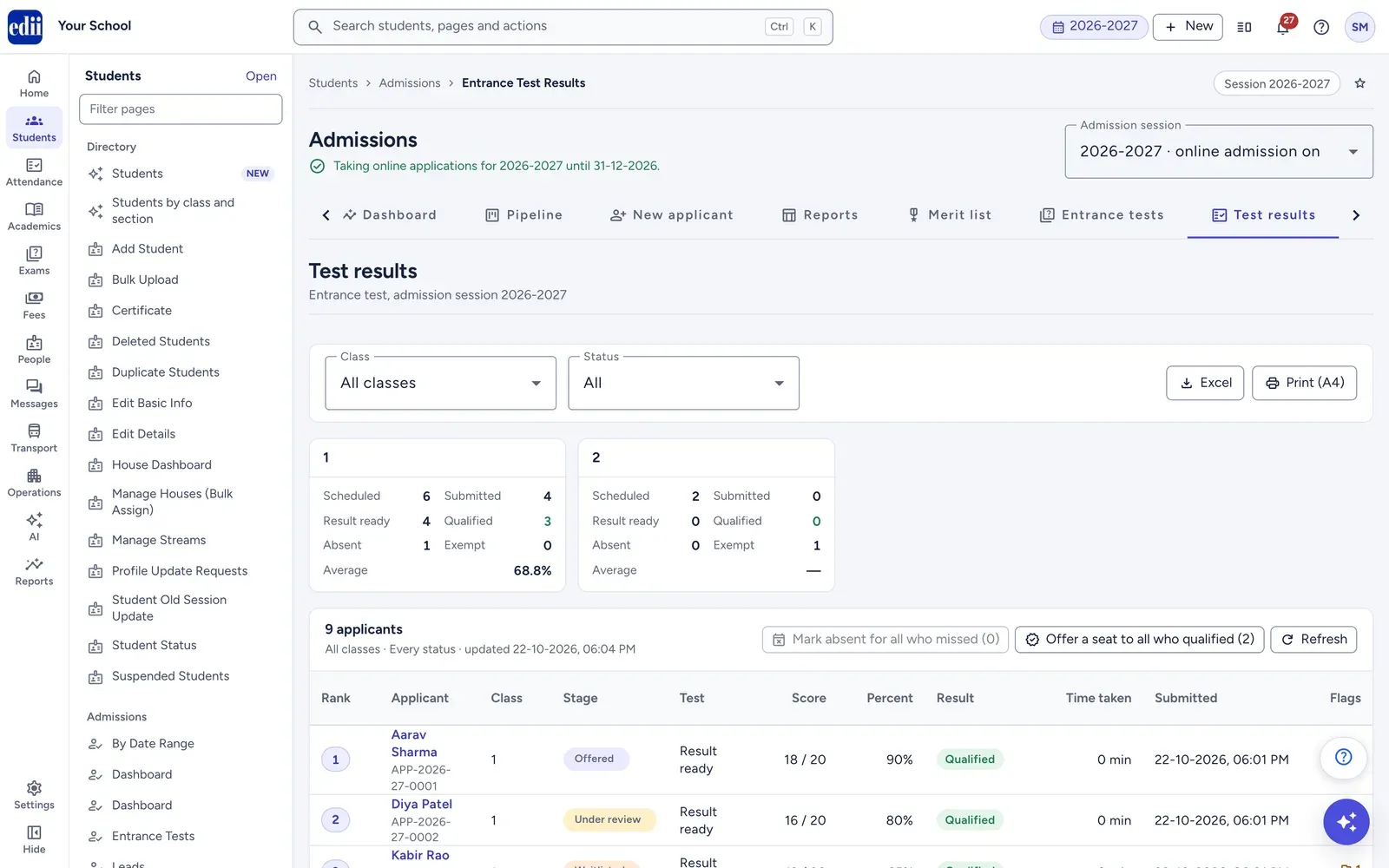
The online entrance test results of one admission session: each applicant's test status, score, result, time taken and rank in the class, with Excel, print, and actions to mark absentees and offer seats to those who qualified. It is one of the Admissions pages and shows once the entrance test is switched on in Settings.
यह पेज अंग्रेज़ी में है। कुछ समझ न आए तो ।
Test results lists every applicant of the classes that take the entrance test, for the Admission session chosen at the top of the Admissions pages. Marking is immediate, so a child’s score and rank appear as soon as they submit. Press Refresh to see the latest.
Above the table, a card for each class counts Scheduled, Submitted, Result ready, Qualified, Absent and Exempt, and shows the Average percentage.
A test result never moves an application by itself. Nobody is offered a seat or marked not selected automatically: you decide, with Offer a seat to all who qualified here or one application at a time.
Who uses it and when
Section titled “Who uses it and when”The admission head watches it on test day and uses it after the test window closes to mark absentees, compare the children of a class and offer seats.
Before you start
Section titled “Before you start”- The entrance test must be switched on for the session, a class must take the test (Admissions › Settings › Classes › Entrance test), and the test must be scheduled from the Pipeline.
- Check the Admission session at the top of the page.
Where to find it
Section titled “Where to find it”- In school.edii.in: Students › Admissions › Test Results
- Or press Ctrl K (⌘ K on a Mac) and type Test Results.
- Address:
school.edii.in/admissions/test-results - Who can see it: Staff whose role includes Admission access. The two bulk actions need permission to update admissions. A role with only Leads access does not see this page. It shows only when the entrance test is switched on for the admission session. If it is missing from your menu, ask your school admin.
 Open a bigger pictureतस्वीर बड़ी करें
Step by step
Section titled “Step by step”1. Choose the class and status
Section titled “1. Choose the class and status”Pick a Class (or All classes) and a Status: All, Not scheduled, Scheduled, Taking the test, Submitted, Result ready, Absent or Exempt. The page remembers the last class in this browser.
To find children who still need to be scheduled, choose Status › Not scheduled: they have no test line on the Pipeline.
2. Read the results
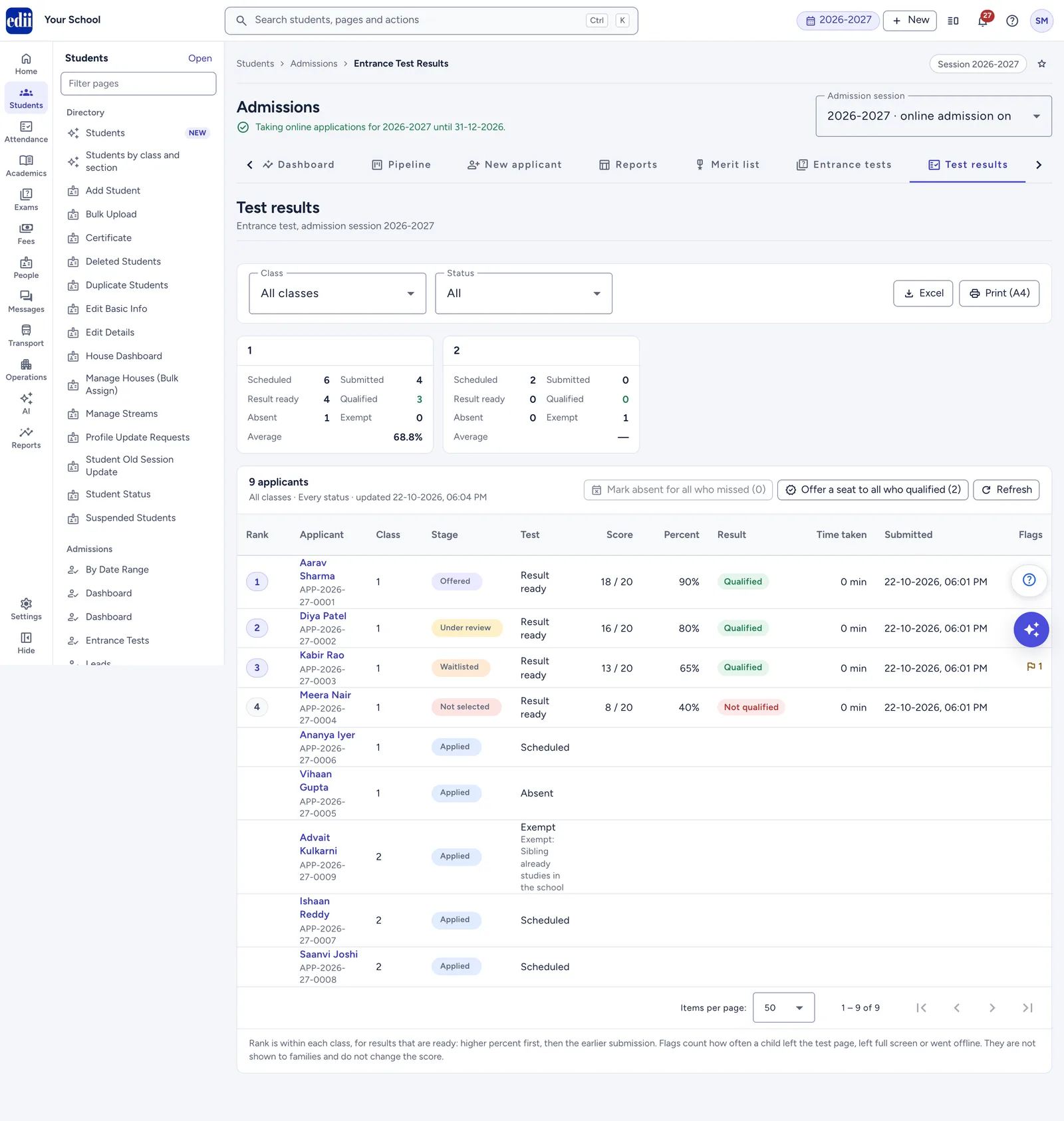
Section titled “2. Read the results”Rank is worked out within each class, for results that are ready: the higher percentage first and, for equal percentages, the earlier submission. The top three are highlighted.
Result shows Qualified (green), Not qualified (red) or No pass mark. The Test column can carry notes such as Submitted when the time was over, Exempt: and the reason, or the badge Test points waiting.
Flags counts how often a child left the test page, left full screen or went offline; point at the number for the details. Flags are for staff only, never change the score and are never shown to families. Treat a high count as a reason to look closer, not as proof of copying.
 Open a bigger pictureतस्वीर बड़ी करें
3. Open one child’s test
Section titled “3. Open one child’s test”Click a row or the child’s name to open the application on its Entrance test tab. There you see every answer next to the correct one, and you can Reset attempt, Mark absent, Exempt from test, print the Hall ticket or Correct the answer key.
4. Mark absent for all who missed
Section titled “4. Mark absent for all who missed”After a window has closed, choose the class and All in Status, then press Mark absent for all who missed. The number in brackets is how many children it will mark: scheduled, not started, and the window has ended.
The box lists the children it skips under Skipped, for example a child whose window is still open. Add a Note (optional, kept with the test) if you like and press Mark with the number, for example Mark 4 absent. Families are not sent a message. Without this, EDII marks them absent every night at about 12:20 AM.
5. Offer a seat to all who qualified
Section titled “5. Offer a seat to all who qualified”Choose the class and All in Status, then press Offer a seat to all who qualified. Set Family must accept by (it starts at today plus the offer days from Settings), add a Note (optional, kept in the timeline) and press Offer with the number, for example Offer 12 seats.
Each child gets a real seat offer, the same as Offer seat on the application, and the family gets the Seat offered message on the channels switched on in Settings. Children already offered or admitted are skipped, and so are applications your role cannot change.
6. Download or print
Section titled “6. Download or print”Excel downloads every applicant that matches the filters, in the order shown, with the start and submit times (India time), the flag counts and a Summary by class sheet. Print (A4) prints the summary and the table on landscape A4 pages.
Fields and filters
Section titled “Fields and filters”| Field | What it is | Notes |
|---|---|---|
| Class | Which class’s applicants are listed. | All classes, or one class that takes the test. Remembered in this browser. |
| Status | Only children whose test is at this status. | All, Not scheduled, Scheduled, Taking the test, Submitted, Result ready, Absent, Exempt. |
| Family must accept by | The last day for the family to accept the seat (Offer a seat to all who qualified). | Today or later; the box shows when each offer ends (India time). |
Buttons
Section titled “Buttons”| Button | What it does | What happens next |
|---|---|---|
| Excel | Downloads the listed results as an Excel file. | A file named like entrance-test-results-2027-28-05-11-2026.xlsx. |
| Print (A4) | Prints the summary and the table. | Greyed out when printing is not enabled for your school. |
| Mark absent for all who missed (n) | Marks absent every listed child who was scheduled, did not start, and whose window has ended. | A list shows each child as done, skipped with the reason, or not done. |
| Offer a seat to all who qualified (n) | Offers a seat to every listed child who qualified and whose result is ready. | A list shows each child as done, skipped with the reason, or not done. |
| Refresh | Loads the results again. | Statuses move from Scheduled to Taking the test to Result ready during the test. |
Columns
Section titled “Columns”| Column | Meaning |
|---|---|
| Rank | The child’s place in the class among results that are ready; the top three are highlighted. |
| Applicant | Name and application number; click to open the application’s Entrance test tab. |
| Class, Stage | The class applied for and the application’s stage. |
| Test | The test status, with notes such as Submitted when the time was over or Exempt: and the reason, or the badge Test points waiting. |
| Score | Marks out of the paper’s total, for example 18 / 20. |
| Percent | The score as a percentage. |
| Result | Qualified, Not qualified, or No pass mark when the class has none. |
| Time taken | Minutes from start to submit. |
| Submitted | When the answers went in. |
| Flags | How often the child left the page, left full screen or went offline; point at it for the details. |
Good to know
Section titled “Good to know”- Mark absent for all who missed and Offer a seat to all who qualified work on the children listed under the current filters. With All classes they cover every class at once.
- Both actions handle at most 200 children per run. If there are more, the box says how many are left; run it again for the rest.
- A reset, an absence or an exemption sends no message to the family.
- Test points waiting means the class’s merit list was published when this child’s test was marked, so the points were not added. Unpublish the merit list, press Add test points on the application’s Entrance test tab, then publish again.
- Families see only what the class setting allows (Qualified or not qualified, the score, or nothing). They never see the answers, the correct answers or the flags.
Messages you may see
Section titled “Messages you may see”| Message | What it means | What to do |
|---|---|---|
| No applicants match these filters. Only classes that require the entrance test are listed. | No child of the chosen class has a test at this status. | Choose another status or All classes. |
| No scheduled child has a test window that has ended | Shown on a greyed-out Mark absent for all who missed. | Nothing to do; try again after the window closes. |
| No qualified child can be offered a seat now | Shown on a greyed-out Offer a seat to all who qualified. | Check the Status filter, or whether the children are already offered. |
| The test window of this child ends on 05-11-2026, 01:00 PM | A child skipped by Mark absent because their window is still open (the date changes). | Wait until the window ends. |
| Already offered a seat | A child skipped by the bulk offer. | Nothing to do. |
| The first 200 are done now. Run this again for the other 35. | More than 200 children match (the numbers change). | Run the action again after it finishes. |
| Printing is not enabled for your school. Please contact EDII. | Print (A4) is greyed out. | Contact EDII. |
| The entrance test is switched off | The test is off for this admission session. | Switch it on in Settings › Entrance test and save. |
- The EDII Admissions Guide explains the whole admission season in one place: setup, the daily work, online entrance tests and what families see on the website and in the app. It has a PDF you can share with families.
- Before using a bulk action, choose one class and All in Status, so you act on exactly the children you mean.
- On test day keep this page open and press Refresh now and then to see who has started and who has finished.
Stuck? Try this
Section titled “Stuck? Try this”| Problem | Likely cause | What to do |
|---|---|---|
| A child is not in the list | The child’s class does not take the test, or the wrong admission session is chosen. | Check the Admission session and the class’s Entrance test in Settings › Classes. |
| A family says the child cannot see the test | They signed in with a different mobile number, or the child is not scheduled. | Check the mobile number on the application, and the child’s status here (Not scheduled means schedule it from the Pipeline). |
| A child lost the connection or the device broke during the test | The attempt was spoiled. | Open the child’s Entrance test tab, press Reset attempt with the reason, and tell the family. |
| Scores look wrong for one question | A wrong answer in the paper’s key. | Use Correct the answer key in the paper or on the child’s Entrance test tab; every test with the question is marked again. |
Did this page help?क्या इस पेज से मदद मिली?
Thanks! Glad it helped.धन्यवाद! अच्छा लगा कि काम बन गया।
Sorry about that. Ask in your own words, or write to us.माफ़ कीजिए। अपने शब्दों में पूछें, या हमें लिखें।