
Screen guide · Web app
AI Self-Learn
Look at, edit and replace the AI-written chapter notes and quiz questions that students see in the Self-Learn part of the student app.
यह पेज अंग्रेज़ी में है। कुछ समझ न आए तो ।
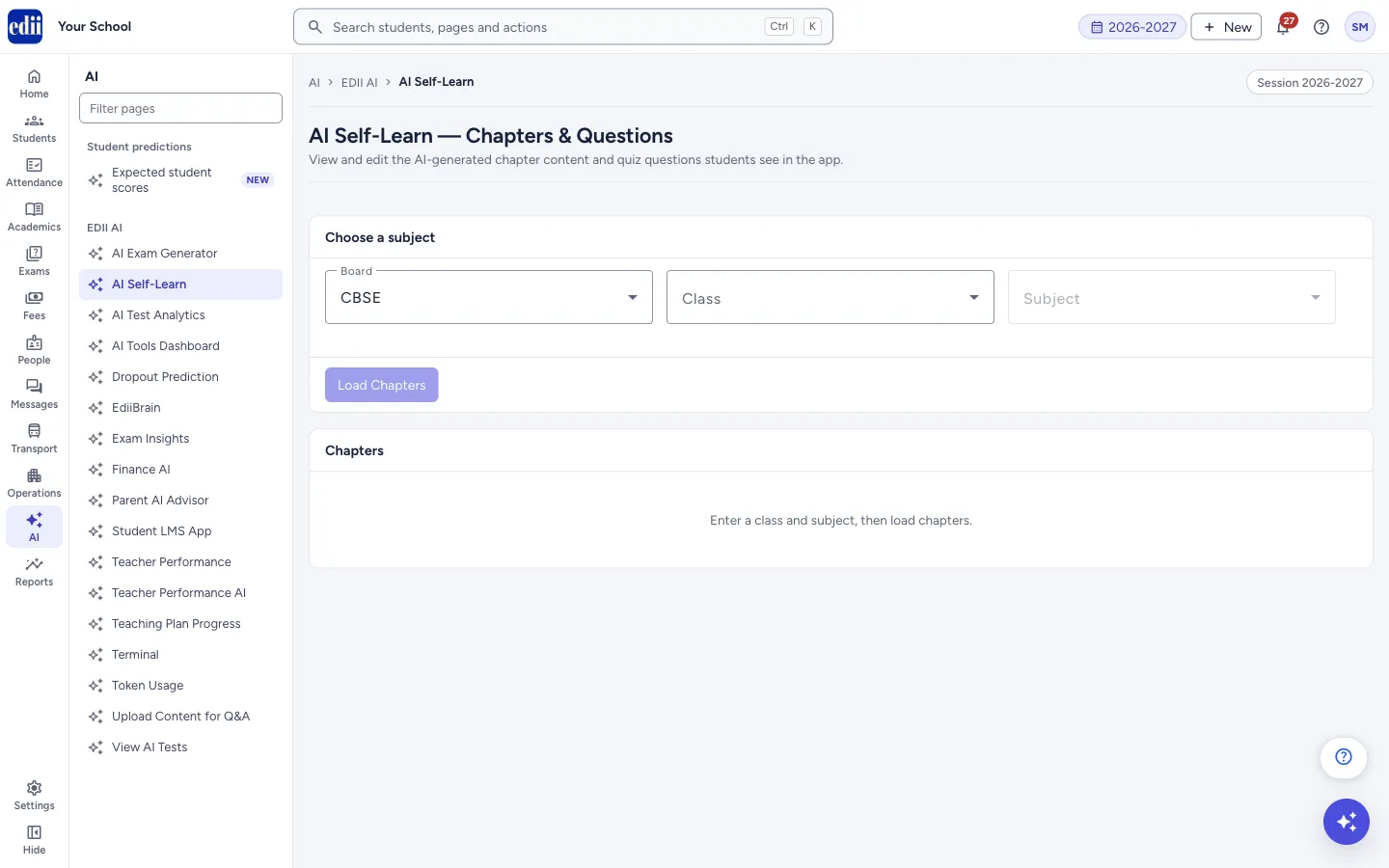
AI Self-Learn (the page is headed AI Self-Learn — Chapters & Questions) lets staff review the chapter content and quiz questions that students see in the app. Choose a Board, Class and Subject, then select Load Chapters. Each chapter shows as a card with its status, number of questions and word count.
Open a chapter to read and edit its content, see its versions, ask the AI for a fresh version, and add, edit, archive or delete quiz questions.
Chapter content and questions are written by AI and can contain mistakes. A teacher should read them before students rely on them.
Who uses it and when
Section titled “Who uses it and when”Subject teachers and the academic head use it to check what students are being taught and quizzed on, and to fix wrong content.
Before you start
Section titled “Before you start”- Chapters exist only for subjects that already have content made. If there are none, the screen says No chapters found for this class/subject.
Where to find it
Section titled “Where to find it”- In school.edii.in: AI › EDII AI › AI Self-Learn
- Or press Ctrl K (⌘ K on a Mac) and type AI Self-Learn.
- Address:
school.edii.in/view/ai-self-learn - Who can see it: Shown only when your school uses EDII’s AI in EDII. If it is missing from your menu, ask your school admin.
 Open a bigger pictureतस्वीर बड़ी करें
Step by step
Section titled “Step by step”1. Choose the board
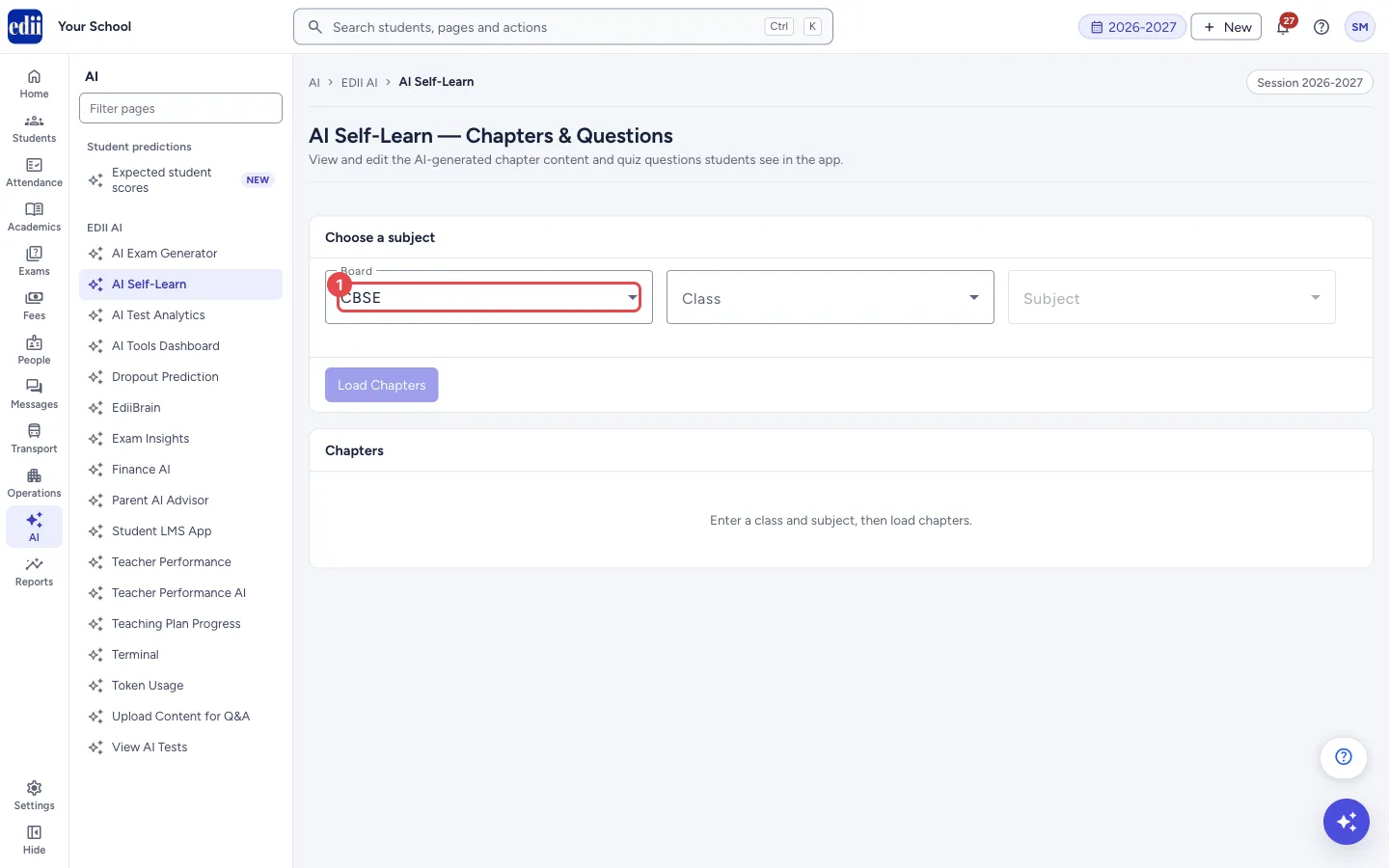
Section titled “1. Choose the board”Open Board and pick CBSE, ICSE, State Board, IB or IGCSE. It starts as CBSE.
 Open a bigger pictureतस्वीर बड़ी करें
2. Choose the class and subject
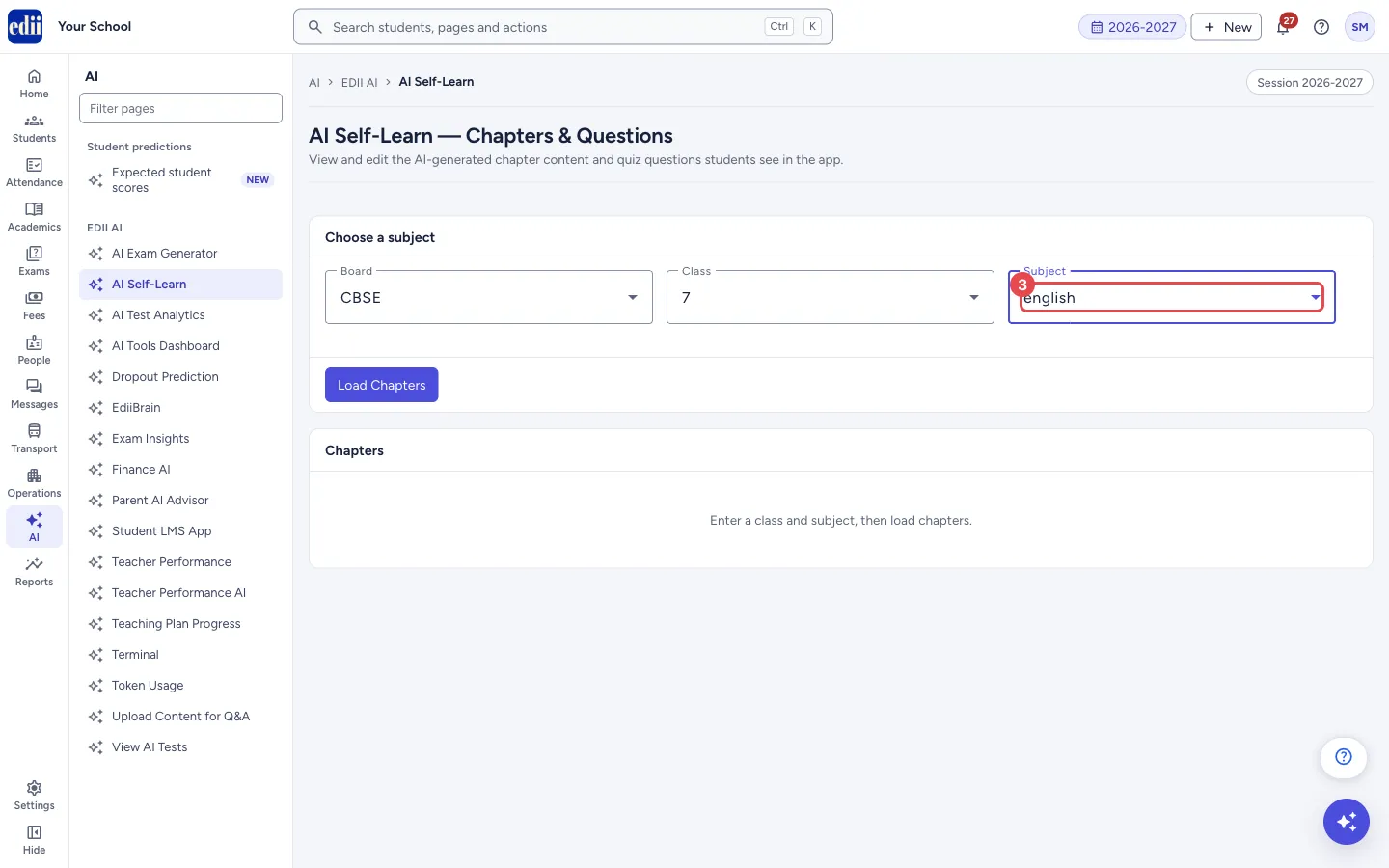
Section titled “2. Choose the class and subject”Open Class and choose a class. EDII then loads the subjects of that class (the box says Loading subjects…). Choose the Subject. It stays off until a class is chosen.
 Open a bigger pictureतस्वीर बड़ी करें
3. Load the chapters
Section titled “3. Load the chapters”Select Load Chapters. It stays off until a subject is chosen. The Chapters box fills with one card per chapter. Each card shows the chapter name, a status (a chapter that is ready shows ready), the number of questions, the word count and a short summary.
4. Open a chapter and check the content
Section titled “4. Open a chapter and check the content”Select a chapter card. Chapter Content shows the chapter as students read it. Edit opens the Summary and the Content (Markdown) boxes to change the text; Preview goes back to the reading view. Select Save Content to keep your changes (Chapter content saved). Back to chapters returns to the list.
5. Ask for a new version (optional)
Section titled “5. Ask for a new version (optional)”Select Regenerate (AI). EDII asks Generate a fresh AI version of this chapter? You can review it and accept or discard — nothing is saved until you accept. After you confirm, a draft appears with its word count. Select Accept & Save to keep it as a new version, or Discard.
6. Check the versions
Section titled “6. Check the versions”The Versions table lists each saved version with its Score, thumbs up and thumbs down from students, and Words. The score is 50% student thumbs up/down and 50% AI quality. The version marked BEST (shown to students) is the one students see. View shows a version; Delete removes it after you confirm (Delete version X? This cannot be undone.). The last remaining version cannot be deleted.
7. Work on the questions
Section titled “7. Work on the questions”The Questions box shows the count and the questions, 25 to a page. Type in Type to filter questions… to find one. Each question shows its type (MCQ or True/False), difficulty, options with the correct one marked, and the explanation.
Edit changes the question, options, correct answer, explanation and difficulty (easy, medium or hard). Archive hides it from students; tick Show archived to see archived ones, and Activate brings one back. Delete removes it for good after you confirm. + MCQ and + True/False add a new question: fill the form and select Add.
Fields and filters
Section titled “Fields and filters”| Field | What it is | Notes |
|---|---|---|
| Board | The board of the content. | CBSE, ICSE, State Board, IB or IGCSE. |
| Class | The class. | Choosing it loads the subjects. |
| Subject | The subject of the class. | Disabled until a class is chosen. |
| Summary, Content (Markdown) | The chapter’s short summary and full text. | Shown after you select Edit. |
| Question, options A to D, Correct option, Explanation, Difficulty | The parts of a question. | A new question needs the question text (Enter the question text). True/False questions have a Correct answer of True or False instead of options. |
Buttons
Section titled “Buttons”| Button | What it does | What happens next |
|---|---|---|
| Load Chapters | Loads the chapters of the chosen subject. | Chapter cards show. |
| Edit / Preview | Switches between editing and reading the chapter text. | The content area changes. |
| Save Content | Saves the summary and content. | Chapter content saved. |
| Regenerate (AI) | Makes a new AI draft of the chapter for you to review. | A draft appears; nothing is saved until you accept. |
| Accept & Save / Discard | Keeps the draft as a new version, or throws it away. | Saved as version … or the draft closes. |
| View / Delete (versions) | Shows or removes a saved version. | Showing version … or Version deleted. |
| Edit / Archive / Activate / Delete (questions) | Changes, hides, restores or removes a question. | Question saved or Done. |
| + MCQ / + True/False | Starts a new question of that type. | A form opens. Select Add to save (Question added). |
Columns
Section titled “Columns”| Column | Meaning |
|---|---|
| Score | 50% student thumbs up/down and 50% AI quality. |
| BEST (shown to students) | The version students currently see. |
After you save
Section titled “After you save”- A saved chapter or question is what students see in the app from then on. An accepted AI draft is kept as a new version and the earlier versions stay in the list.
Good to know
Section titled “Good to know”- Nothing from Regenerate (AI) is saved until you select Accept & Save.
- Deleting a version or a question cannot be undone. Use Archive if you only want a question hidden.
- Mathematics and science text is shown in a readable form. Edit still opens the text exactly as it was stored.
Messages you may see
Section titled “Messages you may see”| Message | What it means | What to do |
|---|---|---|
| Please select class and subject | Load Chapters was used without a class or subject. | Choose both. |
| No chapters found for this class/subject | That subject has no chapters yet. | Try another subject or class. |
| Could not load subjects | The subject list did not load. | Choose the class again. |
| Could not reach the server | A request failed. | Check the connection and try again. |
| Could not reach the AI. Please try again. | The new draft could not be made. | Try Regenerate (AI) again. |
| No questions for this chapter yet. | The chapter has no questions. | Add one with + MCQ or + True/False. |
| No content yet — click Edit to add it. | The chapter has no text. | Select Edit and write it. |
- Read an AI draft against the textbook before you accept it.
- Archive a doubtful question instead of deleting it, so you can bring it back.
Stuck? Try this
Section titled “Stuck? Try this”| Problem | Likely cause | What to do |
|---|---|---|
| The Subject list is empty. | The class has no subjects set up. | Add the subjects for the class first. |
Did this page help?क्या इस पेज से मदद मिली?
Thanks! Glad it helped.धन्यवाद! अच्छा लगा कि काम बन गया।
Sorry about that. Ask in your own words, or write to us.माफ़ कीजिए। अपने शब्दों में पूछें, या हमें लिखें।