
Screen guide · Web app
Recalculate Marks
For one online test, keeps each student's highest-scoring attempt and sets aside the lower ones.
यह पेज अंग्रेज़ी में है। कुछ समझ न आए तो ।
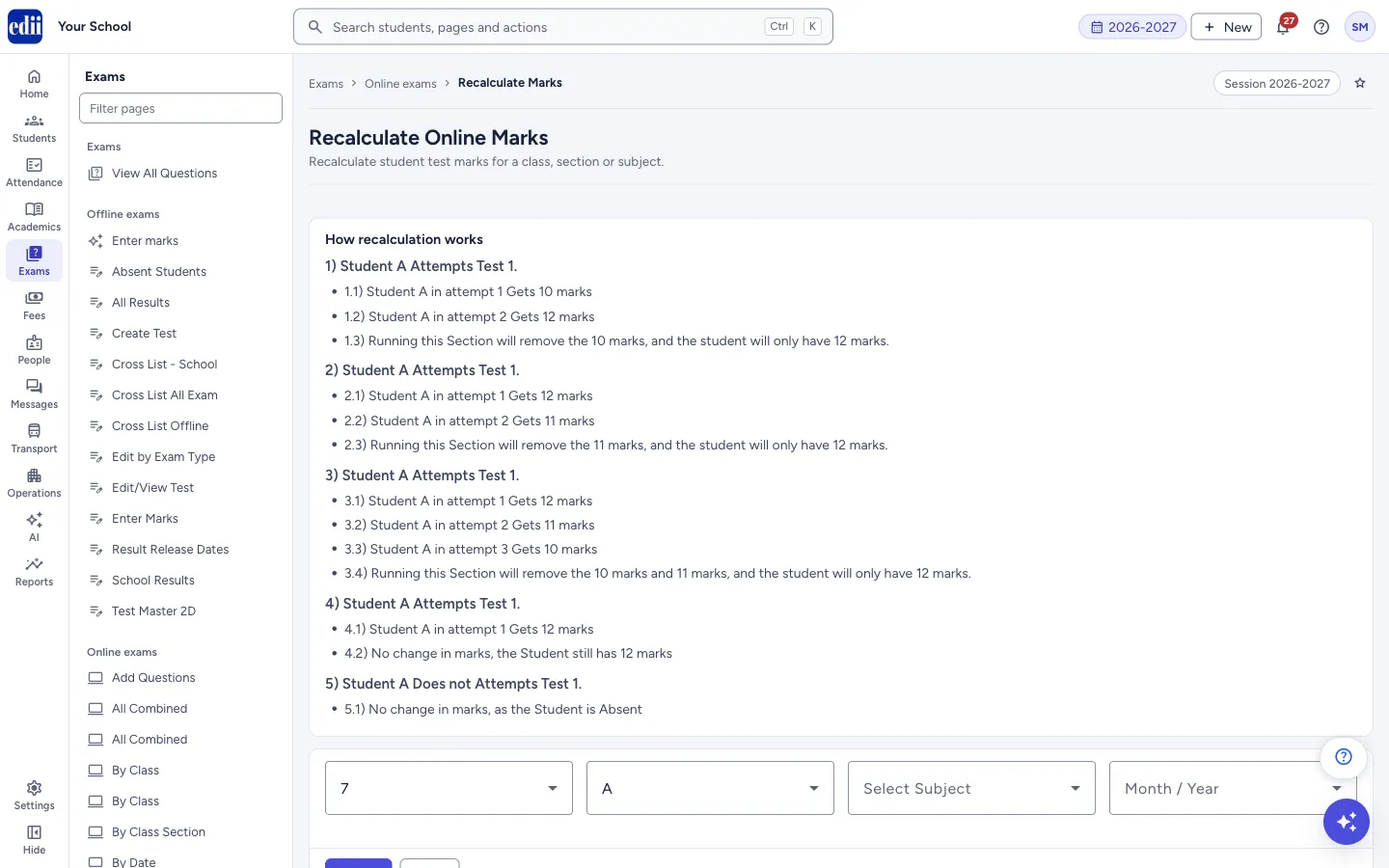
Recalculate Online Marks is for tests that students took more than once, for example after a re-exam. On each test row, the Re-Calculate Marks button keeps the attempt with the highest marks for each student and sets the other attempts aside, so the student has only the best score.
The top of the page explains this with examples. EDII asks you to confirm before it starts.
Who uses it and when
Section titled “Who uses it and when”Teachers and the exam in-charge, after a re-exam of an online test.
Before you start
Section titled “Before you start”- Select Class, Select Section, Select Subject and Month / Year are all needed.
Where to find it
Section titled “Where to find it”- In school.edii.in: Exams › Online exams › Recalculate Marks
- Or press Ctrl K (⌘ K on a Mac) and type Recalculate Marks.
- Address:
school.edii.in/view/online-student-marks-recalculate - Who can see it: Staff whose role includes Exams access. Shown only when your school uses Exam in EDII. If it is missing from your menu, ask your school admin.
 Open a bigger pictureतस्वीर बड़ी करें
Step by step
Section titled “Step by step”1. Read how recalculation works
Section titled “1. Read how recalculation works”The box How recalculation works at the top gives five examples. With two or three attempts, the lower attempts are removed and the highest stays. With one attempt there is no change. A student who did not attempt is not changed.
 Open a bigger pictureतस्वीर बड़ी करें
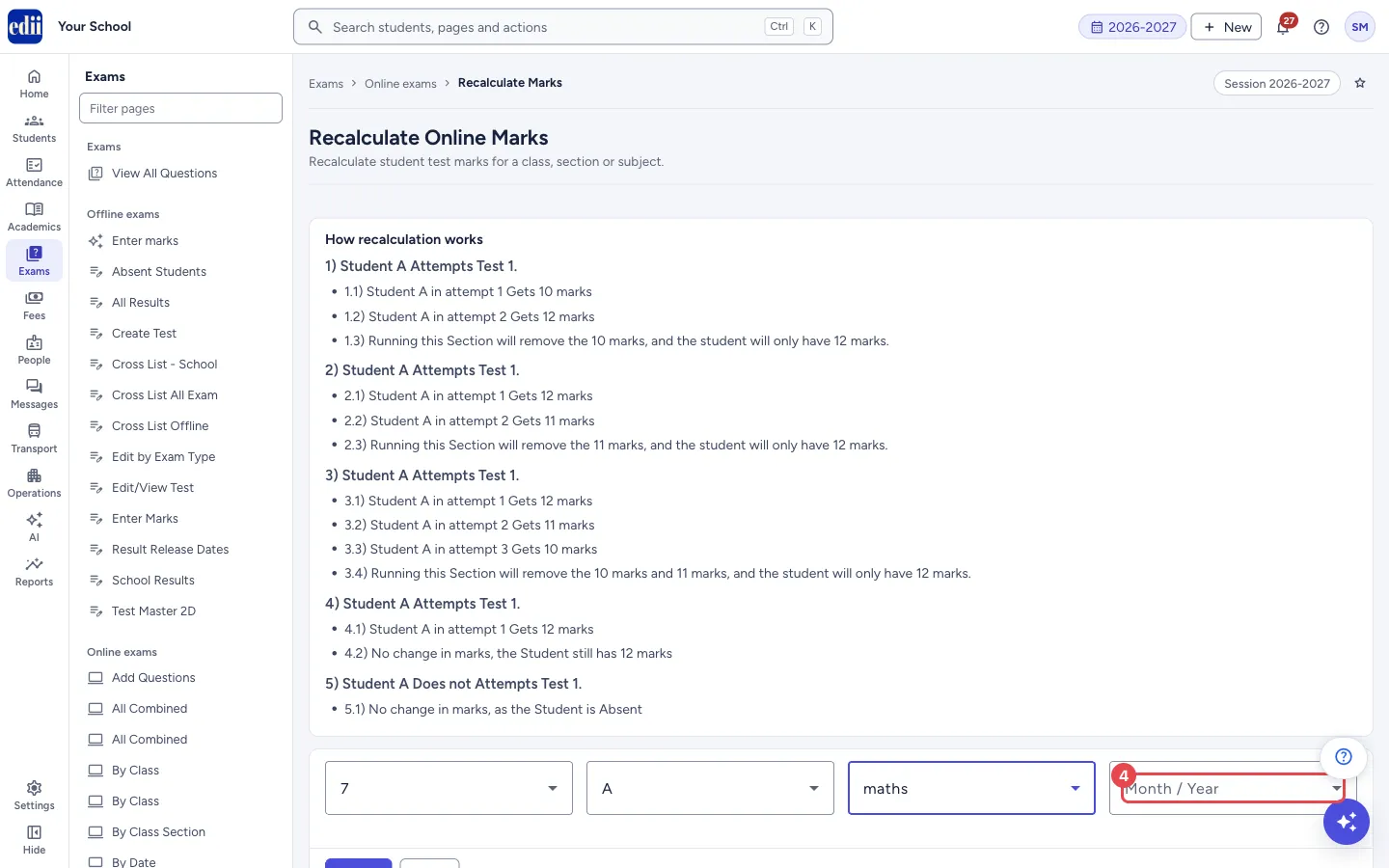
2. Choose the class, section, subject and month
Section titled “2. Choose the class, section, subject and month”Choose Select Class, Select Section and Select Subject, then open Month / Year. All four are needed. In the picture the class, section and subject are chosen and Month / Year is outlined.
 Open a bigger pictureतस्वीर बड़ी करें
3. Select Search
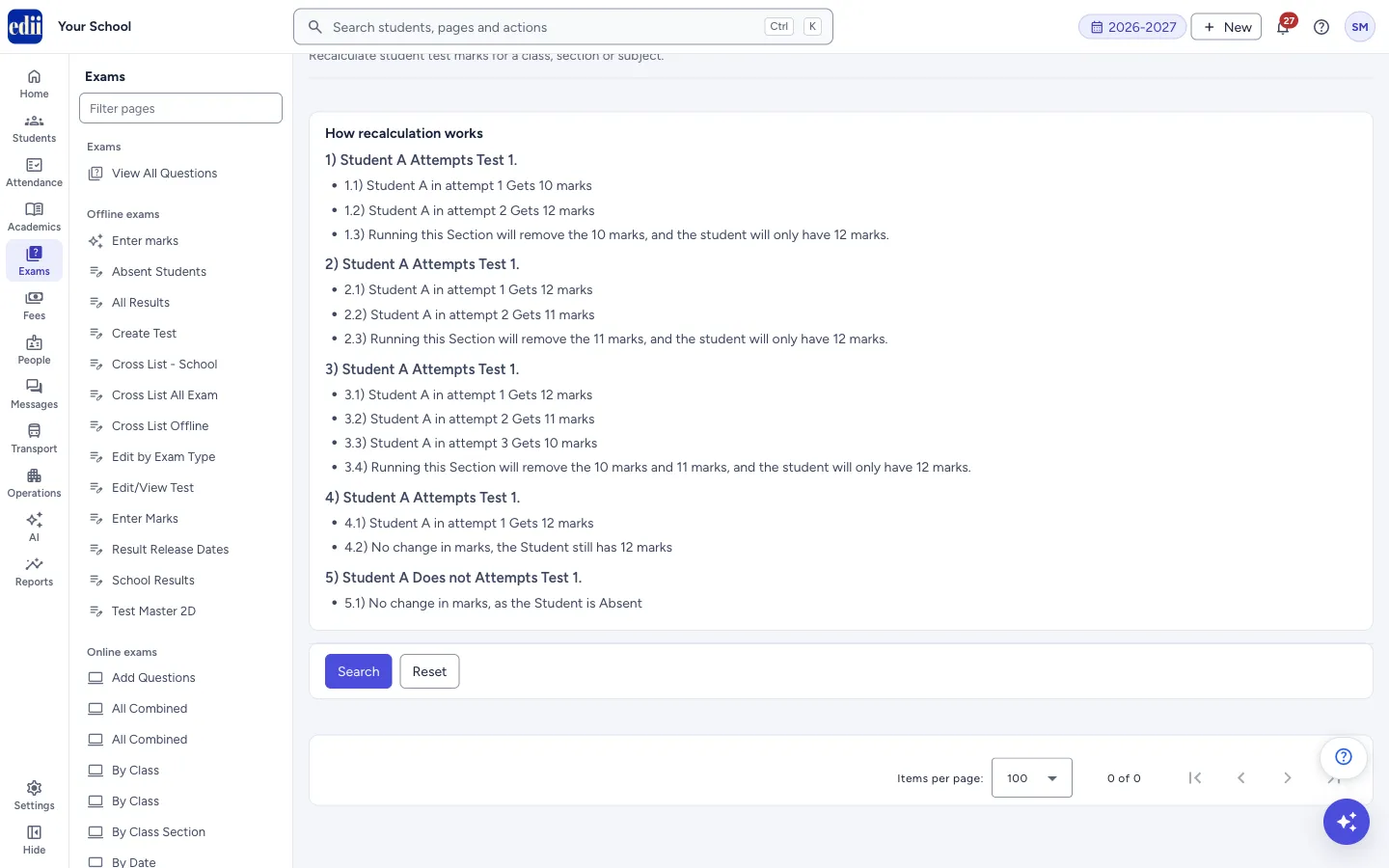
Section titled “3. Select Search”Select Search. The boxes fold away and the tests are listed with a Re-Calculate Marks column. If a choice is missing, a red message appears instead; select Reset to open the boxes again.
4. Select Re-Calculate Marks and confirm
Section titled “4. Select Re-Calculate Marks and confirm”On the row of the test, select the button in the Re-Calculate Marks column. A box asks Re-calculate marks? and says that for students who took the test more than once only the attempt with the highest score is kept, and that students with one attempt are not changed. Select Re-calculate to go on or Cancel to stop.
EDII then goes through every student of that test and sets aside the lower attempts. When it is done, EDII shows Marks re-calculated: only the best attempt of each student is kept.
Fields and filters
Section titled “Fields and filters”| Field | What it is | Notes |
|---|---|---|
| Select Class | The class of the test. | Needed. |
| Select Section | The section of that class. | Needed. |
| Select Subject | The subject of the test. | Choose one subject from your school’s subjects. Needed. |
| Month / Year | The month in which the tests start. | Needed. The months of the current session, April to March, for example OCT-2026. |
| Items per page | How many rows show on one page of the table. | 100, 200, 300, 400, 500 or 1000. |
Buttons
Section titled “Buttons”| Button | What it does | What happens next |
|---|---|---|
| Search | Lists the tests that match your choices. | The boxes fold away and the table appears, or a red message shows. |
| Reset | Opens the filter boxes again. | Your choices and the table stay as they were. |
| Re-Calculate Marks (on a row) | Asks you to confirm, then keeps the highest attempt of each student for that test and sets the other attempts aside. | Marks re-calculated: only the best attempt of each student is kept. |
| Print menu | Print, Download Excel File, Download Text File and Download CSV File for the rows on the screen. | The print window opens, or a file is saved. |
Columns
Section titled “Columns”| Column | Meaning |
|---|---|
| S.No | Row number. |
| Class | The class of the test. |
| Section | The section of the test. |
| Time | The start time of the test. |
| Subject | The subject of the test. |
| Re-Calculate Marks | The button that keeps only the best attempt of each student. |
Good to know
Section titled “Good to know”- For each student with more than one finished attempt of the test, the attempt with the highest marks stays. The other attempts are marked as lower-marks attempts, with a note of who did it and when, and they stop counting.
- A student with only one attempt, or none, is not changed.
- It looks at the whole test, not only at the class and section in the filter boxes.
Messages you may see
Section titled “Messages you may see”| Message | What it means | What to do |
|---|---|---|
| Marks re-calculated: only the best attempt of each student is kept | The request was accepted. | Open the result of the test to check the marks. |
| No Student found with multiple test | No student has more than one finished attempt, so there was nothing to set aside. This is not a fault. | Nothing to do. |
| No Student Has Completed the Test till now, Thus we cannot calcuate the marks, Please contact us to manually change the marks | Nobody has finished this test yet. | Wait until students finish the test. |
| Please select the Class/Section/Student/Month first | A choice is missing. Month / Year is also needed. | Choose all four boxes and select Search again. |
| Please Select The Test | No test was chosen. | Search again and use the button on a test row. |
| Network Issue, Please Try Again. | The list could not be loaded. | Check the internet connection and select Search again. |
- Run it once after the re-exam is over, not while students are still taking the test.
Did this page help?क्या इस पेज से मदद मिली?
Thanks! Glad it helped.धन्यवाद! अच्छा लगा कि काम बन गया।
Sorry about that. Ask in your own words, or write to us.माफ़ कीजिए। अपने शब्दों में पूछें, या हमें लिखें।