
Screen guide · Web app
Student Old Session Update
Record the class and section that students were in during an earlier academic year, so their past-year records are correct.
यह पेज अंग्रेज़ी में है। कुछ समझ न आए तो ।
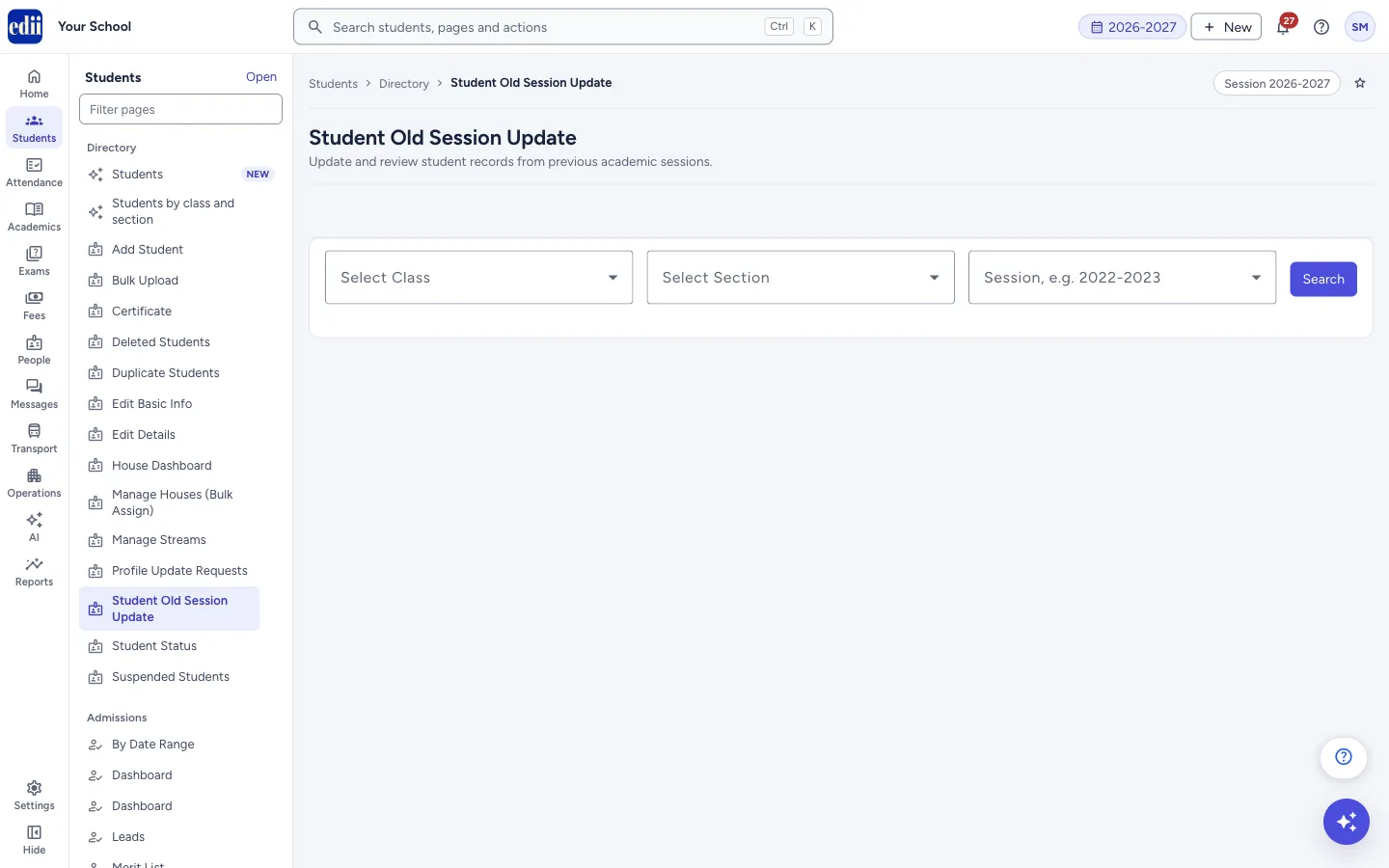
Student Old Session Update lists the students of a class and section of the current session and lets you set, for one earlier year, the Old Class and Old Section each student was in. Each row has its own Update button.
Use it when students joined the system after that year, or when the class or section of an earlier year was recorded wrongly.
Who uses it and when
Section titled “Who uses it and when”The school office uses it when it is moving or correcting the records of earlier years.
Before you start
Section titled “Before you start”- Know the earlier year and the class and section each student was in then.
- The list that opens is of the students now in the class and section you choose in the session shown at the top.
Where to find it
Section titled “Where to find it”- In school.edii.in: Students › Directory › Student Old Session Update
- Or press Ctrl K (⌘ K on a Mac) and type Student Old Session Update.
- Address:
school.edii.in/view/student-old-session - Who can see it: The same staff who see the other Directory pages. If it is missing from your menu, ask your school admin.
 Open a bigger pictureतस्वीर बड़ी करें
Step by step
Section titled “Step by step”1. Choose the current class
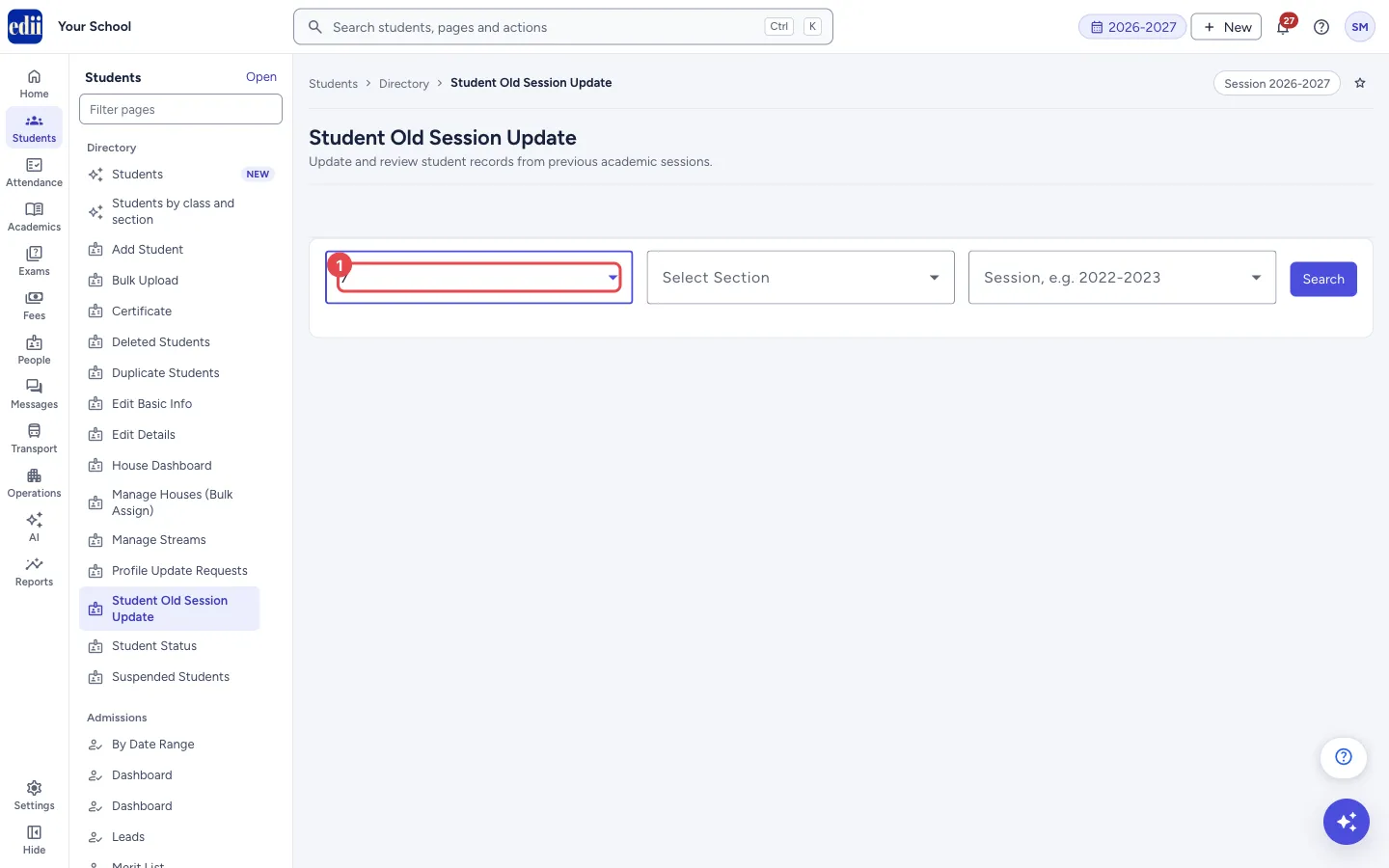
Section titled “1. Choose the current class”Open Select Class and pick the class the students are in now.
 Open a bigger pictureतस्वीर बड़ी करें
2. Choose the section
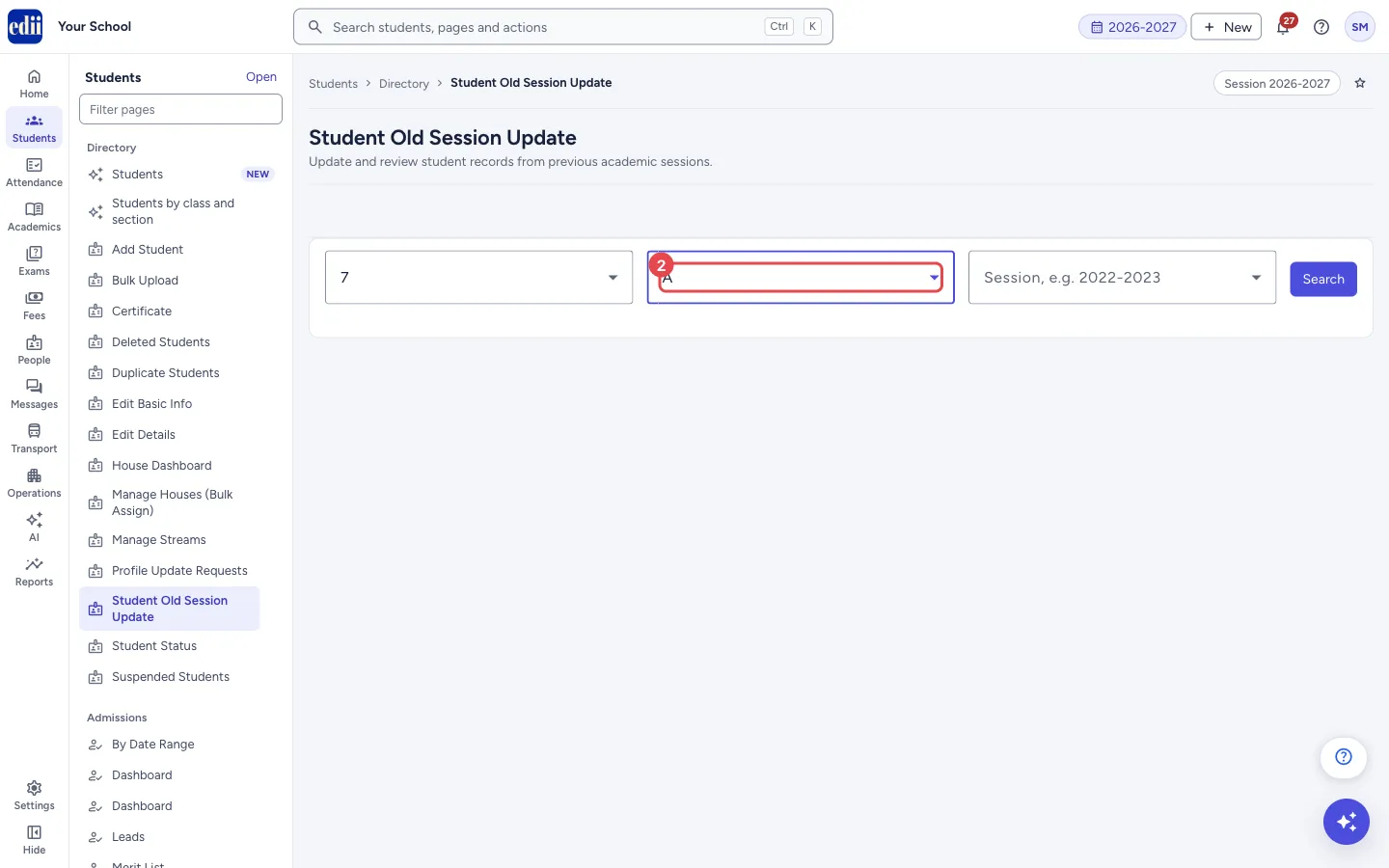
Section titled “2. Choose the section”Open Select Section and pick the section.
 Open a bigger pictureतस्वीर बड़ी करें
3. Choose the earlier session
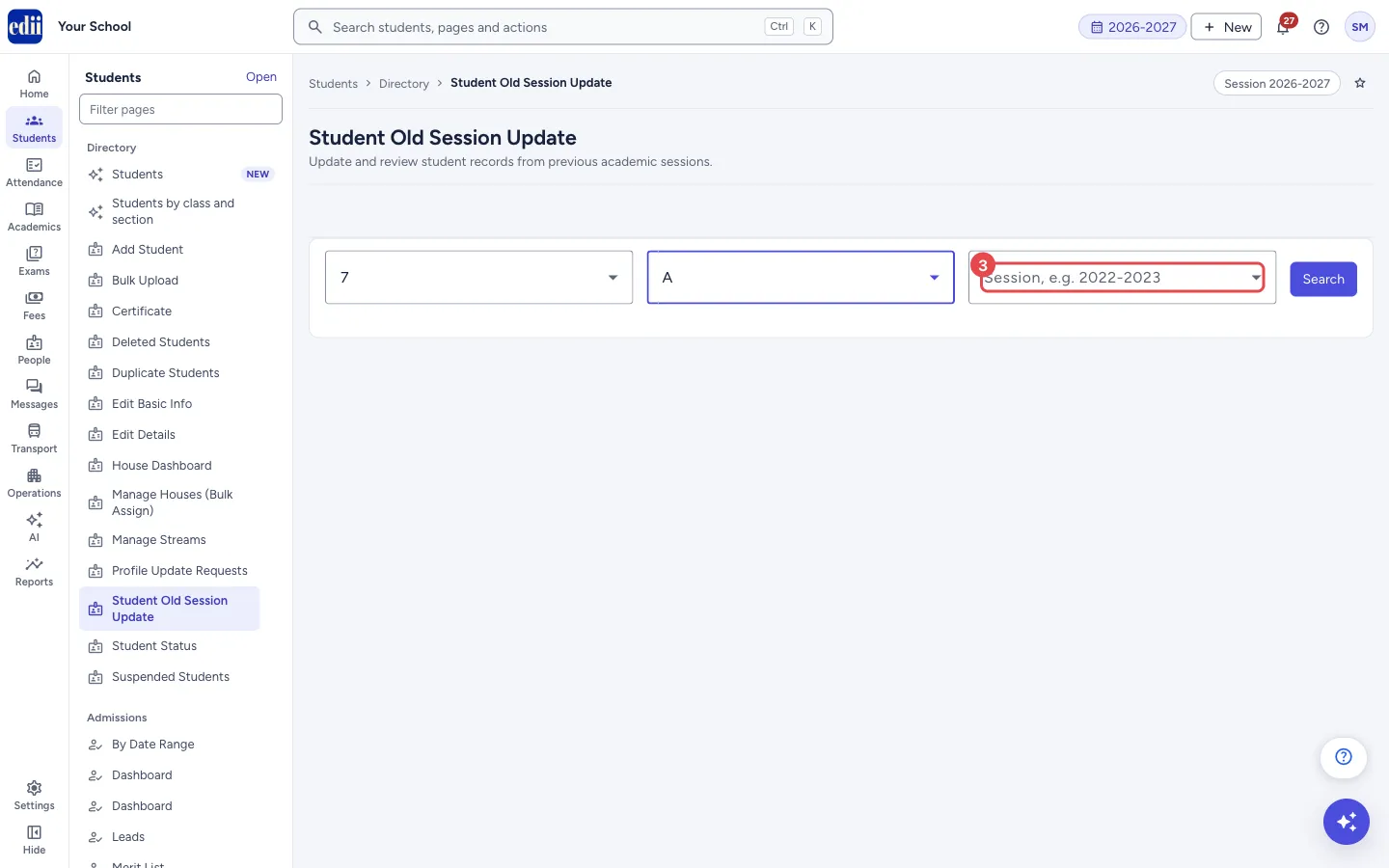
Section titled “3. Choose the earlier session”Open the box that shows Session, e.g. 2022-2023 and pick the session whose class and section you are recording. The box lists every session from 2018-2019 up to the current one, newest first. It is marked as required, and each session saves its own year.
 Open a bigger pictureतस्वीर बड़ी करें
4. Search
Section titled “4. Search”Select Search. The students appear with S.No, ID, Roll No, Name, Class, Father, Mother, Admission, Old Class, Old Section and Update.
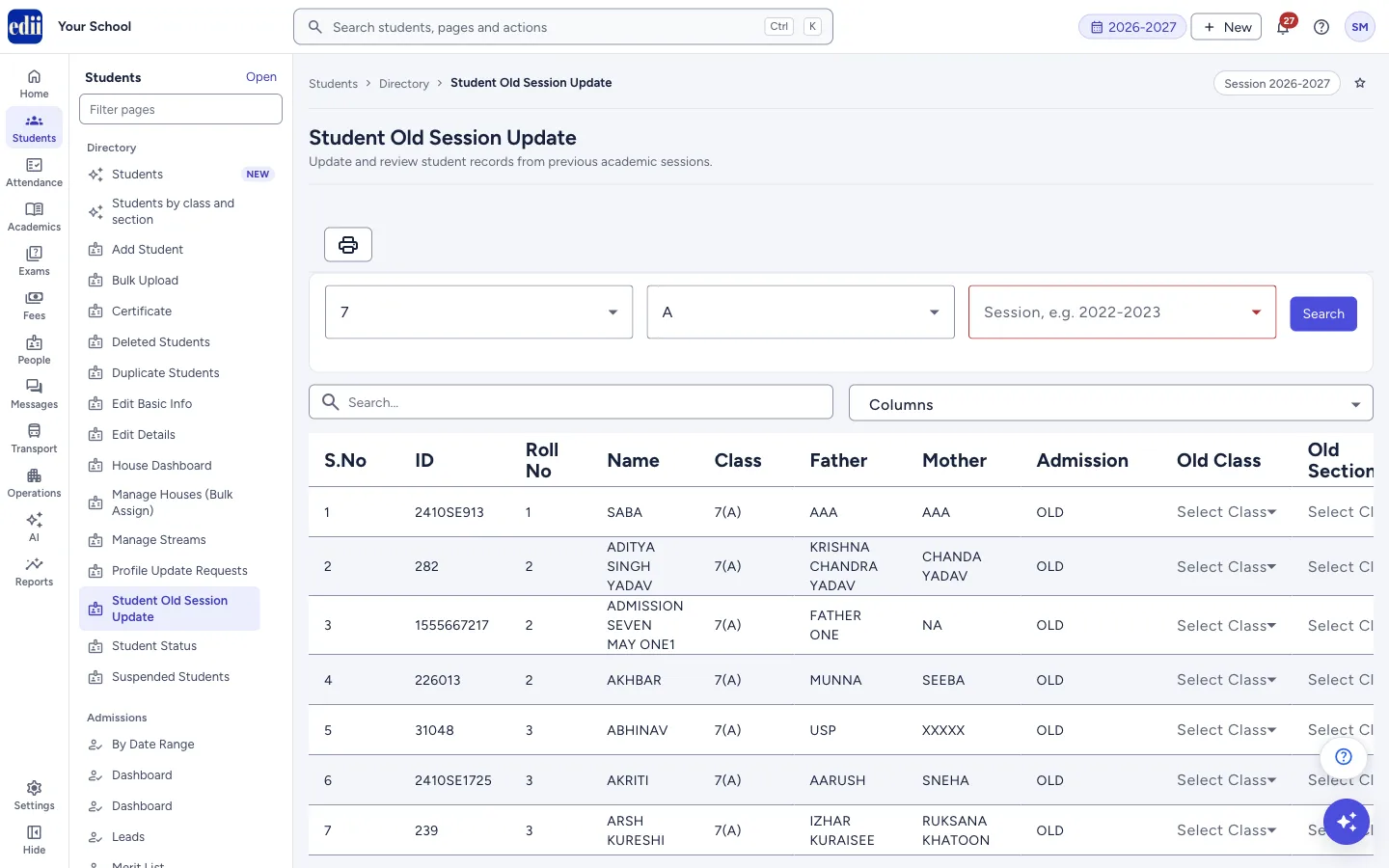 Open a bigger pictureतस्वीर बड़ी करें
5. Set the old class and section, then update
Section titled “5. Set the old class and section, then update”In a student’s row choose the Old Class and the Old Section, then select Update at the end of the row. If no session is chosen, you see Please select the session first. Otherwise you see Student Class/Section has been updated for the session: and the session. Do the same for each student; every row is saved on its own.
Fields and filters
Section titled “Fields and filters”| Field | What it is | Notes |
|---|---|---|
| Select Class, Select Section | The class and section of the students now. | Choose both before you select Search. |
| Session (e.g. 2022-2023) | The earlier session to record the class and section for. | Required for the update. Any session from 2018-2019 to the current one. |
| Search… | Finds a student in the table. | Shown after you search. |
| Columns | Chooses the columns that show in the table, on the printout and in the downloads. | S.No, ID, Roll No, Name, Class, Father, Mother, Admission, Old Class, Old Section, Update. |
| Old Class, Old Section | The class and section the student was in during the chosen year. | Chosen from the school’s classes and sections, in each row. |
Buttons
Section titled “Buttons”| Button | What it does | What happens next |
|---|---|---|
| Search | Shows the students of the chosen class and section. | The table appears. |
| Update | Saves the Old Class and Old Section of that student for the chosen session. | Student Class/Section has been updated for the session: and the session. |
| Print button | Prints the table, or downloads it as Excel, text or CSV. | The print window opens or a file is saved. |
Columns
Section titled “Columns”| Column | Meaning |
|---|---|
| S.No | Serial number. |
| ID | The student’s ID. |
| Roll No | The roll number. |
| Name | The student’s name. |
| Class | The student’s present class and section, written like 7(A). |
| Father, Mother | The parents’ names. |
| Admission | Whether the student is an old or a new admission. |
| Old Class, Old Section | Lists where you choose the class and section for the earlier year. |
| Update | The button that saves the row. |
After you save
Section titled “After you save”- The class and section for the chosen earlier year are saved for that student. The present class and section do not change.
Good to know
Section titled “Good to know”- Each row is saved by its own Update button. Choosing a class or section alone does not save it.
- The table shows 100 students on a page; use the page box at the bottom for 200 to 1000.
Messages you may see
Section titled “Messages you may see”| Message | What it means | What to do |
|---|---|---|
| Student Class/Section has been updated for the session: | The row was saved. The session follows the message. | Nothing to do. |
| Please select the session first. | You selected Update before choosing a session. | Choose the session and select Update again. |
| Old session records for 2023-2024 are not set up for this school yet. Please contact EDII support. | The school has no records set up yet for that earlier session, so the class and section cannot be saved for it. The session in the message changes. | Contact EDII support, or choose another session. |
| Network Issue, Please Try Again. | The request did not reach EDII. | Check the internet and try again. |
- Choose the session first, then work down the rows, selecting Update on each.
- Use Search… to jump to a student when the class is large.
Stuck? Try this
Section titled “Stuck? Try this”| Problem | Likely cause | What to do |
|---|---|---|
| The students I expect are not in the list | The list shows the students who are in the chosen class and section now, in the session shown at the top. | Choose the class and section the students are in now, not the old ones. |
Did this page help?क्या इस पेज से मदद मिली?
Thanks! Glad it helped.धन्यवाद! अच्छा लगा कि काम बन गया।
Sorry about that. Ask in your own words, or write to us.माफ़ कीजिए। अपने शब्दों में पूछें, या हमें लिखें।