
Screen guide · Web app
Comms
Write a message once and send it to parents or staff on the app, on email and on WhatsApp, now, later or on a repeat, and check what was sent.
यह पेज अंग्रेज़ी में है। कुछ समझ न आए तो ।
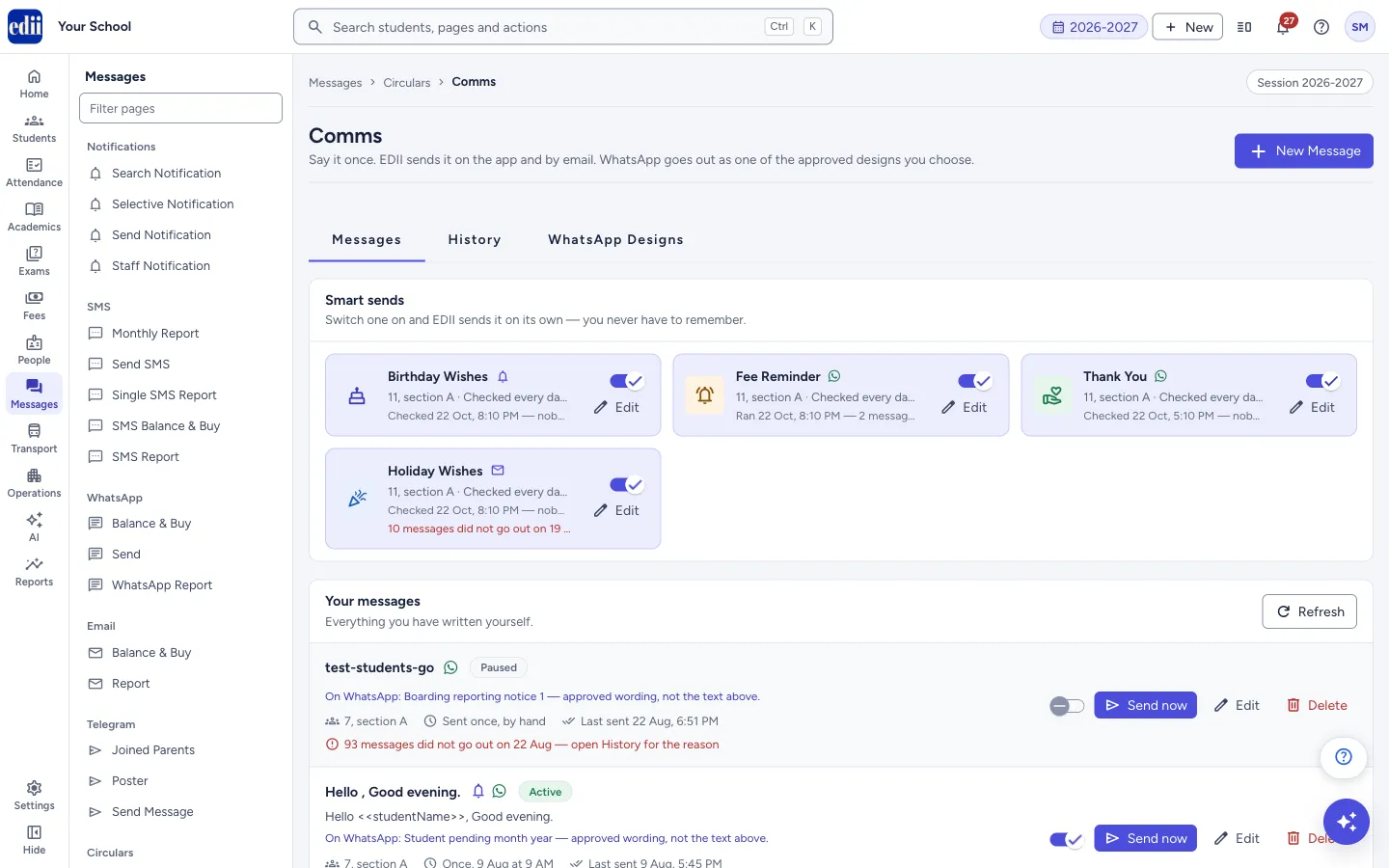
Comms is where the school writes messages it sends again and again, and where it switches on automatic messages. The page has three tabs: Messages, History and WhatsApp Designs. New Message at the top opens the editor.
A message can go out in three ways: App notification, WhatsApp and Email. The app notification is free and always works. SMS is not offered here; use Send SMS for that.
WhatsApp is different: it only delivers wording that WhatsApp has already approved. Parents get exactly the approved design you pick, not the text you typed. The text you type goes to the app and to email.
Who uses it and when
Section titled “Who uses it and when”The office sets up a message once, for example a monthly reminder or a holiday notice, and checks History later to see what went out.
Before you start
Section titled “Before you start”- App notification needs parents to use the EDII app. Email needs an email address on file. WhatsApp needs a mobile number on file and at least one approved design for your school’s WhatsApp number. If your school has no approved design, the WhatsApp choice is greyed out with the reason, and you can still send on the app and by email.
- The school name, address and contact details are added to every email automatically. Change them in Preferences › School Information.
Where to find it
Section titled “Where to find it”- In school.edii.in: Messages › Circulars › Comms
- Or press Ctrl K (⌘ K on a Mac) and type Comms.
- Address:
school.edii.in/view/comms-v2 - Who can see it: Staff whose role includes Messages access. Shown only when your school uses Messages in EDII. If it is missing from your menu, ask your school admin.
 Open a bigger pictureतस्वीर बड़ी करें
Step by step
Section titled “Step by step”1. Switch on a smart send (optional)
Section titled “1. Switch on a smart send (optional)”On the Messages tab, Smart sends are four messages EDII sends by itself: Birthday Wishes, Fee Reminder, Thank You (after a fee payment is recorded) and Holiday Wishes. Each has a switch and an Edit button.
The first time you switch one on, the editor opens so you can check the wording, the audience and the hour. Smart sends run every day at the hour you set, and only for the people who match that day. A birthday message goes only on a day a student has a birthday, so an empty History on other days is normal. The card shows when it was last checked and what it found.
2. Write a new message
Section titled “2. Write a new message”Select New Message. In card 1 Message, type Your message (app notification and email). The Insert field buttons put a field such as Student Name, Father Name, Class, Section, School Name, Month & Year or Date where your cursor is. Each parent gets their own details. For staff the fields are Staff Name, School Name, Month & Year and Date. On a fee reminder or thank-you message the fee fields Total Bill Amount, Paid Amount, Last Submission Date and Bill Generation Date are offered too.
Give it a name in Name this message. Only you see the name. Under Send it as, tick App notification (on by default), WhatsApp and/or Email. For email, type a Subject line.
3. Pick the WhatsApp design
Section titled “3. Pick the WhatsApp design”If you tick WhatsApp, choose one of the approved designs. Each card shows the wording, when it is meant to be used, and what EDII fills in for each person. A box What the parent receives on WhatsApp shows the exact text, with sample details.
A few designs have blanks that you write, under Fill in this notice. Everyone receives the same words in those blanks. The rest of the wording cannot be changed.
4. Choose the audience
Section titled “4. Choose the audience”In card 2 Audience choose Students (the message reaches their parents) or Staff. For students, pick Classes and Sections (All classes and All sections are in each list). For staff, pick people from Staff, with a search box and All staff.
A line says how many parents or staff are in the audience and, when WhatsApp is ticked, how many have no mobile number on file, so that WhatsApp cannot reach them.
5. Choose when it goes
Section titled “5. Choose when it goes”In card 3 Schedule choose Send now, Send once later (pick a Day and a Time) or Repeat. For Repeat choose How often (Every day, Every week with a Day of week, or Every month with a Day of month from 1 to 28), the Time, and optionally Stop after. A sentence under the options spells out what will happen.
Messages go out on the hour, so you pick an hour, not a minute.
6. Save or send
Section titled “6. Save or send”The button at the bottom reads Save & Activate for a later or repeating message, or Send to N people now for Send now. If you send to more than 500 people, a box asks Send to N people? first: select Yes, send it.
A repeating or later message is saved and runs on its schedule. A message sent now goes out straight away and is also saved in Your messages.
7. Look after your messages
Section titled “7. Look after your messages”Under Your messages each row has a switch (Active or Paused), Send now, Edit and Delete. Send now asks Send this now? before it sends. Delete asks Delete this message? and anything already sent stays in History.
Open the History tab to see what went out. Choose From and To dates (the last 7 days to start with), Sent by (All ways of sending, App notification, WhatsApp or Email) and Show (Everything, Sent, Waiting to go out, Failed, Not sent or Cancelled). Select a row to see each person, the way it was sent, the status, the details and the time. Show older loads earlier ones.
The WhatsApp Designs tab lists the approved designs your school can use, for reading only.
Fields and filters
Section titled “Fields and filters”| Field | What it is | Notes |
|---|---|---|
| Your message (app notification and email) | The text for the app and for email. | Required when App notification or Email is on. Greyed out when both are off. |
| Name this message | A name so you can find the message later. | Required, up to 60 characters. It fills in from your text until you type your own. |
| Send it as | The ways the message goes out. | App notification, WhatsApp, Email. At least one must be on. |
| Subject line | The subject of the email. | Required when Email is on. |
| Classes, Sections / Staff | The audience. | Choose at least one class and one section, or at least one staff member. |
| Send now / Send once later / Repeat | When it goes. | Smart sends only have an hour: they run every day at that hour. |
| Stop after (optional) | The last day a repeating message goes out. | It must be a day that has not passed. |
Buttons
Section titled “Buttons”| Button | What it does | What happens next |
|---|---|---|
| New Message | Opens the editor for a new message. | The editor opens. |
| Save & Activate / Save | Saves a later or repeating message and switches it on. It reads Save when the message is switched off. | Message saved — it will run on the schedule you selected. |
| Send to N people now | Saves the message and sends it at once. | On its way to N people. |
| Send now (in the list) | Sends a saved message again, at once, after a confirmation. | On its way to N people, and a note if some could not be reached. |
| Edit / Delete | Changes or removes a message. | Delete asks for confirmation. |
| Refresh | Reads the list of messages again. | The list updates. |
| Try again | Loads a list again when it could not be loaded. | The list appears if the load works. |
| Download (Older scheduled messages) | Saves the older scheduled messages shown as a CSV file named older-scheduled-messages. | The file is saved by your browser. |
Columns
Section titled “Columns”| Column | Meaning |
|---|---|
| History row | One send: the day and time, the message name, the number of people, the ways it went, and counts by status. |
| Sent | Accepted for delivery. EDII cannot see whether the phone showed it; check the number on file if someone says it did not arrive. |
| Waiting | Not gone out yet. |
| Failed | Could not be delivered. |
| Not sent | Not sent. Open the row to see why. |
| Cancelled | Called off before it went out. |
Good to know
Section titled “Good to know”- Who receives it: for Students the parents of every student in the classes and sections you choose; for Staff the staff members you choose. App notification and email follow the same audience.
- WhatsApp sends only the approved design you pick, never the text you typed. Parents without a mobile number on file cannot get WhatsApp.
- No SMS credits are used: SMS is not a way of sending in Comms. The app notification is free. WhatsApp messages can be marked Not sent when the school’s WhatsApp balance is empty; check Balance & Buy under WhatsApp. Email has its own balance under Balance & Buy in the Email group.
- A message already sent cannot be taken back.
- A brand-new message sent with Send now is saved switched off, so that it is not sent again by the schedule.
- Older scheduled messages are messages set up on the earlier messaging screen. They keep going out on their schedule, including SMS if they were set up that way, until you delete them here. Deleting asks Delete this scheduled message? and cannot be undone.
Messages you may see
Section titled “Messages you may see”| Message | What it means | What to do |
|---|---|---|
| Give this message a short name so you can find it later. | The name is empty. | Type a name. |
| Type the message that goes out on app notification and email. | The message box is empty. | Type the message. |
| Choose at least one way to send this — App notification always works. | No way of sending is ticked. | Tick App notification, WhatsApp or Email. |
| Choose the WhatsApp design parents will receive. | WhatsApp is ticked but no design is picked. | Pick a design. |
| Enter a subject line for the email. | Email is ticked without a subject. | Type a subject. |
| Choose at least one class. / Choose at least one section. / Choose at least one staff member. | The audience is empty. | Choose who gets it. |
| Pick the day this should go out. | A later message has no day. | Pick a day. |
| The end date has already passed. Pick a later one. | Stop after is in the past. | Pick a later day or clear it. |
| WhatsApp is not switched on for your school yet. Contact EDII to enable it, or add App notification or Email to this message. | WhatsApp cannot send for the school and this message uses only WhatsApp. | Add App notification or Email, or contact EDII. |
| On its way to N people | The send was accepted. A note adds how many could not be reached. | Open History for the reason. |
| Bad/Slow Internet Connection, Please check your internet connection | The request did not finish. | Check the internet. Look in History before you send again. |
| Nothing was sent in these dates. | No send in the dates chosen in History. | Choose a wider range. |
| Please pick both dates / The first date must come before the second date | The History dates are incomplete or in the wrong order. | Fix the dates. |
- Write for the app and email first. Then pick the WhatsApp design that says the same thing.
- Use a smart send for things that repeat every day, such as birthdays, and Repeat for monthly reminders.
- Check History after a big send to see who was Not sent and why.
Stuck? Try this
Section titled “Stuck? Try this”| Problem | Likely cause | What to do |
|---|---|---|
| The WhatsApp choice is greyed out | WhatsApp is not switched on for the school, or the school’s WhatsApp number has no approved design yet. The reason is written under the choices. | Contact EDII. App notification and Email work meanwhile. |
| History is empty for a smart send | Smart sends only send on days when someone matches, for example a birthday. | Look at the card on the Messages tab: it shows when the message was last checked. |
| A WhatsApp design I saw on WhatsApp Designs is not in the editor | Designs that fill in fee details are offered only on a Fee Reminder or Thank You message. | Use it from those messages. |
| A scheduled message did not run | The message is switched off (Paused). | Switch it on with the switch in Your messages. |
Did this page help?क्या इस पेज से मदद मिली?
Thanks! Glad it helped.धन्यवाद! अच्छा लगा कि काम बन गया।
Sorry about that. Ask in your own words, or write to us.माफ़ कीजिए। अपने शब्दों में पूछें, या हमें लिखें।