
Screen guide · Web app
Circular
Create, find, view, print and delete the school's circulars and announcements, with an app notification to students' parents.
यह पेज अंग्रेज़ी में है। कुछ समझ न आए तो ।
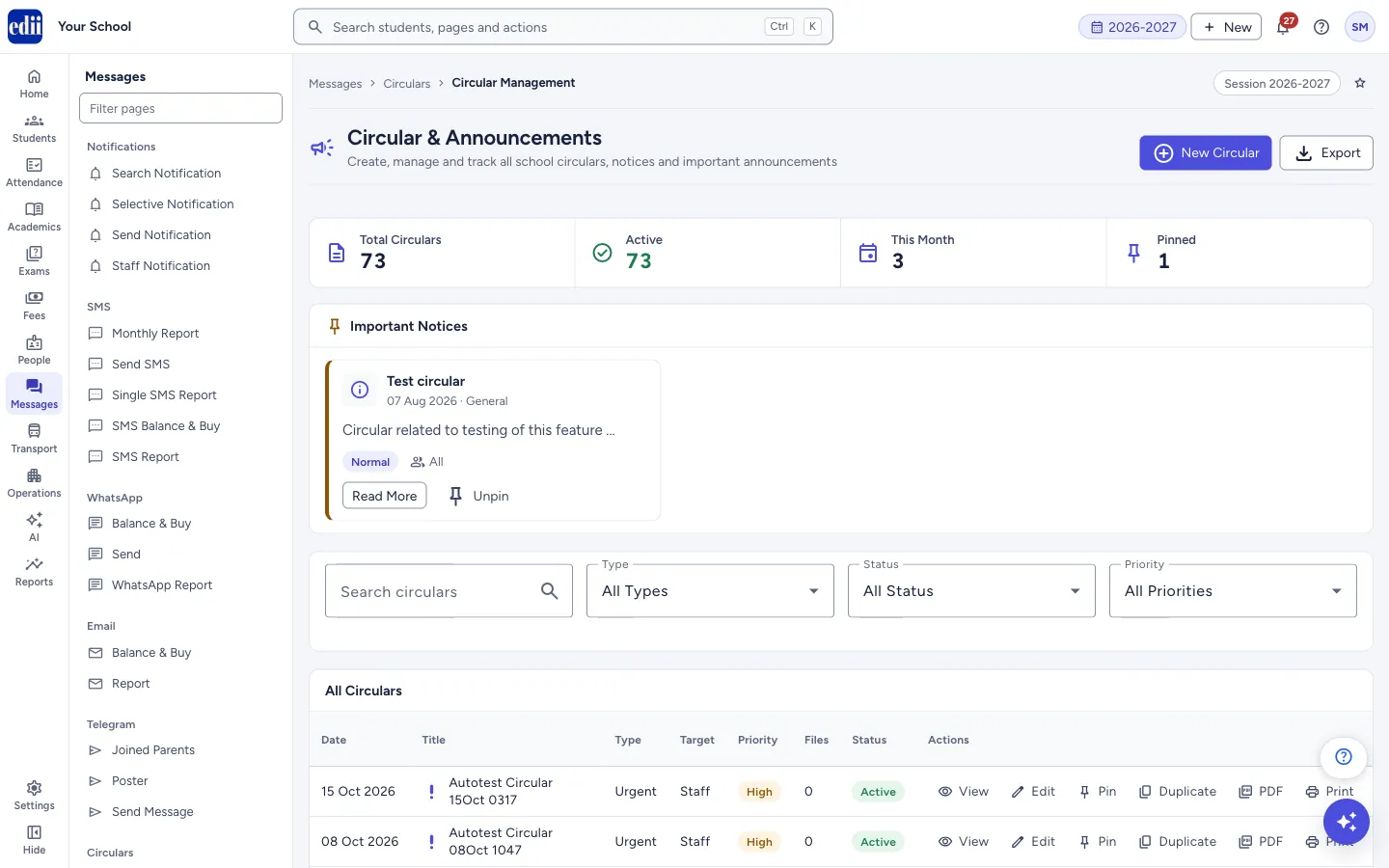
Circular (the page is headed Circular & Announcements) is the school’s list of circulars, notices and announcements. You write a circular once, and students and parents read it in the Circular section of the EDII app. You can also print it or save it as a PDF in English or Hindi.
The top of the page shows four counts: Total Circulars, Active, This Month and Pinned. Pinned circulars also show as cards under Important Notices. Below are the filters and the table All Circulars.
When you create a circular, EDII can send a notification to the app of the students it is meant for. Read Who is notified below before you create one. This does not send an SMS and does not use SMS credits.
Who uses it and when
Section titled “Who uses it and when”The principal or the office creates a circular for a holiday, an exam schedule, a fee notice or any announcement.
Where to find it
Section titled “Where to find it”- In school.edii.in: Messages › Circulars › Circular
- Or press Ctrl K (⌘ K on a Mac) and type Circular.
- Address:
school.edii.in/view/circular-management - Who can see it: Staff whose role includes Messages or Students or Attendance access. Shown only when your school uses Messages and Student in EDII. If it is missing from your menu, ask your school admin.
 Open a bigger pictureतस्वीर बड़ी करें
Step by step
Section titled “Step by step”1. Find a circular
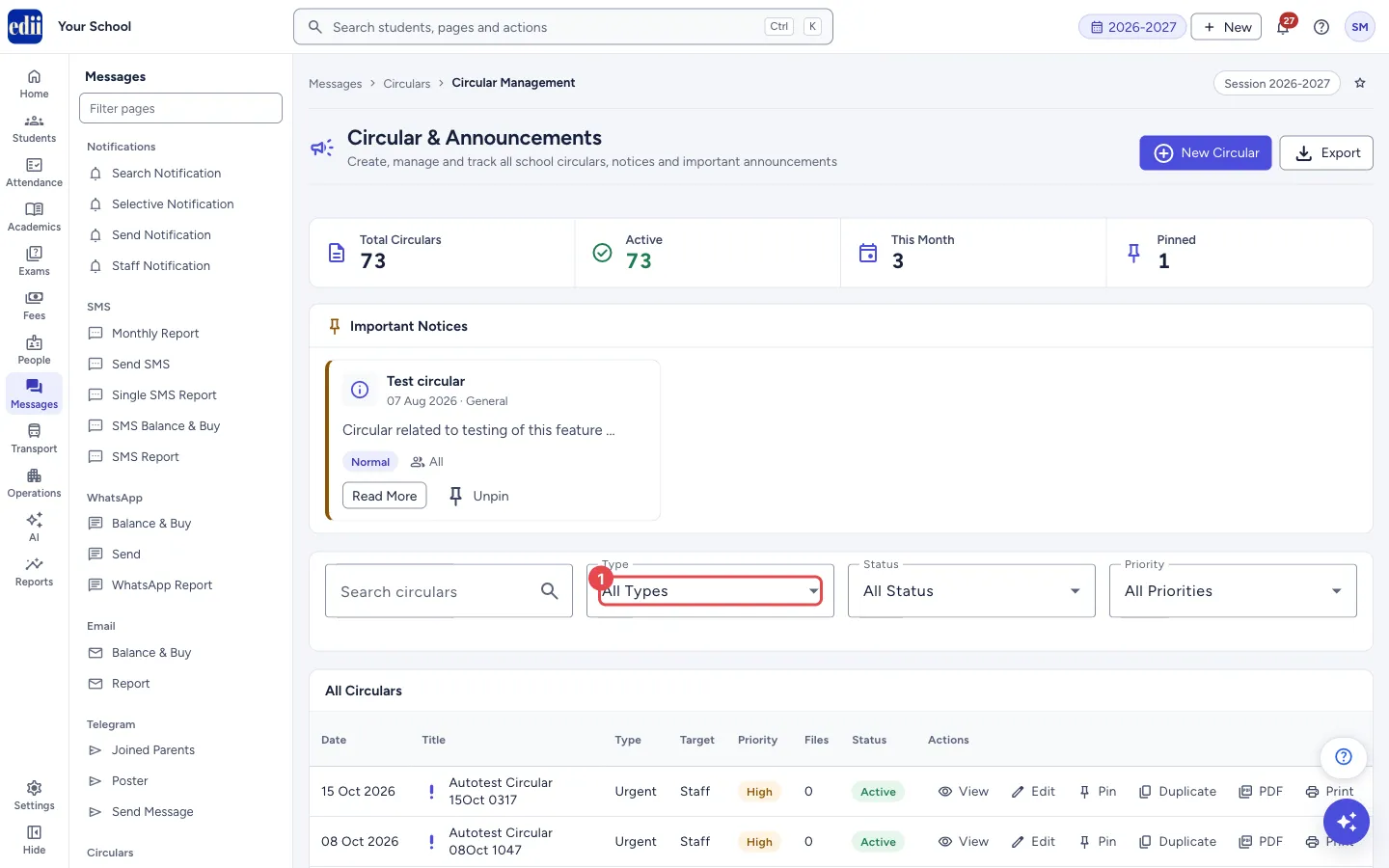
Section titled “1. Find a circular”Type in Search circulars to find a title or words in the content. Use Type, Status (Active or Expired) and Priority to narrow the list. The list changes as you pick. The table is in pages of 10, 25 or 50 rows.
 Open a bigger pictureतस्वीर बड़ी करें
2. Create a new circular
Section titled “2. Create a new circular”Select New Circular. In Create New Circular, fill Title (at least 5 characters), Type, Target Audience, Priority, Class and, if needed, Section (Optional). Set Valid From (starts at today) and, if the circular ends on a date, Valid To (Optional).
Write the Description (at least 20 characters), or let AI draft it: type one line in Describe in one line under Write Using AI, select Generate, and then choose English or Hindi to put that version in the description. Read it and correct it before saving.
Optionally add a video link in URL (Video Link) and files with Add Files (PDF, DOC, Images). Each file can be 10 MB at most, and files are uploaded as soon as you add them.
3. Choose the options and save
Section titled “3. Choose the options and save”Tick Pin this circular to top to show it under Important Notices. Send notification to recipients is ticked by default; untick it if you do not want an app notification to go out now.
Select Create Circular. You see Circular created successfully and you are back at the list. Clear empties the form and Cancel goes back without saving.
4. View a circular
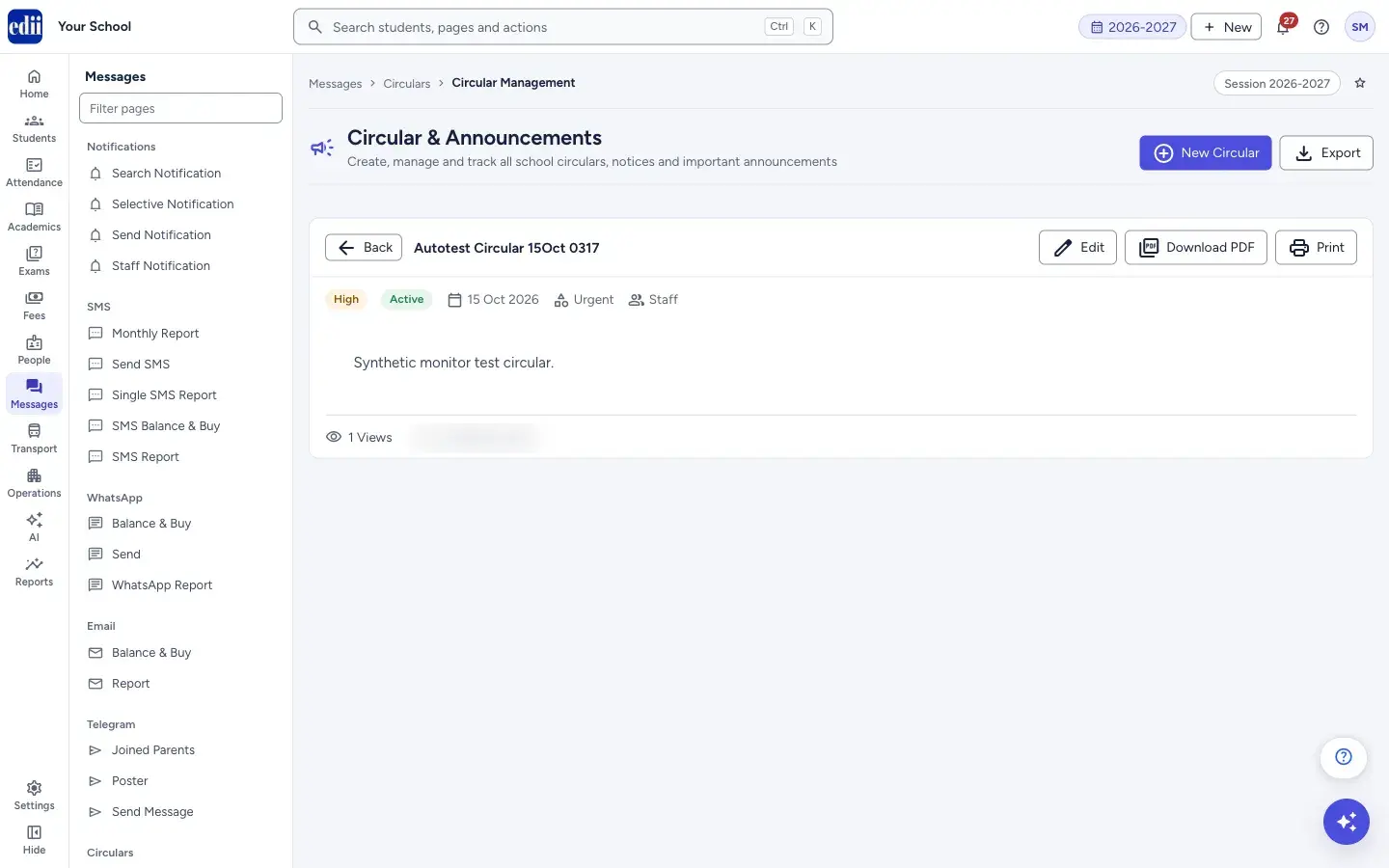
Section titled “4. View a circular”Select View in a row (or Read More on a pinned card). You see the title, Priority, Status, the date, the type, the target, the text, any video link and attachments, the number of views and who created it.
From here you can select Edit, Download PDF (choose English PDF or Hindi PDF) or Print. Back returns to the list.
 Open a bigger pictureतस्वीर बड़ी करें
5. Other row actions
Section titled “5. Other row actions”Edit opens the form with the circular filled in (button Update Circular). Duplicate opens a new form with the same content and the title ending in (Copy). PDF and Print work as in the view. Delete asks Are you sure you want to delete “title”? and removes it when you select Delete.
Export at the top saves the circulars shown as a CSV file.
Fields and filters
Section titled “Fields and filters”| Field | What it is | Notes |
|---|---|---|
| Title | The circular’s heading. | Required, at least 5 characters. |
| Type | The kind of circular. | Academic, Event, Holiday, Examination, Fee Notice, General, Urgent or Circular. Starts at General. |
| Target Audience | Who the circular is meant for. | All, Students, Teachers, Parents or Staff. Starts at All. It decides who gets the app notification: only All, Students and Parents reach students and parents. |
| Priority | How important it is. | Low, Normal, High or Urgent. Starts at Normal. |
| Class | The class the circular is for. | All Classes, or one class. It decides which students get the app notification. |
| Section (Optional) | A section of that class. | Saved with the circular. When you choose a section, only the students of that section get the app notification. |
| Valid From / Valid To (Optional) | The dates the circular is in force. | Valid From is required and starts at today. |
| Description | The text of the circular. | Required, at least 20 characters. Error: Description is required (min 20 characters). |
| URL (Video Link) | A link to a video, shown as Open Video in the view. | Optional. |
| Add Files (PDF, DOC, Images) | Attachments. | 10 MB per file. Several files allowed. |
| Pin this circular to top | Shows it under Important Notices. | Tick box. |
| Send notification to recipients | Sends the app notification when the circular is created. | Tick box, on by default. |
Buttons
Section titled “Buttons”| Button | What it does | What happens next |
|---|---|---|
| New Circular | Opens the blank form. | Create New Circular shows. |
| Export | Downloads the circulars in the list as a CSV file named circulars_ followed by the date. | The file is saved by your browser. |
| Create Circular / Update Circular | Saves the circular. | Circular created successfully or Circular updated successfully. It is greyed out until the required fields are valid and while files are uploading. |
| Generate | Asks AI to write the description from your one line. | The description fills in and Content generated successfully shows. |
| Pin / Unpin | Moves the circular in or out of Important Notices. The change is saved for everyone. | Circular pinned or Circular unpinned. If saving fails, the circular goes back to how it was and an error shows. |
| Duplicate | Opens a new form filled with the same content. | Change what you need and select Create Circular. |
| PDF / Download PDF | Makes a PDF in English or Hindi and opens it in a new tab. | PDF generated successfully. |
| Prints the circular. | The print window opens. | |
| Delete | Deletes the circular after you confirm. | Circular deleted successfully. |
Columns
Section titled “Columns”| Column | Meaning |
|---|---|
| Date | The date of the circular. |
| Title | The title, with an icon for the type. |
| Type | The type. |
| Target | The target audience. |
| Priority | Low, Normal, High or Urgent. |
| Files | Number of attachments. |
| Status | Active, or Expired when its end date has passed. |
| Actions | View, Edit, Pin, Duplicate, PDF, Print, Delete. |
After you save
Section titled “After you save”- A new circular appears in the list and, when the notification box is ticked, the students it is meant for get an app notification.
Good to know
Section titled “Good to know”- Who is notified: only when you create a circular, never when you edit one. A circular for Teachers or Staff sends no app notification to students or parents. A circular for All, Students or Parents notifies the students of the class you chose in Class; if you also chose a Section, only the students of that section. All Classes notifies every student of the school. Students and parents see it in the app. Untick Send notification to recipients if you do not want any notification.
- The notification reads: Dear NAME You have a new Circular (TITLE), Open Edii and check the Circular section to know more.
- Duplicating a circular starts the new one with notification ticked and Pin unticked.
- A circular of type Circular that is Active can also be shown on the school’s public website, where the school’s site uses this list.
- A Hindi PDF uses the Hindi text only if the description was written with Write Using AI; otherwise the English PDF and Hindi PDF use the text as it is saved.
Messages you may see
Section titled “Messages you may see”| Message | What it means | What to do |
|---|---|---|
| Please fill all required fields | A required field is empty or too short (title under 5 characters, description under 20). | Fix the fields marked in red. |
| Circular created successfully | Saved. | Nothing to do. |
| File NAME exceeds 10MB limit | That file is too big and was skipped. | Make the file smaller and add it again. |
| Please enter a description first | You selected Generate with the one-line box empty. | Type the one line first. |
| Failed to save circular | The save did not go through. | Check the internet and try again. |
| File not available | An attachment could not be opened. | Try again, or upload the file again by editing the circular. |
| No circulars to show. | No circular matches the search and filters. | Clear the filters. |
- Check the Class and Section before saving. Parents of every student in that class (or section) get the notification.
- Use the PDF when you need to send the circular on another channel, for example in a parents’ group.
Stuck? Try this
Section titled “Stuck? Try this”| Problem | Likely cause | What to do |
|---|---|---|
| Create Circular is greyed out | A required field is not valid yet, or files are still uploading. | Check the title (5 characters), the description (20 characters) and Valid From. Wait for the upload. |
Did this page help?क्या इस पेज से मदद मिली?
Thanks! Glad it helped.धन्यवाद! अच्छा लगा कि काम बन गया।
Sorry about that. Ask in your own words, or write to us.माफ़ कीजिए। अपने शब्दों में पूछें, या हमें लिखें।