
Screen guide · Web app
View AI Tests
Lists the exams made with AI (headed AI Generated Exams): their status and progress, and from each row you can read and edit the questions, run a quality check, download the question and answer PDFs, copy, retry or delete.
यह पेज अंग्रेज़ी में है। कुछ समझ न आए तो ।
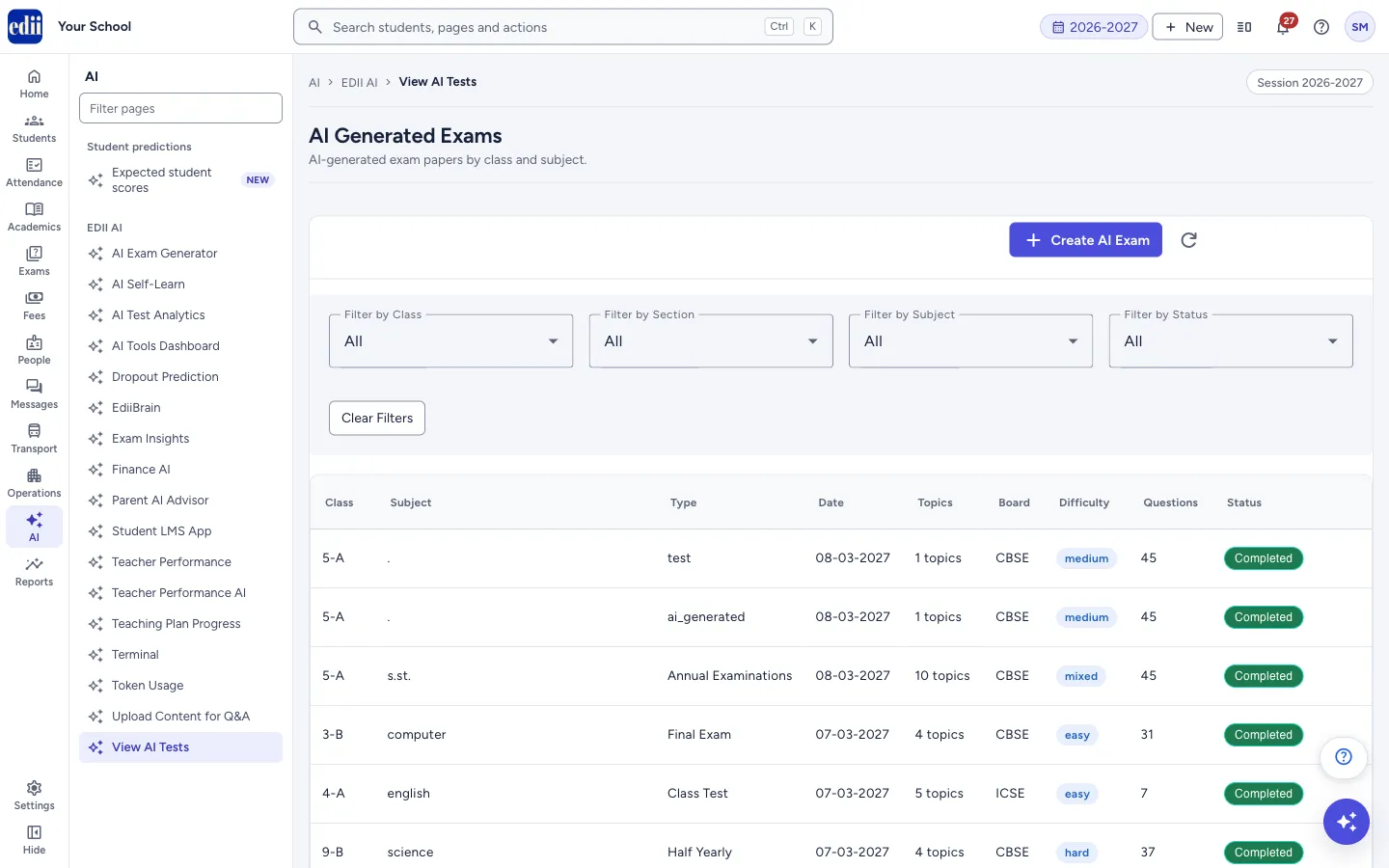
View AI Tests (headed AI Generated Exams) lists the tests made in AI Exam Generator, newest test date first. Each row shows the class and section, subject, exam type, date, number of topics, board, difficulty, number of questions and a status. The Actions column at the right end of the table holds the icons for each test; scroll the table sideways if you cannot see them.
Use Create AI Exam to make a new one, the round arrow to reload the list, and the four filters at the top to narrow the list.
The questions and answers were written by AI and can be wrong. Open View Questions and read every question before the paper is used. Run Quality Check to have the AI look for problems, but a person must make the final check.
Who uses it and when
Section titled “Who uses it and when”Teachers and the exam in-charge use it to check, correct and print the tests made by AI.
Before you start
Section titled “Before you start”- Tests appear here after they are made in AI Exam Generator. A test shows In Progress while its questions are being written.
Where to find it
Section titled “Where to find it”- In school.edii.in: AI › EDII AI › View AI Tests
- Or press Ctrl K (⌘ K on a Mac) and type View AI Tests.
- Address:
school.edii.in/view/view-test-ai - Who can see it: Staff whose role includes Exams access. Shown only when your school uses EDII’s AI and Exam in EDII. If it is missing from your menu, ask your school admin.
 Open a bigger pictureतस्वीर बड़ी करें
Step by step
Section titled “Step by step”1. Find the test
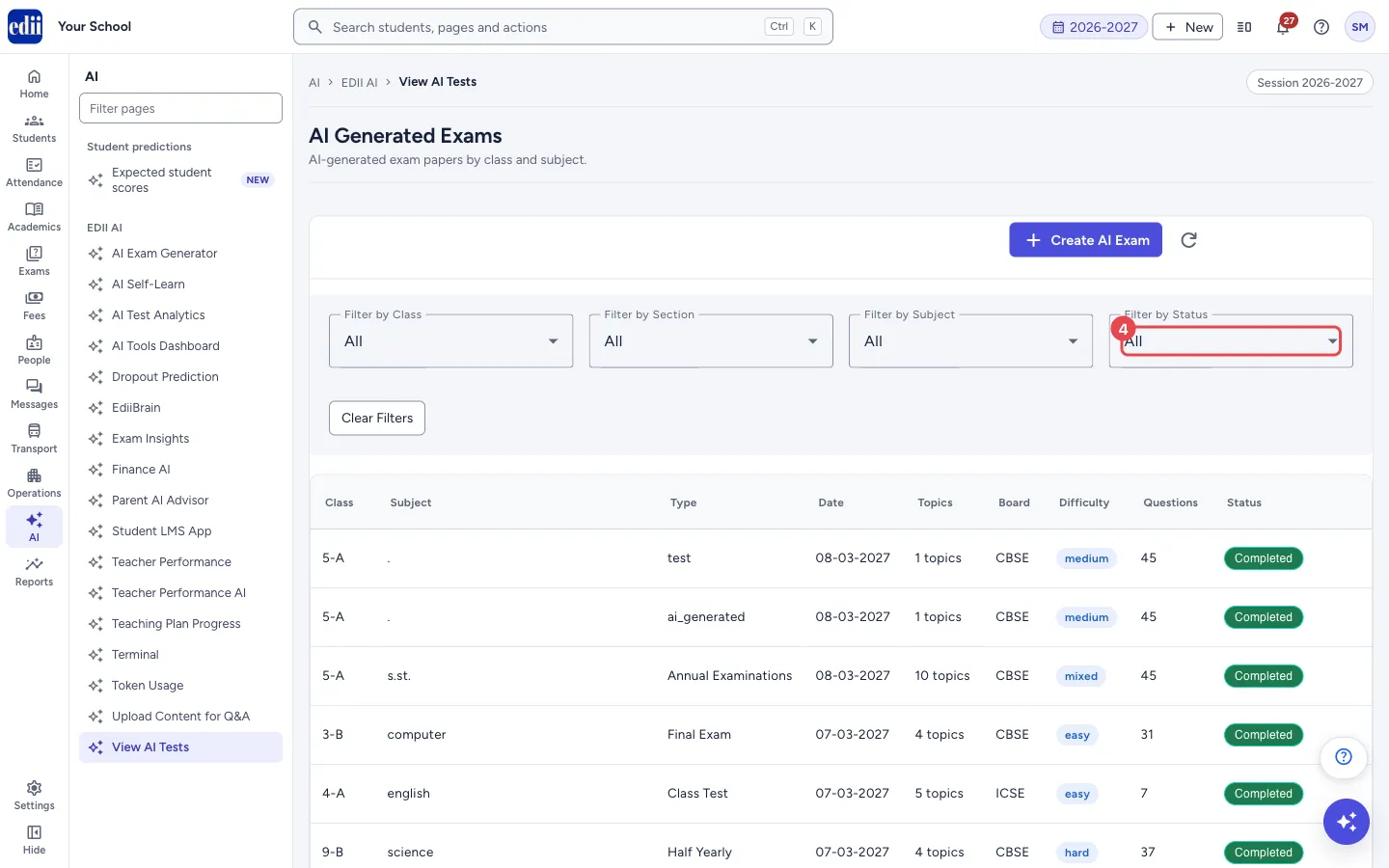
Section titled “1. Find the test”Choose Filter by Class, Filter by Section, Filter by Subject and Filter by Status. The status choices are All, Completed, In Progress, Quality Check Required, Failed and Missing Questions. Clear Filters resets them.
 Open a bigger pictureतस्वीर बड़ी करें
2. Read the status
Section titled “2. Read the status”Completed means the questions and PDFs are ready. In Progress shows a bar and Batch N/M while questions are written. Failed shows the reason under it. Draft · Quality check required means the AI review found problems; the row says Open View Questions and run Quality Check to publish. A red count such as 28/30 with 2 missing means fewer questions were made than planned.
A completed test with questions flagged by the quality review shows N question(s) flagged in quality review — you can still export.
3. Review the questions
Section titled “3. Review the questions”In Actions, select the eye icon (View Questions). A window lists every question with its marks, difficulty and type. You can Add Question, change a question’s marks, Edit Answer, edit the question text, Regenerate Q+A (make a new question and review it before it replaces the old one), Recheck Answer (the AI checks the answer) and Challenge (Get Second Opinion). You can also drag questions, or use the arrows, to change their order, and tick questions to regenerate several at once.
Quality Check scans all questions for problems. After a check, Auto-fix Flagged lets the AI fix the flagged questions. History shows every change made to the questions of the test.
4. Get the PDFs
Section titled “4. Get the PDFs”On a completed test, use the PDF icons to view the question paper or the answer paper, and the download icons to save them. The print icon (Reprint PDF) makes the PDFs again after you edit questions; you see PDFs regenerated successfully. If the quality review flagged questions, a message Quality check flagged this paper asks you to Review first or Export anyway. The exported PDF does not show the warning.
5. Listen to the paper (optional)
Section titled “5. Listen to the paper (optional)”Generate Audio Narration makes an audio reading of the paper, and Play Audio Narration plays it. If it is not ready you see Audio is still being generated. Please try again in a little while.
6. Copy, retry or delete
Section titled “6. Copy, retry or delete”Copy Test Configuration opens AI Exam Generator with this test’s class, section, subject, exam type, marks, board, difficulty, number of questions, topics, times and question types filled in. You then change what you need. For a failed or stuck test, the refresh icon (Retry AI Generation or Regenerate) starts it again (AI generation restarted). For a test with missing questions, the fix icon fills the missing ones. The bin icon deletes the test after you confirm This test will be permanently deleted. This action cannot be undone.
Fields and filters
Section titled “Fields and filters”| Field | What it is | Notes |
|---|---|---|
| Filter by Class, Section, Subject | Limits the list. | Starts at All. |
| Filter by Status | Limits the list to one state. | All, Completed, In Progress, Quality Check Required, Failed or Missing Questions. |
Buttons
Section titled “Buttons”| Button | What it does | What happens next |
|---|---|---|
| Create AI Exam | Opens AI Exam Generator. | The generator opens. |
| Refresh | Loads the list again. | The list updates. |
| Clear Filters | Resets the four filters. | All tests show. |
| Copy Test Configuration | Starts a new test from this one’s settings. | AI Exam Generator opens filled in. You see Test configuration copied! |
| View Questions | Opens the questions of the test. | A window opens. If there are none you see No questions available yet. |
| View / Download Question PDF, View / Download Answer PDF | Opens or saves the question or answer paper. | The PDF opens or downloads. Off until the test is Completed. |
| Reprint PDF (Regenerate) | Makes the PDFs again from the current questions. | PDFs regenerated successfully. |
| Question Change History | Shows every change made to the questions. | A window opens. |
| Generate / Play Audio Narration | Makes or plays an audio reading of the paper. | Narration Started! or the audio plays. |
| Retry / Regenerate | Starts the AI again for a failed or stuck test. | AI generation restarted. |
| Fill missing questions | Makes the questions that are missing. | Backfill complete …. |
| Delete Test | Removes the test for good. | Test deleted successfully. |
Columns
Section titled “Columns”| Column | Meaning |
|---|---|
| Class | Class and section. |
| Topics | Number of topics the test covers. Hover to see their names. |
| Board, Difficulty | The board and difficulty chosen when the test was made. |
| Questions | Number of questions. A red count shows how many were made against how many were planned. |
| Status | Completed, In Progress, Failed or Draft · Quality check required. |
Good to know
Section titled “Good to know”- Deleting a test cannot be undone.
- PDFs and downloads are available only when the test is Completed.
- After you edit questions, the test becomes a draft until you run Quality Check again. Reprint the PDFs afterwards.
Messages you may see
Section titled “Messages you may see”| Message | What it means | What to do |
|---|---|---|
| No AI generated tests found. | No test fits the filters, or none has been made. | Clear the filters or create a test. |
| Question PDF not available yet | The question PDF is not ready. | Wait until the status is Completed. |
| Answer PDF not available yet | The answer PDF is not ready. | Wait until the status is Completed. |
| Open View Questions and run Quality Check to publish | The test is a draft until it has passed a quality check. | Open View Questions and select Quality Check. |
| Quality check flagged this paper | Some questions may be wrong. The PDF will not show the warning. | Select Review first and correct them, or Export anyway. |
| AI generation restarted | Retry started. | Wait and reload. |
| Test deleted successfully | The test was removed. | Nothing to do. |
| Bad/Slow Internet Connection | A request failed. | Check the connection and try again. |
- Always open View Questions and read the paper before giving it to students.
- Use Copy Test Configuration to make the same paper for another section.
Stuck? Try this
Section titled “Stuck? Try this”| Problem | Likely cause | What to do |
|---|---|---|
| I cannot see the action icons. | The Actions column is at the right end of a wide table. | Scroll the table sideways. |
| The PDF icons are grey. | The test is not Completed. | Wait for it to finish, or fix a Failed or Draft test first. |
Did this page help?क्या इस पेज से मदद मिली?
Thanks! Glad it helped.धन्यवाद! अच्छा लगा कि काम बन गया।
Sorry about that. Ask in your own words, or write to us.माफ़ कीजिए। अपने शब्दों में पूछें, या हमें लिखें।