
Screen guide · Web app
Create Test
Create an offline test (a paper exam whose marks you enter later) for one or more classes, sections and subjects, with its maximum marks, passing marks and date.
यह पेज अंग्रेज़ी में है। कुछ समझ न आए तो ।
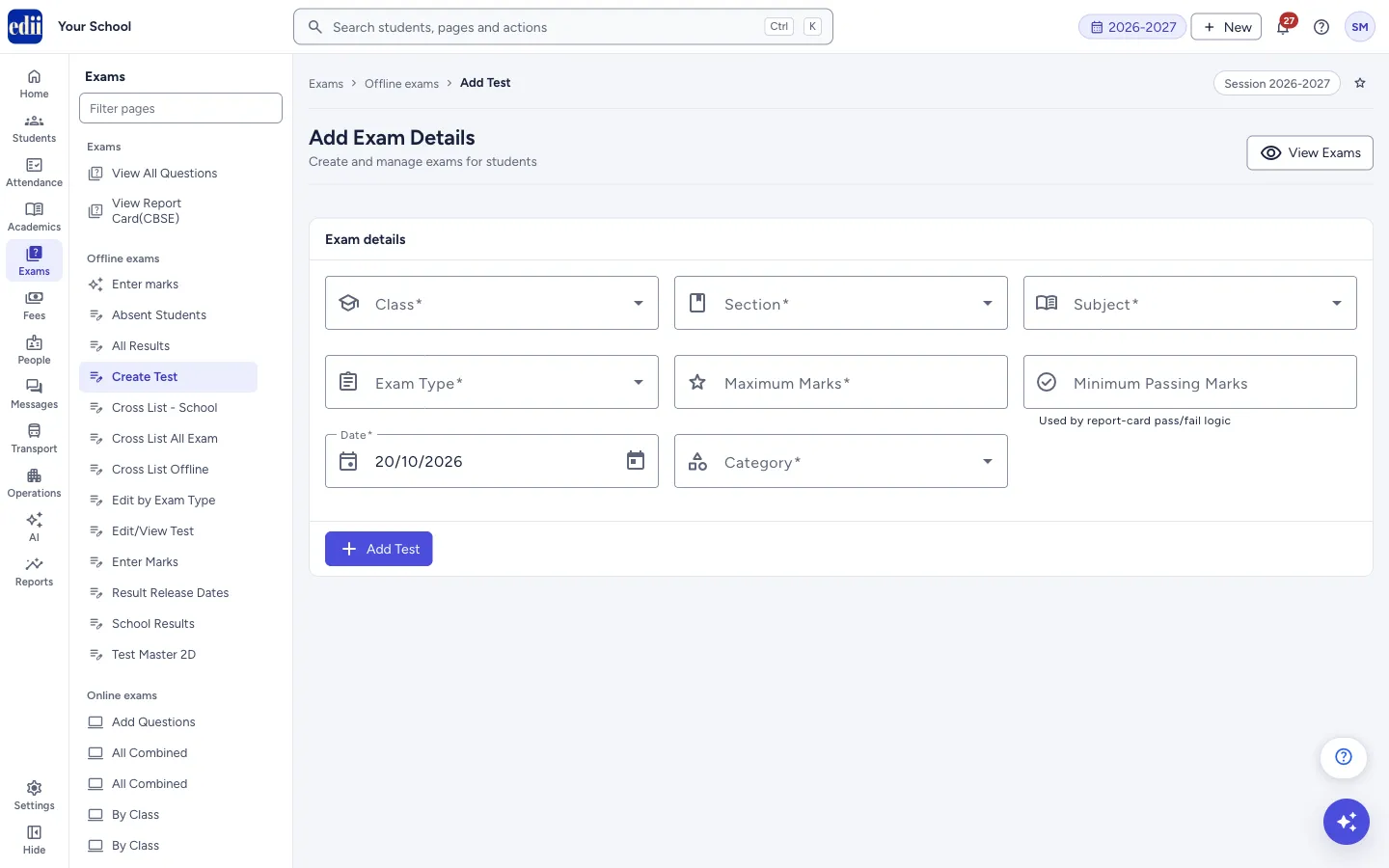
The screen is headed Add Exam Details. A test is one subject paper of one exam type, for example English, UT1, maximum 50 marks. You can choose many classes, many sections and many subjects in one go.
The tests you create here become the subject columns in Enter marks, give the subjects and dates for Add Admit Card, and their Minimum Passing Marks are used by report cards to decide pass or fail.
Who uses it and when
Section titled “Who uses it and when”The exam in-charge, at the start of each exam cycle.
Before you start
Section titled “Before you start”- Subjects must already be set up for the class. If a class has none, the Subject list stays empty and the message Subjects Unavailable For The Class Selected shows.
- The Exam Type list shows the exam types your school uses.
Where to find it
Section titled “Where to find it”- In school.edii.in: Exams › Offline exams › Create Test
- Or press Ctrl K (⌘ K on a Mac) and type Create Test.
- Address:
school.edii.in/add/add-test - Who can see it: Staff whose role includes Exams access. Shown only when your school uses Exam in EDII. If it is missing from your menu, ask your school admin.
 Open a bigger pictureतस्वीर बड़ी करें
Step by step
Section titled “Step by step”1. Choose the classes
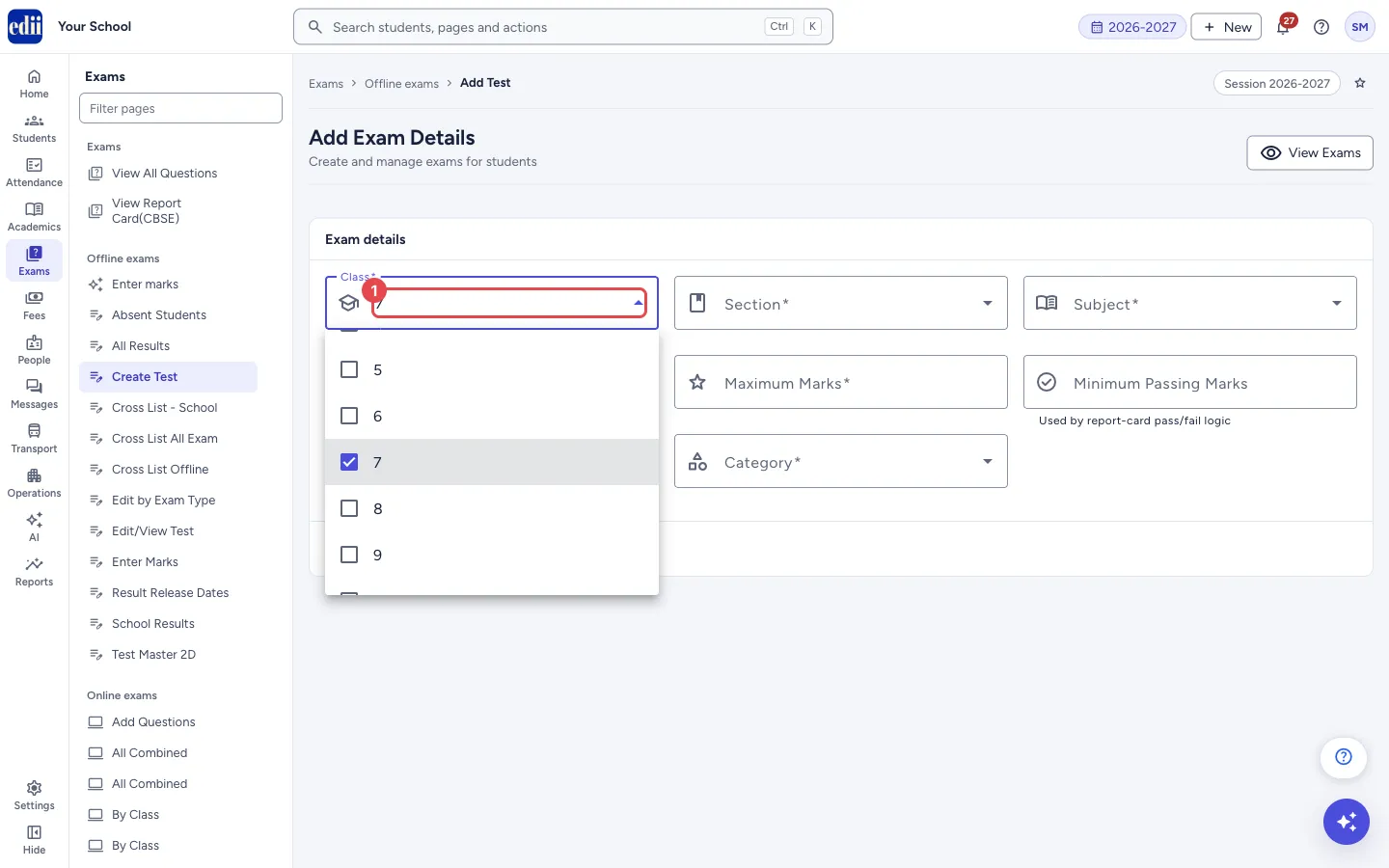
Section titled “1. Choose the classes”In Class, tick one or more classes, or tick Select All. The Subject list is then filled with the subjects of the chosen classes.
 Open a bigger pictureतस्वीर बड़ी करें
2. Choose the sections
Section titled “2. Choose the sections”In Section, tick one or more sections, or Select All.
3. Choose the subjects
Section titled “3. Choose the subjects”In Subject, tick one or more subjects. Changing the class clears the subjects you had ticked.
4. Choose the exam type and category
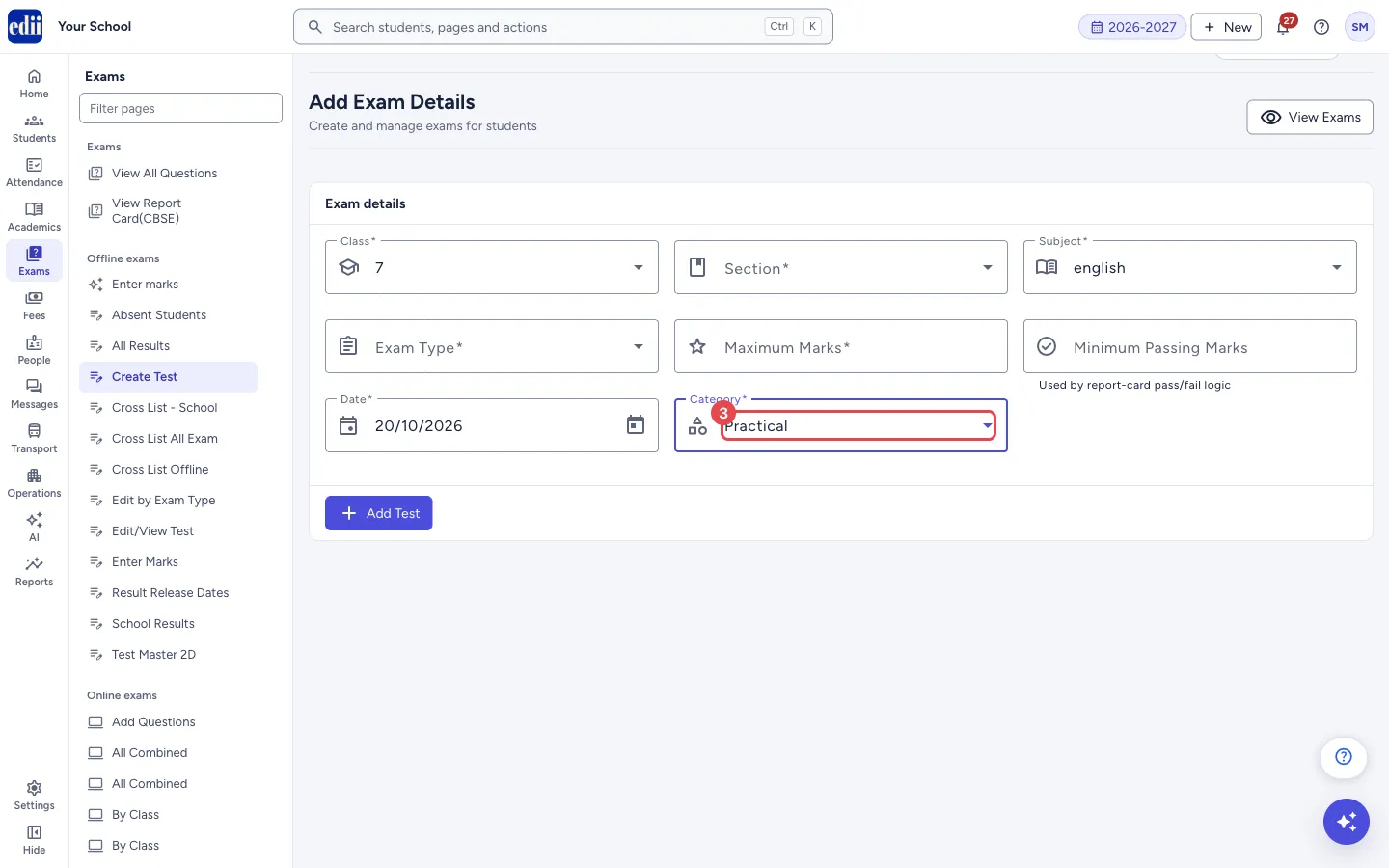
Section titled “4. Choose the exam type and category”In Exam Type, choose the exam, for example UT1. In Category, choose Practical or Theory.
 Open a bigger pictureतस्वीर बड़ी करें
5. Set the marks and the date
Section titled “5. Set the marks and the date”Type Maximum Marks; it must be a number, for example 50. Minimum Passing Marks is optional; type for example 33. Pick the Date of the test. It starts as today’s date.
6. Add the test
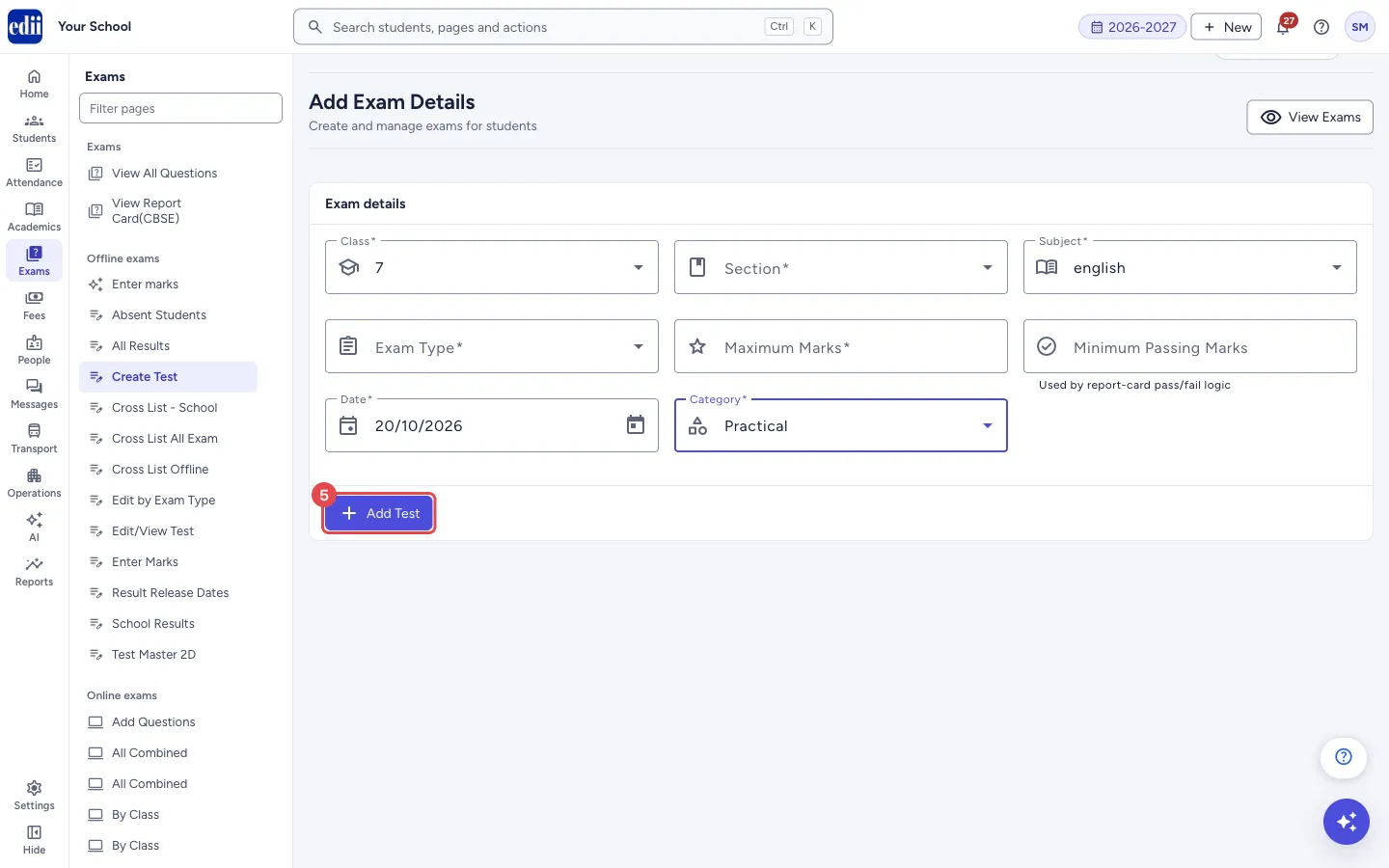
Section titled “6. Add the test”Select Add Test. While it is working, the button reads Creating Test…. When it is done, the message Test Successfully Added shows.
The Subject, Exam Type, Maximum Marks and Minimum Passing Marks boxes are cleared so you can add the next exam straight away. Class, Section, Date and Category stay as they were.
 Open a bigger pictureतस्वीर बड़ी करें
Fields and filters
Section titled “Fields and filters”| Field | What it is | Notes |
|---|---|---|
| Class | The classes that take the test. | Required. You can choose many. Error: Class is required. |
| Section | The sections that take the test. | Required. You can choose many. Error: Section is required. |
| Subject | The subjects of the test. | Required. You can choose many. Error: Subject is required. |
| Exam Type | The exam the test belongs to. | Required. Error: Exam Type is required. |
| Maximum Marks | The full marks of the paper. | Required. A number, with or without a decimal part. Error: Maximum Marks must be a number, e.g. 50. |
| Minimum Passing Marks | The marks needed to pass. | Optional. Report cards use it for pass or fail. |
| Date | The day of the test. | Required. Pick from the calendar. |
| Category | Practical or Theory. | Required. Error: Category is required. |
Buttons
Section titled “Buttons”| Button | What it does | What happens next |
|---|---|---|
| Add Test | Creates the test. | Test Successfully Added. The test is available in Edit/View Test and Enter marks. |
| View Exams | Opens the list of tests. | The list of tests opens. |
After you save
Section titled “After you save”- The test is created for the chosen classes, sections and subjects and is ready for marks entry.
Good to know
Section titled “Good to know”- Class, section, subject, exam type, maximum marks, date and category are all required. If one is missing, the form is not sent and the box is marked.
- The button cannot be pressed twice while a test is being created.
Messages you may see
Section titled “Messages you may see”| Message | What it means | What to do |
|---|---|---|
| Test Successfully Added | The test was created. | Go to Enter marks when the paper is checked. |
| Subjects Unavailable For The Class Selected | No subjects are set up for the chosen class. | Set up the subjects of the class first. |
| Bad/Slow Internet Connection, Please check your internet connection | The request could not be sent. | Check the internet and try again. |
- Choose Select All for sections to create the test for the whole class at once.
- Set the minimum passing marks now, so report cards do not need to be corrected later.
Stuck? Try this
Section titled “Stuck? Try this”| Problem | Likely cause | What to do |
|---|---|---|
| The Subject list is empty | The chosen class has no subjects. | Add the subjects of the class, then choose the class again. |
Did this page help?क्या इस पेज से मदद मिली?
Thanks! Glad it helped.धन्यवाद! अच्छा लगा कि काम बन गया।
Sorry about that. Ask in your own words, or write to us.माफ़ कीजिए। अपने शब्दों में पूछें, या हमें लिखें।