
Screen guide · Web app
Reports Dashboard
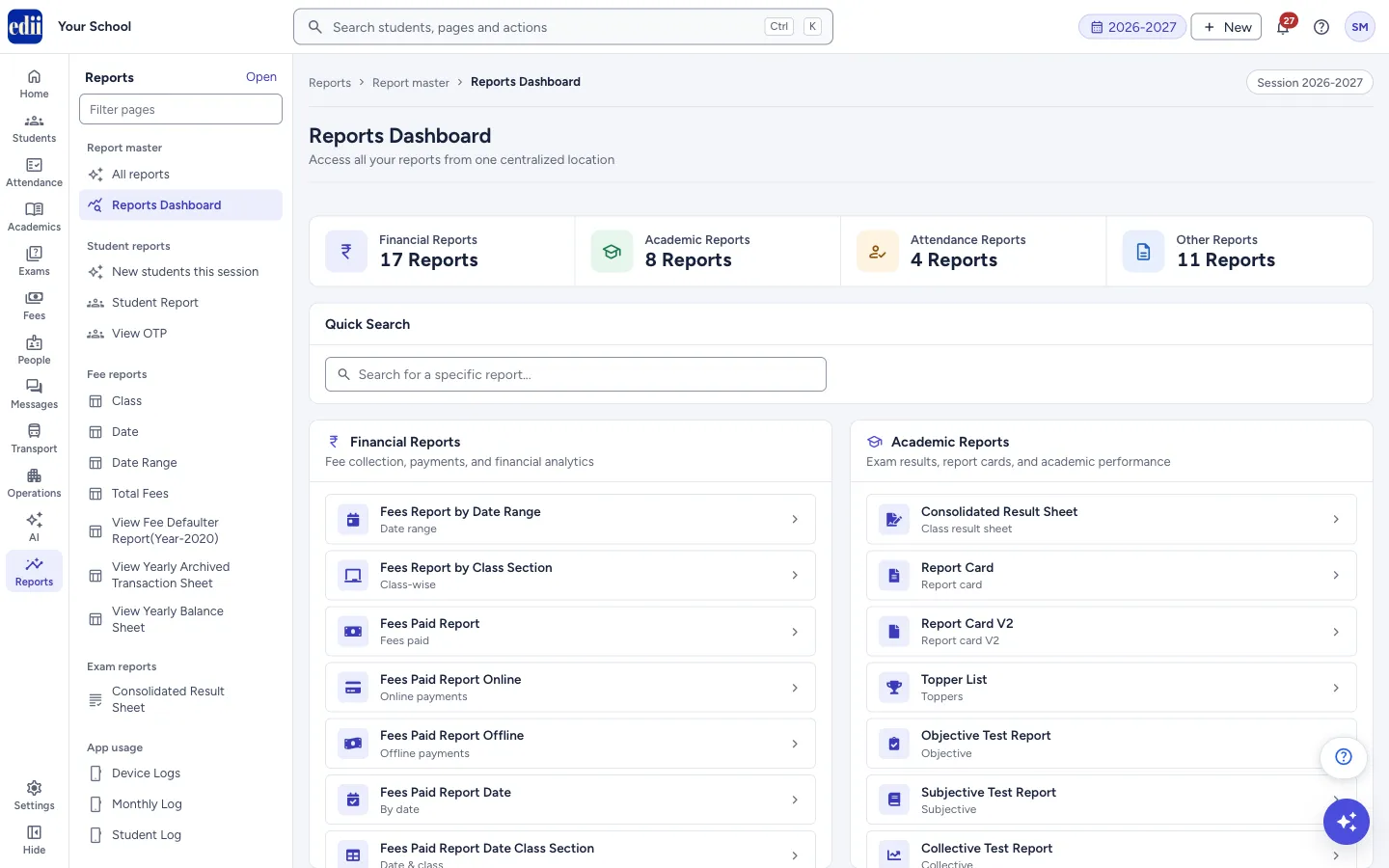
One page that lists the school's reports in four groups, Financial, Academic, Attendance and Other, with a quick search, so you can open any of them with one click.
यह पेज अंग्रेज़ी में है। कुछ समझ न आए तो ।
Reports Dashboard (Access all your reports from one centralized location) shows four count boxes at the top, Financial Reports, Academic Reports, Attendance Reports and Other Reports, each with the number of reports in the group. Below them is a Quick Search box and the four groups with their reports.
Each report is a line with its name, a short label and an arrow. Select the line and the report opens. Point at a report to see a one-line description of it.
The page only opens other reports. It shows the same list to everyone who can open the page; a report that your login cannot use will not open for you.
Who uses it and when
Section titled “Who uses it and when”The office, the accountant or the principal, who want to pick a report from a list instead of going through the menu.
Where to find it
Section titled “Where to find it”- In school.edii.in: Reports › Report master › Reports Dashboard
- Or press Ctrl K (⌘ K on a Mac) and type Reports Dashboard.
- Address:
school.edii.in/report-v4/dashboard - Who can see it: Staff whose role includes Reports access. Shown only when your school uses Report in EDII. If it is missing from your menu, ask your school admin.
 Open a bigger pictureतस्वीर बड़ी करें
Step by step
Section titled “Step by step”1. Jump to a group
Section titled “1. Jump to a group”Select one of the four count boxes. The page scrolls to that group. The groups are: Financial Reports (Fee collection, payments, and financial analytics), Academic Reports (Exam results, report cards, and academic performance), Attendance Reports (Student and staff attendance tracking) and Other Reports (Transport, library, hostel, and miscellaneous reports).
Open a bigger pictureतस्वीर बड़ी करें2. Search for a report
Section titled “2. Search for a report”Type in Quick Search (Search for a specific report…). The groups are replaced by the reports whose name, description, short label or group contains what you typed, and each result shows its group and short label. If nothing matches, the page says No reports match followed by your words. Clear the box to see the groups again.
3. Open a report
Section titled “3. Open a report”Select a report. It opens on its own page.
Fields and filters
Section titled “Fields and filters”| Field | What it is | Notes |
|---|---|---|
| Quick Search | Finds a report by words in its name, description, short label or group. | Optional. |
Buttons
Section titled “Buttons”| Button | What it does | What happens next |
|---|---|---|
| Financial, Academic, Attendance, Other (count boxes) | Scrolls to that group of reports. | If a search is open, it is cleared first. |
| A report line | Opens that report. |
Columns
Section titled “Columns”| Column | Meaning |
|---|---|
| Financial Reports (17) | Fees Report by Date Range, Fees Report by Class Section, Fees Paid Report, Fees Paid Report Online, Fees Paid Report Offline, Fees Paid Report Date, Fees Paid Report Date Class Section, Fees Collection, Fee Calculation Report, Student All Fees Report Month Wise, Master Transaction Report, Class Master Report V2, Class Master Report, Class Fee Month Grid, Class Master Payment Report, Day Report and Bus Report Date Range. |
| Academic Reports (8) | Consolidated Result Sheet, Report Card, Report Card V2, Topper List, Objective Test Report, Subjective Test Report, Collective Test Report and Cross List All Exams. |
| Attendance Reports (4) | Attendance Report, Student Attendance Report, Attendance Report Bulk and Teacher-wise Online Class Report. |
| Other Reports (11) | Bus Report, Bus Pass Report, SMS Report, Single SMS Report by Phone, SMS Monthly Report, All Students Report, New Student Report, App Not Installed, Student App Log, Student App Monthly Log and Teacher App Log. |
Good to know
Section titled “Good to know”- The counts and the lists are fixed. They do not change with the dates or with your school’s data.
- The list is not limited to your login. Opening a report you have no access to will not work.
Messages you may see
Section titled “Messages you may see”| Message | What it means | What to do |
|---|---|---|
| No reports match | No report contains the words you typed. | Try one word, or clear the box. |
- Use All reports instead when you want only the reports you are allowed to open, searched by subject.
Did this page help?क्या इस पेज से मदद मिली?
Thanks! Glad it helped.धन्यवाद! अच्छा लगा कि काम बन गया।
Sorry about that. Ask in your own words, or write to us.माफ़ कीजिए। अपने शब्दों में पूछें, या हमें लिखें।