
Screen guide · Web app
Search Notification
Find a student and see the list of notifications that were sent to that student's app.
यह पेज अंग्रेज़ी में है। कुछ समझ न आए तो ।
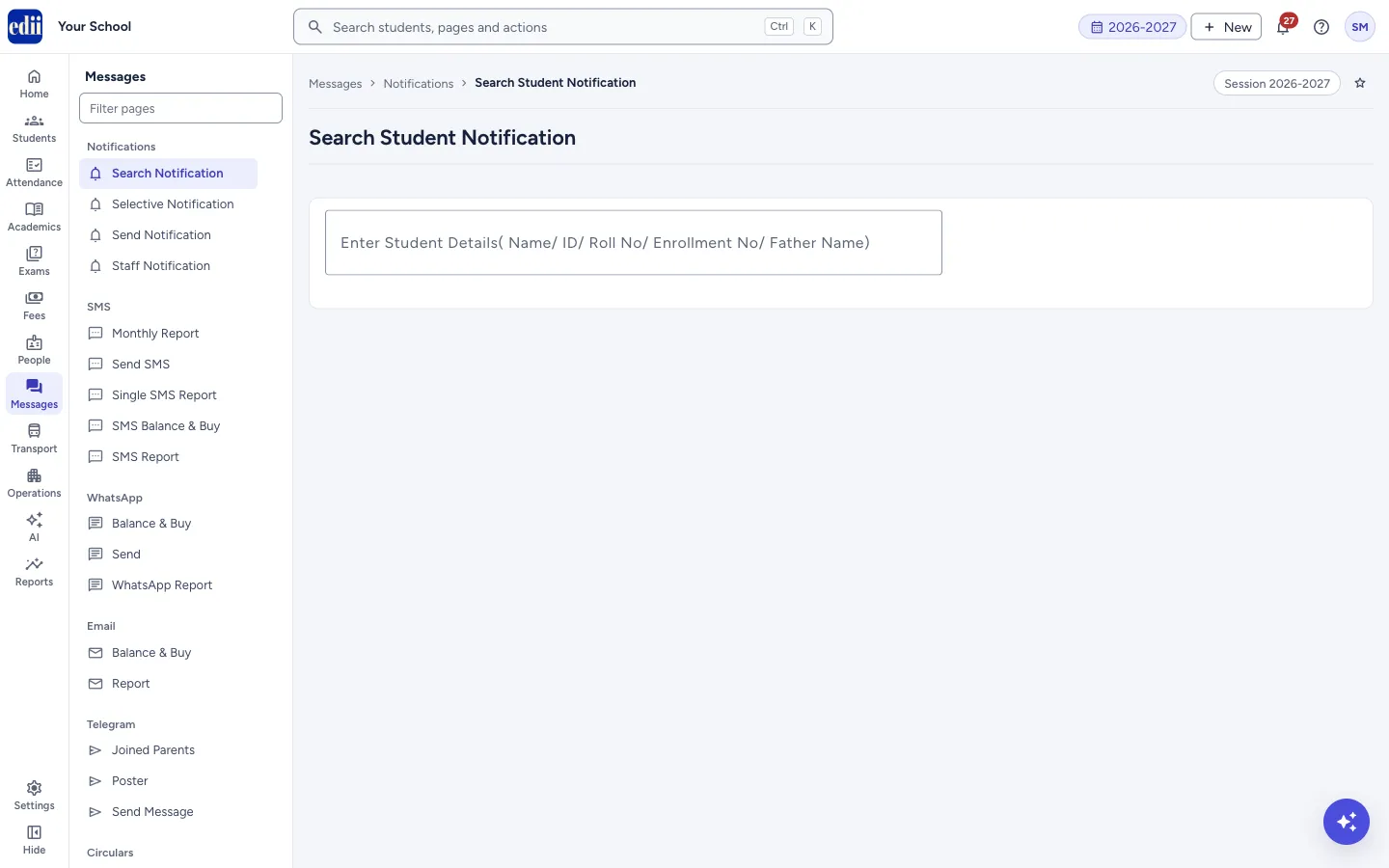
Search Notification (the page is titled Search Student Notification) lets you check what a parent was sent. You find the student by typing in the search box. When you pick the student, EDII opens a Student Notifications page with that student’s list.
This page only reads. It sends nothing and uses no SMS credits.
Who uses it and when
Section titled “Who uses it and when”The office uses it when a parent says, “I did not get the message”, to see whether and when a notification was sent.
Where to find it
Section titled “Where to find it”- In school.edii.in: Messages › Notifications › Search Notification
- Or press Ctrl K (⌘ K on a Mac) and type Search Notification.
- Address:
school.edii.in/view/search-student-notification - Who can see it: Staff whose role includes Messages or Reports access. Shown only when your school uses Messages and Report in EDII. If it is missing from your menu, ask your school admin.
 Open a bigger pictureतस्वीर बड़ी करें
Step by step
Section titled “Step by step”1. Search for the student
Section titled “1. Search for the student”Click the box Enter Student Details( Name/ ID/ Roll No/ Enrollment No/ Father Name) and type a few letters or numbers. A list of matching students appears. Each line shows the name, class and section, then the enrollment number, ID, roll numbers and the father’s name.
In this box you can type letters, digits, space and these symbols only: - @ & . , / _ # :
2. Pick the student
Section titled “2. Pick the student”Click the line of the student. EDII opens the Student Notifications page for that student.
3. Read the list
Section titled “3. Read the list”The list shows S.No, Type, Notification and Date (day-month-year). Use Search… to filter the rows, Columns to hide or show columns, and the print icon to print the list or download it as an Excel, text or CSV file named StudentNotification. The list is paged; the page sizes are 100, 200, 300, 400, 500 and 1000 rows.
Fields and filters
Section titled “Fields and filters”| Field | What it is | Notes |
|---|---|---|
| Enter Student Details( Name/ ID/ Roll No/ Enrollment No/ Father Name) | A search box for one student. | Matches on name, ID, roll number, enrollment number, father’s name, class and section. |
Columns
Section titled “Columns”| Column | Meaning |
|---|---|
| S.No | Row number. |
| Type | The kind of notification, as stored when it was sent. |
| Notification | The message text. |
| Date | The day it was sent, as day-month-year. |
Good to know
Section titled “Good to know”- The list is for the session you are working in.
- You must pick a student from the list. If you open the list page without a student, EDII shows the error below and returns you to the search.
Messages you may see
Section titled “Messages you may see”| Message | What it means | What to do |
|---|---|---|
| You Need to Select the student First, Redirecting you to the Student Page | The Student Notifications page was opened without a student. | Search again and click a student’s line. |
Stuck? Try this
Section titled “Stuck? Try this”| Problem | Likely cause | What to do |
|---|---|---|
| The search shows no students | The student list is still loading, or nothing matches what you typed. | Wait a moment and type again. Try the student’s ID. |
| The list is empty | No notification was sent to this student in the session. | Check that the message was sent with Send Notification or Selective Notification. |
Did this page help?क्या इस पेज से मदद मिली?
Thanks! Glad it helped.धन्यवाद! अच्छा लगा कि काम बन गया।
Sorry about that. Ask in your own words, or write to us.माफ़ कीजिए। अपने शब्दों में पूछें, या हमें लिखें।