
Screen guide · Web app
Library Catalog
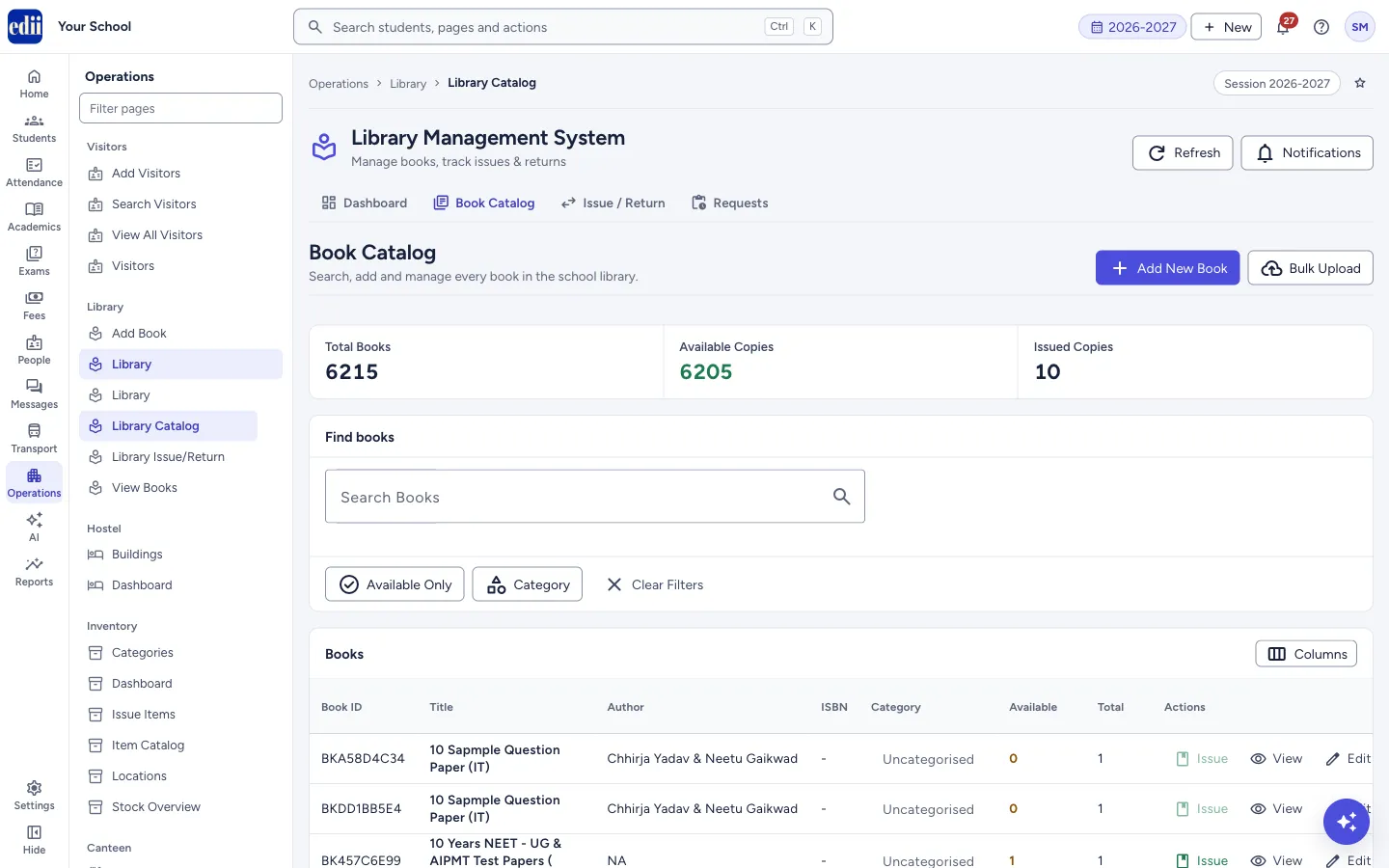
The Book Catalog: every library book with available and total copies, a search, a column picker, and the buttons to add, bulk upload, issue, view, edit and delete a book.
यह पेज अंग्रेज़ी में है। कुछ समझ न आए तो ।
Library Catalog (the page heading is Book Catalog) is the working list of the school library. It sits under the Library Management System heading, next to the tabs Dashboard, Issue / Return and Requests.
At the top, three cards show Total Books (all copies), Available Copies and Issued Copies. Below are the Find books box and the Books table. Each row has Issue, View, Edit and Delete.
This page keeps the full record of a book: ISBN, accession number, bar code, rack, purchase or donation details, tags and more. The simpler list made by Add Book is in View Books.
Who uses it and when
Section titled “Who uses it and when”The librarian, to find a book, to check copies, to issue a book from its row, and to keep the catalog up to date.
Where to find it
Section titled “Where to find it”- In school.edii.in: Operations › Library › Library Catalog
- Or press Ctrl K (⌘ K on a Mac) and type Library Catalog.
- Address:
school.edii.in/library-management/book-catalog - Who can see it: The same staff who see the other Library pages. If it is missing from your menu, ask your school admin.
 Open a bigger pictureतस्वीर बड़ी करें
Step by step
Section titled “Step by step”1. Find a book
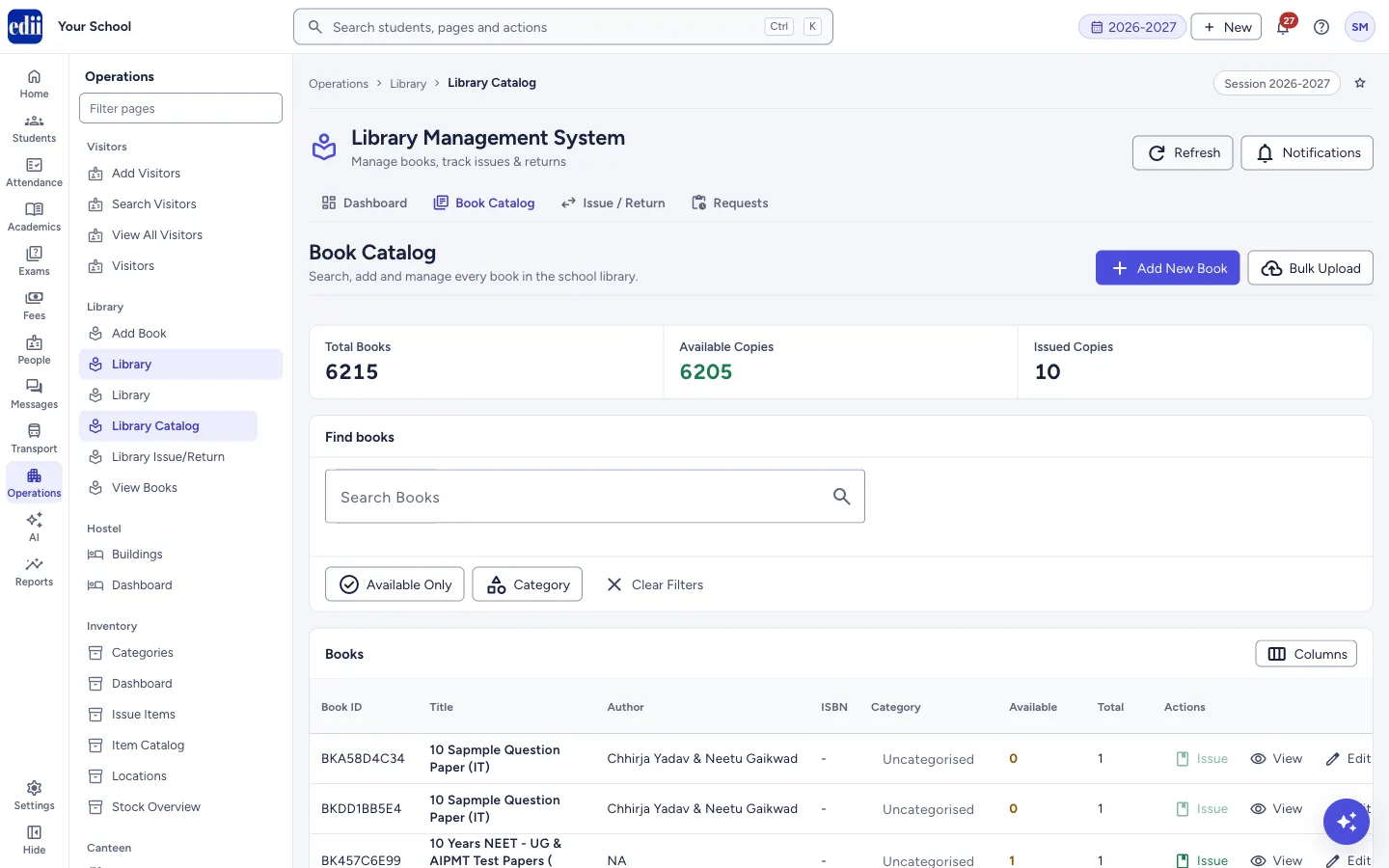
Section titled “1. Find a book”Type in Search Books a title, author, ISBN or book ID. A list of matches drops down; the table is filtered as you type. Select Clear in the box to remove the text.
Available Only shows only books with at least one copy on the shelf. Category opens a list of categories; choose one to see its books. A tag Filter: … shows what is applied. Clear Filters removes everything.
 Open a bigger pictureतस्वीर बड़ी करें
2. Set rows per page
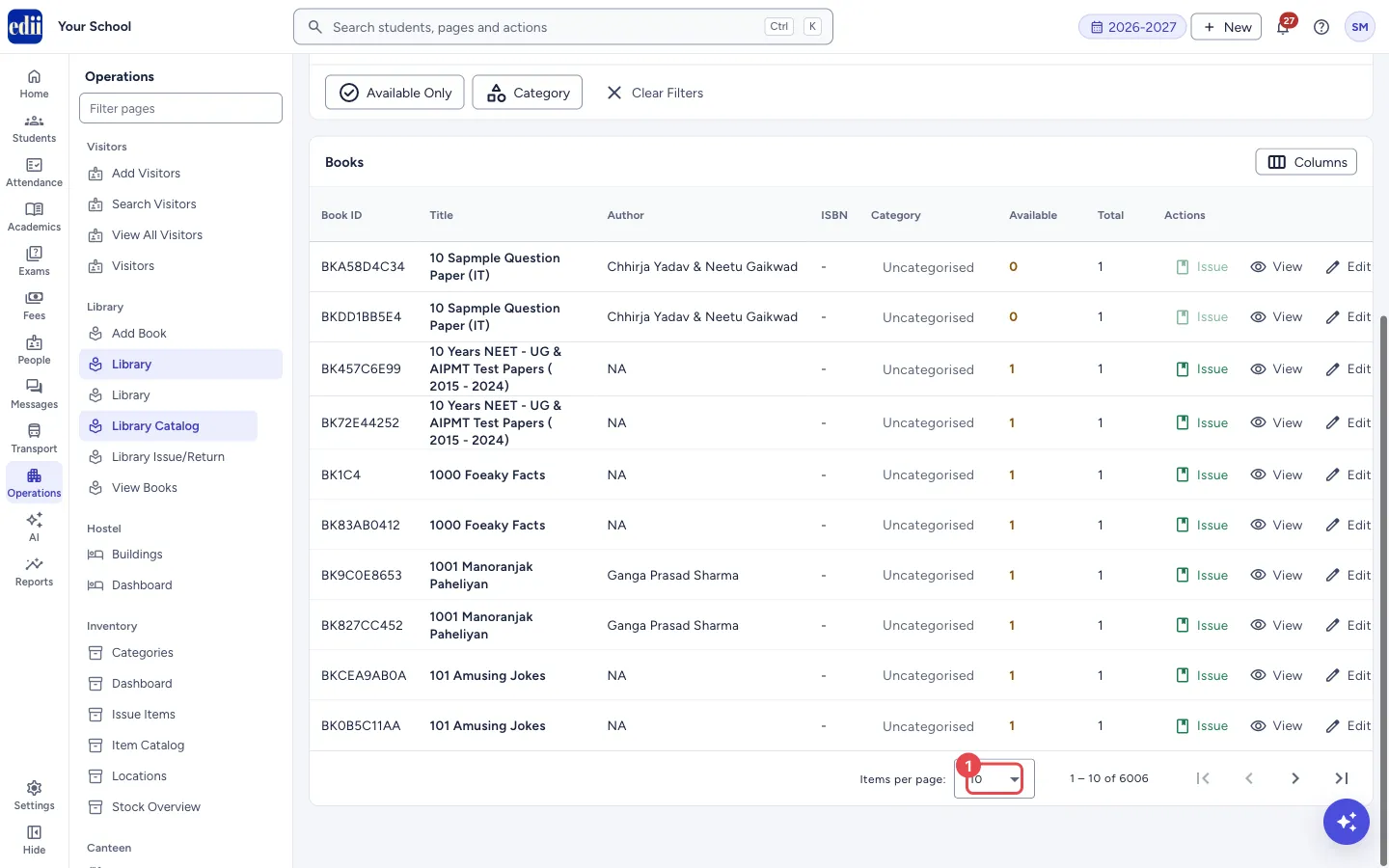
Section titled “2. Set rows per page”At the bottom of the table choose how many rows you want per page: 10, 25, 50 or 100.
 Open a bigger pictureतस्वीर बड़ी करें
3. Choose the columns
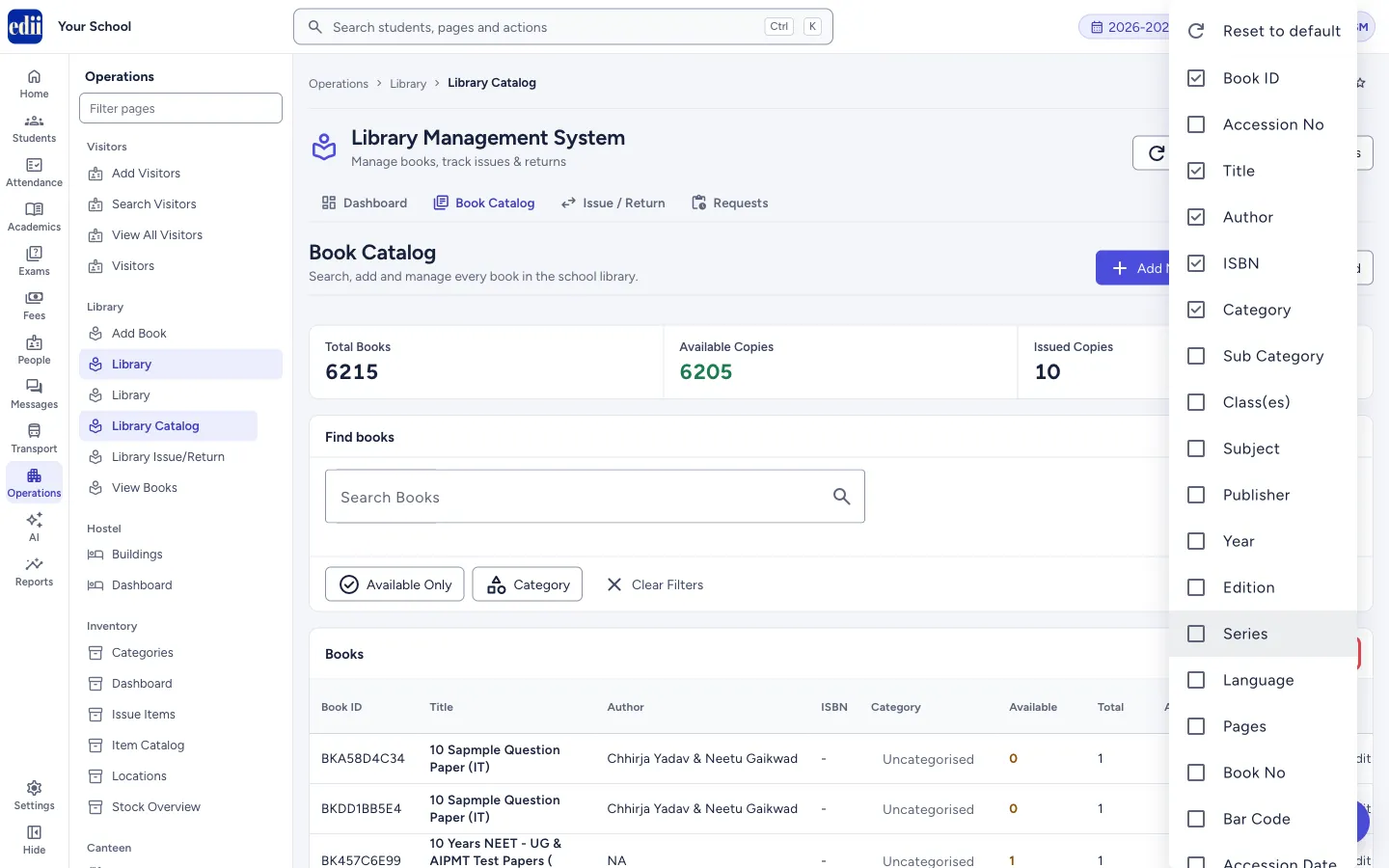
Section titled “3. Choose the columns”Select Columns above the table. Tick the columns to show or select Reset to default. By default you see Book ID, Title, Author, ISBN, Category, Available and Total. More columns can be added, such as Accession No, Sub Category, Class(es), Subject, Publisher, Year, Edition, Series, Language, Pages, Book No, Bar Code, Accession Date, Location, Rack, Source, Vendor, Bill No, Purchase Date, Price, Donated?, Donated By and Tags. The choice is remembered on this computer.
 Open a bigger pictureतस्वीर बड़ी करें
4. Add a book
Section titled “4. Add a book”Select Add New Book. A form opens above the cards with the sections Basic Info, Catalogue & Accession, Purchase & Donation and Notes. Title, Author and Total Copies (at least 1) are required. Select Save Book. EDII shows Book added successfully and the table is loaded again.
To add many books from a file, select Bulk Upload. It opens the bulk upload page for Excel or CSV files.
5. Issue, view, edit or delete a book
Section titled “5. Issue, view, edit or delete a book”Issue opens Issue / Return with this book chosen. It is switched off when no copy is available. View opens a window with the full record of the book. Edit opens the same form as Add, filled with the book’s details; the button then reads Update Book. Delete asks Are you sure you want to delete the book’s title; select Delete to confirm.
Fields and filters
Section titled “Fields and filters”| Field | What it is | Notes |
|---|---|---|
| Search Books | Finds books by title, author, ISBN or book ID. | The table filter also looks at the category. |
| Title, Author | Name of the book and its author. | Required. |
| ISBN, Category, Sub Category, Subject | Catalog details. Category suggests the categories already in use. | Optional. |
| Publisher, Publish Year, Edition, Series, Language, Pages | Publication details. Language suggests common languages. Publish Year is YYYY. | Optional. |
| Class(es) | The classes the book is meant for. You can pick several. | Optional. |
| Accession No, Book No, Bar Code, Accession Date (DD-MM-YYYY) | Your register numbers and the date the book was entered. | Optional. |
| Total Copies | How many copies of the book the library has. | Required, at least 1. |
| Location, Rack | Where the book is kept. | Optional. |
| Source, Vendor, Bill No, Purchase Date, Price | How the book came: purchase, donation or gift, from whom, and at what price. | Optional. |
| Donated?, Donated By | Yes or No, and the name of the donor. | Optional. |
| Description, Tags / Keywords | A note about the book and comma-separated keywords, for example novel, classic, indian. | Optional. |
Buttons
Section titled “Buttons”| Button | What it does | What happens next |
|---|---|---|
| Add New Book | Opens the form to add a book. | A panel with the form opens. |
| Bulk Upload | Opens the page to upload many books from an Excel or CSV file. | The bulk upload page opens. |
| Save Book / Update Book | Saves the form. | Book added successfully or Book updated successfully; the form closes. |
| Cancel | Closes the form without saving. | The table is shown. |
| Available Only | Shows only books with copies available. | The table is filtered. |
| Category | Shows the books of one category. | The table is filtered. |
| Clear Filters | Removes the search and filters. | All books are shown again. |
| Columns | Chooses the table columns. | The table changes at once. |
| Issue | Starts issuing this book. | Issue / Return opens with the book chosen. |
| View | Shows the full record. | A window opens; select Close to leave it. |
| Edit | Changes the book. | The form opens at the top of the page. |
| Delete | Removes the book after you confirm. | Book deleted successfully and the list is loaded again. |
Columns
Section titled “Columns”| Column | Meaning |
|---|---|
| Book ID | The number EDII gives the book. |
| Title, Author, ISBN, Category | What the book is. A dash means nothing was entered. |
| Available | Copies on the shelf now. A number of 2 or less is shown in a warning colour. |
| Total | All copies the library has. |
| Actions | Issue, View, Edit and Delete. |
Good to know
Section titled “Good to know”- The three cards add up copies, not titles: Total Books is the sum of Total Copies, and Issued Copies is Total minus Available.
- A book with no available copy cannot be issued. If you select Issue anyway EDII says No copies available for issue.
Messages you may see
Section titled “Messages you may see”| Message | What it means | What to do |
|---|---|---|
| Please fill all required fields | Title, Author or Total Copies is missing. | Fill them and save again. |
| Book added successfully | The book was saved. | Nothing to do. |
| Book updated successfully | The changes were saved. | Nothing to do. |
| Book deleted successfully | The book was removed. | Nothing to do. |
| Failed to load books | The catalog could not be loaded. | Select Refresh at the top of the page. |
| Failed to add book | The book could not be saved. | Check the internet and try again. |
| No copies available for issue | All copies are out. | Return a copy first. |
| No books found. Add your first book to get started! | The library has no books. | Add a book or use Bulk Upload. |
- Use Bulk Upload for a whole register; use Add Book in the menu when you only have a few details to enter.
- Show Rack and Location in Columns so you can find the book on the shelf quickly.
Stuck? Try this
Section titled “Stuck? Try this”| Problem | Likely cause | What to do |
|---|---|---|
| Save Book is greyed out | Title, Author or Total Copies is empty, or Total Copies is below 1. | Fill them in. |
| Issue is greyed out for a book | All copies of that book are issued. | Wait for a return, or add copies by editing Total Copies. |
Did this page help?क्या इस पेज से मदद मिली?
Thanks! Glad it helped.धन्यवाद! अच्छा लगा कि काम बन गया।
Sorry about that. Ask in your own words, or write to us.माफ़ कीजिए। अपने शब्दों में पूछें, या हमें लिखें।