
Screen guide · Web app
WhatsApp Report
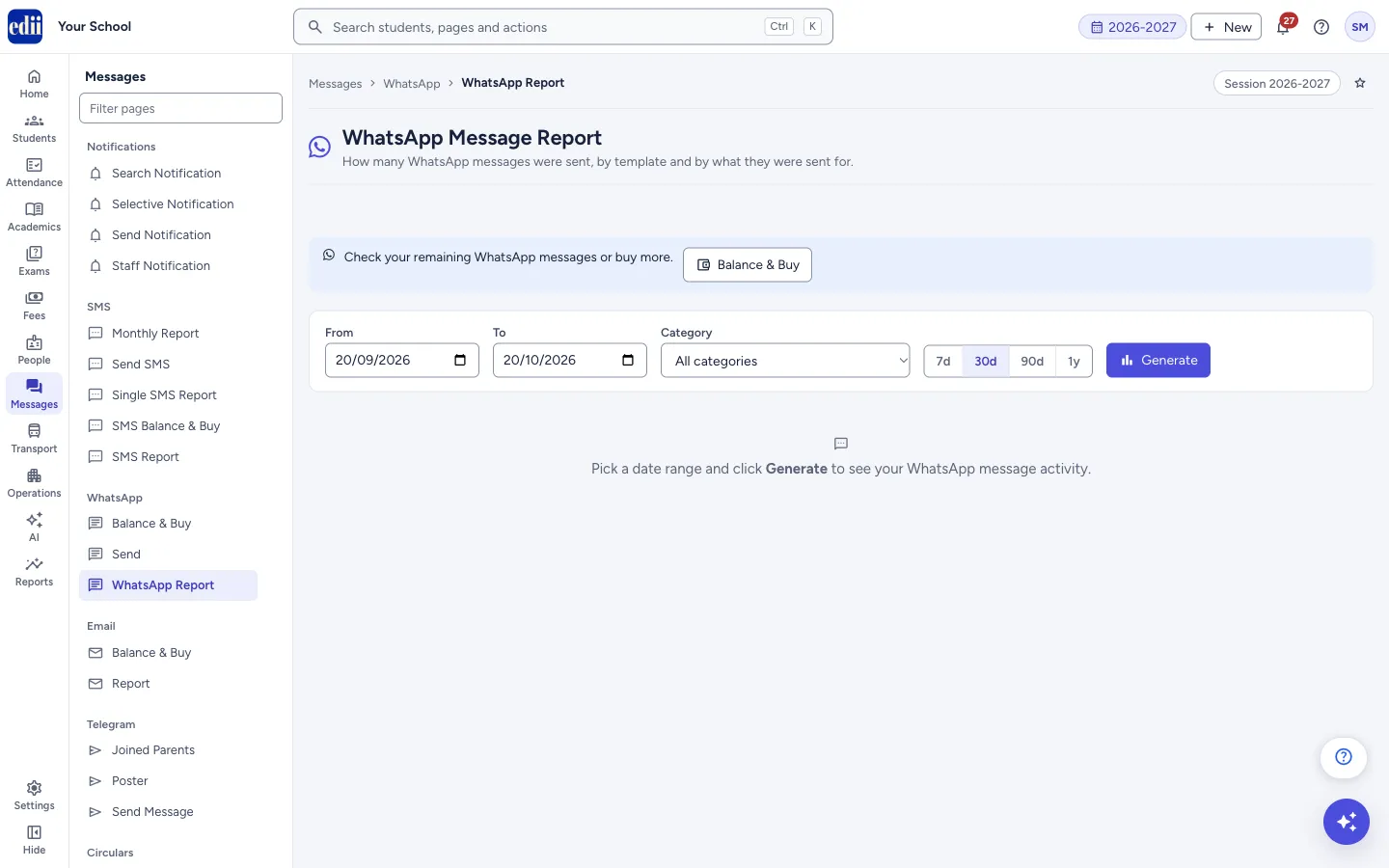
How many WhatsApp messages EDII sent for the school between two dates, by what they were sent for and by message design, with the status of every message. The page is headed WhatsApp Message Report.
यह पेज अंग्रेज़ी में है। कुछ समझ न आए तो ।
WhatsApp Message Report shows what WhatsApp messages went out for the school. Pick From, To and Category (or a quick range 7d, 30d, 90d, 1y) and select Generate.
The report shows counts at the top, a bar for each reason a message was sent (By What It Was Sent For), a table By Template, Daily Activity, Why messages were not sent, and a list of Every message with the person, mobile number, design, status and details. Export CSV saves the report as a file.
A box at the top, Balance & Buy, takes you to the page where you check and buy WhatsApp messages.
Who uses it and when
Section titled “Who uses it and when”The school office uses it to check that attendance, fee or admission messages went out, and to find out why a message did not.
Where to find it
Section titled “Where to find it”- In school.edii.in: Messages › WhatsApp › WhatsApp Report
- Or press Ctrl K (⌘ K on a Mac) and type WhatsApp Report.
- Address:
school.edii.in/view/whatsapp-message-report - Who can see it: Staff whose role includes Messages access. Shown only when your school uses Messages in EDII. If it is missing from your menu, ask your school admin.
 Open a bigger pictureतस्वीर बड़ी करें
Step by step
Section titled “Step by step”1. Choose the dates and the category
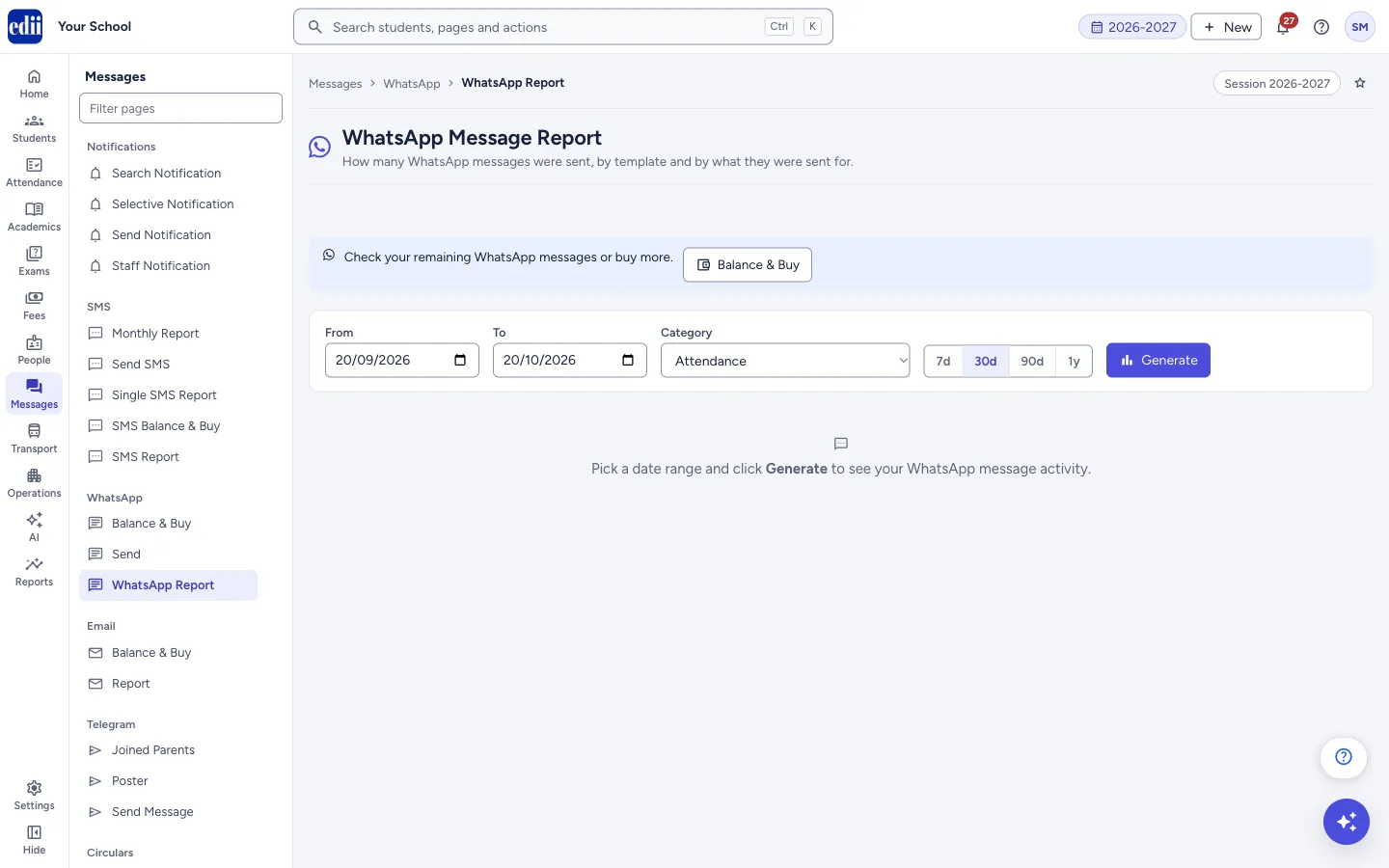
Section titled “1. Choose the dates and the category”From and To start as the last 30 days. Pick other days on the date boxes, or select 7d, 30d, 90d or 1y. Category starts as All categories; choose one to look at a single kind of message.
 Open a bigger pictureतस्वीर बड़ी करें
2. Generate
Section titled “2. Generate”Select Generate. EDII shows Report Generated. Until you do, the page says Pick a date range and click Generate to see your WhatsApp message activity.
A line Showing with the dates and the category tells what the numbers cover. If you change a filter afterwards, the numbers fade and EDII says Filters changed — click Generate to update these results.
3. Read the counts
Section titled “3. Read the counts”Messages Sent is the number of messages accepted by WhatsApp in the range. A value card estimates what they are worth (free messages are not deducted); if the price is not available it reads Cost unavailable · pricing not loaded. Blocked, Failed and Pending cards show only when there are such messages. Templates Used, Categories and Busiest Day complete the row.
4. See why messages were not sent
Section titled “4. See why messages were not sent”Why messages were not sent lists the reasons with how many messages each affected. For some older messages only the outcome is known, and the page says so.
5. Look at every message
Section titled “5. Look at every message”Every message lists the messages, newest first, with When, Sent for (the person’s name), Mobile, What it was for, Design, Status and Details. Use the buttons All, Not sent, Blocked, In progress and Sent to filter, or type a name, mobile number or design in the search box. Show more adds 100 more rows.
6. Save the report
Section titled “6. Save the report”Select Export CSV at the top right. A file named whatsapp-message-report- with the dates is saved.
Fields and filters
Section titled “Fields and filters”| Field | What it is | Notes |
|---|---|---|
| From, To | The first and last day of the report. | Required. Errors: Please select a From and To date, From date cannot be after To date. |
| Category | The kind of message to look at. | All categories, Attendance, Admission, Fees, Engagement, OTP / Login, Onboarding, Visitor, Homework, Exam / Result, Discipline / Corrective Measures, Transport, Other. The list also has two internal ones. |
| 7d, 30d, 90d, 1y | Quick ranges that end today. | Selecting one sets From and To. Then select Generate. |
| Search a name, mobile number or design | Narrows the Every message list. | Optional. |
Buttons
Section titled “Buttons”| Button | What it does | What happens next |
|---|---|---|
| Generate | Builds the report for the dates and category. | Report Generated shows and the counts and tables fill in. |
| Export CSV | Saves the report as a CSV file. | A file is saved to your computer. It shows only after a report is generated. |
| Balance & Buy | Opens the WhatsApp Balance & Buy page. | You leave this page. |
| Show more | Shows 100 more messages in Every message. | The list gets longer. |
Columns
Section titled “Columns”| Column | Meaning |
|---|---|
| When | The date and time of the message. |
| Sent for | The name of the person the message was for. |
| Mobile | The phone number the message went to. |
| What it was for | The category, for example Attendance or Fees. |
| Design | The approved message design that was used. |
| Status | Sent, Not sent, Blocked or In progress. |
| Details | The reason, when a message was not sent. |
Good to know
Section titled “Good to know”- Sent means the message was accepted by WhatsApp for delivery. WhatsApp does not report back to EDII whether the phone received it, so the report cannot tell you that.
- A message that was blocked or that failed is not charged.
- WhatsApp messages go out only as approved message designs; the report shows which design each message used.
- If more messages exist than the page can show, the page says Showing the first N of M messages (failures first). Narrow the date range to see the rest.
- If WhatsApp is switched off for the school, a banner says so. Nothing in the report could have been delivered, and you can switch it on from the banner.
Messages you may see
Section titled “Messages you may see”| Message | What it means | What to do |
|---|---|---|
| Report Generated | The report was built. | Nothing to do. |
| Please select a From and To date | A date is empty. | Fill both dates. |
| From date cannot be after To date | The dates are the wrong way round. | Change the dates. |
| Bad/Slow Internet Connection, Please check your internet connection | The report could not be loaded. | Check the internet and select Generate again. |
| WhatsApp is not switched on for this school. | The school’s WhatsApp switch is off. | Select Enable WhatsApp, or switch it on in Preferences. |
- Choose Not sent in the list to see only the messages that need a follow-up.
- Narrow the dates when the list says it is showing only the first rows.
Stuck? Try this
Section titled “Stuck? Try this”| Problem | Likely cause | What to do |
|---|---|---|
| A parent says no message came, but the report says Sent. | Sent means WhatsApp accepted the message. It may not have reached the phone. | Check the mobile number in the report, and ask the parent to check WhatsApp on that number. |
| The report shows no messages. | Nothing was sent in that range or category, or WhatsApp is off for the school. | Widen the dates, choose All categories, and check the banner at the top. |
Did this page help?क्या इस पेज से मदद मिली?
Thanks! Glad it helped.धन्यवाद! अच्छा लगा कि काम बन गया।
Sorry about that. Ask in your own words, or write to us.माफ़ कीजिए। अपने शब्दों में पूछें, या हमें लिखें।