
Screen guide · Web app
EdiiBrain
The school's performance overview: a health score, a morning brief, plain-English questions about your school's data, a weekly playbook, an at-risk student list, and trends, alerts, comparisons and drill-downs.
यह पेज अंग्रेज़ी में है। कुछ समझ न आए तो ।
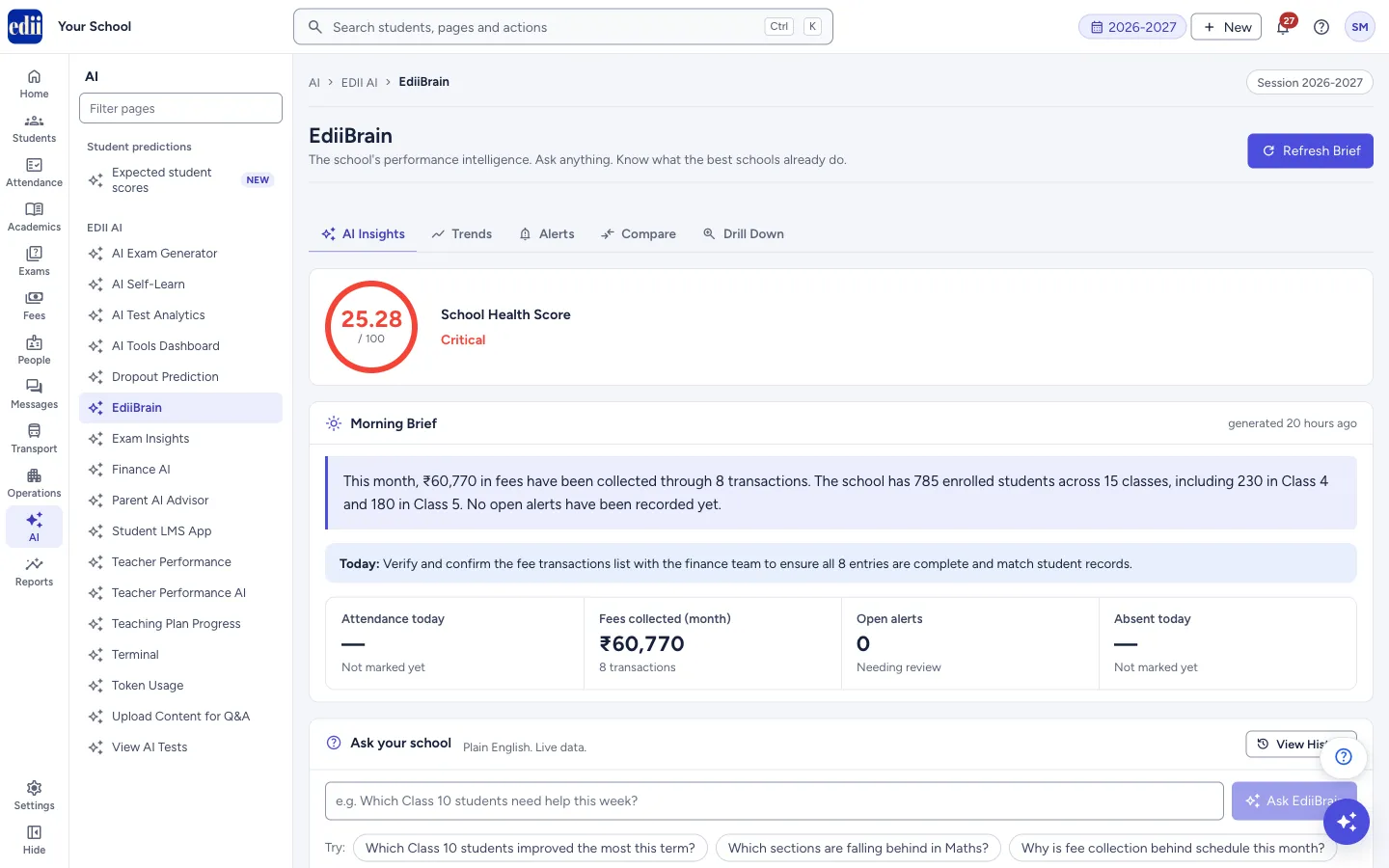
EdiiBrain brings the school’s numbers together in one place. It has five tabs: AI Insights, Trends, Alerts, Compare and Drill Down. Refresh Brief at the top right rebuilds the morning brief.
AI Insights is the main tab. It shows the School Health Score (a number out of 100 with a word such as Critical), a Morning Brief, Ask your school, This week’s playbook and the At-risk watchlist. The brief, the playbook and the watchlist are written by AI from your school’s records, and they tell you when they were generated.
AI answers, briefs and drafts are estimates made from the data that is in EDII. They can be wrong or incomplete, for example when attendance has not been marked. Check them against your own records before you act on them.
Who uses it and when
Section titled “Who uses it and when”The principal and senior staff open it at the start of the day and once a week to see where the school needs attention.
Before you start
Section titled “Before you start”- The figures come from attendance, fees, exams and other records already in EDII. Where attendance is not yet marked for the day, the screen shows a dash and Not marked yet.
Where to find it
Section titled “Where to find it”- In school.edii.in: AI › EDII AI › EdiiBrain
- Or press Ctrl K (⌘ K on a Mac) and type EdiiBrain.
- Address:
school.edii.in/view/edii-brain - Who can see it: Shown only when your school uses EDII’s AI in EDII. If it is missing from your menu, ask your school admin.
 Open a bigger pictureतस्वीर बड़ी करें
Step by step
Section titled “Step by step”1. Read the health score and morning brief
Section titled “1. Read the health score and morning brief”The School Health Score is at the top. Below it, Morning Brief gives a short written summary, a line starting Today: and sometimes This week:. Four tiles show Attendance today, Fees collected (month), Open alerts and Absent today. Top risks today lists points that need attention.
The brief shows when it was made (for example generated 20 hours ago). Select Refresh Brief to make a new one.
 Open a bigger pictureतस्वीर बड़ी करें
2. Ask a question about your school
Section titled “2. Ask a question about your school”In Ask your school, type a question in plain words, for example Which Class 10 students need help this week?, and select Ask EdiiBrain (or press Enter). A few ready-made questions show under Try:; select one to ask it.
The answer is worked out in the background, so you can keep working. Your question shows with Working on it… you’ll be notified when the answer arrives. When ready, the answer appears on the page with highlights and a Next step, and a pop-up shows the start of the answer. Clear conversation removes the questions from the screen.
View History opens a page listing your earlier questions and their answers.
3. Use the weekly playbook
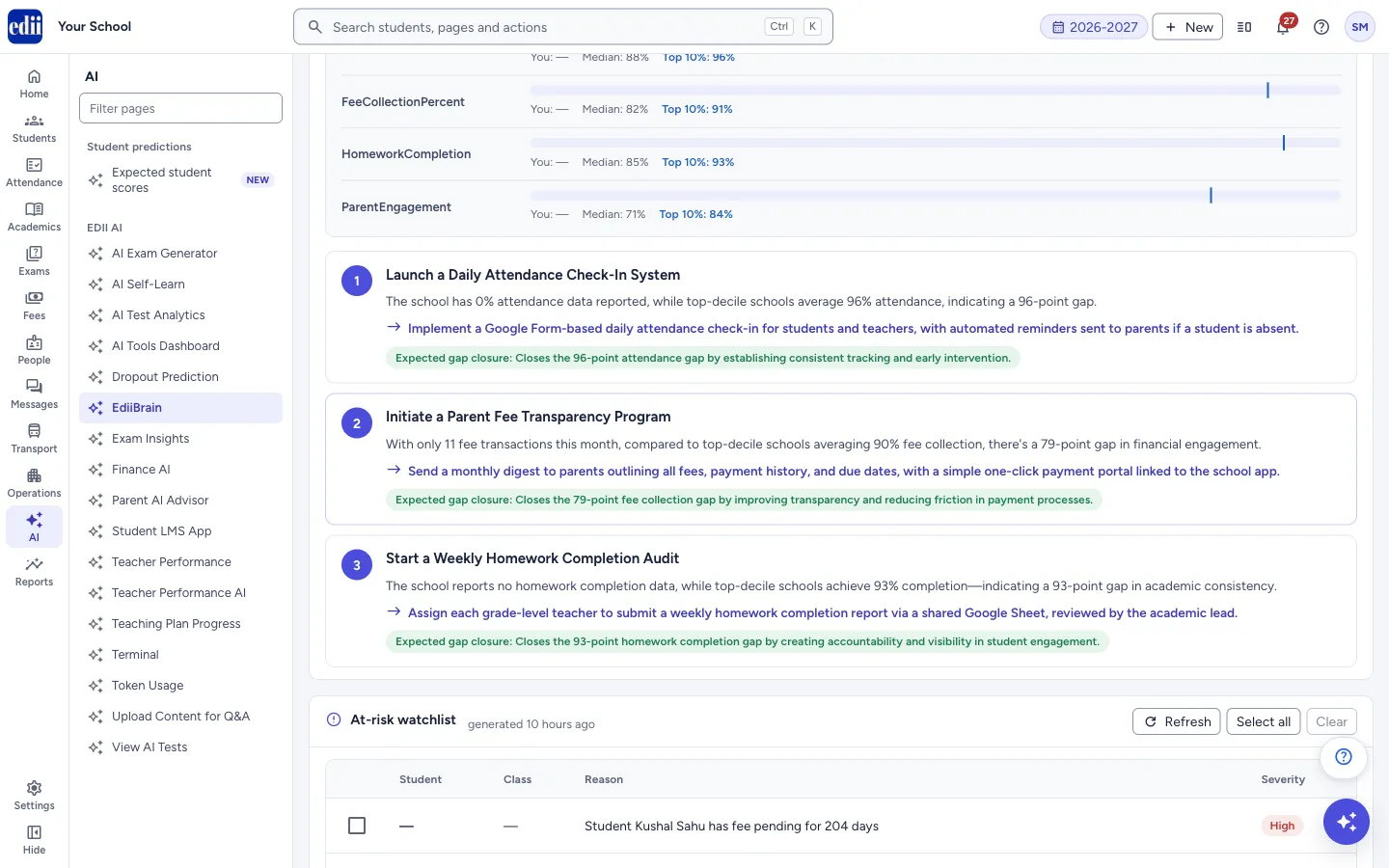
Section titled “3. Use the weekly playbook”This week’s playbook compares the school with other schools on attendance, fee collection, homework completion and parent engagement (You, Median and Top 10%), and lists numbered suggestions. Each has a reason, an action and the Expected gap closure. If there is nothing to suggest it says No playbook suggestions right now — your school is tracking in line with the network.
4. Work through the at-risk watchlist
Section titled “4. Work through the at-risk watchlist”The At-risk watchlist lists students with their class, the reason and a severity. Refresh reloads it; Select all and Clear change the selection. If nobody is on it, it says No students are on the watchlist right now. That’s good news.
Tick students, choose a reason (Attendance drop, Marks drop, Homework missed or Celebrate improvement) and select Draft parent SMS. EdiiBrain writes one message for each student under SMS drafts ready for your review. Select Copy to copy a message. Nothing is sent from this page: read each message, change it if needed, and send it yourself from your messaging screen.
5. Check trends and alerts
Section titled “5. Check trends and alerts”Trends shows cards comparing This Month with Last Month for each measure, the percentage change and a Significant tag when the change is large. Alerts lists unusual points, each with a severity (critical or warning), a message and, where it applies, the class and section.
6. Compare classes and sections
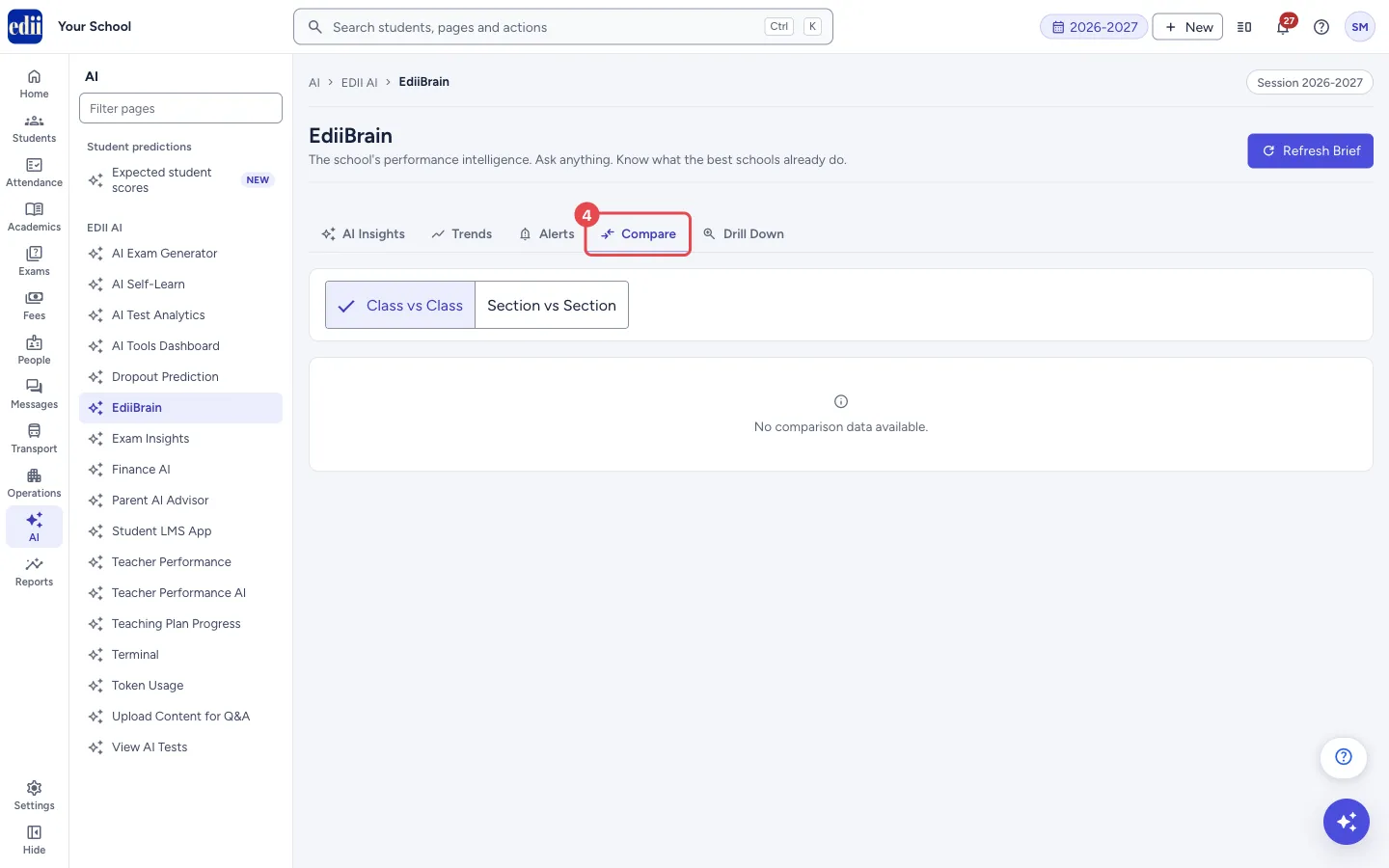
Section titled “6. Compare classes and sections”Open Compare. Choose Class vs Class, or Section vs Section and then a Class. The table lists each class or section with Students, Attendance % and Fee Collection %.
 Open a bigger pictureतस्वीर बड़ी करें
7. Drill down
Section titled “7. Drill down”Open Drill Down and choose Attendance, Fees, Exams or Teachers. Attendance lists students with their attendance percentage and days present, with counts of critical and warning students. Fees lists students with the amount pending and paid, the number of defaulters and the total pending. Exams lists tests with pass rate and average score. Teachers lists staff with days present.
Fields and filters
Section titled “Fields and filters”| Field | What it is | Notes |
|---|---|---|
| Ask your school | Your question in plain words. | Cannot be empty. Error: Type a question first. |
| Reason for the parent SMS | The kind of message to draft. | Attendance drop, Marks drop, Homework missed or Celebrate improvement. |
| Class vs Class / Section vs Section | What the Compare tab compares. | For sections, choose a class first. |
| Attendance / Fees / Exams / Teachers | What the Drill Down tab lists. | One at a time. |
Buttons
Section titled “Buttons”| Button | What it does | What happens next |
|---|---|---|
| Refresh Brief | Makes a new morning brief. | The brief and the four tiles update. |
| Ask EdiiBrain | Sends your question. | A pop-up says Ask sent and the answer appears on the page when ready. |
| View History | Opens the list of earlier questions and answers. | The history page opens. |
| Refresh / Select all / Clear | Reloads the watchlist, selects every student, or clears the selection. | The list updates. |
| Draft parent SMS | Writes a message for each selected student. | N drafts ready for your review. |
| Copy | Copies one draft message. | Copied to clipboard. |
After you save
Section titled “After you save”- Nothing on this page changes your school’s data or sends a message. Drafts have to be sent by you.
Good to know
Section titled “Good to know”- Answers, briefs, the playbook and drafts are made by AI from your school’s records. Staff must review them.
- The playbook compares your figures with those of other schools. A dash under You means your figure for that measure is not available.
- The watchlist, brief and playbook may be kept for some hours, and say when they were generated. Use the refresh buttons to get a new one.
- The Trends, Alerts, Compare and Drill Down tabs load only when you open them.
Messages you may see
Section titled “Messages you may see”| Message | What it means | What to do |
|---|---|---|
| Type a question first. | The question box is empty. | Type a question. |
| EdiiBrain is unreachable. Please try again shortly. | The brief could not be loaded. | Try Refresh Brief again after a moment. |
| Could not reach EdiiBrain. Try again in a moment. | Your question could not be sent. | Ask again. |
| Could not load at-risk students. | The watchlist did not load. | Select Refresh. |
| Could not load playbook. | The playbook did not load. | Reload the page. |
| Select at least one student to draft a message. | No student is ticked. | Tick one or more students. |
| EdiiBrain could not draft the messages right now. | The drafts could not be made. | Try again later. |
| Copy failed — select the text manually. | The browser blocked copying. | Select the text and copy it yourself. |
| No trend data available yet. | There is not yet enough data for trends. | Check again later. |
| No anomalies detected. Everything looks healthy! | There are no alerts. | Nothing to do. |
| No comparison data available. | There is nothing to compare for this choice. | Choose another class. |
- Ask one clear question at a time and name the class or subject.
- Mark attendance each day. Without it the attendance tiles stay blank.
Stuck? Try this
Section titled “Stuck? Try this”| Problem | Likely cause | What to do |
|---|---|---|
| Attendance today shows a dash. | Attendance has not been marked today. | Mark attendance, then select Refresh Brief. |
| The Trends or Compare tab is empty. | There is not enough data in EDII yet for this school. | Check again after more data has been entered. |
Did this page help?क्या इस पेज से मदद मिली?
Thanks! Glad it helped.धन्यवाद! अच्छा लगा कि काम बन गया।
Sorry about that. Ask in your own words, or write to us.माफ़ कीजिए। अपने शब्दों में पूछें, या हमें लिखें।