
Screen guide · Web app
Consolidated Result Sheet
One printable sheet for a class and an exam, with every student's marks in each subject, the total, the percentage, attendance and a blank column for the parent's signature.
यह पेज अंग्रेज़ी में है। कुछ समझ न आए तो ।
The Consolidated Result Sheet puts a whole class on one sheet. Each row is a student. The columns are the subjects, then Total, Percent, Parent’s Signature (left blank for the parent to sign) and Present. The sheet has the school’s name, affiliation and address at the top, then the class, Examination = <exam type> and the session.
The marks, totals and percentages come from the same calculation as the student’s report card, so the sheet and the report card handed to the same parent do not disagree. When the exam type you choose includes parts such as a Note Book or Subject Enrichment, the sheet says (including …) and adds them in.
The screen only reads. Print it, send it home, and collect it back signed.
Who uses it and when
Section titled “Who uses it and when”The exam in-charge or class teacher, after the marks of an exam have been entered.
Before you start
Section titled “Before you start”- The marks of the exam must be entered for the class. Marks must have a maximum set on their paper to be counted in Total and Percent.
Where to find it
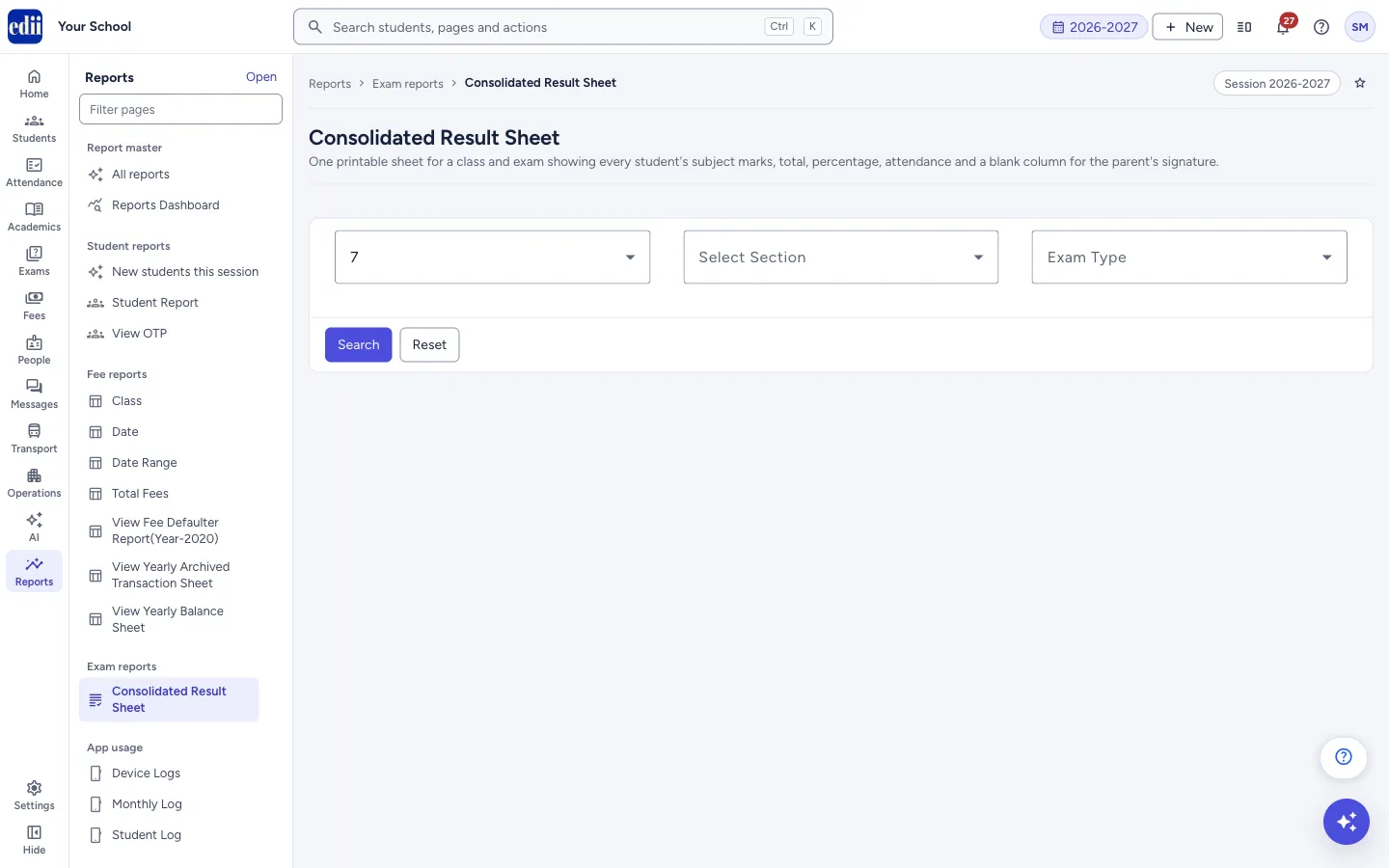
Section titled “Where to find it”- In school.edii.in: Reports › Exam reports › Consolidated Result Sheet
- Or press Ctrl K (⌘ K on a Mac) and type Consolidated Result Sheet.
- Address:
school.edii.in/view/consolidated-result-sheet - Who can see it: Staff whose role includes Reports access. Shown only when your school uses Report in EDII. If it is missing from your menu, ask your school admin.
 Open a bigger pictureतस्वीर बड़ी करें
Step by step
Section titled “Step by step”1. Choose class, section and exam type
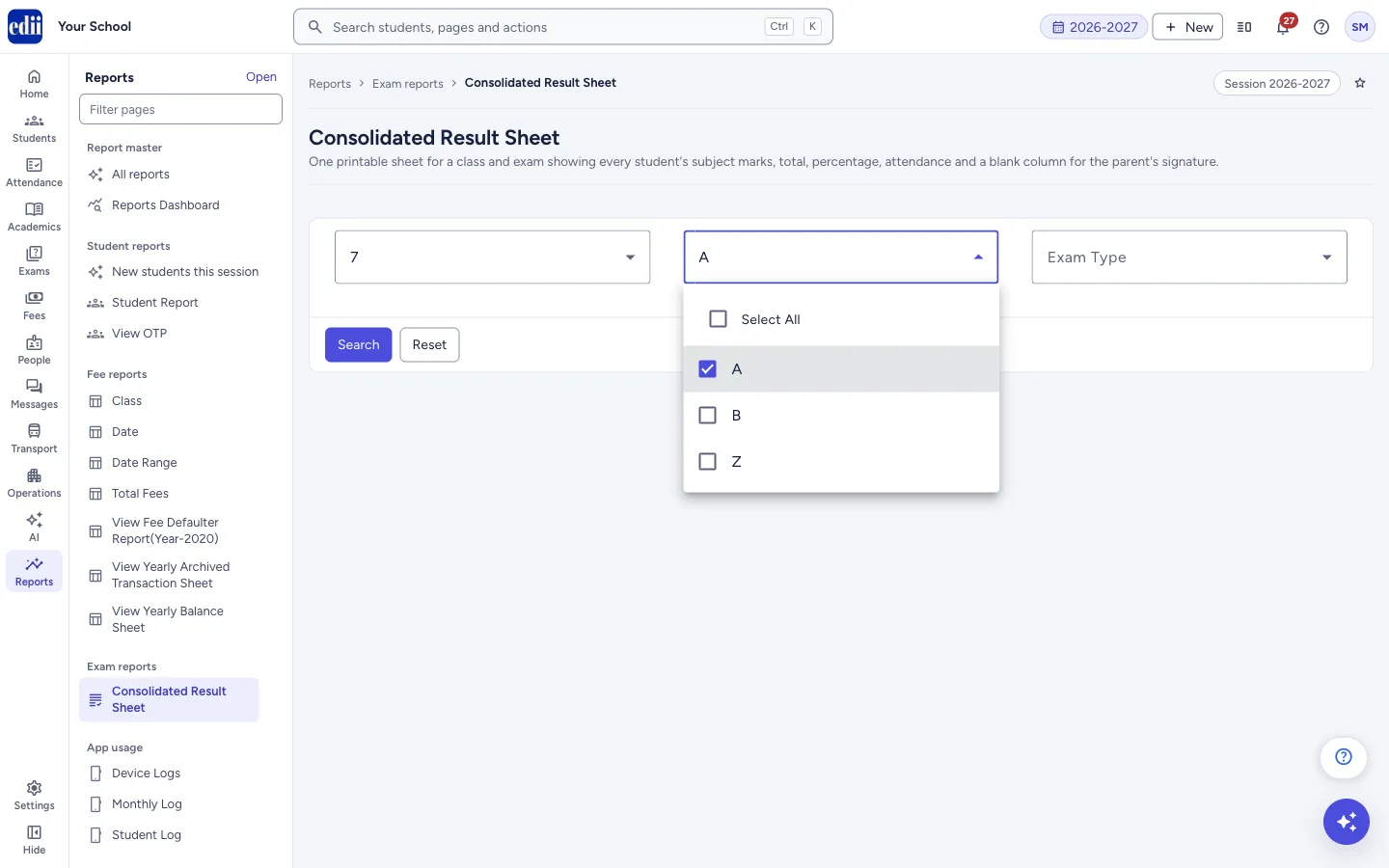
Section titled “1. Choose class, section and exam type”In Select Class choose the class. A class that is not ready yet shows — in progress beside it. In Select Section tick one or more sections, or Select All. In Exam Type choose the exam. The list holds the exam types of the school and the exam types that have tests recorded for the class. If there are none, the box says No exams found for this class in <session>.
 Open a bigger pictureतस्वीर बड़ी करें
2. Search
Section titled “2. Search”Select Search. If a box is empty the message Please select Class, Section and Exam Type. shows. While the sheet is being made the page says Loading the result sheet….
If the class is not ready yet, the page shows a note that it is in progress instead of a sheet. Select Reset to start again.
3. Read the sheet
Section titled “3. Read the sheet”Student’s Name is first. When more than one section is on the sheet, a Section column is added. Each subject has a column showing the student’s mark. Total reads like 52/60: marks obtained out of the full marks of the papers counted. Percent reads like 86.67%. Both are left blank when there is nothing to divide by.
Present reads like 80/95: days present out of days recorded for the session. Point at it for Present <n> of <m> days this session.
4. Print or download
Section titled “4. Print or download”Print opens the sheet for printing; if the pop-up is blocked, allow pop-ups or use Ctrl/Cmd+P. Download CSV saves the table as a file named result-sheet-<class>-<exam type>.csv, with the columns Student’s Name, Section (if shown), the subjects, Total, Percent and Present. Both buttons show only after a sheet has loaded.
Fields and filters
Section titled “Fields and filters”| Field | What it is | Notes |
|---|---|---|
| Select Class | The class of the sheet. | Required. |
| Select Section | The sections to put on the sheet. | Required. One or more, or Select All. |
| Exam Type | The exam the sheet is for. | Required. |
Buttons
Section titled “Buttons”| Button | What it does | What happens next |
|---|---|---|
| Search | Makes the sheet. | The sheet shows. |
| Reset | Clears the choices and the sheet. | |
| Prints the sheet. | Shown after a sheet has loaded. | |
| Download CSV | Saves the sheet as a CSV file. | Shown after a sheet has loaded. |
Columns
Section titled “Columns”| Column | Meaning |
|---|---|
| Student’s Name | The student. |
| Section | The student’s section. Shown only when more than one section is on the sheet. |
| Subjects | One column for each subject, in the order and wording of the report card. |
| Total | Marks obtained out of the maximum of the papers counted, for example 52/60. Blank if nothing is marked for the student. |
| Percent | The percentage on that total. Blank when there is no maximum to divide by. |
| Parent’s Signature | An empty box for the parent to sign on the printout. |
| Present | Days present out of days recorded this session, for example 80/95. Blank when no attendance is recorded for the student. |
Good to know
Section titled “Good to know”- A mark recorded against a paper with no maximum set shows in its subject column but is left out of Total and Percent. The page says so and asks you to set the maximum marks on those tests.
- A section with no marks for the exam is left off the sheet, and the page names it.
- If no attendance is recorded for any of the students, the page says so and the Present column is blank.
Messages you may see
Section titled “Messages you may see”| Message | What it means | What to do |
|---|---|---|
| Please select Class, Section and Exam Type. | A box was left empty. | Choose all three. |
| No students found for this class, section and exam type. | Nothing is recorded for these choices. | Check the exam type, or enter the marks. |
| No marks have been recorded for section(s) <names> in this exam, so they are not on the sheet. | Some sections have no marks. | Enter the marks, or ignore if the exam was not held for them. |
| Some marks were recorded against a paper with no maximum set, so they are shown in their subject column but left out of Total and Percent. Set the maximum marks on those tests to include them. | A paper has no maximum marks. | Set the maximum marks on those tests. |
| No attendance has been recorded for these students, so the Present column is blank. | There is no attendance to show. | |
| Printing is not enabled for your school. Please contact us to enable it. | Print is switched off for the school. | Use Download CSV, or contact EDII. |
| Please allow pop-ups to print, or use Ctrl/Cmd+P. | The browser blocked the print window. | Allow pop-ups for this site. |
| There is nothing to export. | Download CSV was used with no sheet. | Search first. |
| Could not reach the exam service. Please try again. | The server could not be reached. | Check the internet and search again. |
- Pick Select All sections to get the whole class on one sheet, with a Section column.
Did this page help?क्या इस पेज से मदद मिली?
Thanks! Glad it helped.धन्यवाद! अच्छा लगा कि काम बन गया।
Sorry about that. Ask in your own words, or write to us.माफ़ कीजिए। अपने शब्दों में पूछें, या हमें लिखें।