
Screen guide · Web app
Add Visitors
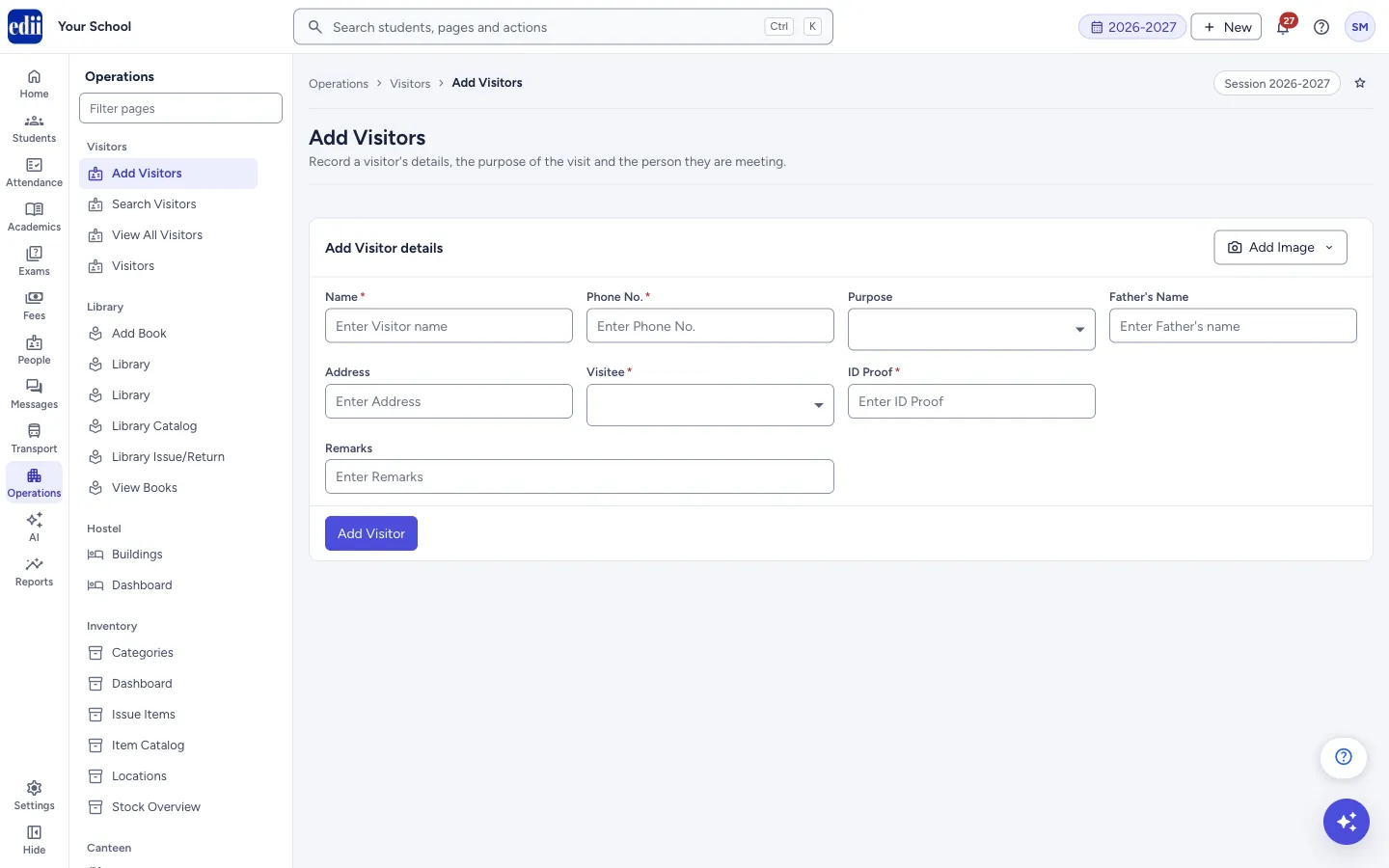
A short form to record a visitor at the gate: who they are, why they came, whom they are meeting and their ID proof, with an optional photo.
यह पेज अंग्रेज़ी में है। कुछ समझ न आए तो ।
Add Visitors records a new visit. Fill the visitor’s Name, Phone No., Purpose, the Visitee (the staff member they are meeting) and the ID Proof they showed, then select Add Visitor.
A photo of the visitor can be added with Add Image, either by taking a picture with the computer’s camera (Capture) or by choosing a file (Upload).
When the visit is saved, EDII opens View All Visitors, where the visit is listed.
Who uses it and when
Section titled “Who uses it and when”The front office or security desk, when someone comes to meet a teacher or staff member, to pick up or drop a student, or to pay fees.
Before you start
Section titled “Before you start”- The people a visitor can meet are the school’s users. A staff member who is not added as a user is not in the Visitee list.
- For a visitor who comes for an admission, use Add Student instead. Choosing the purpose Admission takes you to the admission form.
Where to find it
Section titled “Where to find it”- In school.edii.in: Operations › Visitors › Add Visitors
- Or press Ctrl K (⌘ K on a Mac) and type Add Visitors.
- Address:
school.edii.in/add/add-visitors - Who can see it: The same staff who see the other Visitors pages. If it is missing from your menu, ask your school admin.
 Open a bigger pictureतस्वीर बड़ी करें
Step by step
Section titled “Step by step”1. Add a photo (optional)
Section titled “1. Add a photo (optional)”Select Add Image at the top right of the box. Choose Capture to take a picture with the camera, or Upload to pick an image file. A file can be at most 10 MB. After an upload EDII shows Visitor Image Uploaded.
2. Fill the visitor’s details
Section titled “2. Fill the visitor’s details”Type the Name and the Phone No.; the phone number must be 10 digits. Father’s Name and Address are optional.
3. Choose the purpose
Section titled “3. Choose the purpose”Open Purpose and choose one of: Admission, General visit, Courtesy visit, Official visit, Visit to teacher, Visit to school, Fees Payment, Pickup student or Drop student.
Admission does not stay on this page: EDII shows Redirecting You to Add Student and opens the admission form. For Pickup student and Drop student a Students box appears (see the next step).
4. Choose the students (pickup or drop only)
Section titled “4. Choose the students (pickup or drop only)”In the Students box start typing a student’s name and choose the student from the list. Each chosen student appears as a tag; select the cross on a tag to remove it. You can add more than one student.
5. Choose the visitee and give the ID proof
Section titled “5. Choose the visitee and give the ID proof”Open Visitee and choose the staff member being visited. Type the ID Proof the visitor showed, for example the type and number of the card. Add Remarks if you need to.
6. Save the visit
Section titled “6. Save the visit”Select Add Visitor. EDII shows Visitor: <name> Successfully Added and opens View All Visitors.
Fields and filters
Section titled “Fields and filters”| Field | What it is | Notes |
|---|---|---|
| Name | The visitor’s name. | Required. Message: Visitor Name is required. |
| Phone No. | The visitor’s phone number. | Required, exactly 10 digits. |
| Purpose | Why the visitor came. | Required. Admission opens the admission form. |
| Father’s Name | Father’s name of the visitor. | Optional. |
| Address | The visitor’s address. | Optional. |
| Visitee | The staff member the visitor is meeting. | Required. Message: Visitee is required. |
| ID Proof | The ID the visitor showed. | Required. Message: ID Proof is required. |
| Remarks | A free note. | Optional. |
| Students | The students being picked up or dropped. | Shown only for Pickup student and Drop student. |
Buttons
Section titled “Buttons”| Button | What it does | What happens next |
|---|---|---|
| Add Image | Opens a menu with Capture and Upload. | A camera window opens, or a file chooser. |
| Add Visitor | Saves the visit. | View All Visitors opens. |
After you save
Section titled “After you save”- The visit is in View All Visitors. Open Visitors to see each visitor with a visit count and to check the visitor in or out.
Good to know
Section titled “Good to know”- In the text boxes you can type letters, numbers, spaces and these signs only: - @ & . , / _ # :
- A photo can be at most 10 MB.
- If the phone number has been used for a visit before, EDII tells you that the visitor has already visited.
Messages you may see
Section titled “Messages you may see”| Message | What it means | What to do |
|---|---|---|
| Please enter visitor name | The name is empty. | Type the name. |
| Please enter a valid 10-digit phone number | The phone number does not have exactly 10 characters. | Type the 10-digit number. |
| Please select purpose of visit | No purpose is chosen. | Choose a purpose. |
| Visitor: <name> Successfully Added | The visit was saved. | Nothing to do. |
| Visitor: <name> has already visited, Redirecting to the details of the visitor | This phone number already has a visit on record. | Find the visitor in Search Visitors or Visitors. |
| Max File Size is 10 MB, If you need to upload a Big file contact us | The photo is bigger than 10 MB. | Choose a smaller picture. |
| Visitor Image Uploaded | The photo was saved. | Nothing to do. |
| Bad/Slow Internet Connection, Please check your internet connection | The request did not finish. | Check the internet and try again. |
Stuck? Try this
Section titled “Stuck? Try this”| Problem | Likely cause | What to do |
|---|---|---|
| Add Visitor does not save | A required box is empty, or the phone number is not 10 digits. | Read the red message under the boxes and the message at the top of the screen. |
| The Visitee list is empty or the person is missing | The staff member is not added as a user of the school. | Add the person as a user first. |
| I chose Admission and the page changed | Admission visits are recorded through the admission form. | Fill the admission form, or choose another purpose. |
Did this page help?क्या इस पेज से मदद मिली?
Thanks! Glad it helped.धन्यवाद! अच्छा लगा कि काम बन गया।
Sorry about that. Ask in your own words, or write to us.माफ़ कीजिए। अपने शब्दों में पूछें, या हमें लिखें।