
Get started · Parent app
Split screen: two or three pages at once
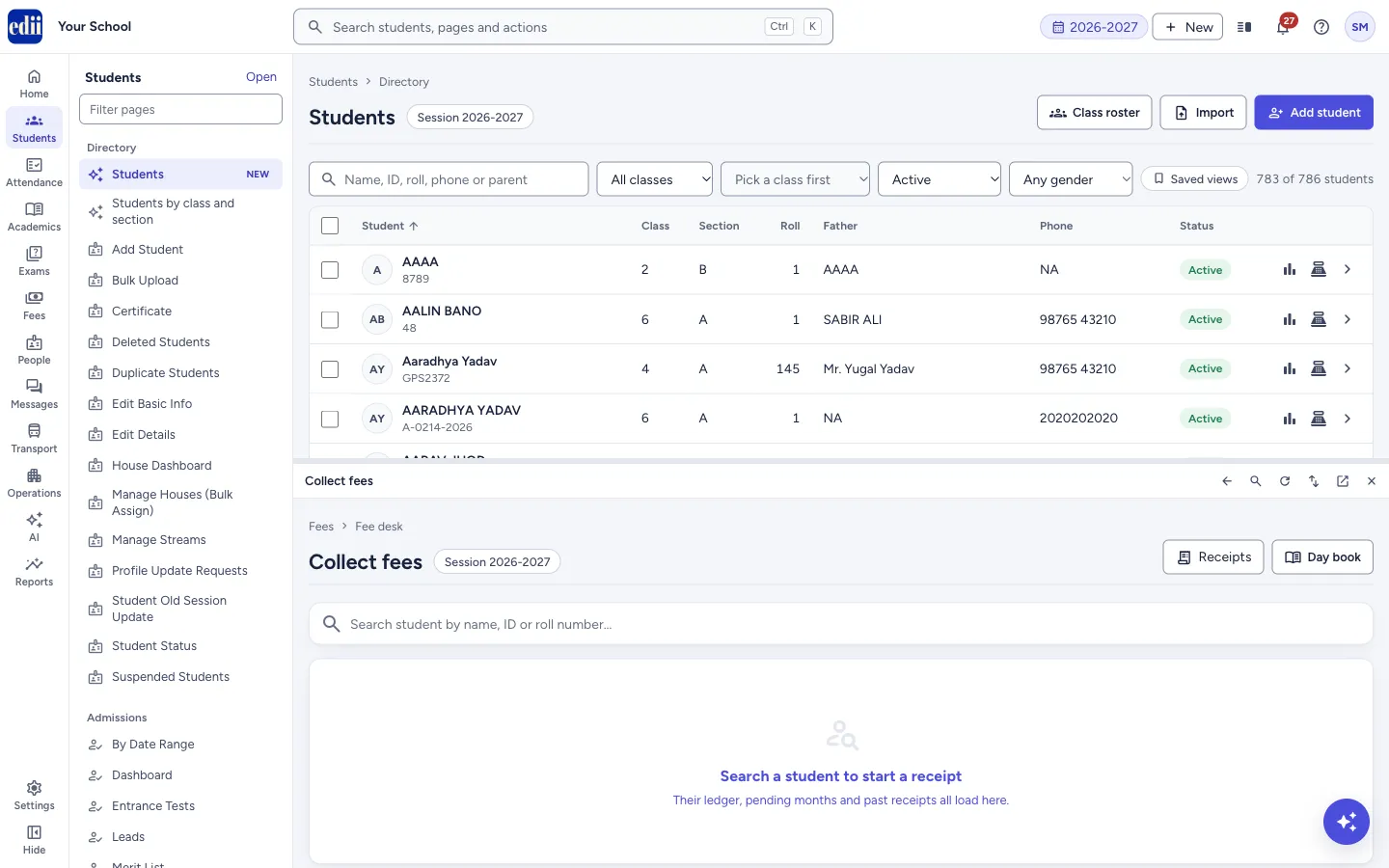
Work on two or three pages side by side in one window, for example the Fee desk next to the student list: add a screen, pick its page, swap, stack or close the screens.
यह पेज अंग्रेज़ी में है। कुछ समझ न आए तो ।
Split screen puts up to three pages of school.edii.in in one window: the main screen and up to two side screens. Each screen is a full page with its own Back button, so you can look something up on one side while you work on the other.
Before you start
Section titled “Before you start”- Use a laptop or desktop. On a phone or a narrow window the Split screen button is not shown.
1. Open the Split screen menu
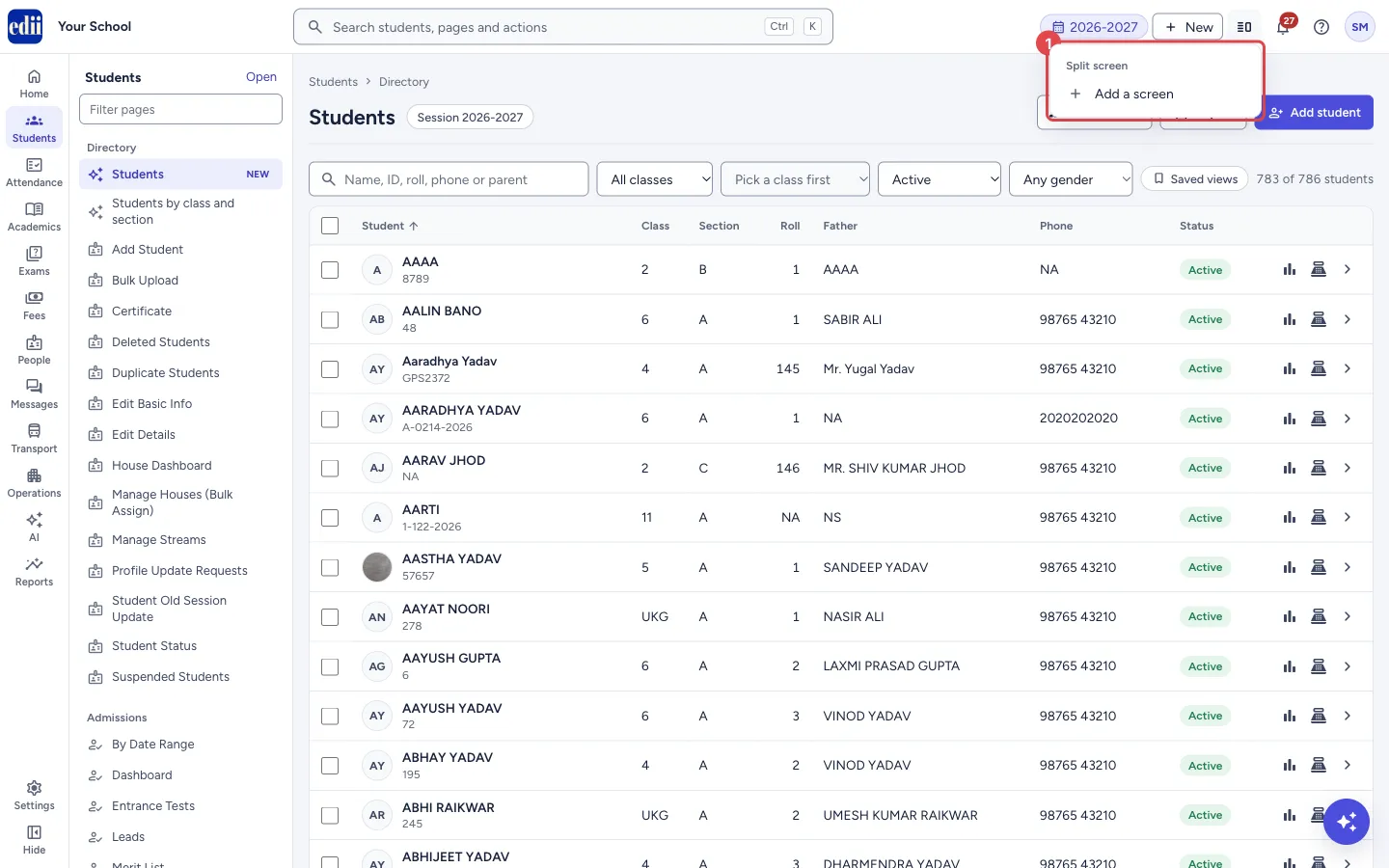
Section titled “1. Open the Split screen menu”In the top bar, select the Split screen button, between New and the bell. The menu has Add a screen.
 Open a bigger pictureतस्वीर बड़ी करें
2. Add a screen and choose its page
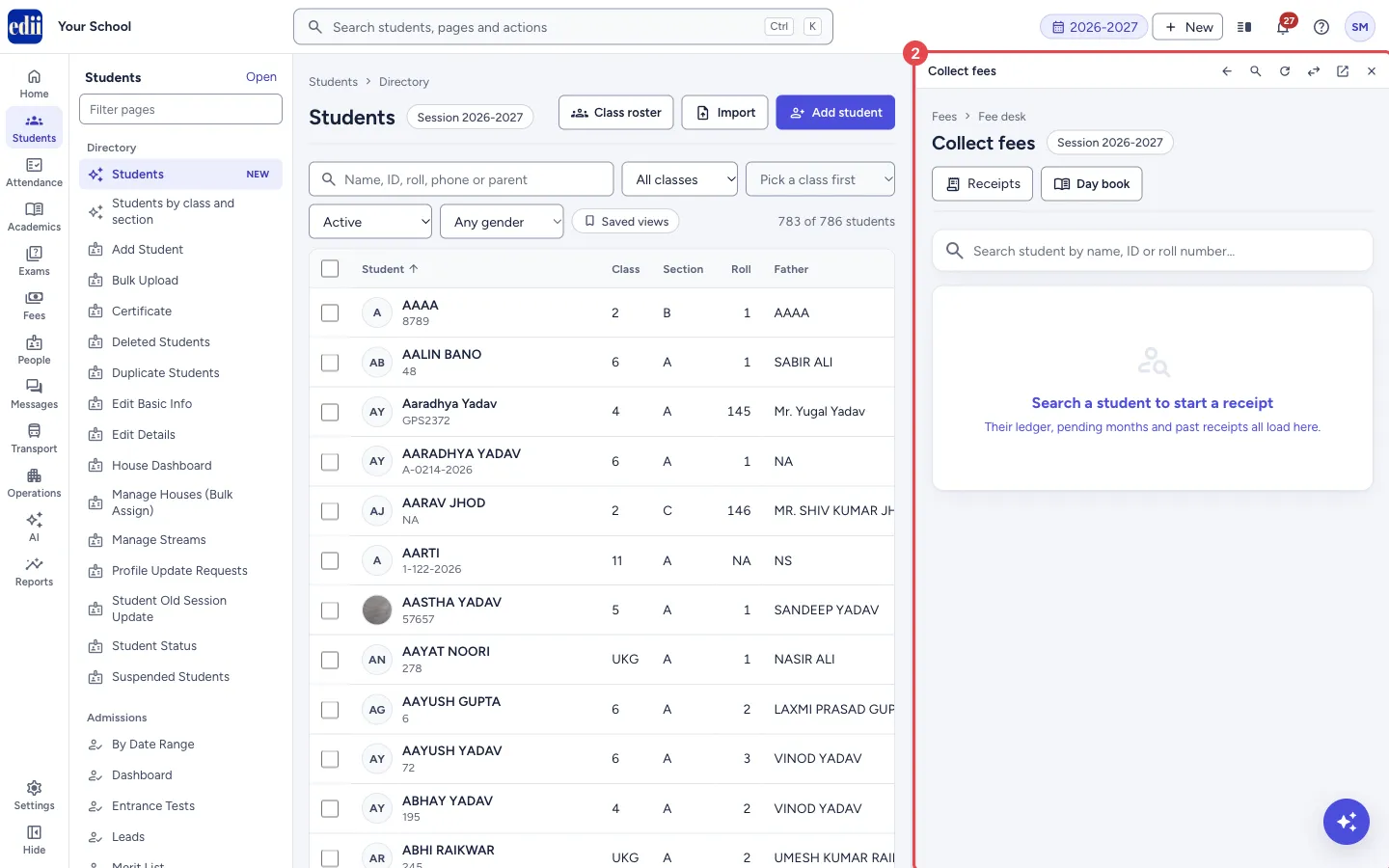
Section titled “2. Add a screen and choose its page”Select Add a screen. A side screen opens with its page search ready: type the page you want, for example fee desk, and press Enter. The page you were on stays in the main screen.
 Open a bigger pictureतस्वीर बड़ी करें
3. Use the bar of a side screen
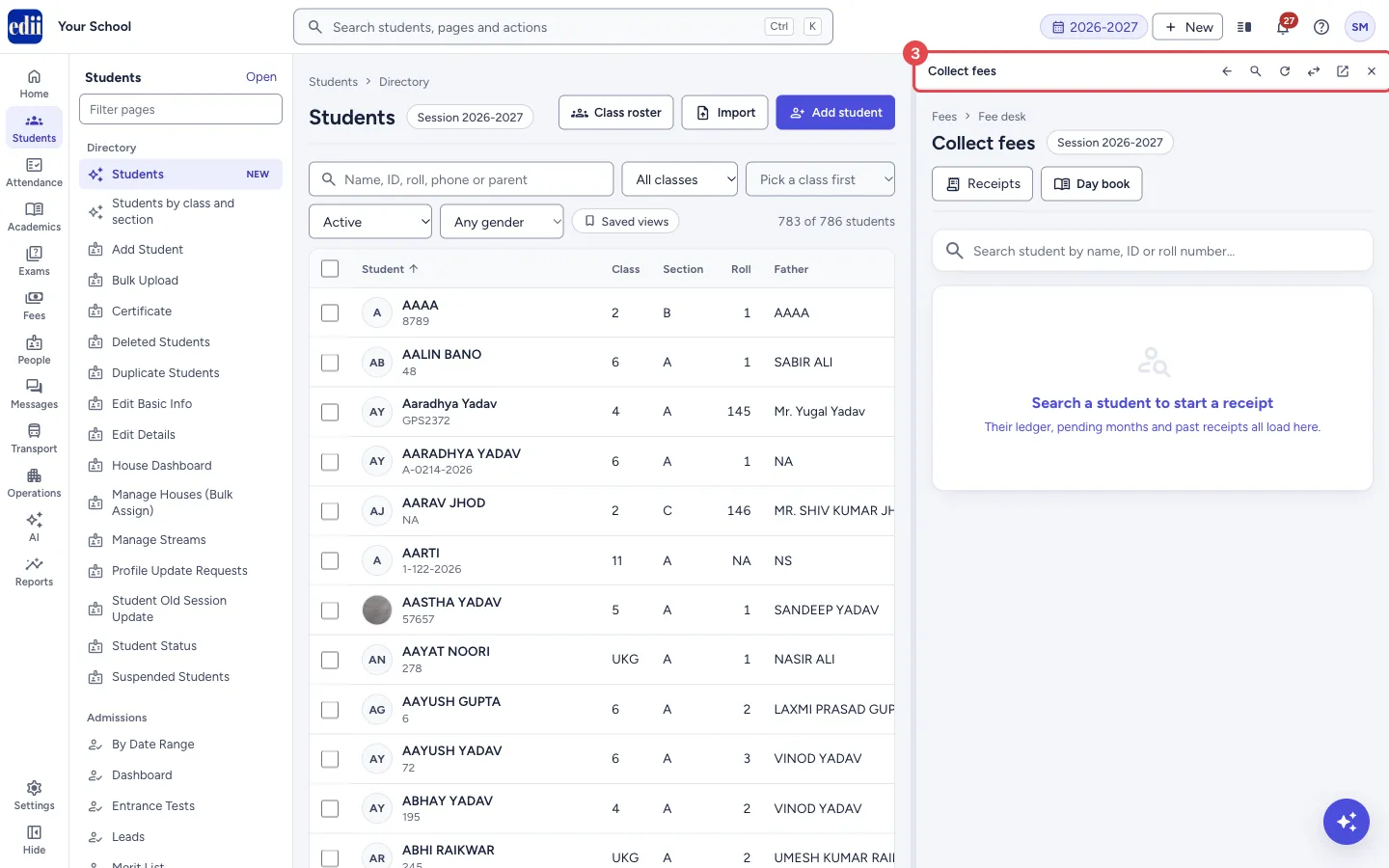
Section titled “3. Use the bar of a side screen”The bar at the top of a side screen shows its page name and, from left to right: Back, Find a page (to change the page), Reload, Swap with the main screen (the two pages change places), Open in a new tab and Close this screen.
 Open a bigger pictureतस्वीर बड़ी करें
4. Choose the layout
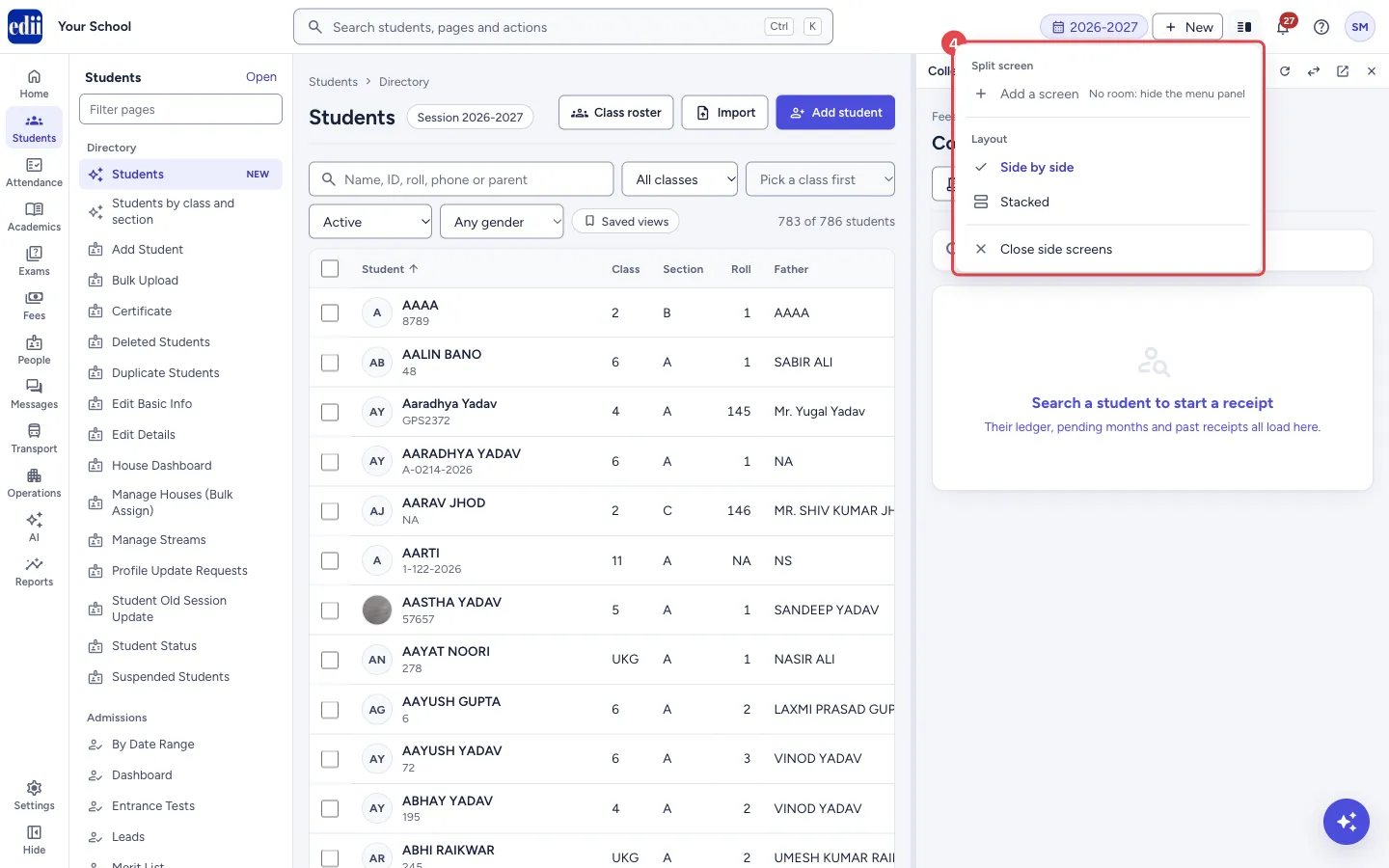
Section titled “4. Choose the layout”Select the Split screen button again. Under Layout choose Side by side or Stacked. Close side screens closes them all and leaves the main screen.
To add a third screen side by side, there must be room: if Add a screen says No room: hide the menu panel, select Hide at the bottom of the rail first, or choose Stacked.
 Open a bigger pictureतस्वीर बड़ी करें
5. Stacked screens
Section titled “5. Stacked screens”With Stacked, the screens sit one above the other. This suits a narrower laptop screen or a long list next to a short form.
 Open a bigger pictureतस्वीर बड़ी करें
6. Make a screen bigger
Section titled “6. Make a screen bigger”Drag the line between two screens. You can also select the line and use the arrow keys.
Good to know
Section titled “Good to know”- At most three screens: the main screen and two side screens. With three, Add a screen says 3 at most.
- Your screens stay open when you reload the page or change the session. They are remembered in this browser on this computer.
- If the window becomes too narrow (for example a phone, or a small browser window), only the main screen shows. The side screens come back when the window is wide again.
- Each screen shows only what your role can open, the same as the main screen.
Stuck? Try this
Section titled “Stuck? Try this”| You see | Why | What to do |
|---|---|---|
| I do not see the Split screen button | The window is too narrow, for example on a phone or a small browser window. | Use a laptop or desktop, or make the browser window wider. |
| Add a screen is greyed out | Three screens are already open, or there is no room for another one side by side. | Close a screen, select Hide at the bottom of the rail, or choose Stacked. |
| My side screens disappeared | The window became too narrow. | Make the window wider; the side screens come back. |
Did this page help?क्या इस पेज से मदद मिली?
Thanks! Glad it helped.धन्यवाद! अच्छा लगा कि काम बन गया।
Sorry about that. Ask in your own words, or write to us.माफ़ कीजिए। अपने शब्दों में पूछें, या हमें लिखें।