
Screen guide · Web app
Mark attendance
हाज़िरी लगाएँ
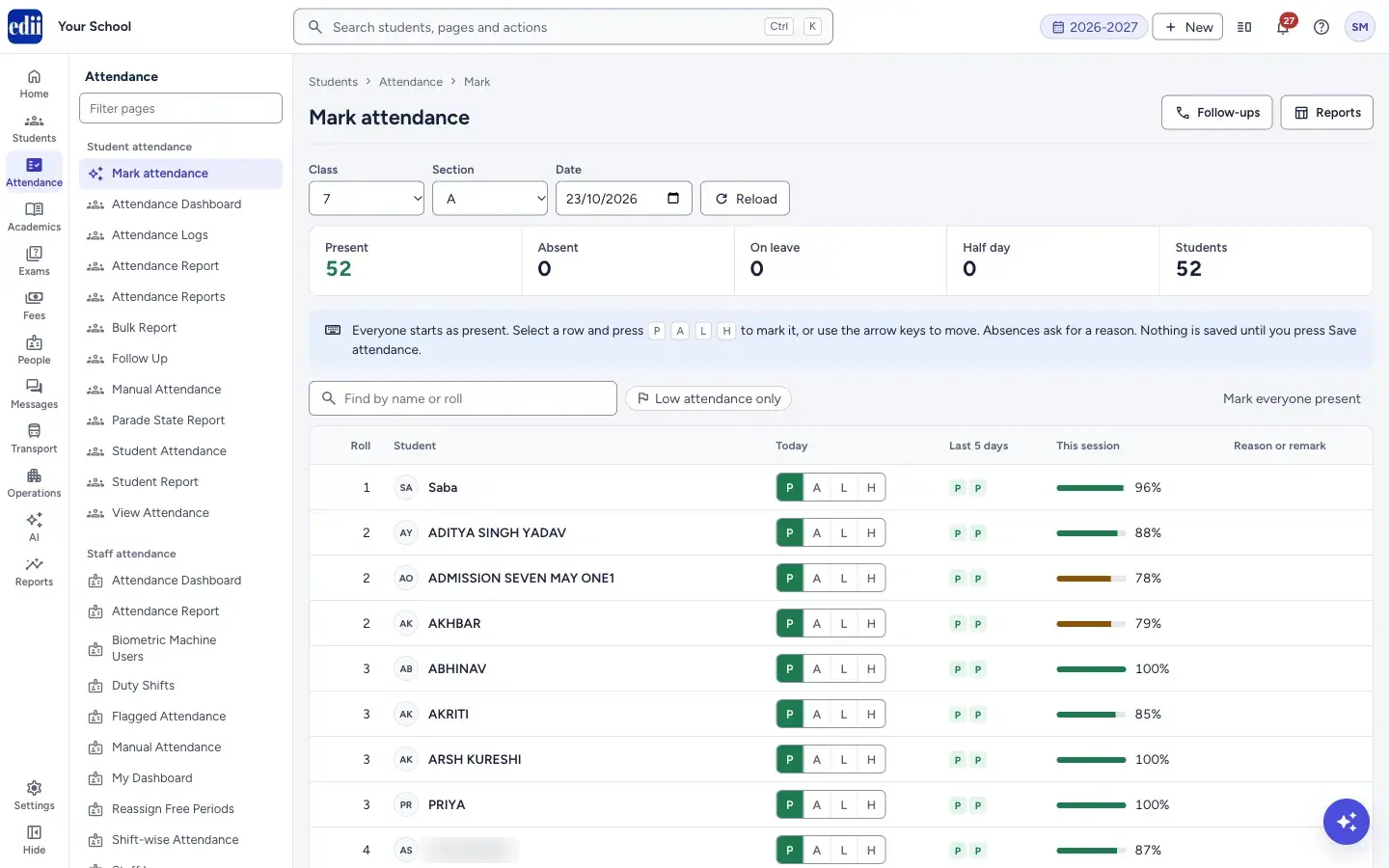
The daily register: choose a class, section and date, mark each student Present, Absent, On leave or Half day, and save the whole class in one go.
यह पेज अंग्रेज़ी में है। कुछ समझ न आए तो ।
Mark attendance is the screen a teacher or the office uses every school day. The page opens on the last class and section you marked here (or, the first time, on the first class that has students), with today’s date and the students already loaded.
Everyone starts as present. You only change the students who are not in school. When the date was already marked, you see the saved marks instead. Nothing is stored until you select Save attendance.
Five boxes at the top count the class as you mark: Present, Absent, On leave, Half day and Students. The bar at the bottom says what will be saved, for example Not saved: 49 present, 3 absent.
Who uses it and when
Section titled “Who uses it and when”Class teachers and the school office, every school day. The office can also use it to correct an earlier day by changing the Date.
Before you start
Section titled “Before you start”- Classes, sections and students must already exist. A class with no students shows No students in class ….
- Attendance is saved only for a day that is not in the future and not a school holiday for that class. The Student attendance module must be on for your school, and your role must have attendance or student access.
Where to find it
Section titled “Where to find it”- In school.edii.in: Attendance › Student attendance › Mark attendance
- Or press Ctrl K (⌘ K on a Mac) and type Mark attendance.
- Address:
school.edii.in/students/attendance - Who can see it: Staff whose role includes Students or Attendance access. Shown only when your school uses Student in EDII. If it is missing from your menu, ask your school admin.
 Open a bigger pictureतस्वीर बड़ी करें
Step by step
Section titled “Step by step”1. Choose the class
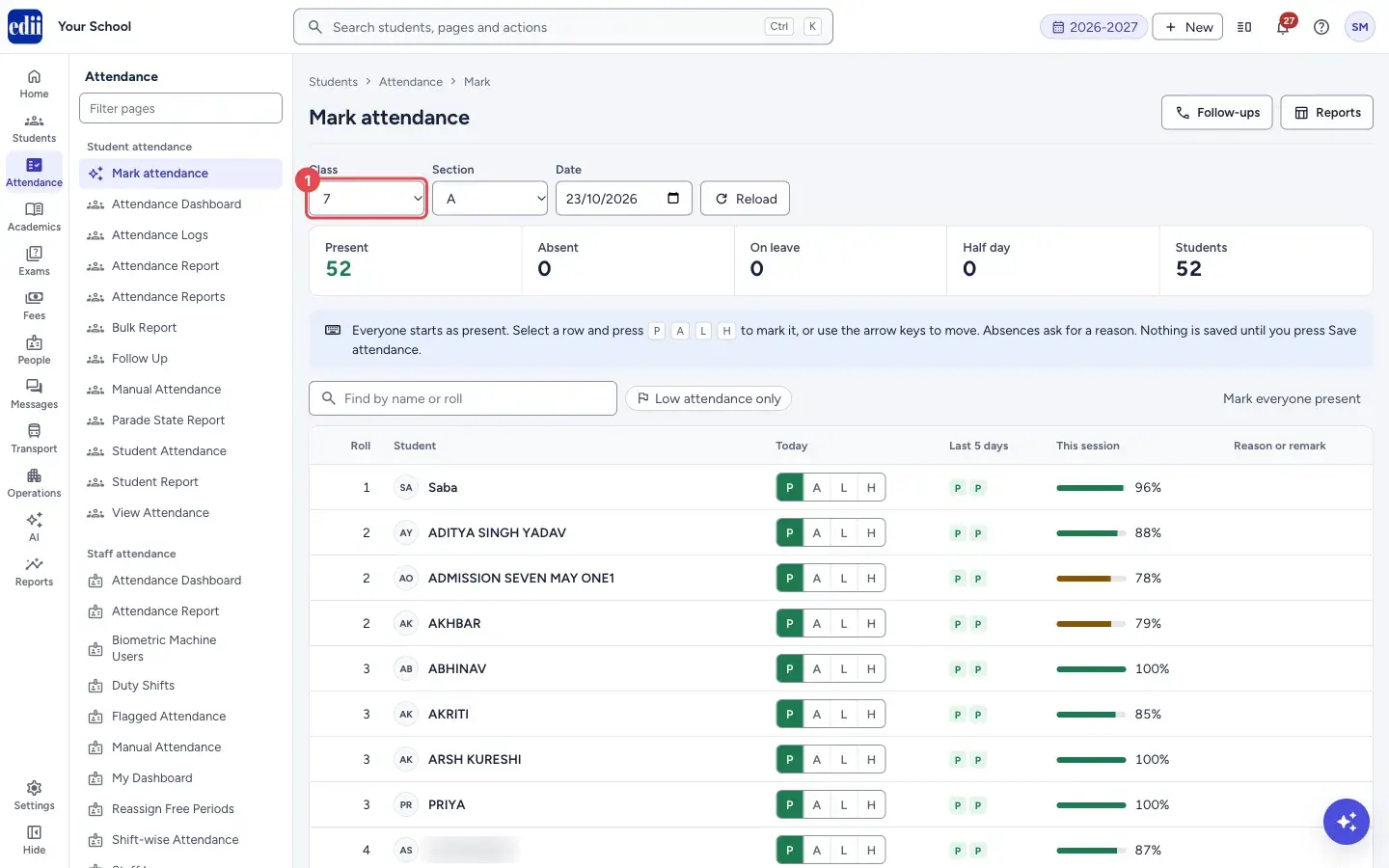
Section titled “1. Choose the class”Open Class and pick the class. The students load as soon as you choose; you do not need to press anything.
 Open a bigger pictureतस्वीर बड़ी करें
2. Choose the section
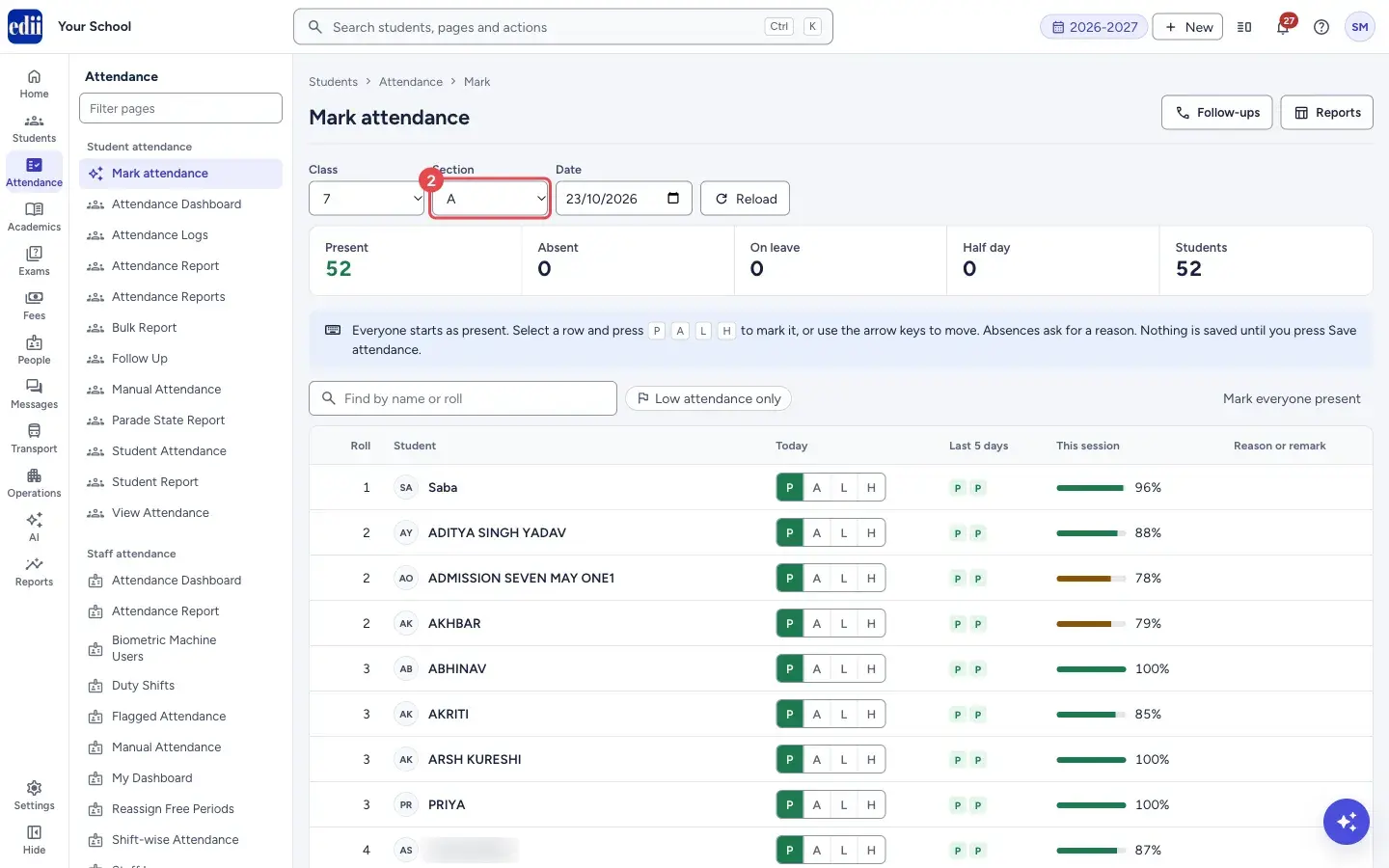
Section titled “2. Choose the section”Open Section and pick the section. The roll of that class and section loads, with one row per student. If you change the Date, the roll loads again for that day.
 Open a bigger pictureतस्वीर बड़ी करें
3. Mark the students who are not present
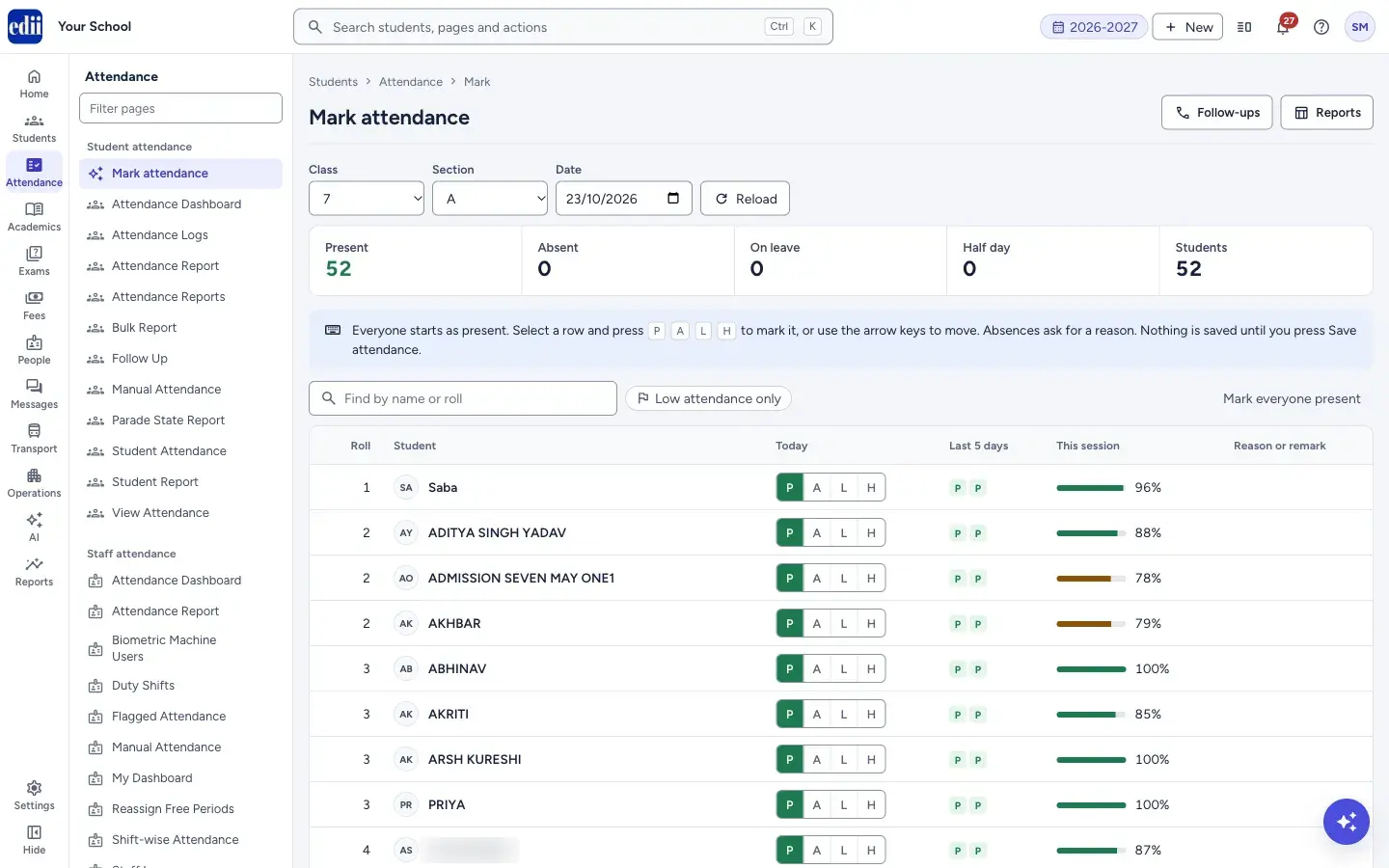
Section titled “3. Mark the students who are not present”In the Today column each student has four buttons: P (present), A (absent), L (on leave) and H (half day). Select the button you need. A student marked absent gets a red row.
You can also use the keyboard: click or tab to a row, then press P, A, L or H to mark it. After P, L or H the cursor moves to the next row. The up and down arrow keys move between rows.
Mark everyone present (above the table on the right) sets every student shown to present again, which is a quick way to clear wrong marks.
 Open a bigger pictureतस्वीर बड़ी करें
4. Give a reason for each absence
Section titled “4. Give a reason for each absence”When you mark a student A, a window called Absence Details opens. Choose one Reason for Absence: Sick / Medical, Family Emergency, Travel / Vacation, No Response, Personal / Function or Other. You can add Notes (Optional); Expected Return Date starts as tomorrow.
Select Save reason to record the reason, or Cancel (or the cross) to close the window. The window says: Parents are messaged once, when you save attendance with “Notify parents” ticked. Save reason only saves the reason; it does not message anyone. The student stays absent either way. Later you can open the window again with Add reason or Change reason in the last column.
5. Check the counts, then save
Section titled “5. Check the counts, then save”Look at the bar at the bottom. If some students are absent, a box Notify parents of the N absent students appears, already ticked. Untick it if you do not want the SMS (see Who is told below).
Select Save attendance. The message Attendance saved successfully shows, and the bar changes to Last saved: 09:15 AM. … with the time. With the box ticked, a second message then says how many parents were sent the absence SMS, how many were already messaged today and how many could not be sent.
Fields and filters
Section titled “Fields and filters”| Field | What it is | Notes |
|---|---|---|
| Class | The class you are marking. | Choosing a class loads the roll. |
| Section | The section of that class. | Choosing a section loads the roll. |
| Date | The day you are marking. | Starts as today. Change it to mark or correct another day. Future dates are refused when you save. |
| Find in this class | Filters the roll by name or roll number as you type (placeholder Find by name or roll). | Hides other rows but does not unmark them. Saving still includes every student of the class. |
| Reason for Absence, Notes, Expected Return Date | Filled in the Absence Details window. | If you select Save reason without choosing a reason, the reason is stored as Other. |
Buttons
Section titled “Buttons”| Button | What it does | What happens next |
|---|---|---|
| Reload | Loads the roll again for the class, section and date shown. | Marks you have not saved are replaced by what is saved. |
| Low attendance only | Shows only students whose attendance this session is below 75 percent (students with no marked day yet are not included). | Select it again to show the whole class. |
| Mark everyone present | Sets every student currently listed to present. | If a search is active, only the students listed change. |
| P, A, L, H | Present, Absent, On leave, Half day for one student. | A opens the Absence Details window when the student was not already absent. |
| Add reason / Change reason | Opens the Absence Details window for an absent student. | The reason shows as a label in the last column. Nothing is sent to the parent. |
| Save reason (in Absence Details) | Saves the reason, notes and expected return date of an absent student. | The window closes. Only the reason is saved; no SMS or notification is sent. |
| Save attendance | Stores the marks of the whole class for the date. | Attendance saved successfully. Marks saved again for the same day replace the earlier ones. With Notify parents ticked, a message says how many absence SMS were sent and how many parents were already messaged today (not sent again). |
| Follow-ups | Opens the Follow Up screen, where absences are chased. | Your unsaved marks are not kept; save first. |
| Reports | Opens Attendance Reports. |
Columns
Section titled “Columns”| Column | Meaning |
|---|---|
| Roll | The student’s roll number (the ID number when there is no roll number). |
| Student | Name of the student. |
| Today | The P, A, L, H buttons for the date chosen. |
| Last 5 days | Small marks for up to five earlier days of this month that were marked, oldest first: P present, A absent, L leave, H half day. The column is hidden when none of the students has an earlier mark. |
| This session | A bar and a percentage showing the student’s attendance for the session so far. The bar is green from 85%, amber from 75% to below 85%, and red below 75%. A dash means nothing has been marked yet. |
| Reason or remark | The reason you chose for an absence, or the remark saved with the day. |
After you save
Section titled “After you save”- The day is stored for every student of the class: present, absent, on leave or half day, with any remark.
- Every student marked absent appears in Follow Up, with the reason if you gave one, so the school can chase the absence. Saving the class again does not reset a student who was already contacted, or given a reason, in Follow Up.
Good to know
Section titled “Good to know”- What each mark means. P is present, A is absent, L is on leave, H is half day. A day that was never marked for a student shows as present until you save.
- Who is told when you save. When you mark a student absent, you can record a reason. Save reason only saves the reason and does not message anyone. When you save attendance with Notify parents ticked, each absent student’s parent gets one absence SMS. Every save also sends parents an app notification for newly absent students. Each parent gets at most one SMS and one app notification per child per day. The once-a-day limit is shared with Follow Up: a parent who already has the absence SMS or WhatsApp for that day, sent from this screen or from Follow Up, is not sent another from either screen, and Follow Up shows already messaged today. If you save the class again the same day, parents who were already messaged are not messaged again. A message that could not be sent does not count. After saving, a message shows how many SMS were sent, how many parents were already messaged, and how many could not be sent.
- The SMS reads: Dear Parent, your child was marked absent on <date>. Please contact the school office. Whether it is delivered depends on the school’s SMS balance and the parent’s phone number; the result is recorded in Follow Up.
- Students marked On leave or Half day do not trigger the notification or SMS above.
- The reason is stored in Follow Up the moment you select Save reason in the window, even if you leave without saving attendance.
- Every ten seconds the screen keeps a draft of unsaved marks in this browser. If the page is reloaded or the tab is lost, a yellow bar says Unsaved attendance found. with Restore them and Discard. If you try to leave the screen with unsaved marks, EDII asks you first.
- A date more than 365 days back cannot be changed.
Messages you may see
Section titled “Messages you may see”| Message | What it means | What to do |
|---|---|---|
| Select class and section first | You tried to load without a class or section. | Choose both. |
| Load students first | You pressed Save attendance before any students were loaded. | Choose a class and section so the roll loads. |
| Attendance saved successfully | The day is saved. | |
| Absence SMS sent to N parents; M already messaged today, not sent again; K could not be sent | Shown after saving with Notify parents ticked. Parents already sent the absence SMS or WhatsApp that day, from this screen or from Follow Up, are counted as already messaged and get nothing more. The last two parts appear only when they apply. | For those that could not be sent, check the parent’s number on the student record; you can try again from Follow Up. |
| Cannot mark attendance for a future date | The date is after today. | Choose today or an earlier date. |
| Cannot mark attendance on a holiday (…) | The school calendar has a holiday on this date for this class and section; the holiday’s name is in the brackets. | Choose a working day, or change the holiday in the school calendar. |
| You can only change the attendance of last 365 days | The date is more than a year old. | Only dates within the last 365 days can be changed. |
| Could not load students / Could not save attendance | The request did not go through. | Check the internet connection and try again. Your marks stay on the screen. |
Stuck? Try this
Section titled “Stuck? Try this”| Problem | Likely cause | What to do |
|---|---|---|
| The class shows No students in class … | The class and section have no active students for the session. | Pick another class or section, or add students to this class. |
| A student you expected is missing from the roll. | The roll shows only students of the chosen class and section in the session shown at the top of the screen. | Check the session and the student’s class and section. |
Did this page help?क्या इस पेज से मदद मिली?
Thanks! Glad it helped.धन्यवाद! अच्छा लगा कि काम बन गया।
Sorry about that. Ask in your own words, or write to us.माफ़ कीजिए। अपने शब्दों में पूछें, या हमें लिखें।