
Screen guide · Web app
Health Camps
Create a health camp with its own list of checkup fields (for example vision or height), then enter each student's results for that camp.
यह पेज अंग्रेज़ी में है। कुछ समझ न आए तो ।
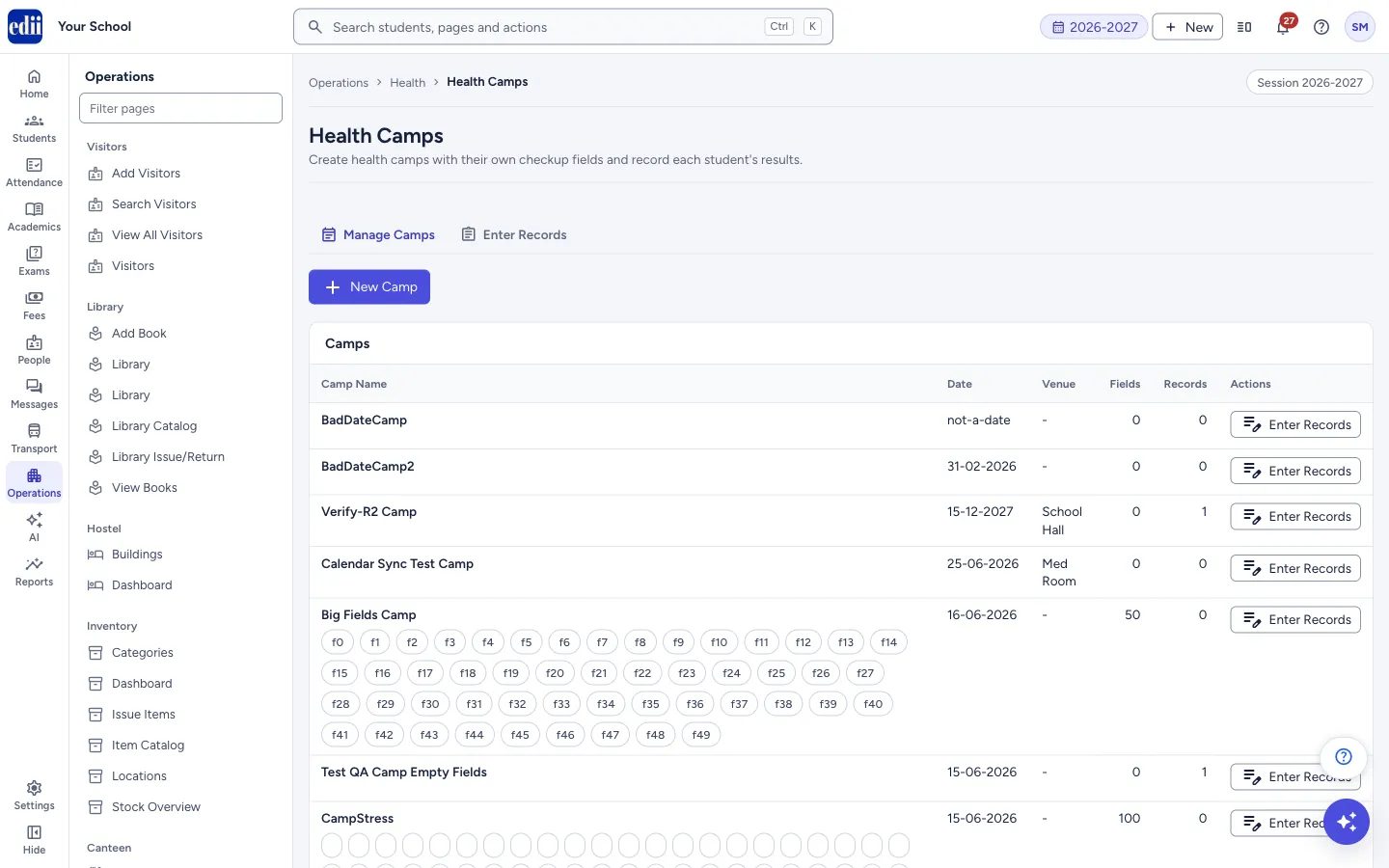
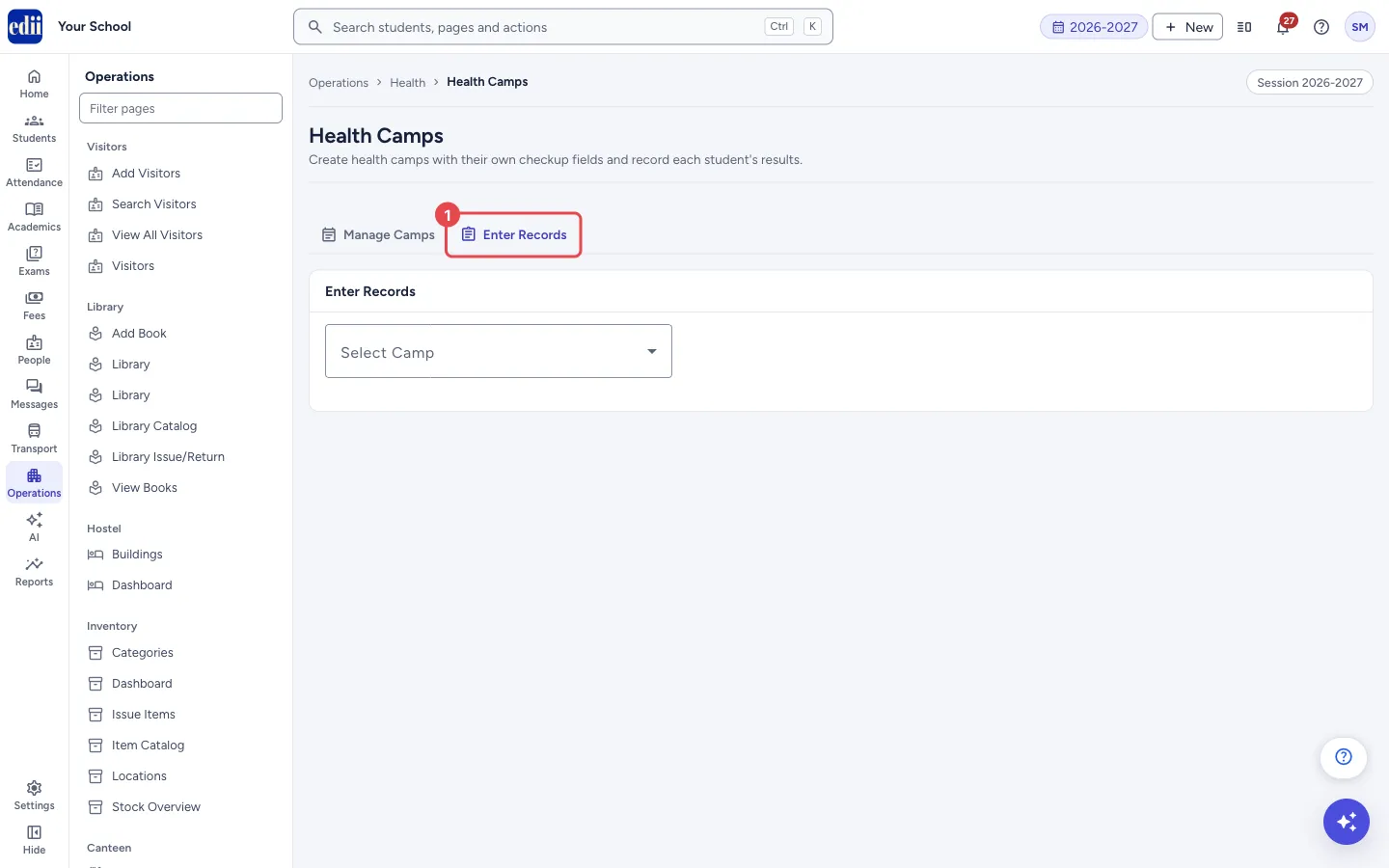
Health Camps has two tabs. Manage Camps lists the camps and lets you make a new one with New Camp. Enter Records is where you pick a camp and type the result of each student.
You decide what a camp measures. When you create a camp you add Checkup Fields, such as Height, Weight or Vision Left. Each field can be Text, Number, Yes / No, Dropdown or Date. Those fields then become the boxes you fill for every student in that camp.
Who uses it and when
Section titled “Who uses it and when”The school nurse creates a camp before a doctor or eye specialist visits, and enters the results of each student during or after the camp.
Before you start
Section titled “Before you start”- These pages appear in the Operations menu only when your school uses the Health Records module.
- Decide the list of things you will measure. You cannot change the fields of a camp on this page after it is saved.
Where to find it
Section titled “Where to find it”- In school.edii.in: Operations › Health › Health Camps
- Or press Ctrl K (⌘ K on a Mac) and type Health Camps.
- Address:
school.edii.in/health-records/health-camps - Who can see it: Shown only when your school uses Health Records in EDII. The page is tied to that module, not to a separate role, so it is in the Operations menu of staff who sign in to a school that has Health Records switched on. Camp results are private details about students: keep staff sign-ins limited to the people who should see them. If it is missing from your menu, ask your school admin.
 Open a bigger pictureतस्वीर बड़ी करें
Step by step
Section titled “Step by step”1. Create a camp
Section titled “1. Create a camp”On Manage Camps, select New Camp. The form New Health Camp opens. Type the Camp Name (for example Eye Camp), choose the Camp Date and type the Venue. A Description is optional.
2. Add the checkup fields
Section titled “2. Add the checkup fields”Under Checkup Fields, type a Field Label and choose its Type: Text, Number, Yes / No, Dropdown or Date. For a Dropdown, type the choices in Options (comma separated), for example Normal, Mild, Severe. Tick Required if every student must have this field filled.
Select Add Field for another field, or Remove to delete a field row.
3. Save the camp
Section titled “3. Save the camp”Select Save Camp. A green message Camp “<name>” created appears and the camp is in the list. Cancel leaves without saving.
4. Look at the camps
Section titled “4. Look at the camps”The table Camps shows each camp’s Camp Name (with its description and field names under it), Date, Venue, the number of Fields and the number of Records entered so far.
5. Go to Enter Records
Section titled “5. Go to Enter Records”Select Enter Records next to a camp, or open the Enter Records tab.
In the tab, open Select Camp and choose the camp. Each camp is shown with its date.
 Open a bigger pictureतस्वीर बड़ी करें
6. Choose the student and fill the fields
Section titled “6. Choose the student and fill the fields”In Search Student, type at least two letters of the name, EDII ID or roll number and select the student (up to 12 are shown). The fields of the camp appear. A star (*) marks required fields. Add Notes if you want to.
If the student already has a record in this camp, the screen says updating existing record and fills in the old values.
7. Save the record
Section titled “7. Save the record”Select Save Record (or Update Record for an existing one). A message Record saved for the student’s name appears and the table Records for the camp is updated. Select Change student or Cancel to go to another student without saving.
8. Change a record
Section titled “8. Change a record”In Records for the camp, select Edit on a row. The student and the saved values open in the form. Change them and select Update Record.
Fields and filters
Section titled “Fields and filters”| Field | What it is | Notes |
|---|---|---|
| Camp Name | The name of the camp. | Required. If it is empty you see Please enter a camp name. |
| Camp Date | The day of the camp. | Required. If it is empty you see Please pick a camp date. |
| Venue, Description | Where the camp is held, and a note. | Optional. |
| Field Label | The name of one thing you will record, for example Vision Left. | At least one field is required. Rows with an empty label are ignored. |
| Type | What kind of value the field holds. | Text, Number, Yes / No, Dropdown or Date. |
| Options (comma separated) | The choices for a Dropdown field. | Needed for a Dropdown, at least one choice. |
| Required | Makes the field compulsory when entering records. | Not ticked by default. |
| Select Camp | The camp whose records you are entering. | Required. |
| Notes | A note for the student’s record. | Optional. |
Buttons
Section titled “Buttons”| Button | What it does | What happens next |
|---|---|---|
| New Camp | Opens the form for a new camp. | The New Health Camp form opens. |
| Add Field | Adds one more checkup field row to the camp. | A new empty row appears. |
| Save Camp | Saves the camp and its fields. | The list of camps opens again. |
| Enter Records | On a camp row, goes to the Enter Records tab with that camp chosen. | The Enter Records tab opens. |
| Save Record / Update Record | Saves the student’s values. | The records table below is updated. |
| Edit | On a record row, opens the record in the form. | The saved values appear in the form. |
Columns
Section titled “Columns”| Column | Meaning |
|---|---|
| Camp Name | The camp, with its description and field names. |
| Date | The camp date as day-month-year. |
| Fields | How many checkup fields the camp has. |
| Records | How many student records are entered. A dash means the count is not shown, which can happen when the school has many camps. |
Good to know
Section titled “Good to know”- This page has no way to edit or delete a camp after it is saved, or to change its fields. Check the field list before you select Save Camp.
- A student has one record per camp. Saving again for the same student updates that record.
- If no camp exists the page says No health camps created yet. Click “New Camp” to add one. and No camps available. Create one in “Manage Camps” first.
- If a camp has no records the page says No records entered for this camp yet.
Messages you may see
Section titled “Messages you may see”| Message | What it means | What to do |
|---|---|---|
| Please enter a camp name | The camp name is empty. | Type a name. |
| Please pick a camp date | The camp date is empty. | Choose the date from the calendar. |
| Add at least one checkup field for the camp | No field has a label. | Type a label for at least one field. |
| Dropdown field “…” needs at least one option | A Dropdown field has no choices. | Type the choices separated by commas. |
| Pick a camp first | You tried to save a record with no camp chosen. | Open Select Camp and choose one. |
| Pick a student first | You tried to save a record with no student chosen. | Search and select the student. |
| Please fill: … | One or more required fields are empty. The names follow the message. | Fill those fields and save again. |
| Could not load camps | The list of camps did not load. | Check your internet connection and open the page again. |
| Could not create camp | The camp could not be saved. | Check the dates and fields and try again. |
| Could not save record | The student’s record could not be saved. | Check your internet connection and try again. |
- Keep field labels short and clear, because they become the column titles in the records table.
Did this page help?क्या इस पेज से मदद मिली?
Thanks! Glad it helped.धन्यवाद! अच्छा लगा कि काम बन गया।
Sorry about that. Ask in your own words, or write to us.माफ़ कीजिए। अपने शब्दों में पूछें, या हमें लिखें।