
Screen guide · Web app
Add Job Fees
Record the application fee paid by one person who applied for a job at the school, and how it was paid.
यह पेज अंग्रेज़ी में है। कुछ समझ न आए तो ।
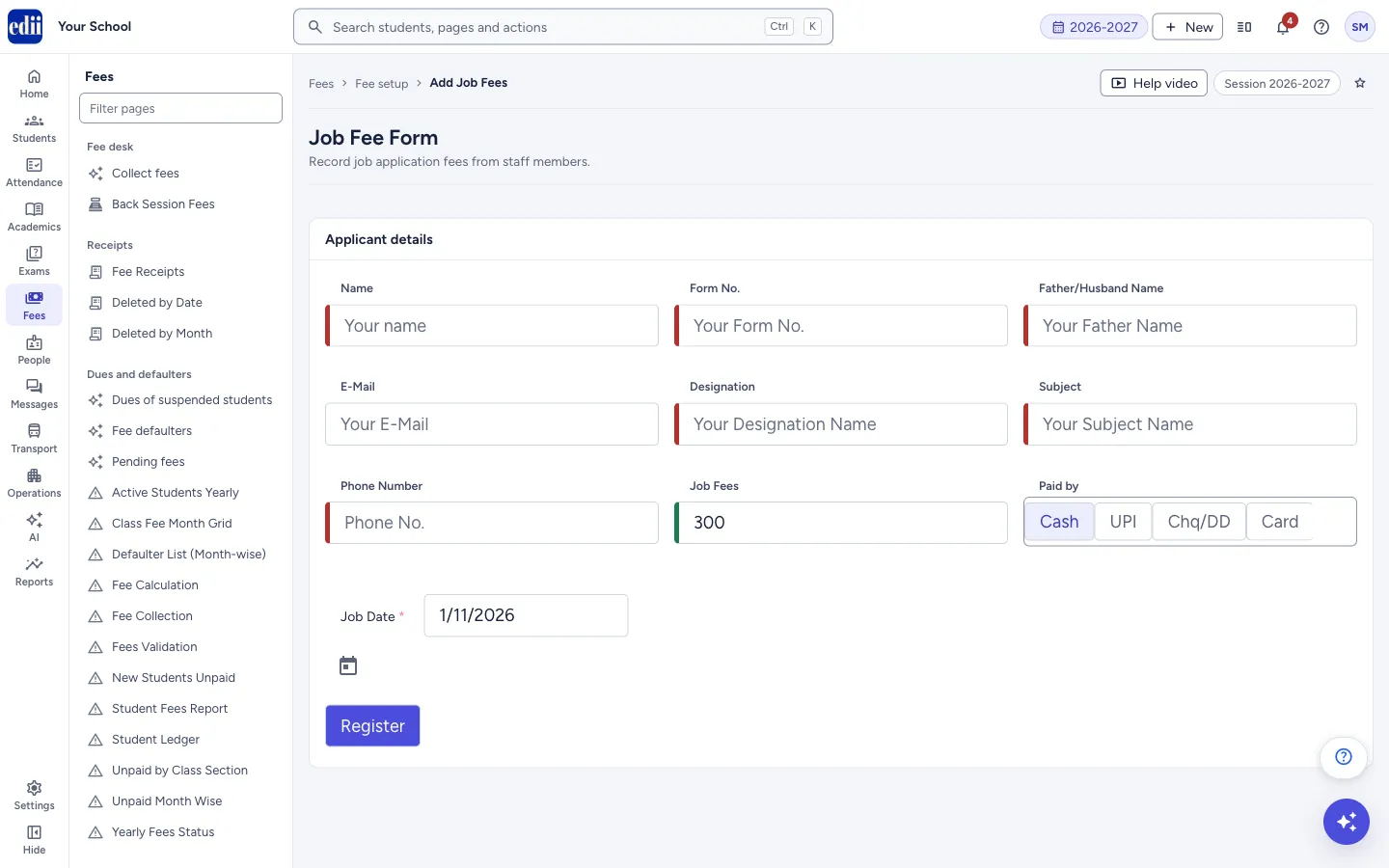
Add Job Fees opens the Job Fee Form. Use it to record the fee that a job applicant paid with the application: who the applicant is, the post applied for, the fee, how it was paid (Paid by: Cash, UPI, Chq/DD or Card) and the date.
The money then shows in the Day Book of the Cash Deposit Register: cash in Daily Collection, UPI, cheque and card in Other Collection.
The form saves one applicant at a time. After it is saved, the applicant’s boxes are cleared so you can enter the next one.
Who uses it and when
Section titled “Who uses it and when”The school office uses it each time a job applicant pays the application fee.
Before you start
Section titled “Before you start”- Have the applicant’s form number and contact details ready.
- The fee starts as 300 and the date starts as today. Change them if the applicant paid a different amount or on another day.
- If the applicant paid by UPI, cheque, DD or card, keep the UTR / transaction number, the cheque or DD number, or the card reference ready.
Where to find it
Section titled “Where to find it”- In school.edii.in: Fees › Fee setup › Add Job Fee
- Or press Ctrl K (⌘ K on a Mac) and type Add Job Fee.
- Address:
school.edii.in/add/add-job-fee - Who can see it: Staff whose role includes Fees or Messages or Leave or Meetings access. Shown only when your school uses Finance and HR and Calendar in EDII. If it is missing from your menu, ask your school admin.
 Open a bigger pictureतस्वीर बड़ी करें
Step by step
Section titled “Step by step”1. Fill the applicant details
Section titled “1. Fill the applicant details”Under Applicant details, fill Name, Form No., Father/Husband Name, E-Mail, Designation, Subject and Phone Number. Every box except E-Mail is required; an empty required box shows a red message when you try to register.
2. Check the fee
Section titled “2. Check the fee”Job Fees starts as 300. Type the amount the applicant paid.
3. Choose how it was paid
Section titled “3. Choose how it was paid”Under Paid by, select Cash, UPI, Chq/DD or Card. Cash is chosen when the form opens.
For UPI, Chq/DD or Card a reference box opens and must be filled: UTR / transaction no. for UPI, Cheque / DD no. for a cheque or DD, Card reference for a card.
4. Check the date
Section titled “4. Check the date”Job Date starts as today; select the calendar icon or the box to pick another date.
5. Register
Section titled “5. Register”Select Register. While it saves, the button says Registering…. When it is saved you see the message Job Fee added and the applicant’s boxes are cleared. If the save fails, you see a message titled Error in Adding Job Fee! with the reason.
Fields and filters
Section titled “Fields and filters”| Field | What it is | Notes |
|---|---|---|
| Name | The applicant’s name. | Required. Letters, spaces and underscore only. |
| Form No. | The number on the applicant’s form. | Required. Must be a number; the box accepts digits and + only. |
| Father/Husband Name | The name of the applicant’s father or husband. | Required. Letters, spaces and underscore only. |
| The applicant’s email address. | Optional. | |
| Designation | The post the applicant applied for. | Required. Letters, spaces and underscore only. |
| Subject | The subject the applicant would teach. | Required. Letters, spaces and underscore only. |
| Phone Number | The applicant’s phone number. | Required. Digits and + only. |
| Job Fees | The application fee paid, in rupees. | Required. Digits and + only. Starts as 300. |
| Paid by | How the fee was paid: Cash, UPI, Chq/DD or Card. | Starts as Cash. |
| UTR / transaction no., Cheque / DD no. or Card reference | The payment reference. The label changes with the Paid by choice. | Shown only for UPI, Chq/DD and Card, and then required. Up to 100 characters. |
| Job Date | The date of the application. | Pick it from the calendar. Starts as today. |
Buttons
Section titled “Buttons”| Button | What it does | What happens next |
|---|---|---|
| Cash / UPI / Chq/DD / Card | Choose how the fee was paid. | For anything but Cash, the reference box opens. Going back to Cash empties it. |
| Register | Saves the job fee. | Job Fee added shows and the applicant’s boxes are cleared. |
After you save
Section titled “After you save”- Name, Form No., Father/Husband Name, E-Mail, Designation, Subject and Phone Number are cleared, Paid by goes back to Cash and the reference is emptied. Job Fees and Job Date keep their values for the next applicant.
- The saved fee is listed in View Job Fees.
- The money is added to the Day Book of the Cash Deposit Register. With Show bank detail columns on, it shows under Collection by source as Job fees.
Good to know
Section titled “Good to know”- The fee is saved for the session that is open in EDII (shown at the top right of the page).
- The Register button is locked while a save is in progress, so a double click cannot save the fee twice.
- In the Day Book the fee counts on the day you register it, whatever Job Date you pick.
- A cash job fee counts in Daily Collection and so in the day’s Closing Cash. A UPI, cheque or card job fee counts in Other Collection and so in the day’s Closing Bank.
- A job fee of 0 is saved but adds nothing to the Day Book.
- Once the fee is in the Day Book, its amount cannot be changed in View Job Fees. Delete the job fee there, which also takes it out of the Day Book, and enter it again here.
Messages you may see
Section titled “Messages you may see”| Message | What it means | What to do |
|---|---|---|
| Job Fee added | The job fee was saved. | Nothing to do. You can enter the next applicant. |
| Error in Adding Job Fee! | The title of the message shown when the fee could not be saved. The message under it gives the reason, and the applicant’s boxes are not cleared. | Read the reason, correct the boxes and select Register again. |
| There was an issue in Job Fees, Please report the matter to us with Error Code: E47358 | The job fee could not be saved. One cause is a Form No. that is not a number. | Make sure Form No. holds only digits, then select Register again. If it still fails, report the error code to EDII support. |
| Please enter the Job Fee as a positive amount with at most two decimals | Job Fees is not a plain amount. | Type only the amount, for example 300. |
| Name is required | The name box is empty. | Type the name. |
| Form No. is required | The form number box is empty. | Type the form number. |
| Father/Husband Name is required | The father or husband name box is empty. | Type the name. |
| Designation Name is required | The designation box is empty. | Type the post. |
| Subject Name is required | The subject box is empty. | Type the subject. |
| PhNo. is required | The phone number box is empty. | Type the phone number. |
| Job Fee is required | The fee box is empty. | Type the fee. |
| Reference is required for UPI, cheque and card | You chose UPI, Chq/DD or Card and left the reference box empty. | Type the UTR, cheque or DD number, or card reference. If the fee was paid in cash, select Cash. |
| Enter the UTR / cheque / card reference for this payment | The reference box holds only spaces. | Type the real reference and select Register again. |
| Bad/Slow Internet Connection, Please check your internet connection | The request did not reach EDII. | Check the internet. Open View Job Fees to see whether the fee was saved before you try again. |
- Use the form number printed on the application form, so the fee can be found later in View Job Fees.
- Choose the right Paid by button before you register: it decides whether the money counts as cash in hand or as money in the bank in the Day Book.
Stuck? Try this
Section titled “Stuck? Try this”| Problem | Likely cause | What to do |
|---|---|---|
| Nothing happens when I select Register | A required box is empty, or a save is already in progress. | Look for a red message under a box and fill it. If you chose UPI, Chq/DD or Card, fill the reference box. |
| I cannot type a number or a sign in a name box | The name boxes accept letters, spaces and underscore only; the number boxes accept digits and + only. | Type only the allowed characters. |
| A job fee is not in the Day Book | The fee was recorded before this form asked how it was paid, or on beta.edii.in, which does not ask; or the fee was 0. | Nothing to fix. The fee is still listed in View Job Fees. |
Did this page help?क्या इस पेज से मदद मिली?
Thanks! Glad it helped.धन्यवाद! अच्छा लगा कि काम बन गया।
Sorry about that. Ask in your own words, or write to us.माफ़ कीजिए। अपने शब्दों में पूछें, या हमें लिखें।