
Screen guide · Web app
Email Report
Every email the school sent in a date range, with its delivery status, and a way to view or resend any email from the last 90 days.
यह पेज अंग्रेज़ी में है। कुछ समझ न आए तो ।
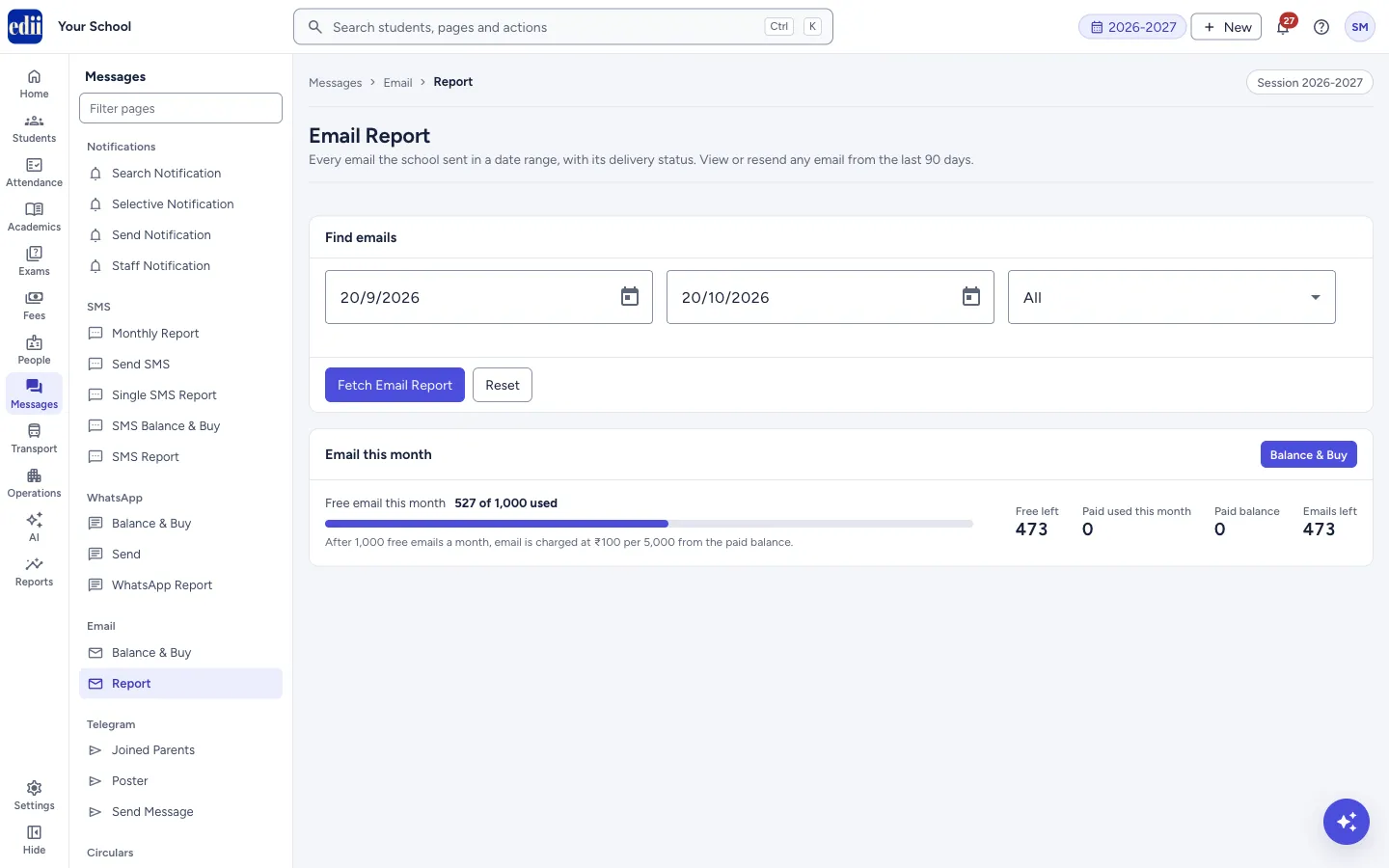
Email Report lists the emails that EDII sent for the school between two dates. For each email it shows the date, who it went To, the Subject, the Type and the delivery Status. You can open any email to see it as the person saw it, and you can send it again.
Choose From, To and Status under Find emails, then select Fetch Email Report. When the page opens it is set to the last 30 days and All statuses.
A box called Email this month shows how much of the month’s free email is used, with a Balance & Buy button that opens the balance page.
Who uses it and when
Section titled “Who uses it and when”The school office uses it to check that an email reached a parent, to find out why one did not, and to send it again.
Where to find it
Section titled “Where to find it”- In school.edii.in: Messages › Email › Report
- Or press Ctrl K (⌘ K on a Mac) and type Report.
- Address:
school.edii.in/view/email-report - Who can see it: Staff whose role includes Messages access. Shown only when your school uses Messages in EDII. If it is missing from your menu, ask your school admin.
 Open a bigger pictureतस्वीर बड़ी करें
Step by step
Section titled “Step by step”1. Choose the dates and the status
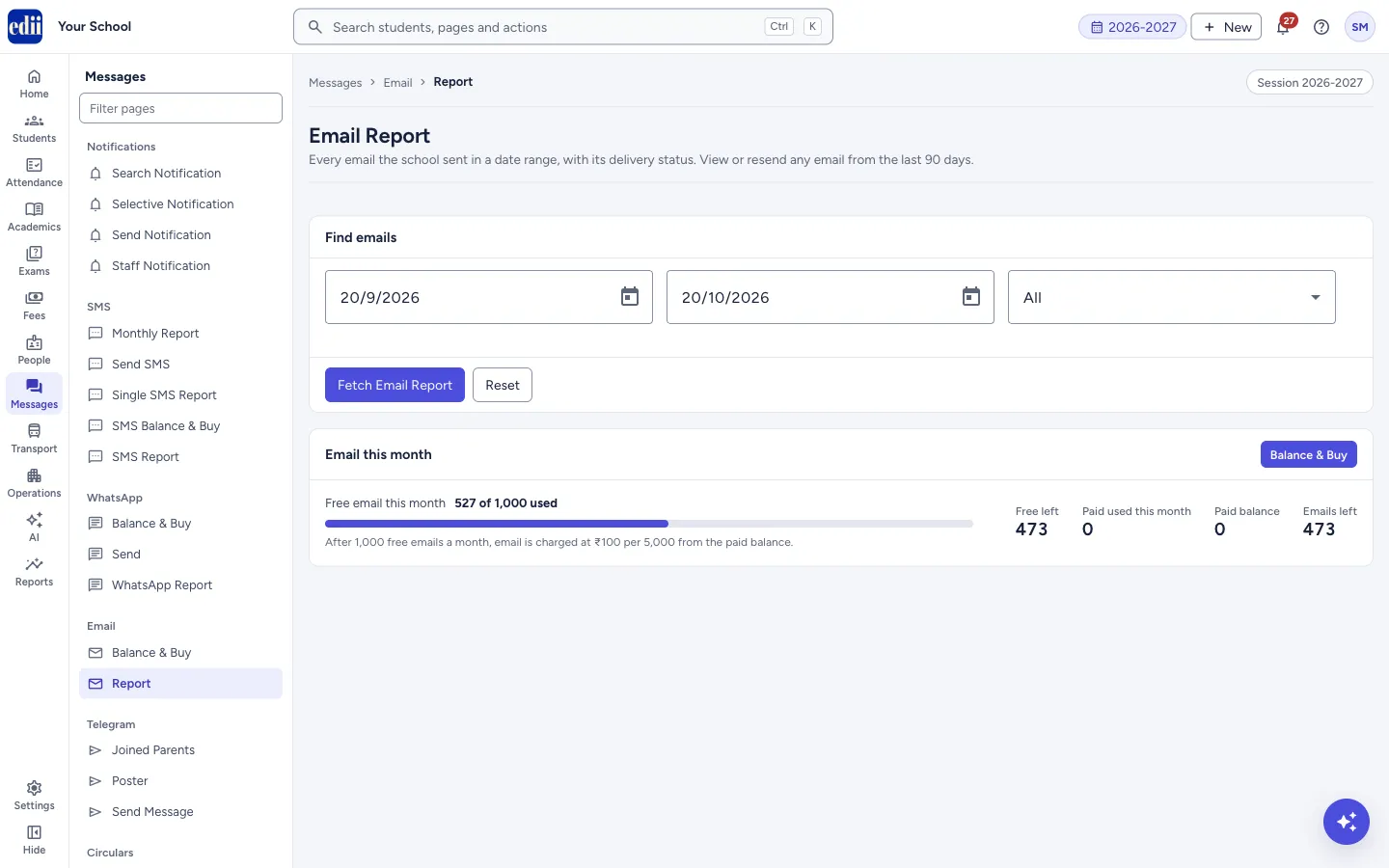
Section titled “1. Choose the dates and the status”Pick From and To on the calendar. From cannot be after To. In Status, choose All, Delivered, Failed, Queued, Blocked (no balance) or Skipped (unsubscribed).
 Open a bigger pictureतस्वीर बड़ी करें
2. Fetch the report
Section titled “2. Fetch the report”Select Fetch Email Report. The Emails table appears. If there are none, EDII shows No email found for this period. Select Reset to put the dates back to the last 30 days and the status back to All.
3. Search the list
Section titled “3. Search the list”Type in Search by email or subject… to narrow the table. Select a column heading to sort.
4. View an email
Section titled “4. View an email”Select View on a row. A window opens with the subject, To, Cc (when there is one) and Sent time, and the email as the person saw it. Select Close to shut it.
5. Resend an email
Section titled “5. Resend an email”Select Resend on a row. EDII asks Resend this email? and tells you the subject and the address, and that It counts against the school’s email balance. Select Resend to go ahead.
The button changes to Queued. EDII shows The email to … will be sent in a moment. You will be notified when it has been sent. and tells you again when it has gone.
Fields and filters
Section titled “Fields and filters”| Field | What it is | Notes |
|---|---|---|
| From, To | The first and last day of the report. | Required. Pick from the calendar. Start as the last 30 days. Errors: Choose both a From and a To date., The From date must be on or before the To date. |
| Status | Shows only emails with that delivery status. | All, Delivered, Failed, Queued, Blocked (no balance), Skipped (unsubscribed). |
| Search by email or subject… | Narrows the table to matching rows. | Shown after the report loads. |
Buttons
Section titled “Buttons”| Button | What it does | What happens next |
|---|---|---|
| Fetch Email Report | Loads the emails of the dates and status you chose. | The Emails table shows. |
| Reset | Puts the dates back to the last 30 days and the status to All. | Select Fetch Email Report to load again. |
| View | Shows the email as the person saw it. | A window opens. |
| Resend | Sends the email to the same address again. | A confirmation box opens first. The button then reads Queued. |
| Balance & Buy | Opens the Email Balance page. | You leave this page. |
Columns
Section titled “Columns”| Column | Meaning |
|---|---|
| Date | When the email was sent, as day-month-year and time. |
| To | The address the email went to. |
| Subject | The subject line. |
| Type | The kind of email. |
| Status | Delivered, Queued, Failed, No balance or Unsubscribed. A reason shows under it when there is one. |
| Actions | View and Resend. |
Good to know
Section titled “Good to know”- Emails are kept for 90 days. View and Resend work for any email in that time, whether it was delivered, failed or queued. Email sent before this report was switched on has no stored copy.
- A resend counts against the school’s email balance.
- If an email is still Queued and you resend it, the person may get it twice. EDII says so in the confirmation box.
- A row that was never sent, because the person has unsubscribed or the address is not valid, has nothing to view or resend. Selecting View or Resend shows the reason.
- A row that is itself a resend cannot be resent; use the original row.
Messages you may see
Section titled “Messages you may see”| Message | What it means | What to do |
|---|---|---|
| No email found for this period. | No email was sent between those dates with that status. | Widen the dates or set Status to All. |
| Resend this email? | A confirmation before the email is sent again. | Select Resend to continue, or cancel. |
| No email balance left | The monthly allowance is spent and no paid balance remains, so the resend was not made. | Open Balance & Buy. |
| Not sent - unsubscribed | The person has unsubscribed from school email, so the email was not sent again. | Contact the parent another way. |
| The email meter could not be loaded right now. Email is still being sent normally. | The Email this month box could not be read. | Nothing to do; try the page again later. |
| Network Issue, Please Try Again. | A request did not go through. | Check the internet and try again. |
- Set Status to Failed to see only the emails that did not reach anyone.
- Correct a wrong email address on the student’s record; the next email will use it.
Stuck? Try this
Section titled “Stuck? Try this”| Problem | Likely cause | What to do |
|---|---|---|
| View and Resend look faded. | There is no stored copy of that email: it is older than 90 days, it was never prepared, or it is itself a resend. | Point at the button to read the reason. |
| The table is not shown. | The report loads only after you select Fetch Email Report. | Select Fetch Email Report. |
Did this page help?क्या इस पेज से मदद मिली?
Thanks! Glad it helped.धन्यवाद! अच्छा लगा कि काम बन गया।
Sorry about that. Ask in your own words, or write to us.माफ़ कीजिए। अपने शब्दों में पूछें, या हमें लिखें।