
Screen guide · Web app
Dashboard
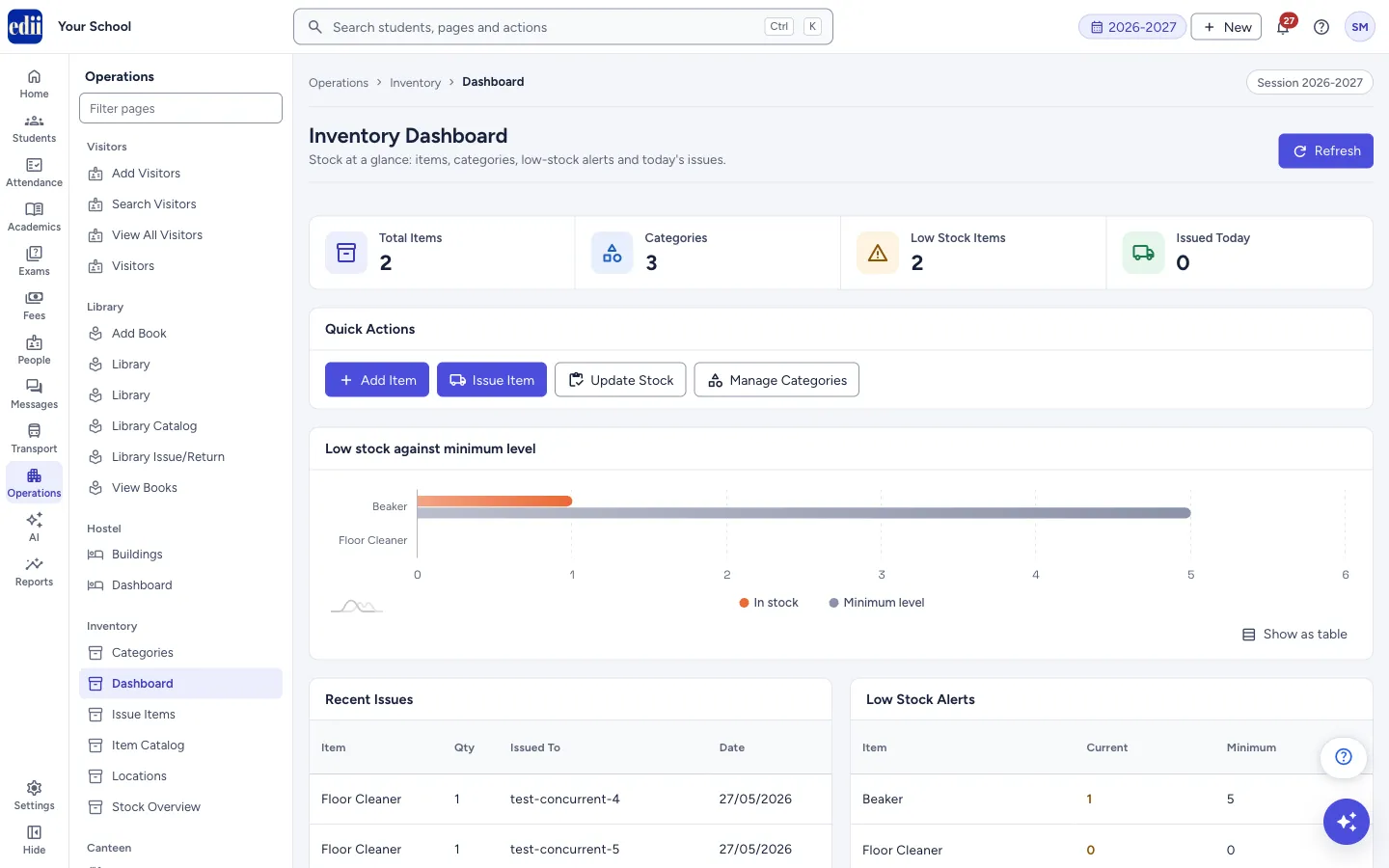
The Inventory Dashboard shows the school's stock at a glance: how many items and categories there are, which items are low, and what was issued recently.
यह पेज अंग्रेज़ी में है। कुछ समझ न आए तो ।
Inventory Dashboard is the first page of the Inventory module. It gives four counts at the top (Total Items, Categories, Low Stock Items and Issued Today), four Quick Actions buttons, a chart of low-stock items against their minimum level, and two short lists: Recent Issues and Low Stock Alerts.
Each count is also a button. Select it to open the page behind the number.
Who uses it and when
Section titled “Who uses it and when”The store keeper or office staff look at it at the start of the day to see what is running low and what has gone out.
Before you start
Section titled “Before you start”- The Inventory pages appear in the Operations menu only when your school uses the Inventory module. If you do not see Inventory in the menu, ask your school admin.
Where to find it
Section titled “Where to find it”- In school.edii.in: Operations › Inventory › Dashboard
- Or press Ctrl K (⌘ K on a Mac) and type Dashboard.
- Address:
school.edii.in/inventory/dashboard - Who can see it: Shown only when your school uses Hostel and Inventory and Canteen and Health Records and Tracking in EDII. If it is missing from your menu, ask your school admin.
 Open a bigger pictureतस्वीर बड़ी करें
Step by step
Section titled “Step by step”1. Read the four counts
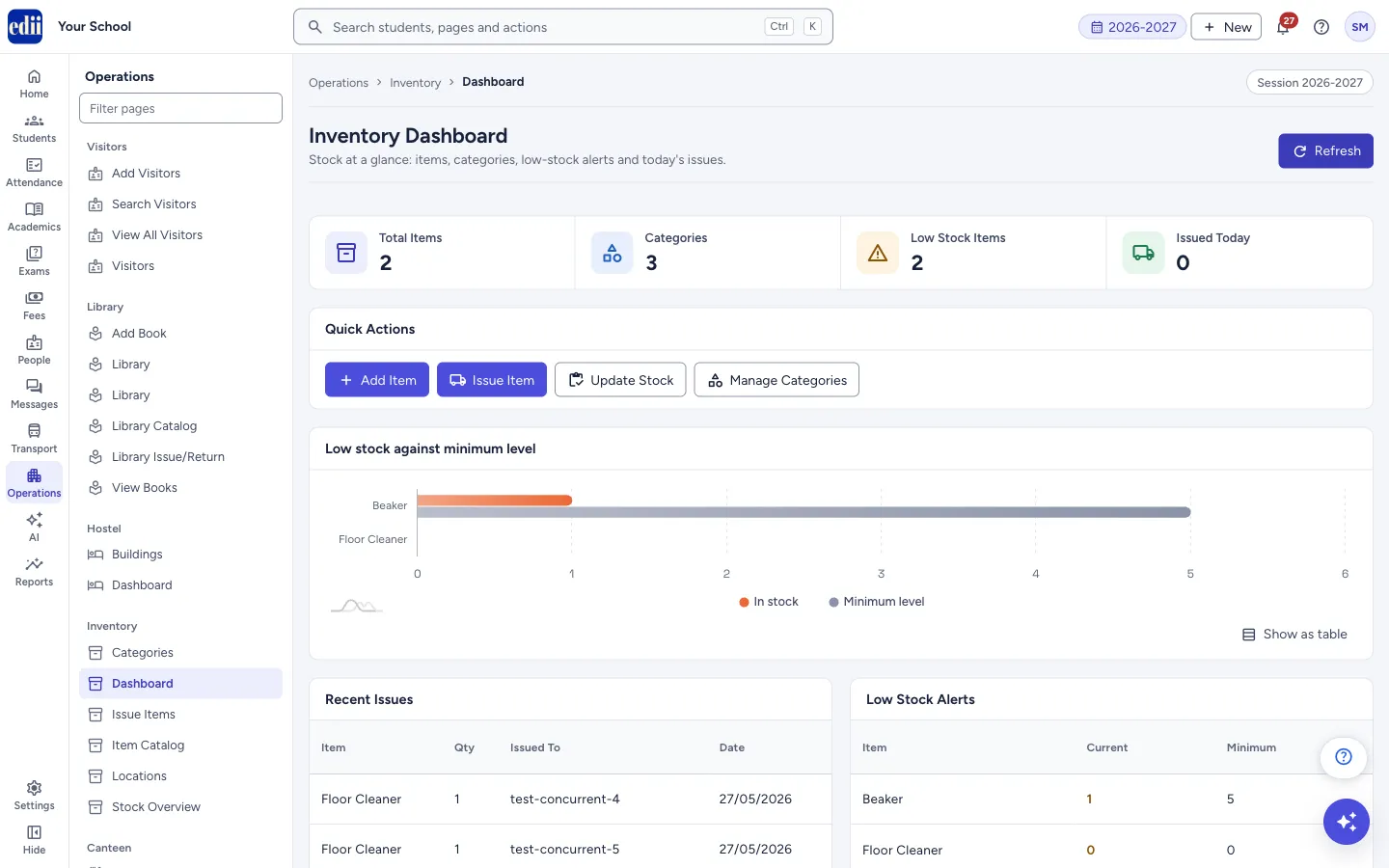
Section titled “1. Read the four counts”Total Items, Categories, Low Stock Items and Issued Today are shown in a row. Select Total Items to open Item Catalog, Categories to open Categories, Low Stock Items to open Stock Overview, and Issued Today to open Issue Items.
 Open a bigger pictureतस्वीर बड़ी करें
2. Use a Quick Action
Section titled “2. Use a Quick Action”Add Item opens Item Catalog with the new-item form already open. Issue Item opens Issue Items. Update Stock opens Stock Overview. Manage Categories opens Categories.
3. Check the low-stock chart
Section titled “3. Check the low-stock chart”When at least one item is low, the box Low stock against minimum level shows two bars for each low item: In stock and Minimum level. The items furthest below their minimum come first. Select Show as table under the chart to see the same numbers as a table.
4. Read the two lists
Section titled “4. Read the two lists”Recent Issues lists the latest issues with Item, Qty, Issued To and Date. Low Stock Alerts lists Item, Current (what is in stock) and Minimum (the level you set for that item).
5. Refresh the numbers
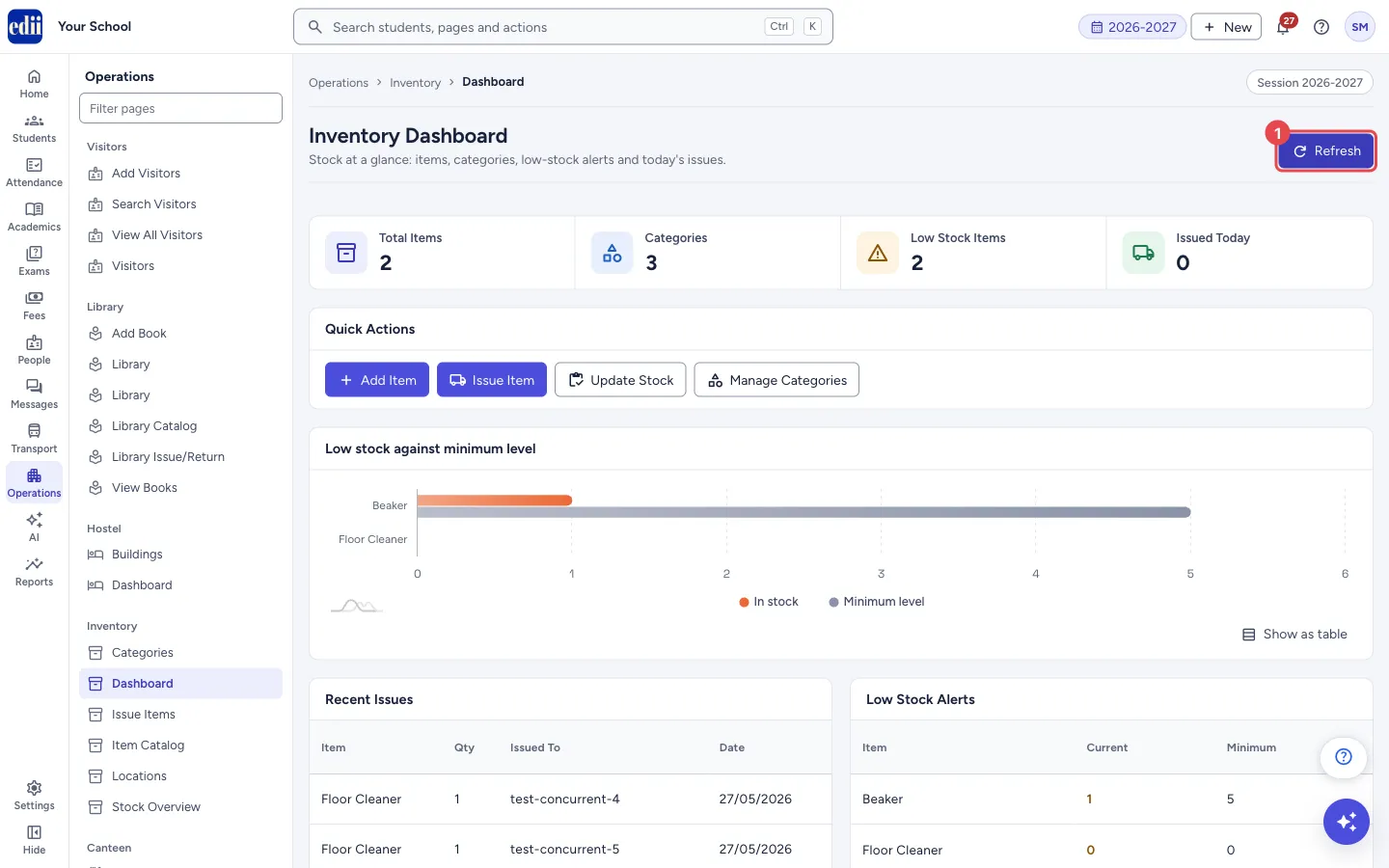
Section titled “5. Refresh the numbers”Select Refresh at the top right to load the figures again, for example after somebody issues an item on another computer.
 Open a bigger pictureतस्वीर बड़ी करें
Buttons
Section titled “Buttons”| Button | What it does | What happens next |
|---|---|---|
| Refresh | Loads the dashboard figures again. | The page shows Loading inventory… for a moment, then the new numbers. |
| Total Items | Number of items in the catalog. | Opens Item Catalog. |
| Categories | Number of item categories. | Opens Categories. |
| Low Stock Items | Number of items the system marks as low on stock. | Opens Stock Overview. |
| Issued Today | Number of issues made today. | Opens Issue Items. |
| Add Item | Quick action to add a new item. | Opens Item Catalog with the Add New Item form open. |
| Issue Item | Quick action to give items to a person or class. | Opens Issue Items. |
| Update Stock | Quick action to add or remove stock. | Opens Stock Overview. |
| Manage Categories | Quick action to add or change categories. | Opens Categories. |
Columns
Section titled “Columns”| Column | Meaning |
|---|---|
| Recent Issues: Item, Qty | The item that was issued and how many. |
| Recent Issues: Issued To | The name of the person, department or class the item went to. |
| Recent Issues: Date | The issue date, shown as day/month/year. |
| Low Stock Alerts: Current | Quantity in stock now. |
| Low Stock Alerts: Minimum | The minimum stock level set for the item. |
Good to know
Section titled “Good to know”- The chart appears only when there is at least one low-stock item.
- When there is nothing to show, the lists say No recent issues and No low stock alerts.
- To set the minimum level of an item, open it in Item Catalog and change Min Stock Level.
- Open Stock Overview from Low Stock Items to add stock for the items on the alert list.
Stuck? Try this
Section titled “Stuck? Try this”| Problem | Likely cause | What to do |
|---|---|---|
| The numbers look old. | The page shows what was loaded when it opened. | Select Refresh. |
| An item with minimum level 0 appears in Low Stock Alerts. | An item with 0 in stock is listed as low even when its minimum level is 0. | Add stock in Stock Overview, and set a real Min Stock Level in Item Catalog. |
Did this page help?क्या इस पेज से मदद मिली?
Thanks! Glad it helped.धन्यवाद! अच्छा लगा कि काम बन गया।
Sorry about that. Ask in your own words, or write to us.माफ़ कीजिए। अपने शब्दों में पूछें, या हमें लिखें।