
Screen guide · Web app
Pipeline
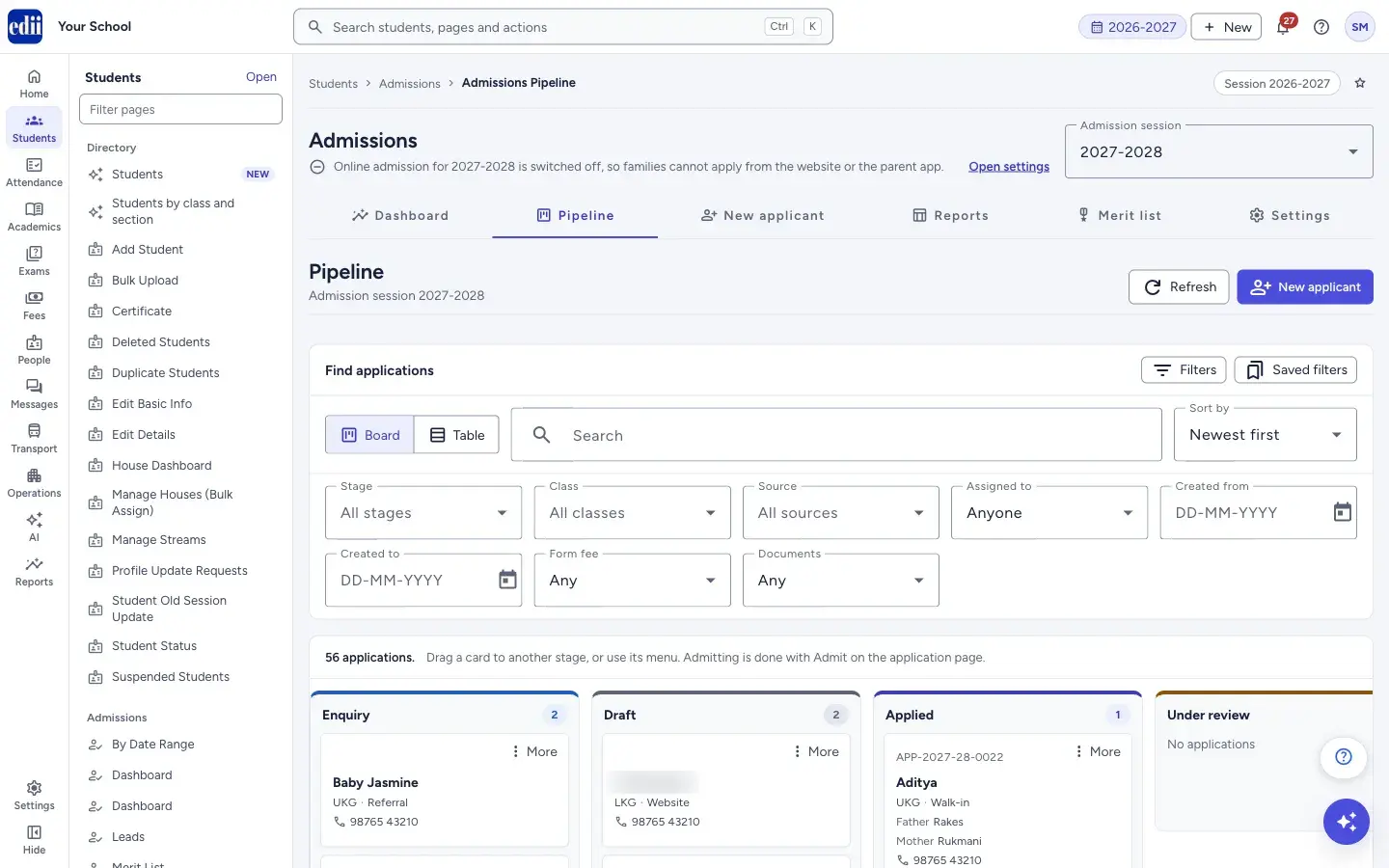
Every application and enquiry of the chosen admission session, as a board by stage or a table, with search, filters, saved filters and actions on several applications at once. It is part of the Admissions pages and is the one page a role with only Lead access can use; roles with Admission access see all stages.
यह पेज अंग्रेज़ी में है। कुछ समझ न आए तो ।
Pipeline (the page is also called Admissions Pipeline) lists the applications and enquiries of one admission session. Use the Admission session box at the top of the Admissions pages to change the session.
Choose Board to see one column for each stage (Enquiry, Draft, Applied, Under review and so on), with a card for each applicant, or Table to see a list you can select rows in. Click a card or a name to open the application.
A role with only Lead access sees only enquiries, and the page says: your role works with enquiries, so only enquiries are listed.
While the online entrance test is switched on for the session, the page also has Schedule entrance test for class…, a Schedule entrance test button in the bar for selected rows, and a line Test: with the test status on each card or row once a child is scheduled (for example Test: Scheduled or Test: Result ready).
Who uses it and when
Section titled “Who uses it and when”The admission head and office staff use it every day to see where each family stands, assign follow-ups, move applications to the next stage and ask families for documents.
Before you start
Section titled “Before you start”- Applications arrive from families applying online, or from staff on New Applicant. The classes, dates and fees are set in Settings.
Where to find it
Section titled “Where to find it”- In school.edii.in: Students › Admissions › Pipeline
- Or press Ctrl K (⌘ K on a Mac) and type Pipeline.
- Address:
school.edii.in/admissions/pipeline - Who can see it: Needs Admission or Lead access for your role. With only Lead access, only enquiries are listed. It does not need the Admissions module switch that the entrance-form pages need. If it is missing from your menu, ask your school admin.
 Open a bigger pictureतस्वीर बड़ी करें
Step by step
Section titled “Step by step”1. Choose the admission session
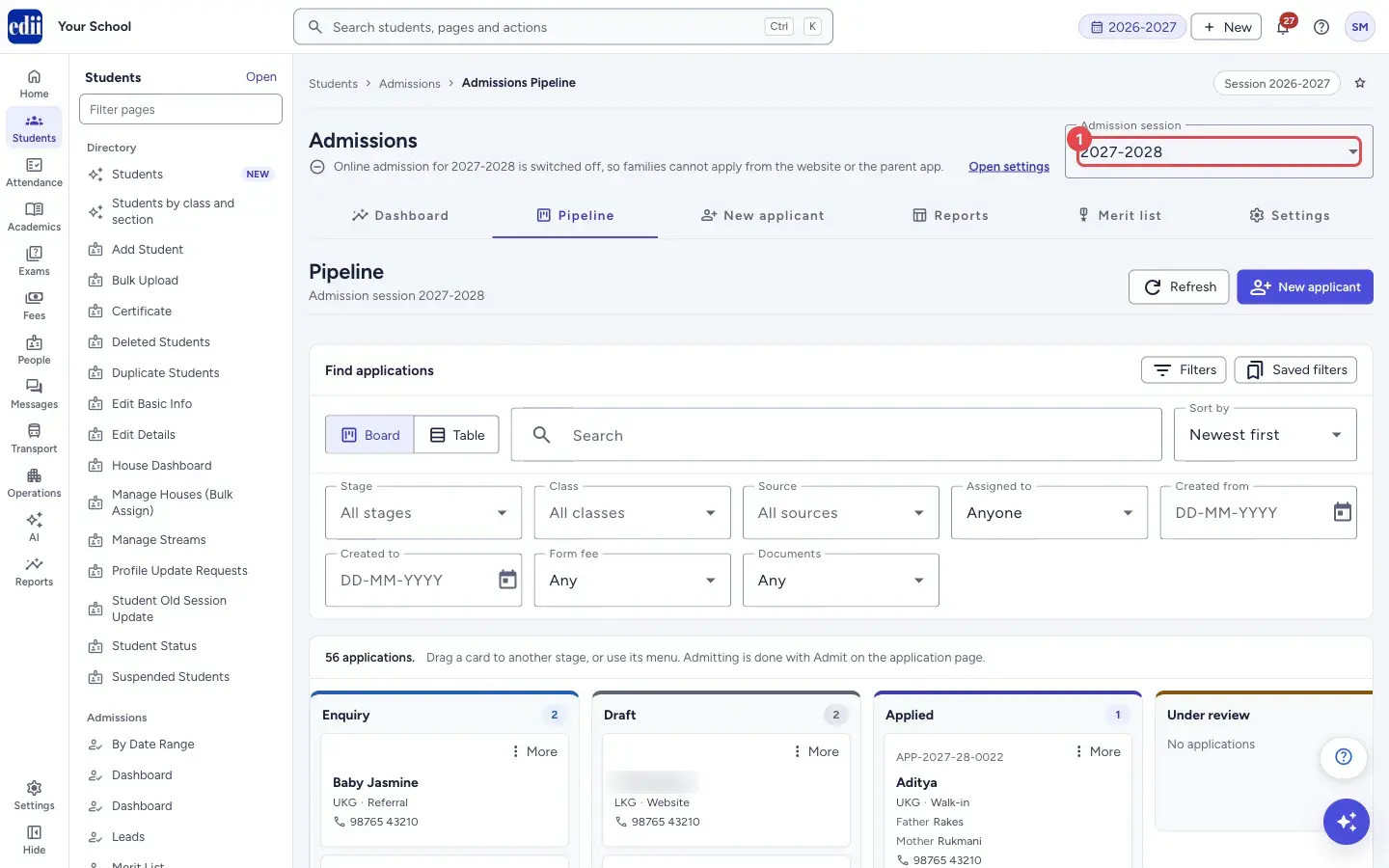
Section titled “1. Choose the admission session”Pick the Admission session at the top right. The pipeline reloads for that session.
 Open a bigger pictureतस्वीर बड़ी करें
2. Search and sort
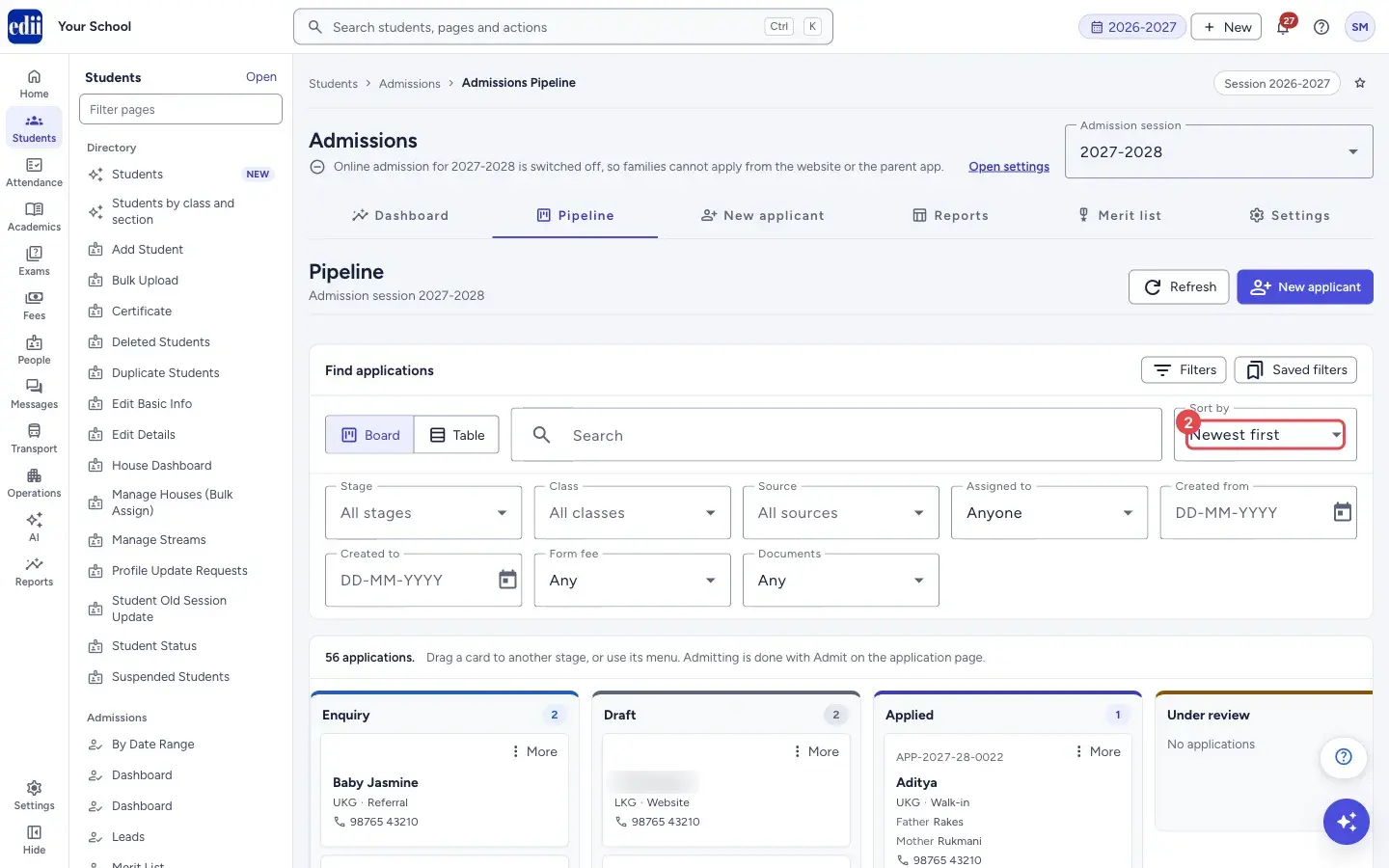
Section titled “2. Search and sort”Type a name, phone number or application number in Search. Choose Sort by: Newest first, Oldest first, Name (A to Z), Class or Next follow-up.
 Open a bigger pictureतस्वीर बड़ी करें
3. Use the filters
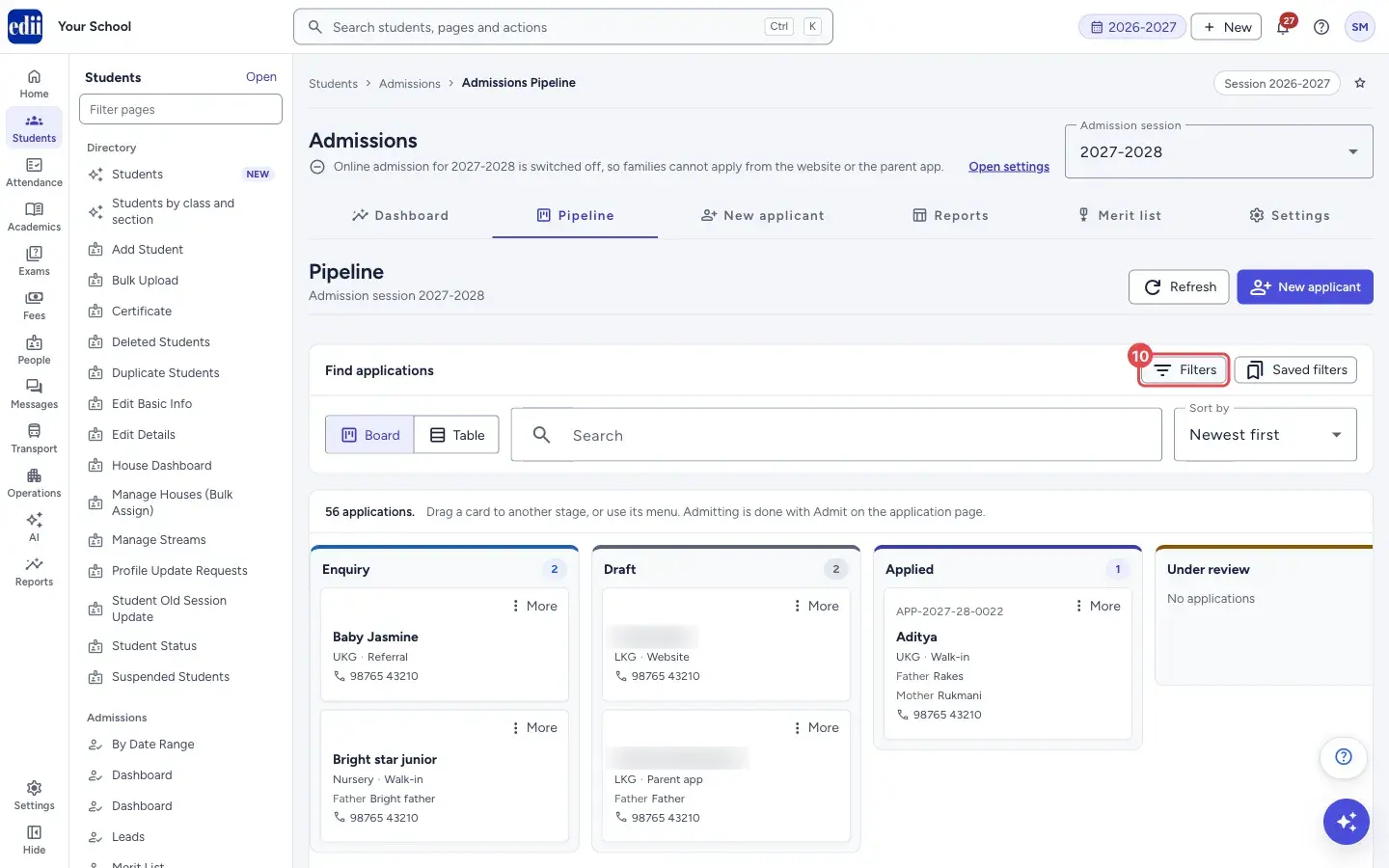
Section titled “3. Use the filters”Press Filters to show or hide the filter boxes: Stage, Class, Source, Assigned to, Created from, Created to, Form fee (Paid or Not paid) and Documents (Pending or All verified). Stage, Class and Source allow more than one choice. Dates are written DD-MM-YYYY or picked from the calendar.
The number on the Filters button shows how many filters are in use; Clear all removes them.
 Open a bigger pictureतस्वीर बड़ी करें
4. Save a filter
Section titled “4. Save a filter”Press Saved filters, then Save current filters…, and give the set a name. It is kept in this browser, up to 10. Choose a name from the same menu to use it again, or Delete a saved filter to remove one.
5. Work on the board
Section titled “5. Work on the board”Drag a card to another stage, or press More on the card and choose Move to a stage. Some moves ask for a reason. Open application opens the full record.
A card shows the application number, the child’s name, class and source, the parents’ names, phone, and flags such as Follow-up due, Fee paid and Documents pending. Each column shows its count and a Show more button when there are more cards.
Admitting cannot be done by dragging. For an application at Offered, use Admit (on the application page).
6. Use the table and act on many applications
Section titled “6. Use the table and act on many applications”In Table, tick rows (or the box at the top to tick the whole page). A bar shows how many are selected with Assign, Move stage, Request documents (when your role can) and Send message. You can select up to 200 at a time. Each dialog tells you how many of the selected applications can take the action, and lists the ones that will be skipped.
The stage buttons above the table show how many applications are in each stage; press one to filter by it.
7. Schedule the entrance test
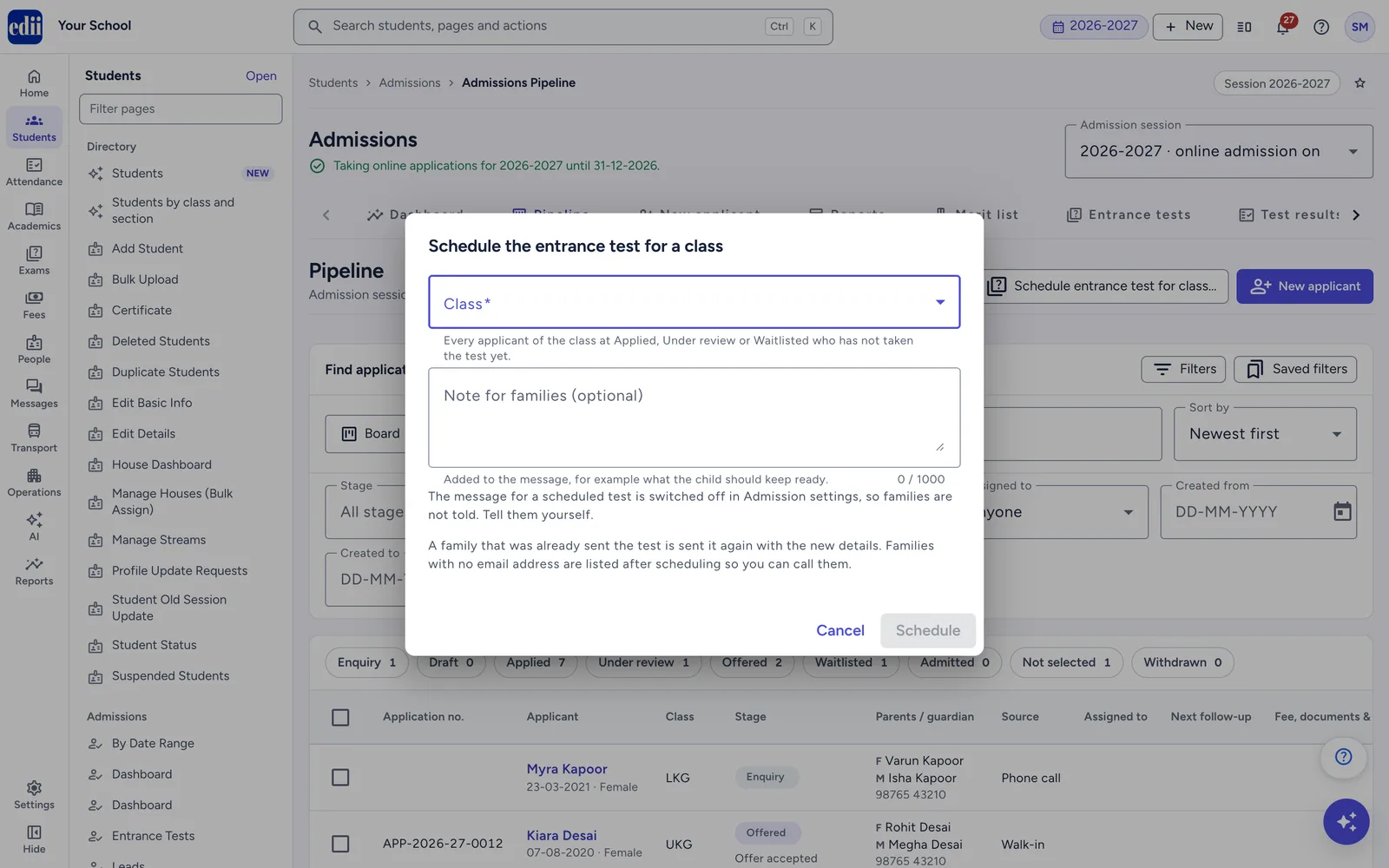
Section titled “7. Schedule the entrance test”Press Schedule entrance test for class…, choose the Class and check the line under The test (window, minutes and pass marks). Add a Note for families (optional) if you like, up to 1000 characters, and press Schedule for with the class. It schedules every applicant of the class at Applied, Under review or Waitlisted who has not taken the test yet.
To schedule only some children, switch to Table, tick them (up to 200) and press Schedule entrance test in the bar. The box lists the ones that will be skipped and why; press Schedule for with the number, for example Schedule for 12 applicants.
Families get the Entrance test scheduled message by email and app notification, never by WhatsApp. The result lists the families with no email under These families have no email: call them, with their mobile numbers.
 Open a bigger pictureतस्वीर बड़ी करें
Fields and filters
Section titled “Fields and filters”| Field | What it is | Notes |
|---|---|---|
| Search | Finds applications by name, phone or application number. | Up to 60 characters. |
| Sort by | The order of the cards and rows. | Newest first, Oldest first, Name (A to Z), Class, Next follow-up. |
| Stage | Only the stages you choose. | Not shown for a role with only Lead access. |
| Class, Source | Only the classes or sources you choose. | Each option shows how many applications it has when known. |
| Assigned to | Applications given to one staff member. | Anyone, Not assigned, or a staff name. |
| Created from, Created to | The dates the application was entered. | DD-MM-YYYY. |
| Form fee | Whether the form fee was paid. | Any, Paid or Not paid. |
| Documents | Whether documents are pending. | Any, Pending or All verified. |
Buttons
Section titled “Buttons”| Button | What it does | What happens next |
|---|---|---|
| Refresh | Loads the pipeline again. | The cards or rows update. |
| New applicant | Opens New Applicant. | Shown only to roles allowed to create applicants. |
| Schedule entrance test for class… | Schedules the entrance test for every applicant of a class who can take it. | A result shows how many were scheduled and why others were not. Shown only while the entrance test is on and your role can update admissions. |
| Filters / Saved filters / Clear all | Shows the filter boxes, manages saved sets, or removes every filter. | The list updates. |
| Board / Table | Switches between the stage columns and the list. | The view changes. |
| More (on a card) | Open application, Move to a stage, or Admit. | The chosen action runs. |
| Show more | Loads more cards in a column. | Shows how many more there are. |
| Assign | Gives the selected applications to a staff member, and sets their priority (Hot, Warm, Cold, or keeps each one’s own). | A results list shows what worked. |
| Move stage | Moves the selected applications to the stage you choose, with a reason when needed. | A results list shows what moved and what was skipped. |
| Request documents | Asks families to upload documents chosen from the class settings. | A results list shows what was sent. |
| Send message | Sends a message to the families of the selected applications. | A results list shows what was sent. |
| Schedule entrance test | Schedules the entrance test for the selected applications (Table view). | A result shows each application as scheduled or skipped with the reason. |
Columns
Section titled “Columns”| Column | Meaning |
|---|---|
| Application no. | The application number; a tag Earlier system marks an entry that came from the earlier admission register. |
| Applicant | The child’s name, with date of birth and gender below. |
| Class | Class applied for. |
| Stage | The stage with its detail, such as Documents pending, Test scheduled or Test done. |
| Parents / guardian | Names and phone. |
| Source | How the family reached the school. |
| Assigned to | The staff member following the application. |
| Next follow-up | The next follow-up date. |
| Fee & documents (Fee, documents & test) | Whether the form fee is paid and whether documents are pending. While the entrance test is on, the column is called Fee, documents & test and also shows Test: with the test status. |
| Created | The day the application was entered. |
Good to know
Section titled “Good to know”- Only the moves the system allows between stages can be made; the menu lists the allowed ones.
- Moving an application to Not selected or Withdrawn asks for a reason, and so does re-opening one.
- An application becomes Admitted only through Admit on its own page, which creates the student. It cannot be moved to Admitted from the board.
- Saved filters are kept in the browser you are using, not on the server.
- An application can be scheduled for the entrance test when it is at Applied, Under review or Waitlisted, its class takes the test with a published paper and a test window that has not ended, and the child is not exempt and has not started the test.
- Scheduling the same class again is safe: children already scheduled with the same details are skipped as Already scheduled. If you changed the window, time, pass marks or what families see, scheduling again updates each child’s test (Schedule updated) and sends the message again.
- Children who are not scheduled yet show no test line. To find them, open Test results and choose Status › Not scheduled.
- Which actions you can do depends on your role’s Admission access.
Messages you may see
Section titled “Messages you may see”| Message | What it means | What to do |
|---|---|---|
| Your role cannot change applications at the <stage> stage. | You tried to move an application your role may not change. | Ask someone with Admission update access. |
| An application at <stage> cannot be moved to <stage>. | That move is not allowed. | Use the card menu to see the moves allowed. |
| Only an application with a seat offered can be admitted. Use Admit on the application page after making an offer. | You tried to drop a card into Admitted. | Make an offer, then use Admit on the application page. |
| Use Admit on the application page. Admitting needs Admission update and Student create access for your role. | Admitting is only done on the application page. | Open the application. |
| You can select up to 200 applications at a time. | The selection limit was reached. | Do the action on this batch, then select more. |
| You can keep up to 10 saved filters. Delete one first. | The limit of saved filters was reached. | Delete a saved filter. |
| No applications match these filters. | The filters are too narrow. | Press Clear filters. |
| No applications for this admission session yet. | Nothing has been entered for the session. | Check the Admission session, or add an applicant. |
| Already scheduled | The child was scheduled before with the same details. | Nothing; the family is not sent the message again. |
| Not in a stage that can be scheduled | The application is not at Applied, Under review or Waitlisted. | Move it to the right stage first, if it should take the test. |
| The test window for class 6 has ended | The class’s test window is over (the class changes). | Set a new window in Settings › Classes › Entrance test, save, then schedule again. |
| This child has already taken the test | The child started or finished the test. | Use Reset attempt on the application’s Entrance test tab if they must take it again. |
| Marked absent for this test window. Change the window to schedule again. | The child missed this window. | Set a new window for the class, save, then schedule the child again. |
| The message for a scheduled test is switched off in Admission settings, so families are not told. Tell them yourself. | Entrance test scheduled is switched off on the Messages & staff tab. | Tell the families yourself, or switch the message on in Settings. |
| Class 6 has more than 1000 applications to schedule. Please choose them in groups of 200. | The class is too big to schedule in one go. | Schedule from the Table view, 200 at a time. |
- The EDII Admissions Guide explains the whole admission season in one place: setup, the daily work, online entrance tests and what families see on the website and in the app. It has a PDF you can share with families.
- Use Next follow-up in Sort by, in Table view, to see who to call first.
- Click a number or bar on the Admissions dashboard to open the Pipeline already filtered.
Stuck? Try this
Section titled “Stuck? Try this”| Problem | Likely cause | What to do |
|---|---|---|
| I cannot see the Stage filter or the stage buttons | Your role has Lead access only, so only enquiries are listed. | Ask your school administrator for Admission access if you need all stages. |
| The card does not move | The move is not allowed, or your role cannot change that stage. | Use the More menu to see the allowed moves. |
| Schedule entrance test for class… is not shown | The entrance test is off for this admission session, or your role cannot update admissions. | Switch it on in Settings › Entrance test, or ask someone with update access. |
| Families with no email were not told about the test | The message goes by email and app notification only. | Call the families listed under These families have no email: call them, or print a hall ticket from the application. |
Did this page help?क्या इस पेज से मदद मिली?
Thanks! Glad it helped.धन्यवाद! अच्छा लगा कि काम बन गया।
Sorry about that. Ask in your own words, or write to us.माफ़ कीजिए। अपने शब्दों में पूछें, या हमें लिखें।