
Screen guide · Web app
New Applicant
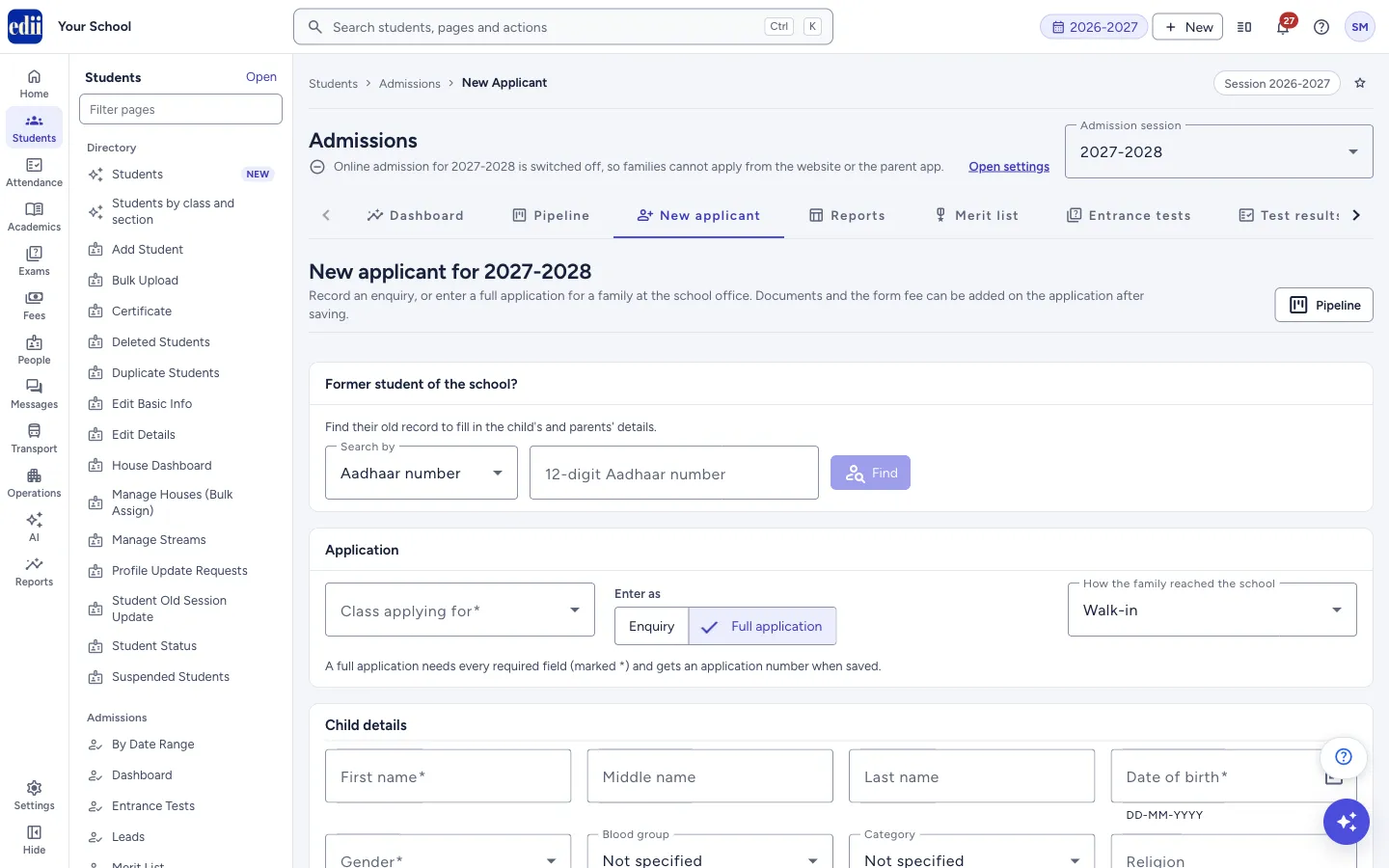
Enter a child who has come to the office as a quick enquiry or a full application on the Admissions pages (Dashboard, Pipeline, Reports, Merit List, Settings). It is shown to roles with Admission or Lead access when they are allowed to create applicants; the entrance form is New Admission.
यह पेज अंग्रेज़ी में है। कुछ समझ न आए तो ।
New Applicant (heading New applicant for the chosen admission session) records an enquiry or a full application for a family at the school office. Documents and the form fee can be added on the application after saving.
Choose the Class applying for, choose whether you are entering an Enquiry or a Full application, say How the family reached the school, fill the form and press Save enquiry or Save application. You are then taken to the application.
The boxes in the form come from the school’s own application form, which you set up in Settings, so your school’s form may have more or fewer boxes than the ones named here.
Who uses it and when
Section titled “Who uses it and when”The admission desk uses it for walk-in and phone enquiries and for families who fill the form at the office. Staff whose role has only Lead access can record enquiries, but not full applications.
Before you start
Section titled “Before you start”- Add at least one class for the admission session in Settings. Without a class, this page says: No classes are set up for admissions in 2027-2028, so an applicant cannot be entered yet.
Where to find it
Section titled “Where to find it”- In school.edii.in: Students › Admissions › New Applicant
- Or press Ctrl K (⌘ K on a Mac) and type New Applicant.
- Address:
school.edii.in/admissions/new - Who can see it: Needs Admission or Lead access for your role, and permission to create applicants (a role with only Lead access can enter enquiries). It does not need the Admissions module switch that the entrance-form pages need. If it is missing from your menu, ask your school admin.
 Open a bigger pictureतस्वीर बड़ी करें
Step by step
Section titled “Step by step”1. Choose the admission session
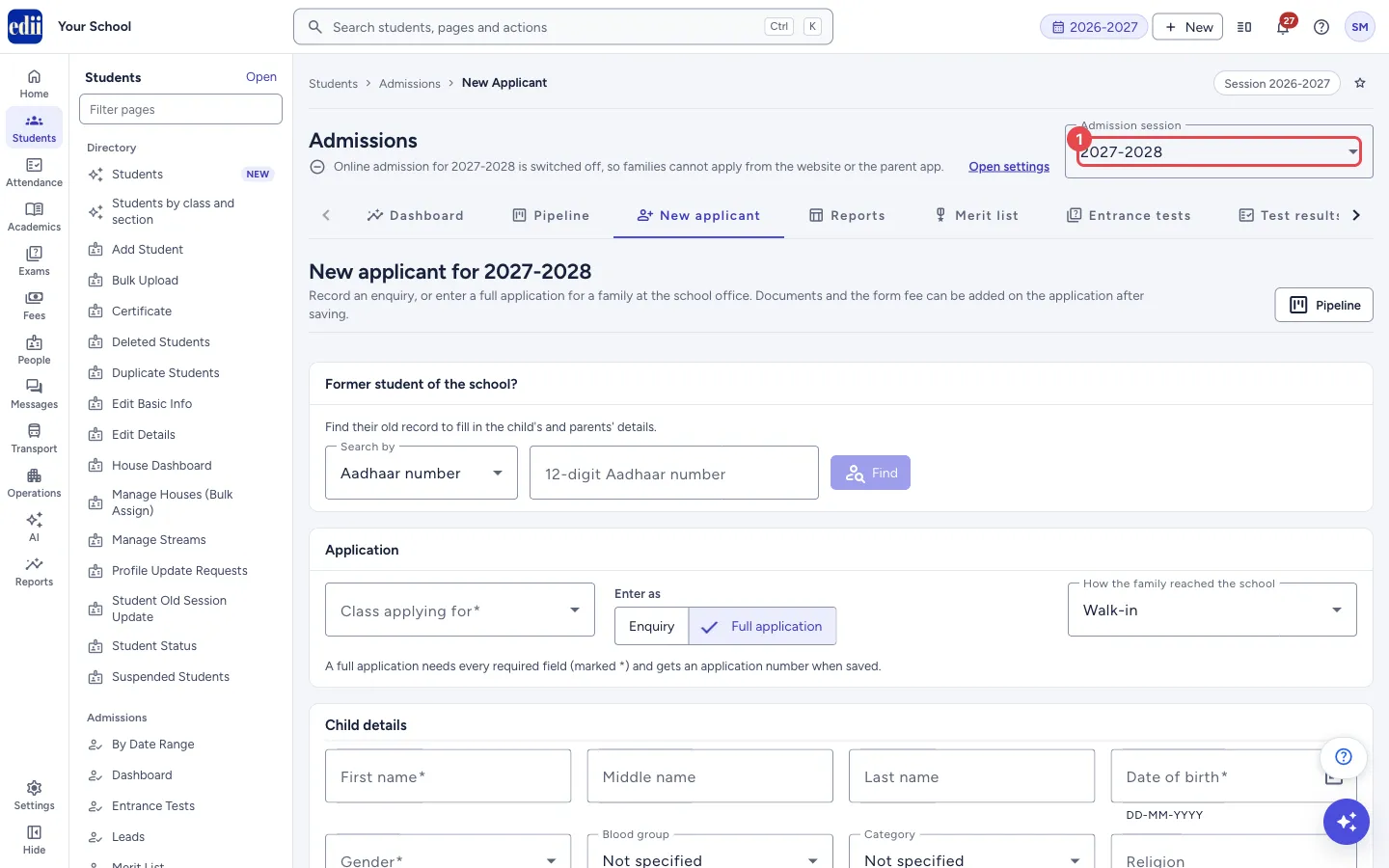
Section titled “1. Choose the admission session”The session at the top right of the Admissions pages decides which year the applicant is for. The page heading repeats it.
 Open a bigger pictureतस्वीर बड़ी करें
2. Look up a former student (optional)
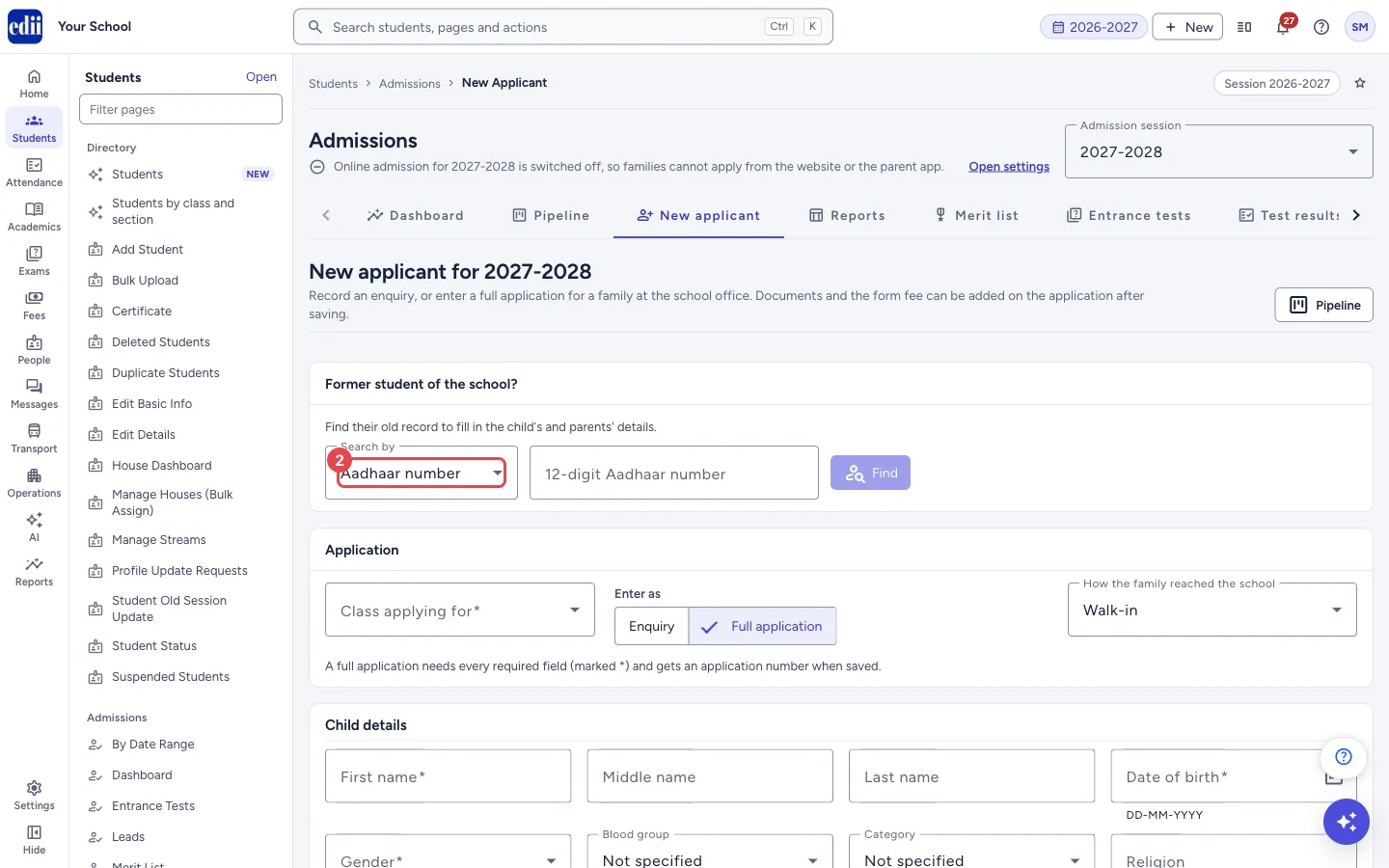
Section titled “2. Look up a former student (optional)”Under Former student of the school? choose Search by (Aadhaar number, Enrollment number, Student ID, Samagra ID or PEN), type the number and press Find. The child’s and parents’ details fill in. Check them before saving.
 Open a bigger pictureतस्वीर बड़ी करें
3. Choose the class and how you are entering the child
Section titled “3. Choose the class and how you are entering the child”Choose Class applying for. Next to each class that is not taking applications you see a note such as Closed or Notify-me only. Under it you see facts about the class: seats, form fee, admission fee and the age rule.
Under Enter as choose Enquiry (a quick note of interest) or Full application.
4. Say how the family reached the school
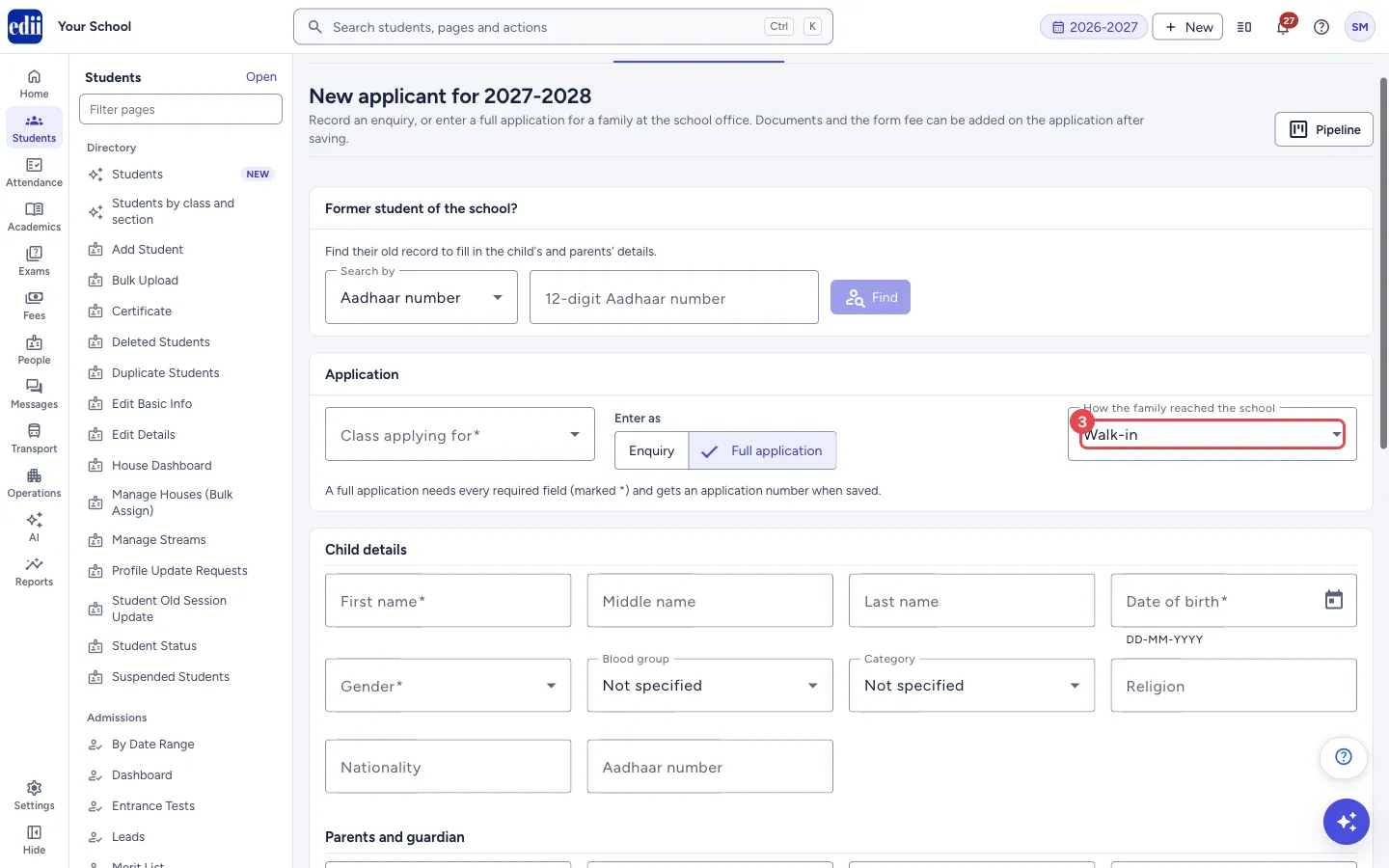
Section titled “4. Say how the family reached the school”Choose How the family reached the school. The list has Walk-in, Phone call, Visitor, Referral and Other.
 Open a bigger pictureतस्वीर बड़ी करें
5. Fill the form
Section titled “5. Fill the form”Fill the details. For an enquiry you need only the mobile number, the class, and the child’s or a parent’s name. For a full application every box marked * is needed. The boxes include Child details, Parents and guardian, Address, Previous school and Contact.
6. Save
Section titled “6. Save”Press Save enquiry or Save application. The message says Enquiry saved or Application saved with the application number and the child’s name, and the application opens. Press Clear to empty the form (you are asked Clear the form?).
Fields and filters
Section titled “Fields and filters”| Field | What it is | Notes |
|---|---|---|
| Admission session | The year the child applies for. | At the top of the Admissions pages. |
| Search by / number | Finds a former student’s record. | Aadhaar number, Enrollment number, Student ID, Samagra ID or PEN. |
| Class applying for | The class the child is applying to. | Required. Lists the classes set up for the session. |
| Enter as | Enquiry or Full application. | Full application is switched off for roles that can only record enquiries, and when walk-in applications are off in Settings. |
| How the family reached the school | The source of the application. | Walk-in, Phone call, Visitor, Referral or Other. |
| First name, Middle name, Last name, Date of birth, Gender | The child. | First name, Date of birth and Gender are required for a full application. Date of birth is written DD-MM-YYYY. |
| Blood group, Category, Religion, Nationality, Aadhaar number | More about the child. | Optional unless your school’s form marks them *. Aadhaar is 12 digits. |
| Father’s, Mother’s and Guardian’s details | Name, mobile number, email, occupation, qualification; the guardian’s relation to the child. | At least one of the father’s, mother’s or guardian’s name is needed for a full application. |
| Address, City, State, PIN code, Needs school transport | Where the family lives. | Address is required for a full application. |
| Previous school, Previous board, Last class attended, Result of last class | The child’s earlier school. | Optional unless marked *. |
| Mobile number for updates, Alternate mobile number, Email | How the school reaches the family. | The mobile number is required; it must be a 10-digit Indian mobile number. |
Buttons
Section titled “Buttons”| Button | What it does | What happens next |
|---|---|---|
| Find | Searches for a former student. | The form fills, or a message says nothing was found. |
| Enquiry / Full application | Chooses what kind of record you are entering. | The hint under the buttons and the save button change. |
| Clear | Empties everything typed on the page. | A box asks Clear the form?. |
| Save enquiry / Save application | Saves the applicant. | The application opens. |
| Pipeline | Opens the Pipeline. | The Pipeline page opens. |
After you save
Section titled “After you save”- The application opens, where you can add documents, take the form fee and move it through the stages. A full application gets an application number.
Good to know
Section titled “Good to know”- If the school’s form is changed in Settings, the boxes here change with it.
- The age rule of the class gives a warning when the child’s date of birth is outside it; you can still save.
- If the class is not taking applications, a full application shows a warning saying so.
- When you save, the page checks whether an application in the same session has the same child’s name, date of birth or Aadhaar number, or the same mobile number, including earlier admission register entries. If so, a box shows them; you can open them in a new tab, go back and check, or give a reason and save another one.
- If you leave the page with unsaved input, you are asked Discard unsaved changes?.
Messages you may see
Section titled “Messages you may see”| Message | What it means | What to do |
|---|---|---|
| Choose the class the child is applying for. | No class is chosen. | Pick a Class applying for. |
| Please fix 2 fields before saving. | Some boxes are empty or wrong (the number changes). | Correct the boxes shown in red. |
| Enter the child’s or a parent’s name for an enquiry | An enquiry has no name at all. | Enter a name. |
| This applicant may already be entered | The check found a matching application. The box lists them. | Open them to check. If this is a different child, give a reason (for example Twin or sibling with similar details, A different child of the same family, or Applying again for another class) and save. |
| This applicant was already being saved. Find them in the pipeline in a moment. | A second press of Save came while the first was still saving. | Look for the applicant in the Pipeline. |
| Enter the number to search for. | The search box is empty. | Type the number and press Find. |
| No former student was found. | Nothing matched the number. | Check the number or fill the form by hand. |
| The form is filled from the former student’s record. Check it before saving. | The lookup worked. | Check and complete the form. |
| Not saved | The server refused the application; the reason is shown on the page. | Read the reason and correct it. |
- The EDII Admissions Guide explains the whole admission season in one place: setup, the daily work, online entrance tests and what families see on the website and in the app. It has a PDF you can share with families.
- Enter an enquiry when you have only a phone number and a name; turn it into an application later from the Pipeline.
- When a visitor register entry brings you here, the mobile number, address and class are filled in; choose whether the visitor’s name is the child’s or a parent’s.
Stuck? Try this
Section titled “Stuck? Try this”| Problem | Likely cause | What to do |
|---|---|---|
| New Applicant is not in the menu | Your role may not be allowed to create applicants, or no admission access is given. | Ask your school administrator for Admission or Lead access. |
| Full application is greyed out | Your role can record enquiries only, or walk-in applications are switched off in Settings. | Record an enquiry, or ask an administrator to change the setting. |
| A class I want is not in the list | The class is not added for this admission session. | Add it in Settings. |
Did this page help?क्या इस पेज से मदद मिली?
Thanks! Glad it helped.धन्यवाद! अच्छा लगा कि काम बन गया।
Sorry about that. Ask in your own words, or write to us.माफ़ कीजिए। अपने शब्दों में पूछें, या हमें लिखें।