
Screen guide · Web app
Promote Students
Move the students of one class and section to the next session, in the class and section you choose. Students you switch off stay where they are.
यह पेज अंग्रेज़ी में है। कुछ समझ न आए तो ।
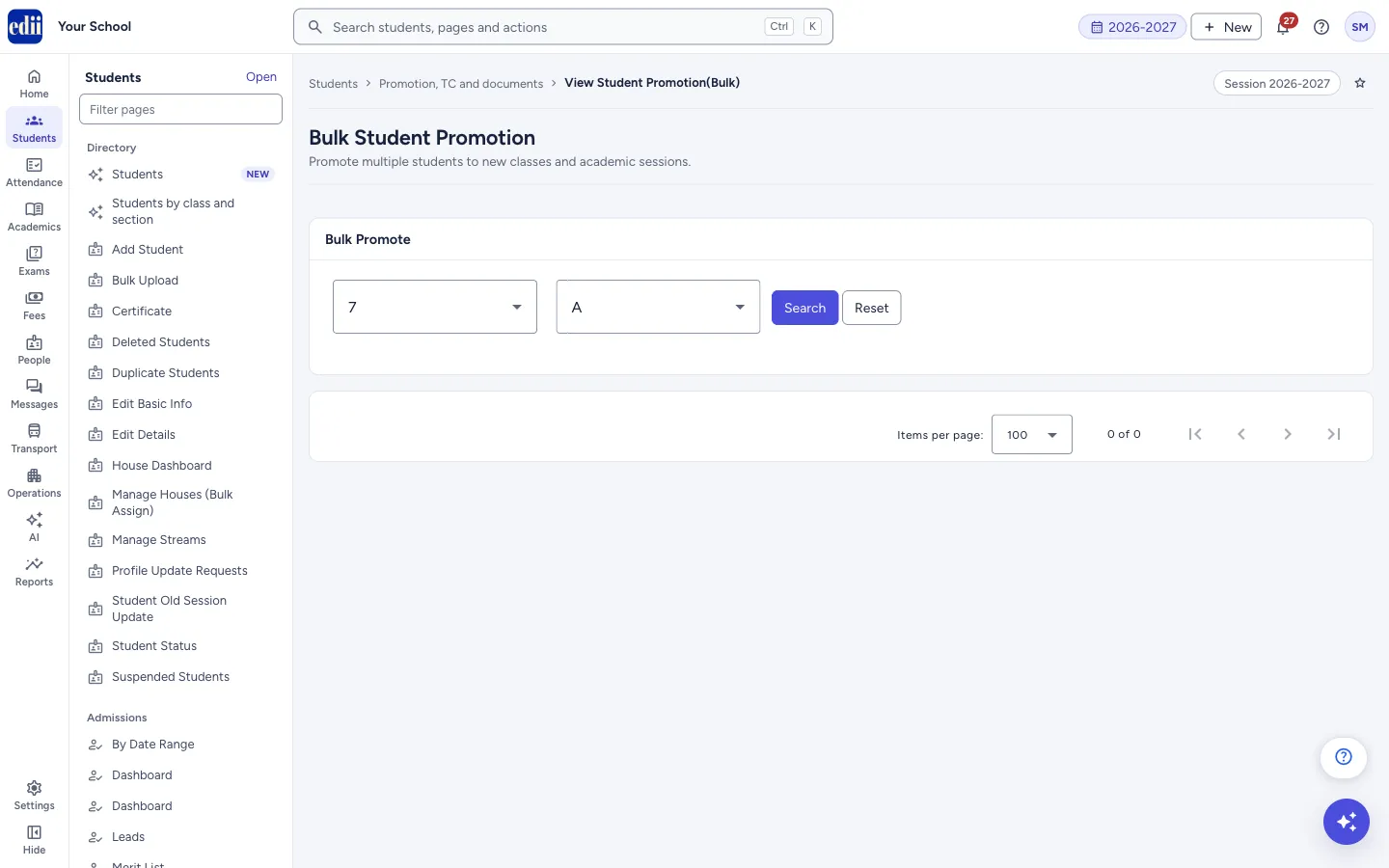
The screen is headed Bulk Student Promotion. You choose the class and section the students are in now, load them, check the new session, class and section, switch off any student who should not move, and select Promote.
Promotion is final. After you confirm, EDII asks nothing more, and the screen has no button to undo it. Check the list twice before you confirm.
You promote one class and section at a time, and every student you promote in one run goes to the same new class and section.
Who uses it and when
Section titled “Who uses it and when”The administrator or the exam in-charge, once a year, after the final results of each class.
Before you start
Section titled “Before you start”- The class and section the students will go to must already exist in your school.
- Promotion works only from the session 2021-2022 onwards.
- Download or print the class list first (Print menu) if you want a record of who was in the class.
Where to find it
Section titled “Where to find it”- In school.edii.in: Students › Promotion, TC and documents › Promote Students
- Or press Ctrl K (⌘ K on a Mac) and type Promote Students.
- Address:
school.edii.in/view/student-profile-bulk-promotion - Who can see it: Staff whose role includes Students or Attendance access. Shown only when your school uses Student in EDII. If it is missing from your menu, ask your school admin.
 Open a bigger pictureतस्वीर बड़ी करें
Step by step
Section titled “Step by step”1. Choose the class
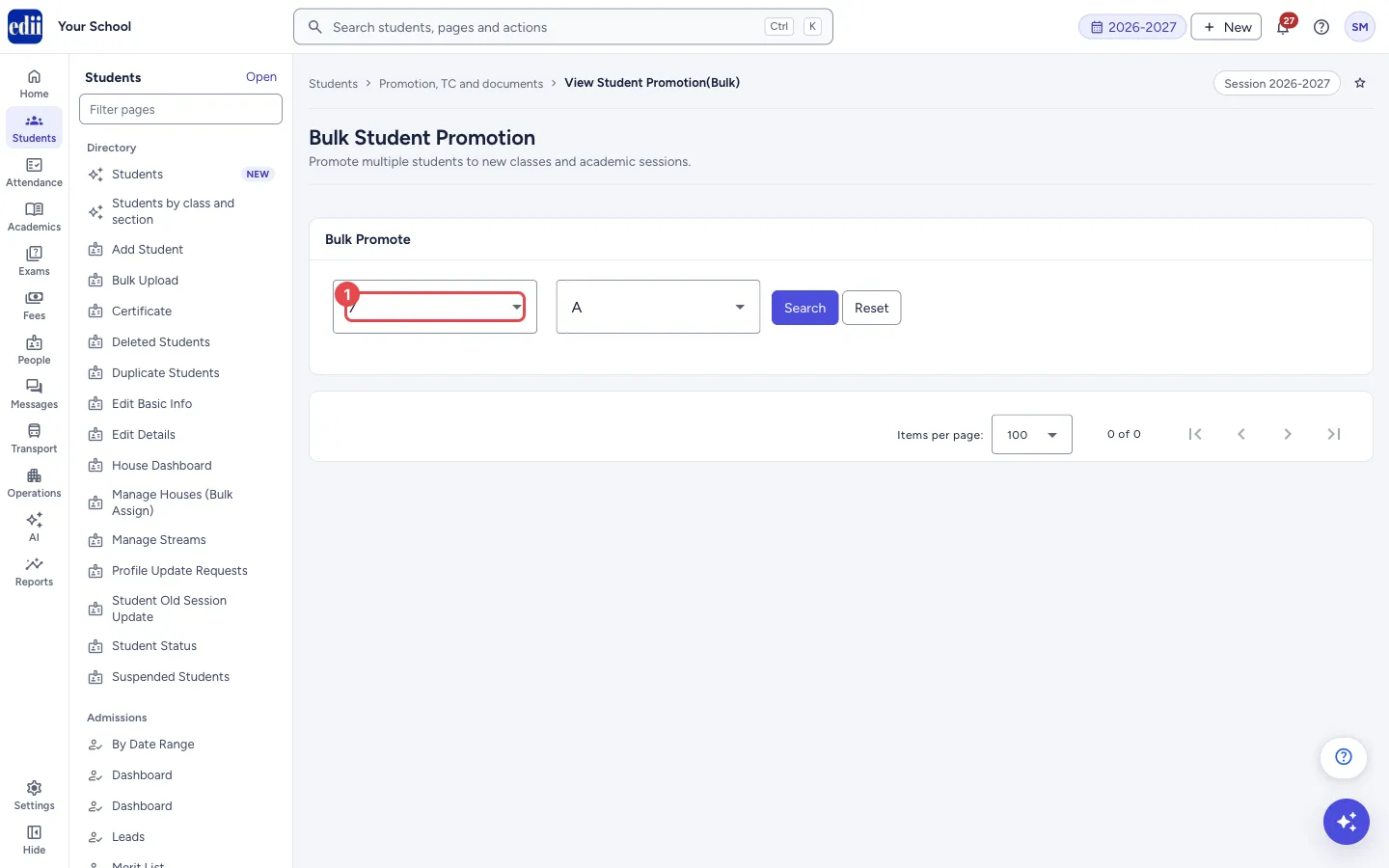
Section titled “1. Choose the class”In Select Class, choose the class the students are in now.
 Open a bigger pictureतस्वीर बड़ी करें
2. Choose the section
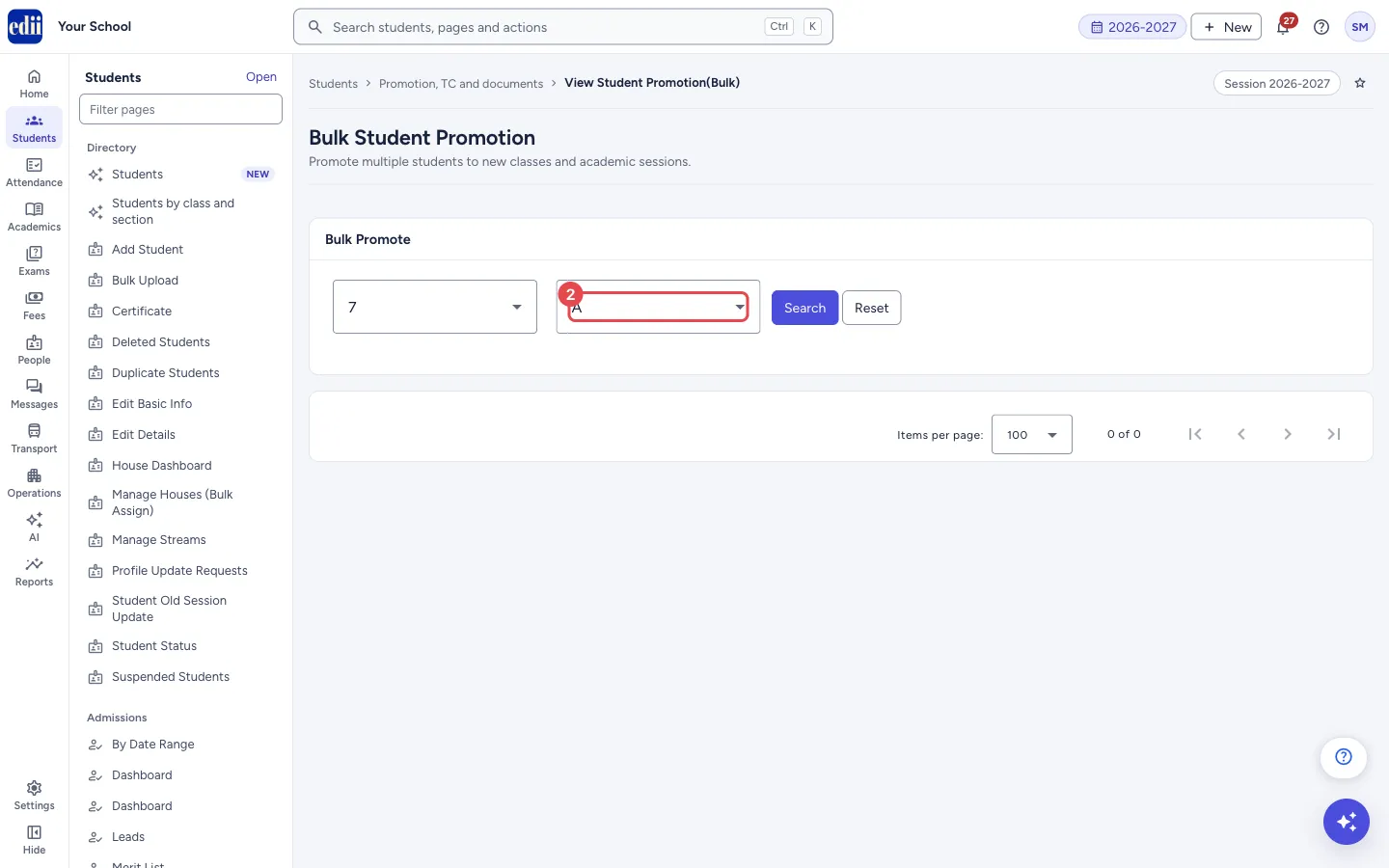
Section titled “2. Choose the section”In Select Section, choose the section.
 Open a bigger pictureतस्वीर बड़ी करें
3. Search
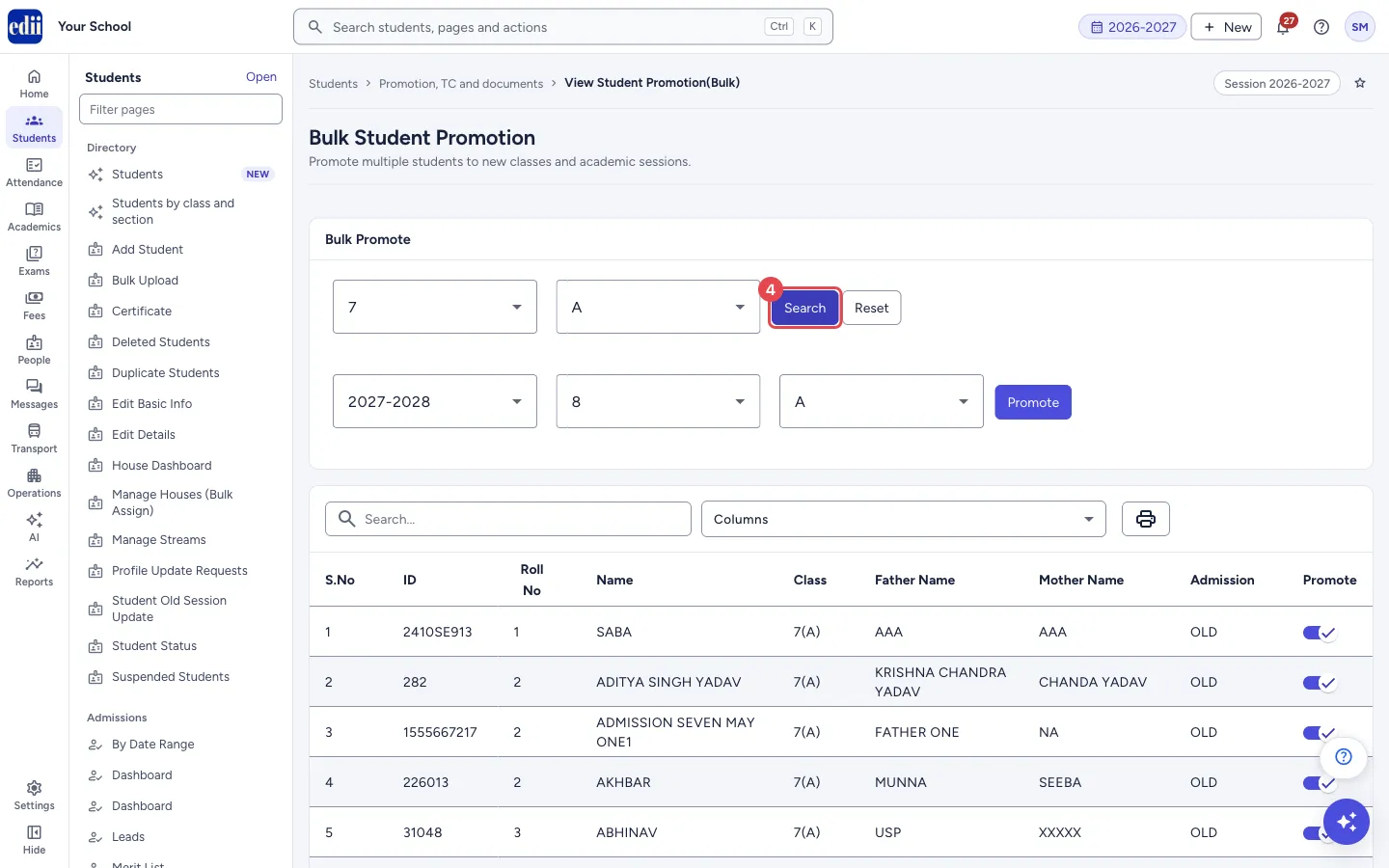
Section titled “3. Search”Select Search. The students are listed, and a second row of boxes appears: Select New Session, New Class and New Section, with the Promote button.
Select New Session is filled in with the session after the one you are working in, and you cannot change it. New Class is filled in with the next class when the class is a number and that class exists in your school, otherwise it is empty. New Section starts as the same section.
 Open a bigger pictureतस्वीर बड़ी करें
4. Check the new class and section
Section titled “4. Check the new class and section”Change New Class and New Section if the students go somewhere else. Choose both before you select Promote.
5. Switch off the students who stay back
Section titled “5. Switch off the students who stay back”Each student has a switch in the Promote column. All students start switched on, except a student who has already been promoted from this class, whose switch starts off. Switch off every student who should stay in the current class, for example a student who will repeat the year.
Use Search… to find a student and Columns to show or hide columns.
6. Promote and confirm
Section titled “6. Promote and confirm”Select Promote. A box titled Promote students? asks “Are You Sure You Want To Promote N Students ? This Action Is Irreversible .” where N is the number of students switched on.
Select Promote students to go ahead. The message “Students Have Been Promoted” shows when it is done. Select Cancel to stop.
Whichever button you choose, the student list and the new class and section are cleared afterwards. Search again to see the class.
Fields and filters
Section titled “Fields and filters”| Field | What it is | Notes |
|---|---|---|
| Select Class | The class the students are in now. | Required. |
| Select Section | The section the students are in now. | Required. |
| Select New Session | The session the students will go to. | Fixed to the session after the current one. It cannot be changed. |
| New Class | The class the promoted students will be in. | Filled in when the current class is a number. Change it if needed. Needed before you promote. |
| New Section | The section the promoted students will be in. | Starts as the current section. Needed before you promote. |
| Promote (switch in each row) | Whether that student is promoted in this run. | On by default, except for a student already promoted. |
| Search… | Filters the list on the screen. | Does not change the switches. |
| Columns | Chooses the columns of the list. | S.No, ID, Roll No, Name, Class, Father Name, Mother Name, Admission, Promote. |
Buttons
Section titled “Buttons”| Button | What it does | What happens next |
|---|---|---|
| Search | Lists the students of the class and section. | The students appear and the new session, class and section boxes show. |
| Reset | Clears the list and the new class and section. | Nothing is promoted. |
| Promote | Starts the promotion of the switched-on students. | A box asks you to confirm. Nothing is promoted until you select Promote students in that box. |
| Promote students (in the box) | Promotes every switched-on student to the new session, class and section. | This cannot be undone. The message “Students Have Been Promoted” shows. |
| Cancel (in the box) | Closes the box without promoting anyone. | The list is cleared. Search again to start over. |
| Print (printer icon) | Opens a menu to print the list or download it as an Excel, text or CSV file. | The file is named BulkPromote. |
Columns
Section titled “Columns”| Column | Meaning |
|---|---|
| S.No | Row number. |
| ID | The student’s ID number. |
| Roll No | Roll number in the current class. |
| Name | The student’s name. |
| Class | Class and section now, for example 7(A). |
| Father Name / Mother Name | Parents’ names. |
| Admission | The admission status of the student, for example OLD. |
| Promote | The switch that decides if the student is promoted. |
After you save
Section titled “After you save”- The students you promoted are added to the new session in the new class and section. Students you switched off are not touched and stay in their current class.
Good to know
Section titled “Good to know”- Promotion cannot be undone from this screen.
- One new class and one new section apply to all students promoted in a run. Promote section by section if students go to different sections.
- A student already promoted from this class starts switched off. Switching the student on again promotes the student again.
- If the session you are working in is before 2021-2022, the page does not open and you are taken to the home page.
- The screen shows the message “Students Have Been Promoted” when the request succeeds. It does not list students that could not be promoted, so open the new class afterwards and check that everyone is there.
Messages you may see
Section titled “Messages you may see”| Message | What it means | What to do |
|---|---|---|
| You can only promote Students from session 2021-2022 onwards | The session you are working in is too old. | Switch to a later session. |
| Are You Sure You Want To Promote N Students ? This Action Is Irreversible . | Asked in the box before promoting. N is the number of switched-on students. | Select Promote students only when the list is right. |
| Students Have Been Promoted | The request was accepted. | Open the new class to check the students. |
| Bad/Slow Internet Connection, Please check your internet connection | The request did not finish. | Check the internet. Search the old class and the new class to see what happened before you try again. |
- Switch off the students who will repeat the class before you select Promote.
- After promoting, open the new class list and check it.
Stuck? Try this
Section titled “Stuck? Try this”| Problem | Likely cause | What to do |
|---|---|---|
| New Class is empty after Search | The class is not a number, or the next class is not in your school’s class list. | Choose the class yourself. |
| A student’s switch is already off | That student has already been promoted from this class. | Leave it off unless you really want to promote the student again. |
Did this page help?क्या इस पेज से मदद मिली?
Thanks! Glad it helped.धन्यवाद! अच्छा लगा कि काम बन गया।
Sorry about that. Ask in your own words, or write to us.माफ़ कीजिए। अपने शब्दों में पूछें, या हमें लिखें।