
Screen guide · Web app
Cash Deposit Register
Shows the school's daily cash and bank position in a Day Book, records each handover of cash to the bank until the bank confirms it, and records money in that is not a fee.
यह पेज अंग्रेज़ी में है। कुछ समझ न आए तो ।
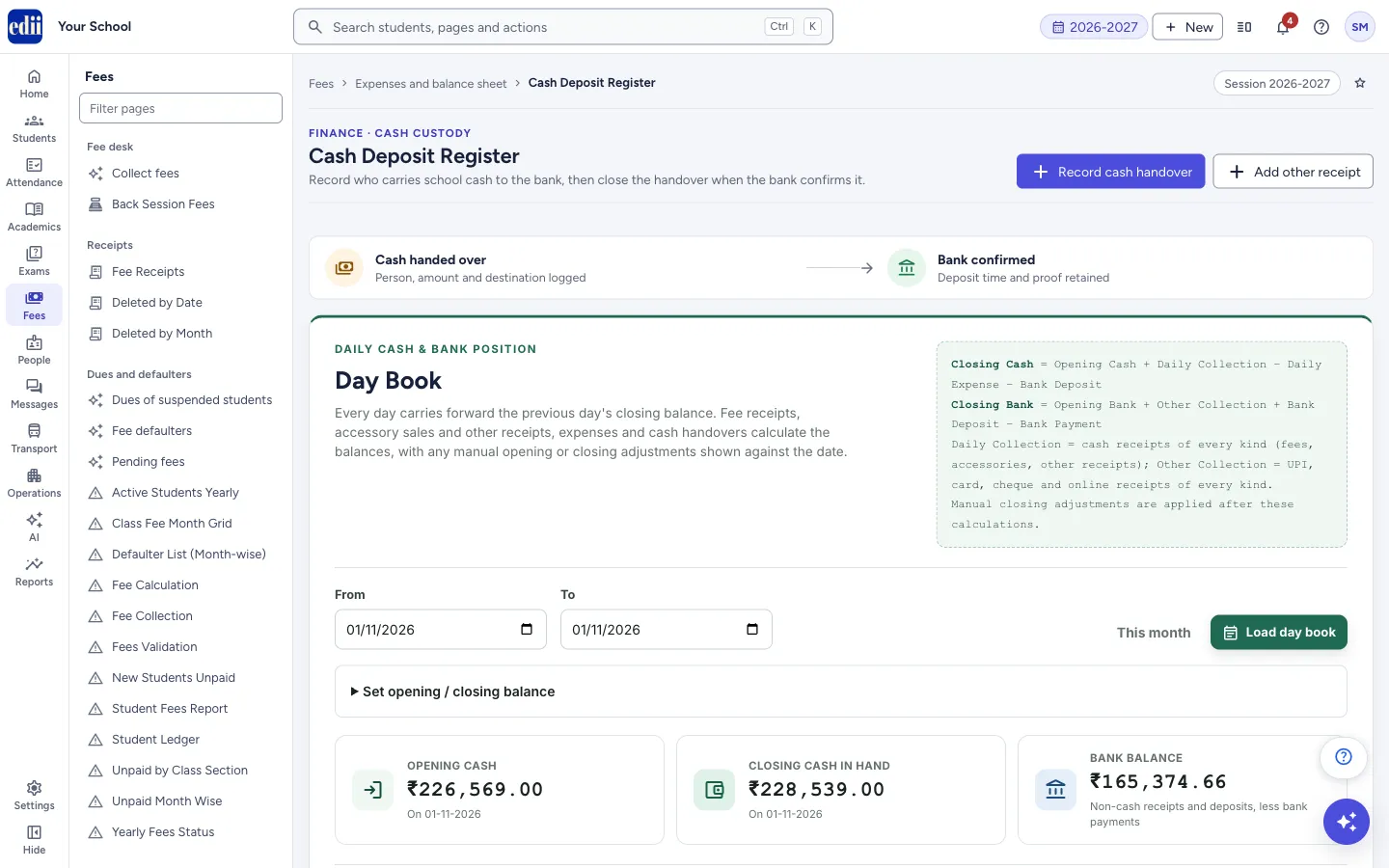
The Cash Deposit Register has three parts. The Day Book at the top shows, for each day, how much cash the school had, what it collected and spent, what went to the bank, and the cash and bank balance at the end of the day. The handover register below it records every time school cash is given to a person to carry to the bank, and closes the entry when the bank confirms the deposit. Other receipts at the bottom records money that is not a fee, such as a donation, bank interest or a scrap sale.
A handover has two stations, shown at the top of the page: Cash handed over (person, amount and destination logged) and Bank confirmed (deposit time and proof retained). A new handover starts as Sent to bank; when the bank confirms it you mark it as deposited and it becomes Bank confirmed.
The Day Book counts money of every kind: fee receipts, accessory sales, other receipts, and money taken on other EDII screens such as TC fees, job fees, library fines and the canteen. Cash goes into Daily Collection; UPI, card, cheque and online money goes into Other Collection and the bank balance.
Who uses it and when
Section titled “Who uses it and when”The accounts office records a handover when cash leaves the school for the bank, and confirms it when the bank slip comes back. It also records donations, bank interest, grants, rent and scrap sales here. The principal uses the Day Book to check the cash in hand.
Before you start
Section titled “Before you start”- The Day Book takes expenses out of cash or bank by their Mode of Transaction. Choose the right mode on every expense (in Expenses), because an expense without a mode is not taken out of cash or bank.
- To record a handover to a staff member, that person should have an EDII user account. For anyone else you enter the name and phone number.
Where to find it
Section titled “Where to find it”- In school.edii.in: Fees › Expenses and balance sheet › Cash Deposit Register
- Or press Ctrl K (⌘ K on a Mac) and type Cash Deposit Register.
- Address:
school.edii.in/view/cash-deposit-register - Who can see it: Staff whose role includes Fees access. Shown only when your school uses Finance in EDII. If it is missing from your menu, ask your school admin.
 Open a bigger pictureतस्वीर बड़ी करें
Step by step
Section titled “Step by step”1. Load the Day Book
Section titled “1. Load the Day Book”The Day Book opens with this month already loaded. For other dates, pick From and To and select Load day book; This month sets the dates back to the first of this month to today. Three cards show Opening cash (on the first date), Closing cash in hand (on the last date) and Bank balance (Non-cash receipts and deposits, less bank payments). A fourth card, Cash in transit, shows when there is cash that was handed over and not yet confirmed by the bank.
The table has one row for each day: Opening Cash, Daily Collection, Daily Expense, Bank Deposit, Closing Cash and Bank Balance, with a Total row. Hide days with no money movement is ticked when the page opens, so quiet days are left out; untick it to see every day. CSV and Print save or print the rows on screen.
2. Read how a day is worked out
Section titled “2. Read how a day is worked out”The page states the rule: Closing Cash = Opening Cash + Daily Collection − Daily Expense − Bank Deposit, and Closing Bank = Opening Bank + Other Collection + Bank Deposit − Bank Payment. It also says Daily Collection = cash receipts of every kind (fees, accessories, other receipts); Other Collection = UPI, card, cheque and online receipts of every kind. Every day carries forward the closing balance of the day before. Manual closing adjustments are applied after these calculations. UPI, card, cheque and online receipts never enter the cash box, so they are in Other Collection and not in Closing Cash; they raise Bank Balance on the day they are received.
A yellow note under the cards tells you when expenses are Unpaid or Rejected (no money has left, so they are not deducted) or have no Mode of Transaction (shown under Unclassified and left out of both balances until you set the mode on the expense).
3. See where the money came from
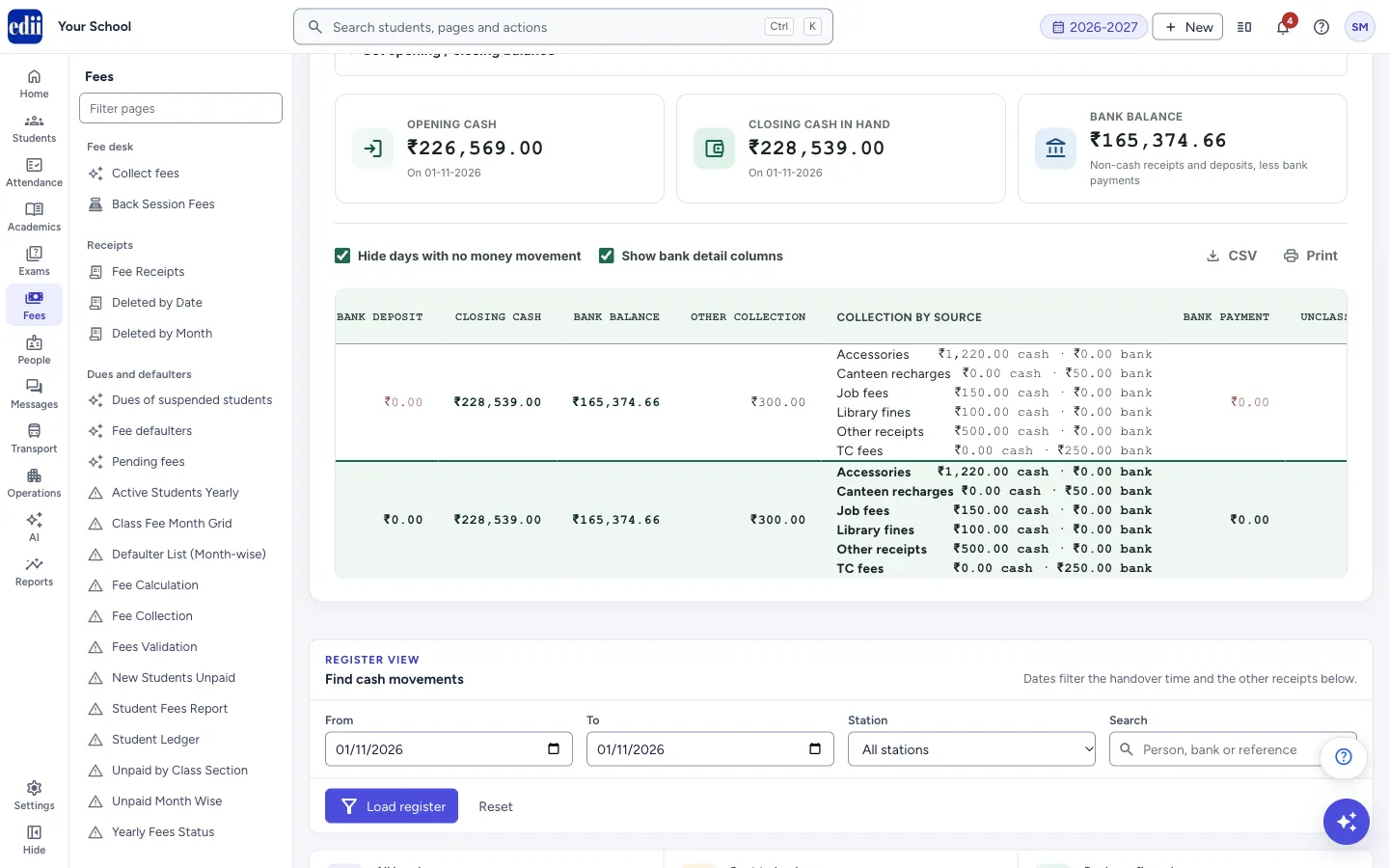
Section titled “3. See where the money came from”Tick Show bank detail columns to add Other Collection, Collection by source, Bank Payment, Unclassified, Credited To Bank and Cash In Transit.
Collection by source has one line for each place the day’s money came from, with its cash and bank parts, for example Accessories ₹420.00 cash · ₹0.00 bank. The lines you may see are Fees, Accessories, Other receipts, TC fees, Job fees, Library fines, Canteen orders, Canteen recharges, Hostel fees and Admission fees. A source with no money on that day is left out. The Total row shows the same lines for the whole date range. While the detail columns are on, CSV and Print also get a cash column and a bank column for each source.
 Open a bigger pictureतस्वीर बड़ी करें
4. Set an opening or closing balance (when the book is wrong)
Section titled “4. Set an opening or closing balance (when the book is wrong)”Open Set opening / closing balance. Choose the Effective date, the Account (Cash in hand or Bank), the Balance type (Opening applies before that day’s transactions, Closing applies after them) and the Action (Set manually or Restore automatic). For Set manually type the Balance (₹) and the Reason, then select Save balance.
A manual setting stays fixed even if earlier transactions change; later days are worked out again until the next manual setting. Restore automatic removes a setting. Cash and bank are set separately, and finance write access is needed. These settings only reconcile balances; they do not change any receipt or expense. A day that has an adjustment shows Balance adjustment under its date, with a history.
5. Record a cash handover
Section titled “5. Record a cash handover”Select Record cash handover. Fill Amount (₹) (more than zero, at most two decimals), Handed over at (date and time) and Cash handed to. Use the person who physically received the cash, not the staff member entering this record. Choose EDII user and search by name, user ID or phone, or choose Person not in EDII and type the name and contact number (6 to 15 digits).
Fill the Bank name. Branch, Account label, Remarks and Proof files are optional; proof files are JPG, PNG, WebP or PDF, up to 10 MB each, at most 10. Select Record handover. Cash handover recorded successfully. shows and the entry appears in the register as Sent to bank.
6. Find and print handovers
Section titled “6. Find and print handovers”Under Find cash movements, pick From and To. The note beside them says Dates filter the handover time and the other receipts below. Choose a Station (All stations, Sent to bank or Bank confirmed) and type in Search a person, bank or reference; these two apply to handovers only. Select Load register; Reset sets the dates back to this month and clears the other boxes. Three cards add up All handovers, Sent to bank and Bank confirmed.
Print current page and CSV current page use the handovers on the page you are looking at (25 to a page). The proof button of a row, with a number, opens its proof files.
7. Confirm the bank deposit
Section titled “7. Confirm the bank deposit”In the register, select Mark deposited on a handover that is Sent to bank. In Confirm the bank deposit, enter Bank confirmed at (it cannot be earlier than the handover), and, if you have them, the Deposit reference, a Confirmation note and Additional proof files. Select Confirm bank deposit. Bank confirmation saved. shows and the handover becomes Bank confirmed.
8. Add or cancel an other receipt
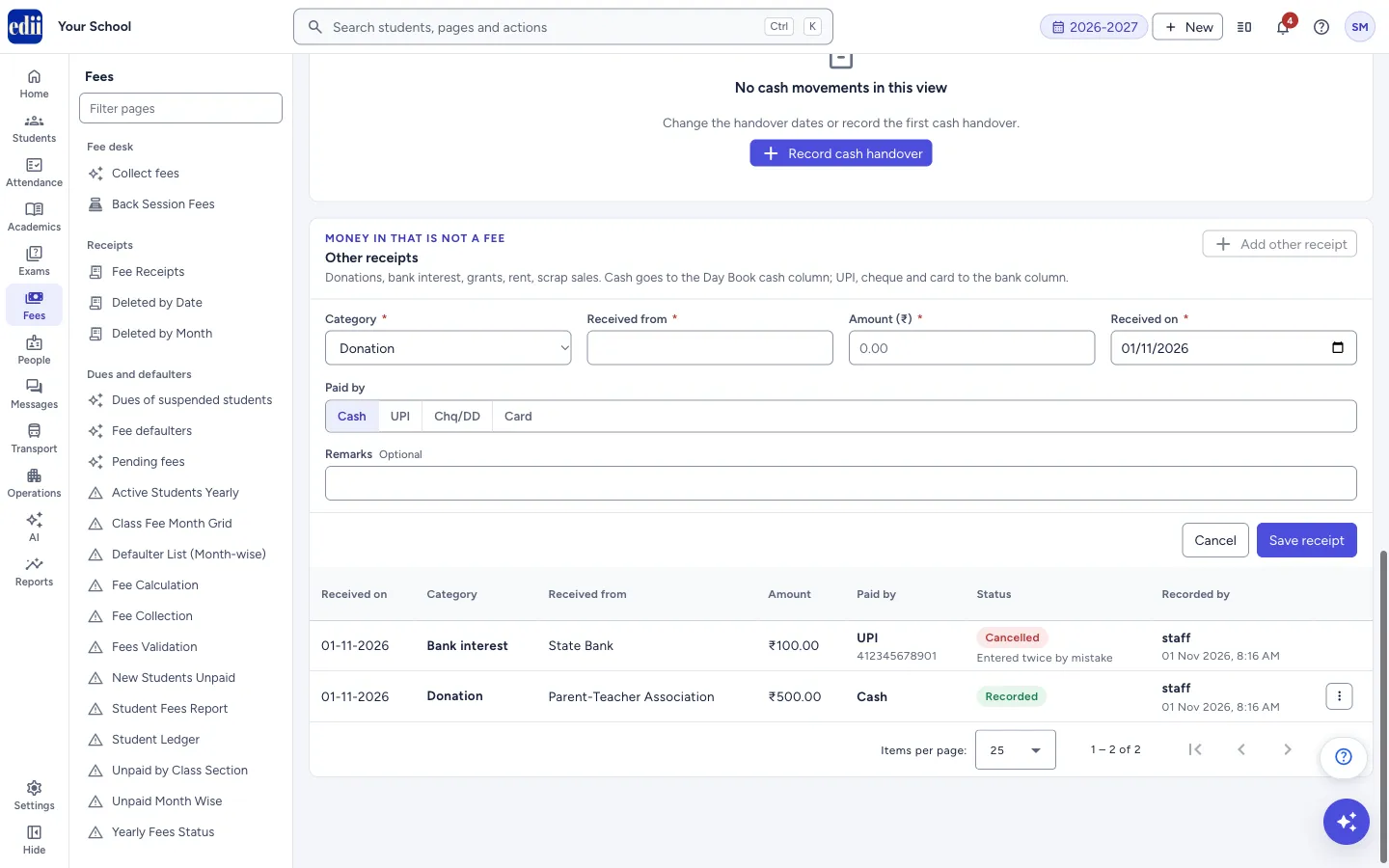
Section titled “8. Add or cancel an other receipt”Select Add other receipt at the top of the page, or in the Other receipts box. Choose the Category (Donation, Bank interest, Grant, Rent, Scrap sale or Miscellaneous), type who paid in Received from, the Amount (₹) and the Received on date (today at first; it cannot be in the future). Under Paid by choose Cash, UPI, Chq/DD or Card; for anything other than cash, fill UTR / cheque / card reference. Remarks is optional. Select Save receipt, or Cancel to close the form without saving.
Receipt recorded. shows and the Day Book above loads again. The receipt appears in the Other receipts list as Recorded when its Received on date is inside the From and To dates under Find cash movements.
To take a receipt out, open its Actions menu in the list and choose Cancel receipt. The box Cancel this receipt? says, for example, Donation of ₹100.00 from <payer> will leave the Day Book for 01-11-2026. The row stays in the list marked Cancelled. Type the Reason (up to 500 characters) and select Cancel receipt, or Keep it to leave it as it is. Receipt cancelled. shows, and the row is marked Cancelled with the reason under it.
 Open a bigger pictureतस्वीर बड़ी करें
Fields and filters
Section titled “Fields and filters”| Field | What it is | Notes |
|---|---|---|
| Amount (₹) | The cash handed over. | Required. More than zero, at most two decimals. |
| Handed over at | The date and time of the handover. | Required. |
| Cash handed to | The person who received the cash: an EDII user, or a Person not in EDII with name and contact number. | Required. Contact number: 6 to 15 digits; spaces, +, brackets, dots and hyphens are allowed. When the chosen EDII user has no saved phone, you add one for this handover. |
| Bank name, Branch, Account label | The bank that will receive the cash, and optional details such as Main account · 4821. | Bank name is required. |
| Remarks, Proof files | A note and files (JPG, PNG, WebP, PDF). | Optional. Remarks up to 1000 characters; files up to 10 MB each, at most 10. |
| Bank confirmed at, Deposit reference, Confirmation note, Additional proof files | The details of the bank confirmation. | Bank confirmed at is required and cannot be earlier than the handover. |
| Effective date, Account, Balance type, Action, Balance (₹), Reason | A manual opening or closing balance for the Day Book. | Balance cannot be negative for cash. Reason is needed. |
| Other receipt: Category | The kind of money: Donation, Bank interest, Grant, Rent, Scrap sale or Miscellaneous. | Required. Starts as Donation. |
| Other receipt: Received from | Who paid the money. | Required. Up to 150 characters. |
| Other receipt: Amount (₹) | The money received. | Required. More than zero, at most two decimals. |
| Other receipt: Received on | The day the money came in. The Day Book counts the receipt on this date. | Required. Starts as today. Cannot be in the future, and must be inside the session chosen at the top of the screen. |
| Other receipt: Paid by | Cash, UPI, Chq/DD or Card. | Starts as Cash. Cash goes to Daily Collection; the others go to Other Collection and the bank balance. |
| Other receipt: UTR / cheque / card reference | The UTR, cheque or card reference of the payment. | Shown and required for UPI, Chq/DD and Card. Up to 100 characters. |
| Other receipt: Remarks | A note about the receipt. It shows under the category in the list. | Optional. Up to 1000 characters. |
Buttons
Section titled “Buttons”| Button | What it does | What happens next |
|---|---|---|
| Record cash handover | Opens the form for a new handover. | The form Record cash handover shows. |
| Add other receipt | Opens the form for money in that is not a fee. It is at the top of the page and in the Other receipts box. | The form opens in the Other receipts box. |
| Load day book / This month | Loads the Day Book for the dates, or for the current month. | The cards and the table change. |
| Show bank detail columns | Adds the bank detail columns, including Collection by source, to the Day Book. | The extra columns show; untick it to hide them. |
| Save balance | Saves a manual balance, or restores the automatic one. | The Day Book changes from that date. |
| Load register / Reset | Loads the handovers and other receipts that match the boxes, or sets the dates back to this month and clears the boxes. | The cards, the register and the other receipts list change. |
| Mark deposited | Starts the bank confirmation of a handover. | The panel Confirm the bank deposit opens. |
| Save receipt | Saves the other receipt. | Receipt recorded. shows; the list and the Day Book load again. |
| Cancel (other receipt form) | Closes the Add other receipt form without saving. | The form closes and its boxes are cleared. |
| Cancel receipt (Actions menu of an other receipt) | Takes a recorded other receipt out of the Day Book, with a reason. | The box Cancel this receipt? opens; after you confirm, the row is marked Cancelled. |
Columns
Section titled “Columns”| Column | Meaning |
|---|---|
| Day Book: Date | The day. |
| Opening Cash, Daily Collection, Daily Expense, Bank Deposit, Closing Cash, Bank Balance | The cash at the start of the day; the cash received on the day from every source (fee receipts, accessory sales, other receipts and the other office collections); the expenses paid in cash; the cash handed over for the bank; the cash at the end of the day; and the bank balance. |
| Other Collection, Bank Payment, Unclassified, Credited To Bank, Cash In Transit | Shown with Show bank detail columns. Other Collection: UPI, card, cheque and online receipts from every source (fees, accessories, other receipts). Bank Payment: expenses paid by cheque, transfer, UPI, card or online. Unclassified: expenses with no Mode of Transaction. Credited To Bank: how much of the day’s Bank Deposit the bank has confirmed, for checking only. Cash In Transit: deposits handed over and not yet confirmed; they are already counted in Bank Balance. |
| Collection by source | Shown with Show bank detail columns. Where the day’s Daily Collection and Other Collection came from, one line per source, each with its cash and bank amounts. A dash means nothing was collected that day. |
| Register: Handover | The date of the handover, with its remarks. |
| Amount, Cash handed to, Bank | The amount, the person (EDII user ID, or Person not in EDII, and contact) and the bank with branch and account label. |
| Station, Bank confirmation | Sent to bank or Bank confirmed, and the time the bank confirmed, or Awaiting confirmation. |
| Proofs, Recorded | The number of proof files, and who recorded the handover and when. |
| Other receipts: Received on, Category, Received from, Amount | The date the money came in, its category (with the remarks under it), who paid and how much. |
| Paid by | Cash, UPI, Chq/DD or Card, with the reference under it. |
| Status | Recorded, or Cancelled with the reason under it. |
| Recorded by | Who saved the receipt, and when. |
After you save
Section titled “After you save”- A recorded handover is a bank deposit in the Day Book: it lowers the cash in hand and raises the bank balance on the day it was handed over, even before the bank confirms. Until then it also shows as Cash in transit.
- This page has no button to change or delete a handover after it is recorded, so check the amount, person and bank before you select Record handover.
- A saved other receipt is counted in the Day Book on its Received on date: cash in Daily Collection, UPI, cheque and card in Other Collection and Bank Balance.
- An other receipt cannot be changed. If it is wrong, cancel it with a reason and save a new one. A cancelled receipt leaves the Day Book on its own date and stays in the list marked Cancelled.
Good to know
Section titled “Good to know”- Every day carries forward the closing balance of the day before.
- Expenses that are Unpaid or Rejected are not deducted, and expenses with no Mode of Transaction are left out of both balances until the mode is set.
- A manual balance stays fixed when earlier transactions change, until it is restored to automatic.
- If a save cannot be confirmed (for example the internet drops), EDII keeps the entry as a pending retry in this browser and asks you to retry the same request. This prevents the same handover from being recorded twice. If you must choose proof files again, EDII lists them.
- From this update on, the Day Book also counts accessory sales, other receipts, TC fees, job fees, library fines, canteen orders and canteen wallet recharges, hostel fees and admission fees, each by the payment mode entered on its own screen. Any of these taken before this update are not counted.
- TC fees, job fees and library fines taken on beta.edii.in are not counted, because beta.edii.in does not ask how the money was paid.
- Canteen orders paid from a canteen wallet are not new money, so they are not counted; the wallet recharge is.
- A TC fee or a job fee is counted on the day it is saved. For a job fee this can be a different day from its Job Date.
- A cancelled accessory receipt, other receipt or canteen order, and a deleted job fee, leave the Day Book on their own date.
- Selecting Save receipt twice records one other receipt, not two.
- The other receipts list follows the From and To dates under Find cash movements, 25 to a page at first.
- Saving or cancelling an other receipt needs write access to fees.
Messages you may see
Section titled “Messages you may see”| Message | What it means | What to do |
|---|---|---|
| Cash handover recorded successfully. | The handover was saved. | Nothing to do. |
| Bank confirmation saved. | The handover is now Bank confirmed. | Nothing to do. |
| Complete the required handover details before recording this cash movement. | A required box of the form is empty or wrong. | Check the amount, time, person and bank name. |
| Choose an existing EDII user, or use Person not in EDII. | No person was picked from the EDII user list. | Pick a user from the list, or switch to Person not in EDII. |
| Enter a contact number containing 6–15 digits. Spaces, +, brackets, dots and hyphens are allowed. | The contact number is not valid. | Type a valid number. |
| Bank confirmation cannot be earlier than the cash handover. | The confirmation time is before the handover time. | Enter a later time. |
| Choose both dates before loading the register. | A date box of the register filter is empty. | Pick From and To. |
| The start date must be on or before the end date. | From is after To. | Swap the dates. |
| Choose both a From and a To date. / The From date cannot be after the To date. | The same checks for the Day Book dates. | Fix the dates and select Load day book. |
| Enter a valid balance with up to two decimal places. Cash cannot be negative. | The manual balance is not valid. | Type a valid amount. |
| No money moved in this range | The Day Book has nothing for these dates, or all days are hidden by Hide days with no money movement. | Change the dates, or untick the box. |
| There is nothing in this view to print. / There is nothing in this view to export. | The Day Book has no rows on screen to print or save as CSV. | Load the Day Book for dates with money movement, or untick Hide days with no money movement. |
| No cash movements in this view | No handover matches the register filter. | Change the handover dates, or record the first handover. |
| <file> is not a JPG, PNG, WebP, or PDF file. / <file> is larger than 10 MB. | A proof file is not accepted. | Choose another file. |
| Receipt recorded. | The other receipt was saved and is counted in the Day Book. | Nothing to do. |
| Complete the receipt details before saving. | A required box of the other receipt form is empty or wrong. The box itself says Enter who paid. or Enter an amount greater than zero with no more than two decimal places. | Fill Received from, Amount (₹) and Received on. |
| Enter the UTR / cheque / card reference for this payment. | UPI, Chq/DD or Card is chosen and the reference is empty. | Type the UTR, cheque number or card reference. |
| A receipt cannot be dated in the future | Received on is after today. | Choose today or an earlier date. |
| Choose a date within the selected session | Received on is outside the session chosen at the top of the screen. | Choose a date in that session, or change the session. |
| The server did not confirm whether this receipt was saved. Save again with the same details; it will not be duplicated. | The connection dropped while saving. | Select Save receipt again without changing anything. |
| Receipt cancelled. | The other receipt is cancelled and has left the Day Book. | Nothing to do. |
| Please give a reason of up to 500 characters. | The cancel reason is too long. | Shorten the reason and cancel again. |
| This receipt is already cancelled | Someone cancelled the receipt before you. | Select Load register to see the current list. |
| No other receipts in this date range | No other receipt has a Received on date between From and To. | Change the dates under Find cash movements and select Load register, or add a receipt. |
| Other receipts did not load | The list could not be loaded. | Select Try again. |
- Give every cash expense its Mode of Transaction in Expenses; otherwise the Day Book leaves it out of the cash balance.
- Look at Cash in transit now and then. Anything that stays there for days is worth chasing with the bank.
- Use Show bank detail columns to see how much of a day’s collection came from fees and how much from accessories, other receipts and other screens.
Stuck? Try this
Section titled “Stuck? Try this”| Problem | Likely cause | What to do |
|---|---|---|
| The closing cash does not match the cash box | Some expenses have no Mode of Transaction and are left out of the balances (the yellow note under the cards says so), or the book was never given a real opening balance. | Set the missing modes on the expenses, or set the real balance with Set opening / closing balance. |
| I cannot save a manual balance | Finance write access is needed. | Ask the school admin for finance write access. |
| The Mark deposited button is greyed out | Another confirmation panel is open or a save is in progress. | Close the open panel first. |
| A TC fee, job fee or library fine is missing from the Day Book | It was taken on beta.edii.in, which does not ask how the money was paid, or before this update. | Take these fees on school.edii.in, where you choose how the money was paid. |
| A canteen order is not in the Day Book | It was paid from the student’s canteen wallet. That money was counted when the wallet was recharged. | Nothing to fix. Look for the wallet recharge under Canteen recharges. |
| I cannot save or cancel an other receipt | Write access to fees is needed. | Ask the school admin for fees write access. |
| I cannot see Collection by source | Show bank detail columns is not ticked. | Tick Show bank detail columns above the Day Book table. |
Did this page help?क्या इस पेज से मदद मिली?
Thanks! Glad it helped.धन्यवाद! अच्छा लगा कि काम बन गया।
Sorry about that. Ask in your own words, or write to us.माफ़ कीजिए। अपने शब्दों में पूछें, या हमें लिखें।