
Screen guide · Web app
Calendar & Planner
A month, week and day calendar of school events, holidays, exams, online classes and food menus, with a plan for the day: timetable periods, your own entries and tasks.
यह पेज अंग्रेज़ी में है। कुछ समझ न आए तो ।
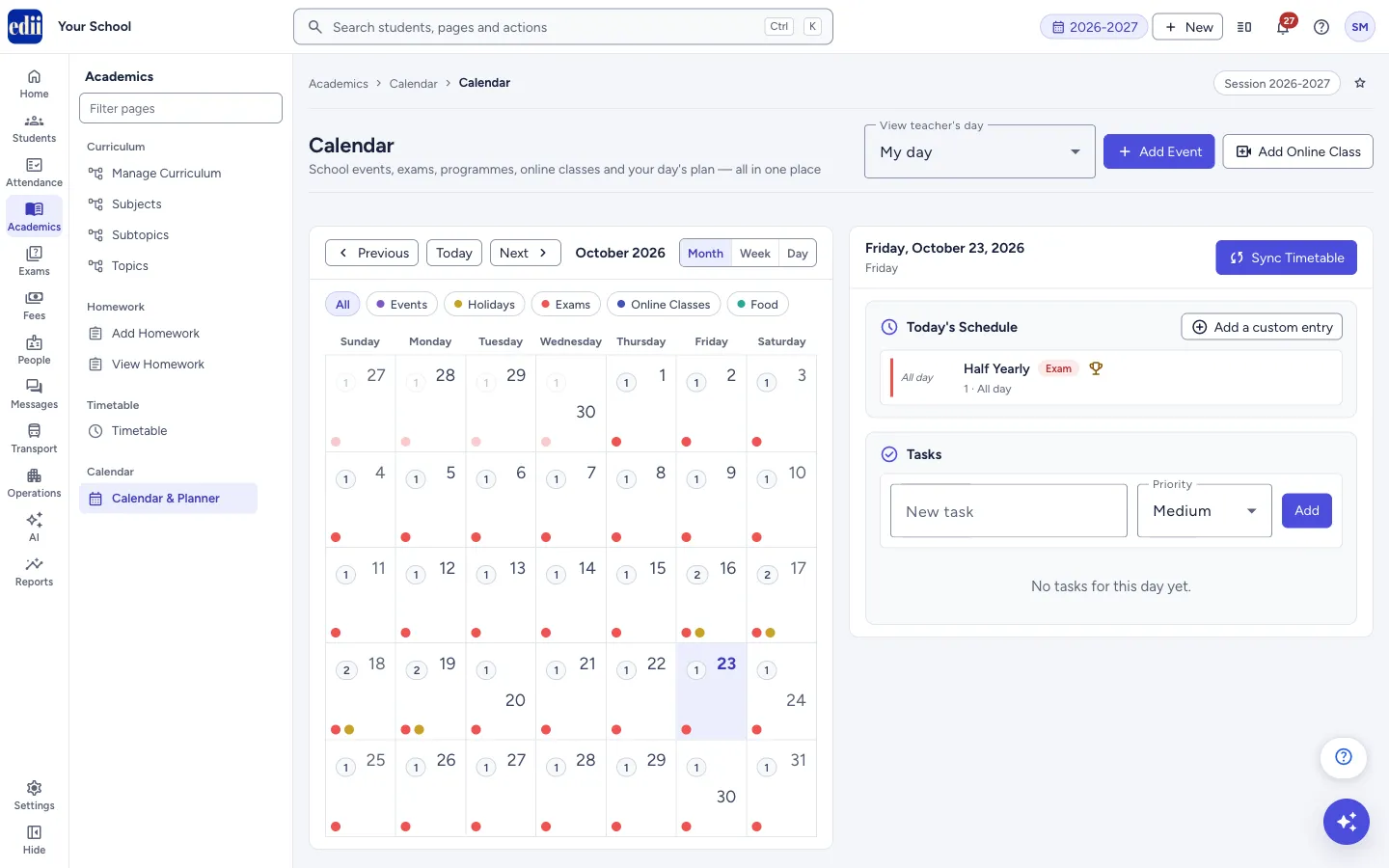
The screen is headed Calendar. On the left is the calendar, which you can show by Month, Week or Day, and move with Previous, Today and Next. The chips above it, All, Events, Holidays, Exams, Online Classes and Food, show only that kind of entry and also tell you the colour of each kind.
On the right is the plan for the day you click: Today’s Schedule, Tasks and, when there are any, Notes.
Top right, Add Event adds a school event, holiday or food menu, and Add Online Class opens the screen to schedule an online class.
Who uses it and when
Section titled “Who uses it and when”Teachers plan their day here. The office and the principal keep the school’s events, holidays and exams on it.
Before you start
Section titled “Before you start”- To bring the day’s periods into the plan with Sync Timetable, the timetable of the class must be saved on Timetable.
- The module for the calendar or HR must be on for your school.
Where to find it
Section titled “Where to find it”- In school.edii.in: Academics › Calendar › Calendar & Planner
- Or press Ctrl K (⌘ K on a Mac) and type Calendar & Planner.
- Address:
school.edii.in/view/calendar - Who can see it: Staff whose role includes Messages or Leave or Meetings access. Shown only when your school uses HR and Calendar in EDII. If it is missing from your menu, ask your school admin.
 Open a bigger pictureतस्वीर बड़ी करें
Step by step
Section titled “Step by step”1. Choose the day
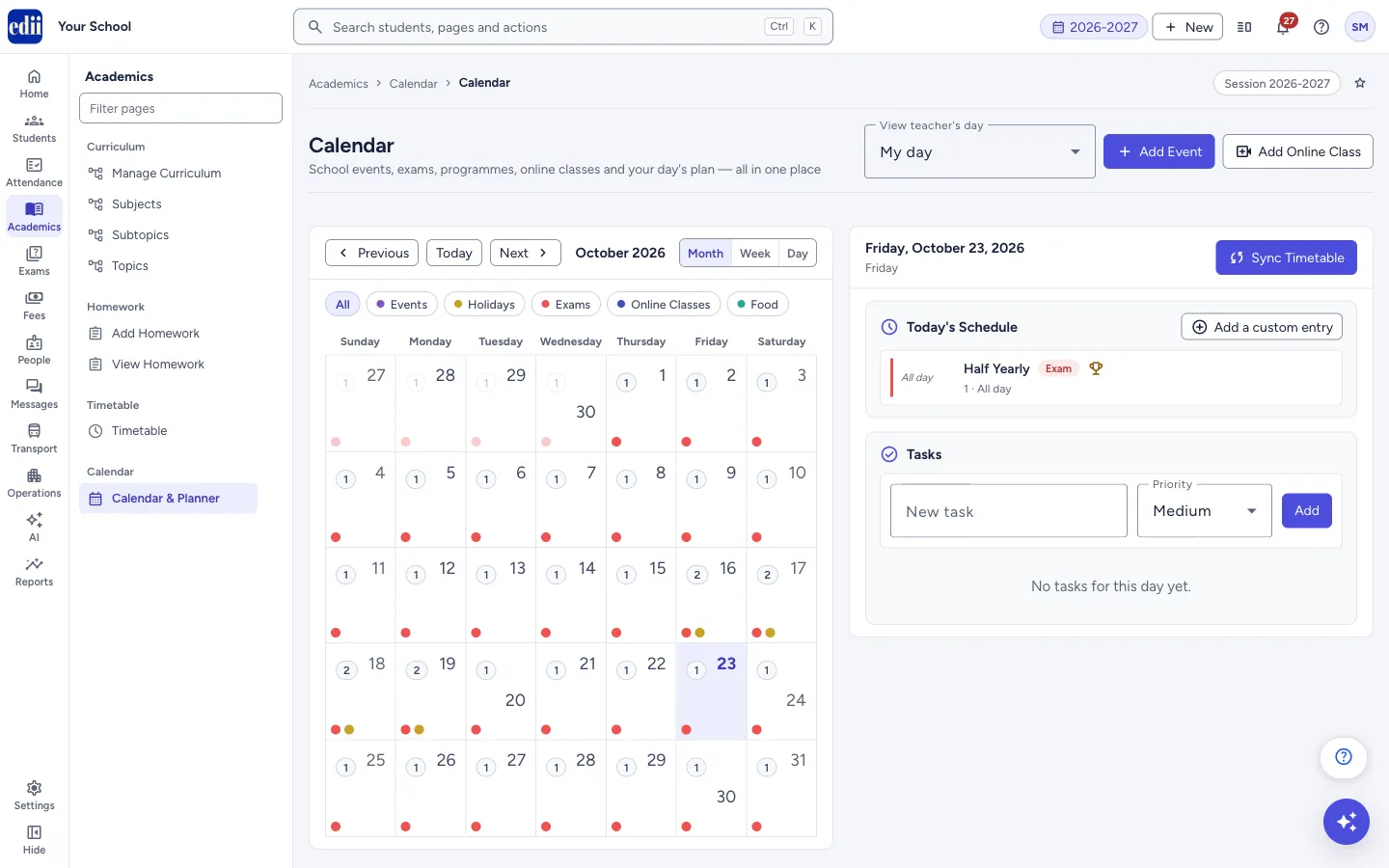
Section titled “1. Choose the day”Click a day in the month. The heading on the right shows its date and weekday. In the month, a dot shows a kind of entry on that day and a small number counts the entries. Click an entry in the calendar to open it.
 Open a bigger pictureतस्वीर बड़ी करें
2. See another teacher’s day (administrators)
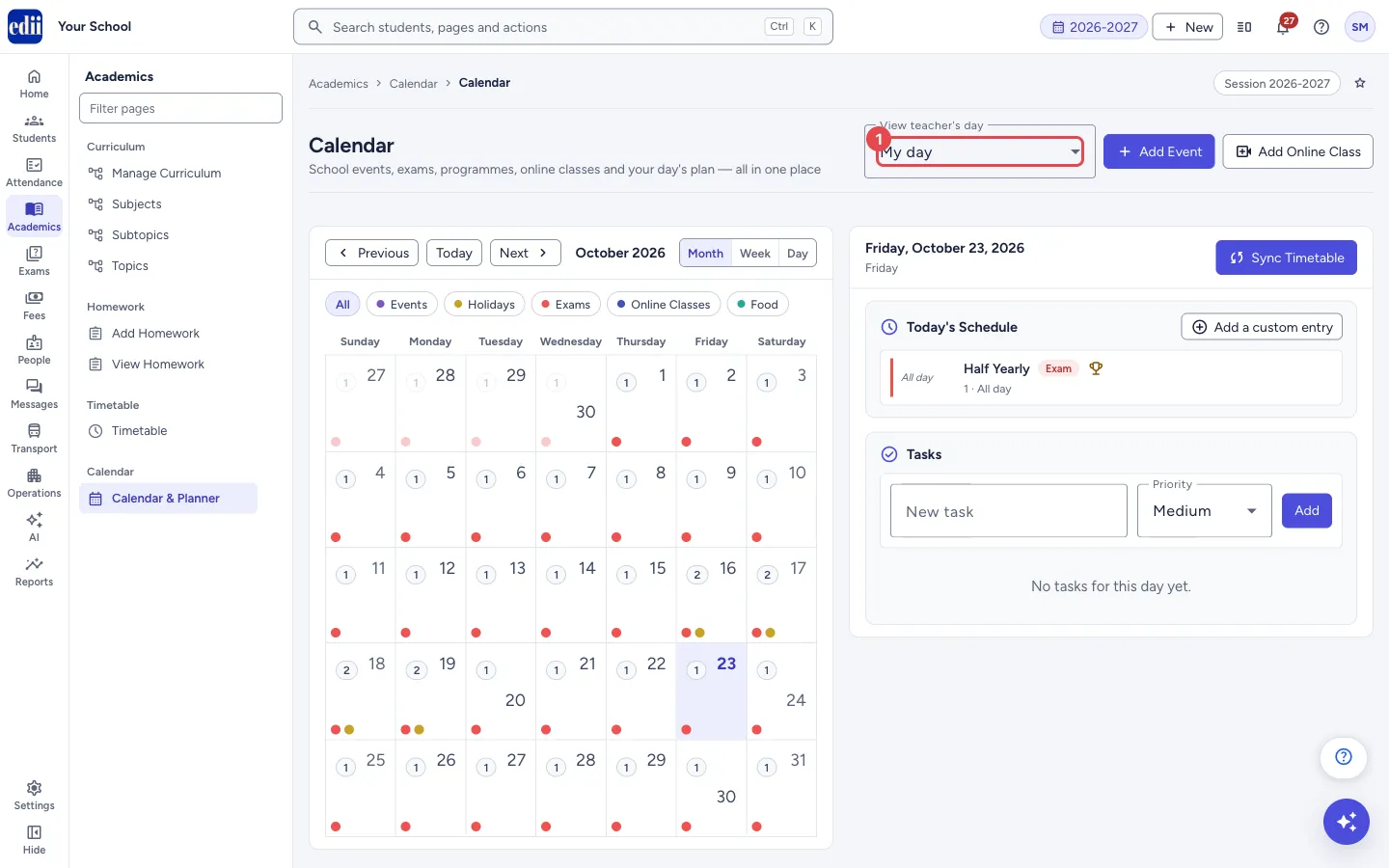
Section titled “2. See another teacher’s day (administrators)”Administrators, principals and similar roles also see View teacher’s day at the top. My day is your own plan; choose a teacher’s name to see and change that teacher’s plan. A blue note says Viewing <name>’s day. Tasks and schedule changes apply to their planner.
 Open a bigger pictureतस्वीर बड़ी करें
3. Add an event, holiday or food menu
Section titled “3. Add an event, holiday or food menu”Select Add Event. In the window, type the Name, choose the Select Type (Holiday, Event or Food) and who it is Visible To (Everyone, Students Only or Teachers / Staff Only). For students you can choose the classes and sections. Add a Description, the Starting Time and the Ending Time (both required), and select ADD. The message Event Added shows. For Food, choose Breakfast, Lunch or Dinner and the menu items with a quantity for each.
4. Sync the timetable and add your own entries
Section titled “4. Sync the timetable and add your own entries”Select Sync Timetable to bring the timetable periods of that day into Today’s Schedule. You see Timetable synced for this day, or a warning such as No timetable found for this day.
Select Add a custom entry, type a Title, a Start and an End time and select Add. All three are required (Please fill title, start and end time). A custom entry can be taken off with Remove; entries that come from the school calendar or the timetable cannot be removed from here (Only custom planner entries can be removed from here).
5. Keep a task list
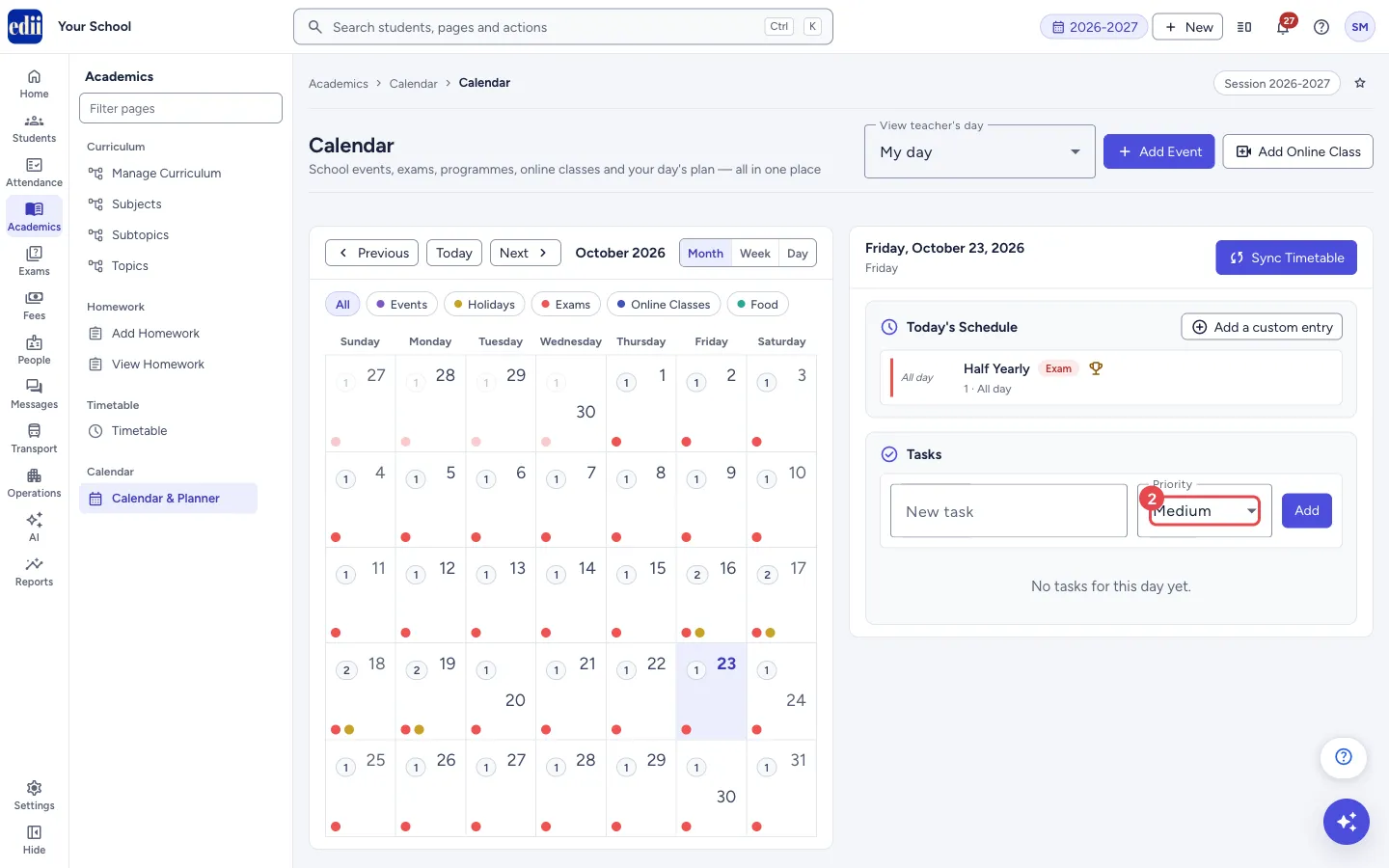
Section titled “5. Keep a task list”Under Tasks, type a New task, choose its Priority (Low, Medium or High) and select Add. Tick the box to mark a task done; the heading counts them, for example (2/5 done). Delete removes a task after you confirm. A task without a title shows Please enter a task title.
 Open a bigger pictureतस्वीर बड़ी करें
6. Open, edit or delete an entry
Section titled “6. Open, edit or delete an entry”Click an event in the calendar to open its edit window. Deleting an event asks Are you sure you want to delete “<name>”? and then shows Calendar event deleted. Clicking an online class opens it, with choices to start it (Start meeting?), end it (End meeting?) or delete it (Delete meeting?). An exam entry opens a window with the class toppers and the copy-checking and marks-entry status; a class test opens marks entry.
A teacher who has a published teaching plan also sees My Teaching Plan here, where each topic can be marked complete (Marked complete) or undone, and a practice test regenerated.
Fields and filters
Section titled “Fields and filters”| Field | What it is | Notes |
|---|---|---|
| View teacher’s day | Whose plan is shown. | Only for administrator-type roles. My day by default. |
| Name, Select Type, Visible To | The basics of a calendar event. | Type: Holiday, Event or Food. Visible To: Everyone, Students Only, Teachers / Staff Only. |
| Starting Time, Ending Time | When the event starts and ends. | Required. For a Holiday they are set to the whole day. |
| Title, Start, End (custom entry) | A plan entry of your own. | All three required. |
| New task, Priority | A to-do for the day. | The task needs a title. Priority starts as Medium. |
Buttons
Section titled “Buttons”| Button | What it does | What happens next |
|---|---|---|
| Add Event | Opens the window to add an event, holiday or food menu. | Event Added; the calendar reloads. |
| Add Online Class | Opens the screen to schedule an online class. | You leave this page. |
| Previous, Today, Next, Month, Week, Day | Move around and change the view. | |
| Sync Timetable | Brings the day’s timetable periods into the plan. | Timetable synced for this day. |
| Add a custom entry | Opens the box to add your own entry to the schedule. | |
| Add (task), Delete (task) | Adds or removes a task. | Task added, Task deleted. |
Good to know
Section titled “Good to know”- A calendar with nothing in the session shows Calendar is empty: No events or meetings added yet for this session.
- A holiday on the calendar is the holiday that blocks attendance marking for its classes.
Messages you may see
Section titled “Messages you may see”| Message | What it means | What to do |
|---|---|---|
| Please enter a task title | The task box is empty. | Type the task. |
| Please fill title, start and end time | A custom entry is missing a part. | Fill all three. |
| No timetable found for this day | The timetable has no periods for that day (or that teacher). | Save the timetable first. |
| Only custom planner entries can be removed from here | You tried to remove an event or a timetable period. | Delete an event from the calendar; change the timetable on Timetable. |
| Error loading planner | The plan for the day could not be loaded. | Choose the day again. |
| Network error, please try again | The request did not go through. | Check the internet connection and try again. |
- Sync the timetable each morning, then add tasks for the day.
- Use Visible To so a staff meeting is not shown to students.
Stuck? Try this
Section titled “Stuck? Try this”| Problem | Likely cause | What to do |
|---|---|---|
| Nothing appears after Sync Timetable. | There is no timetable for that weekday for the teacher. | Create the timetable on Timetable, then sync again. |
Did this page help?क्या इस पेज से मदद मिली?
Thanks! Glad it helped.धन्यवाद! अच्छा लगा कि काम बन गया।
Sorry about that. Ask in your own words, or write to us.माफ़ कीजिए। अपने शब्दों में पूछें, या हमें लिखें।