
Screen guide · Web app
Finance Training
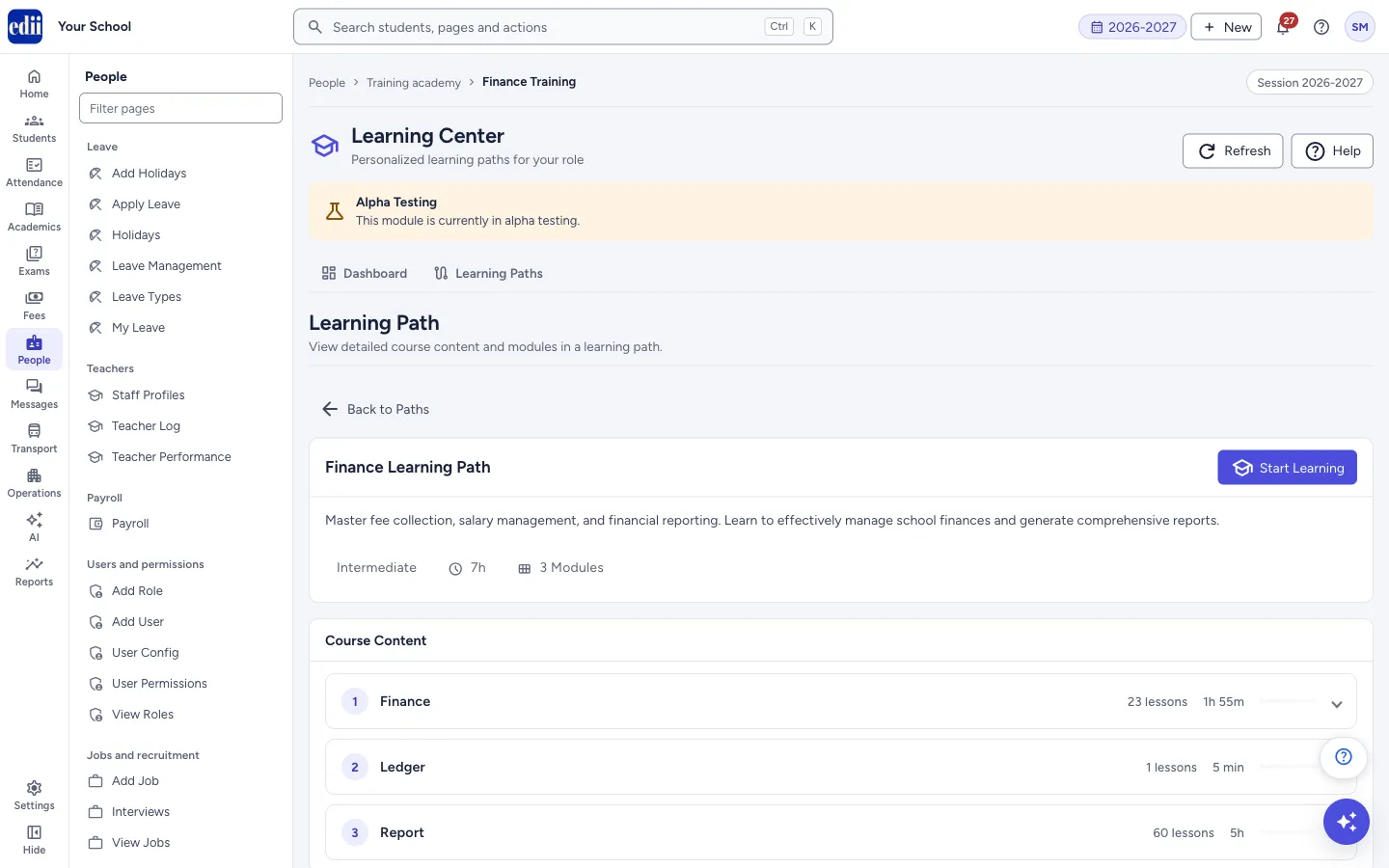
The finance training path of the Learning Center: its modules and video lessons, with your progress, and a button to start or continue.
यह पेज अंग्रेज़ी में है। कुछ समझ न आए तो ।
This page opens the Finance Learning Path in the Learning Center. It is built from the short training videos of EDII, grouped into modules. Each module lists its lessons and how long they take (each lesson is counted as 5 minutes). The Learning Center is in alpha testing, as the notice on the page says.
The modules of this path are: Finance, Ledger and Report. A module appears only if it has lessons.
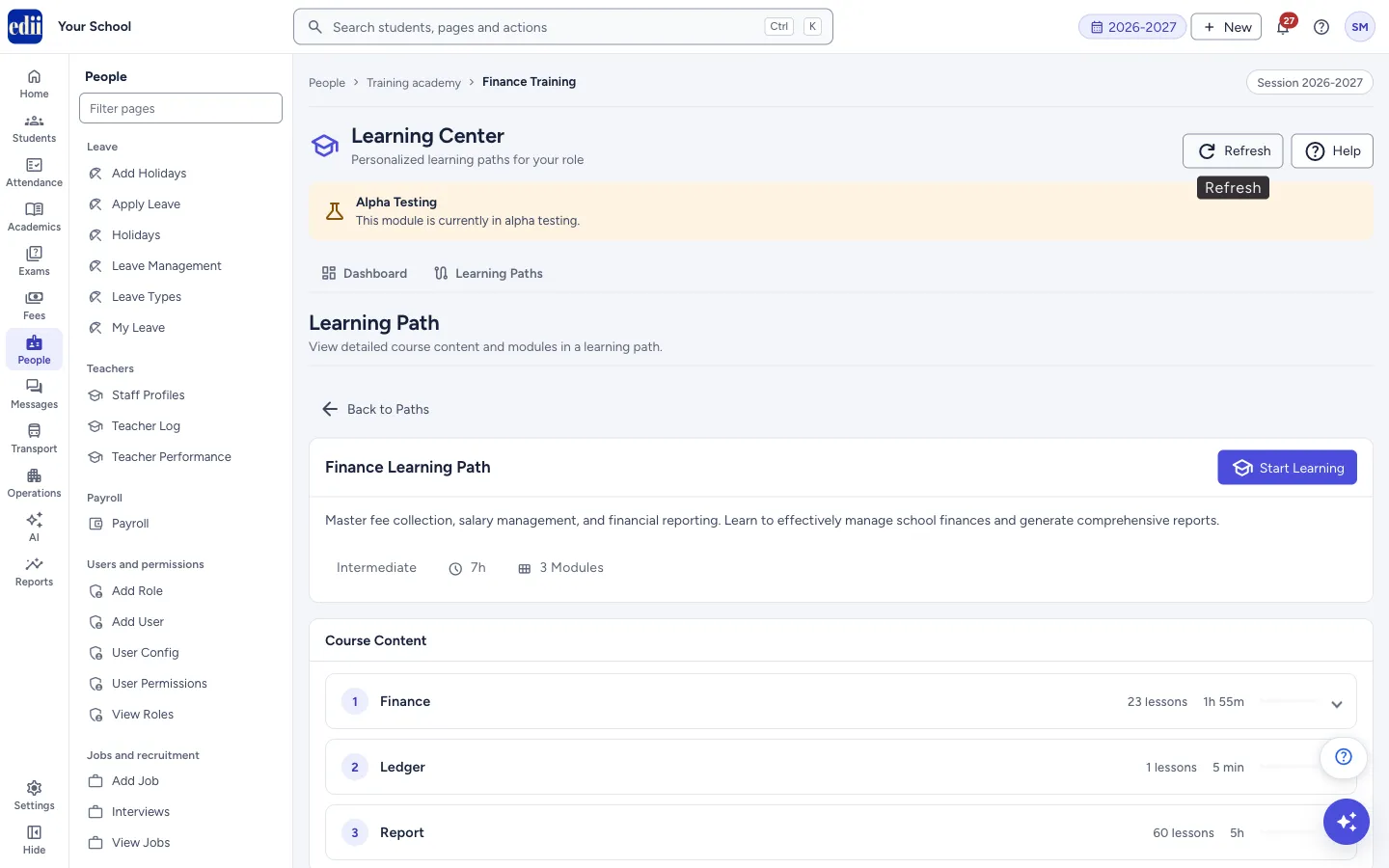
Above the path, the Learning Center has the tabs Dashboard and Learning Paths, and the buttons Refresh and Help.
Who uses it and when
Section titled “Who uses it and when”Cashiers, accountants and anyone who handles fees and school accounts.
Where to find it
Section titled “Where to find it”- In school.edii.in: People › Training academy › Finance Training
- Or press Ctrl K (⌘ K on a Mac) and type Finance Training.
- Address:
school.edii.in/learning-center/path/finance - Who can see it: Shown only when your school uses Training Academy in EDII. If it is missing from your menu, ask your school admin.
 Open a bigger pictureतस्वीर बड़ी करें
Step by step
Section titled “Step by step”1. See what the path covers
Section titled “1. See what the path covers”The top box shows the path name (Finance Learning Path), a short description, the level (Intermediate), the total time and the number of modules. Under Course Content, each module is a numbered row with its name, the number of lessons and the time. Select a row to open it; it shows a short description and the list of lessons.
 Open a bigger pictureतस्वीर बड़ी करें
2. Start or continue
Section titled “2. Start or continue”Select Start Learning. If you already have progress it says Continue Learning. EDII opens the lessons so that you can watch them in order.
3. Open one lesson
Section titled “3. Open one lesson”Select a lesson in an opened module. The lesson page plays the training video, shows the lesson name and its module, and has Previous and Next buttons. A side list shows the modules and lessons with a tick for each completed one, and a progress bar for the path.
4. Mark a lesson complete
Section titled “4. Mark a lesson complete”Select Complete & Next under the video. EDII saves it and moves to the next lesson. For the last lesson the button says Complete Path. For a lesson you have already completed the button says Watch Again & Continue, and the page says You have completed this lesson. If a lesson has no video you see Video content not available.
5. Go back
Section titled “5. Go back”Select Back to Paths to return to Learning Paths.
Buttons
Section titled “Buttons”| Button | What it does | What happens next |
|---|---|---|
| Refresh | Loads the Learning Center data again. | The page updates. |
| Back to Paths | Returns to Learning Paths. | Learning Paths opens. |
| Start Learning / Continue Learning | Opens the first lesson, or where you stopped. | The lesson page opens. |
| Complete & Next | Saves that the lesson is done, with the time you spent on it, and opens the next lesson. | Your progress bar moves; the Dashboard counters change. |
Good to know
Section titled “Good to know”- Progress is saved only when you select Complete & Next (or Complete Path). Just watching a video does not mark it done.
- The Learning Center shows only for schools that have the Training Academy turned on.
- If the list of modules cannot be loaded, EDII shows the standard modules of this path.
Messages you may see
Section titled “Messages you may see”| Message | What it means | What to do |
|---|---|---|
| Loading path details… | The path is loading. | Wait a moment. |
| Video content not available | That lesson has no video. | Go on to the next lesson. |
- Watch the lessons in order, and use the Previous button to go back to anything you missed.
- Use Refresh on the Dashboard after finishing lessons to see your new numbers.
Did this page help?क्या इस पेज से मदद मिली?
Thanks! Glad it helped.धन्यवाद! अच्छा लगा कि काम बन गया।
Sorry about that. Ask in your own words, or write to us.माफ़ कीजिए। अपने शब्दों में पूछें, या हमें लिखें।