
Screen guide · Web app
Merit list
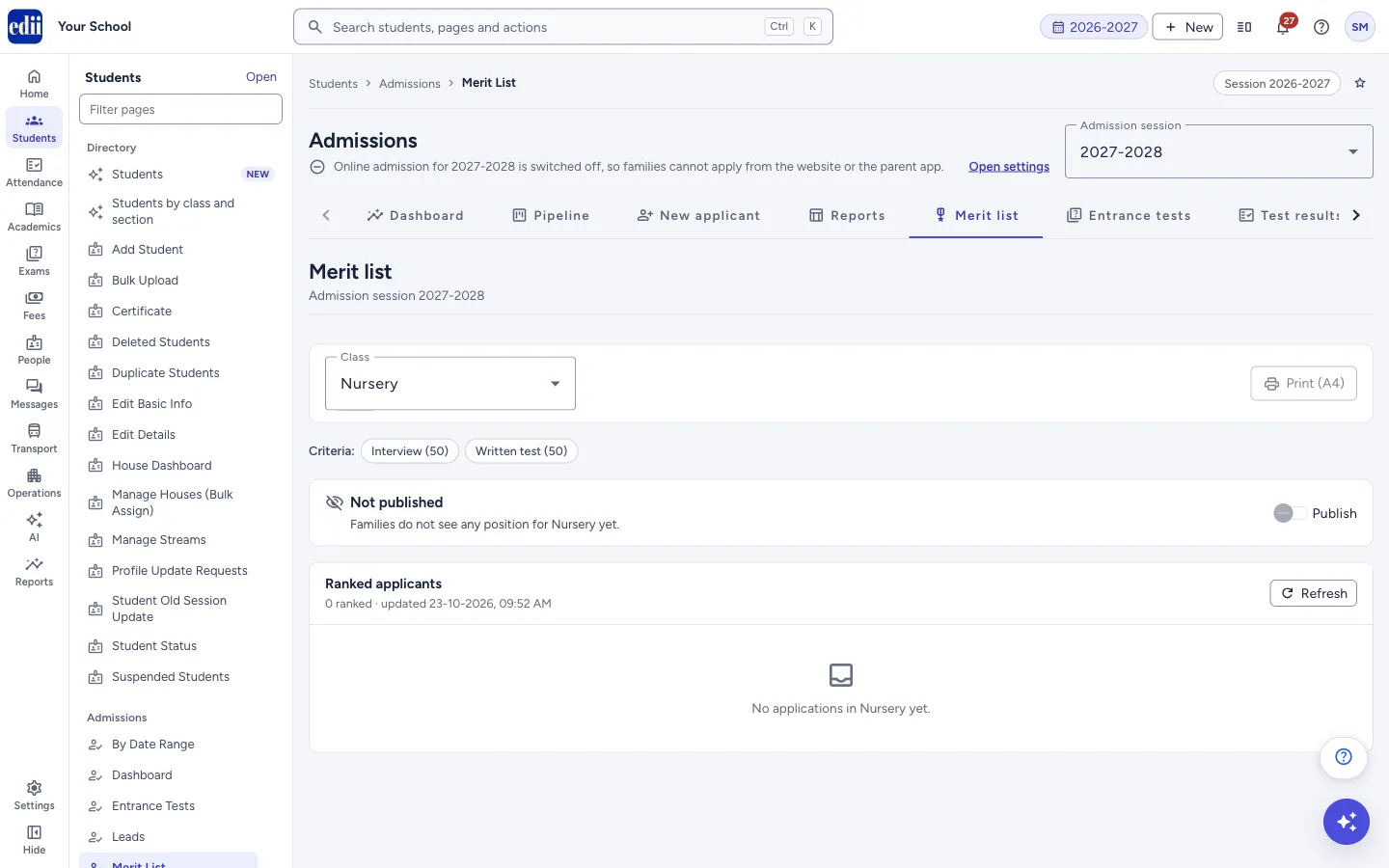
Ranks the applicants of one class by the merit points recorded at their interaction or test, and lets you publish each family's own position. It is part of the Admissions pages (Dashboard, Pipeline, New Applicant, Reports, Settings) for roles with Admission access.
यह पेज अंग्रेज़ी में है। कुछ समझ न आए तो ।
Merit list shows, for one class of the chosen admission session, every applicant who has merit points, ranked from the highest total. Each criterion you set up in Settings (for example Interview and Written test) is a column, with its maximum points in brackets, and the last column is the Total.
Applicants who have no merit points yet are listed separately under Without merit points and are not ranked until points are recorded with their interaction or test result on the application.
A switch, Publish, lets families see their own child’s position. They see only their own position on their tracking page, not the full list.
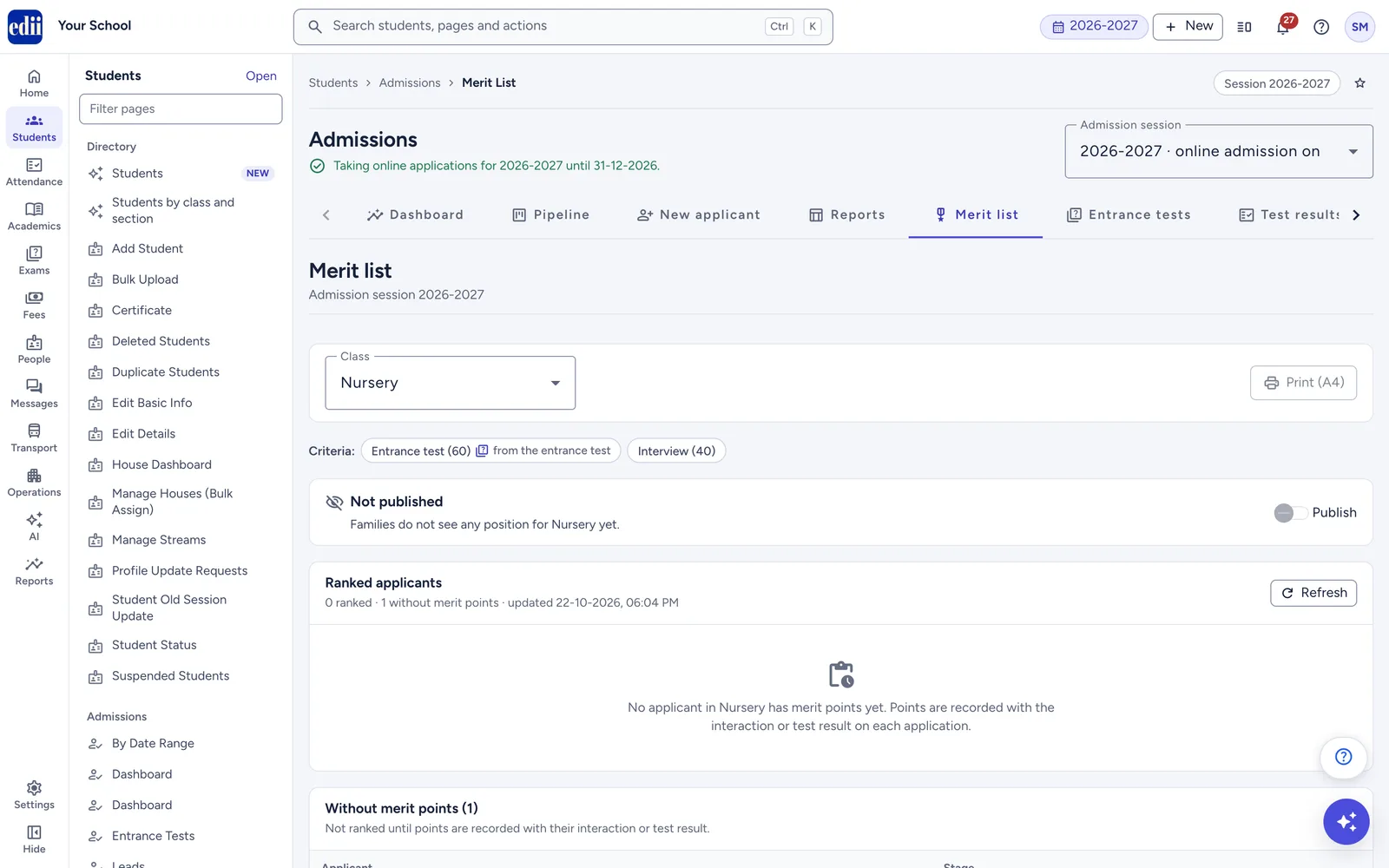
If the online entrance test is on and a criterion takes its points from the test, its chip and column are marked from the entrance test. Those points are filled in from the test score when the test is marked; they cannot be typed in.
Who uses it and when
Section titled “Who uses it and when”The admission head and principal use it after interactions or tests are done, to rank applicants and decide who gets an offer, and to print the list.
Before you start
Section titled “Before you start”- Switch merit points on and set the criteria in Settings (the Selection part). Record points on each application with the interaction or test result.
- Add the classes that take applications in Settings; the Class list shows those classes.
Where to find it
Section titled “Where to find it”- In school.edii.in: Students › Admissions › Merit List
- Or press Ctrl K (⌘ K on a Mac) and type Merit List.
- Address:
school.edii.in/admissions/merit-list - Who can see it: Needs Admission access for your role. Publishing needs permission to update admissions. If it is missing from your menu, ask your school admin.
 Open a bigger pictureतस्वीर बड़ी करें
Step by step
Section titled “Step by step”1. Choose the admission session
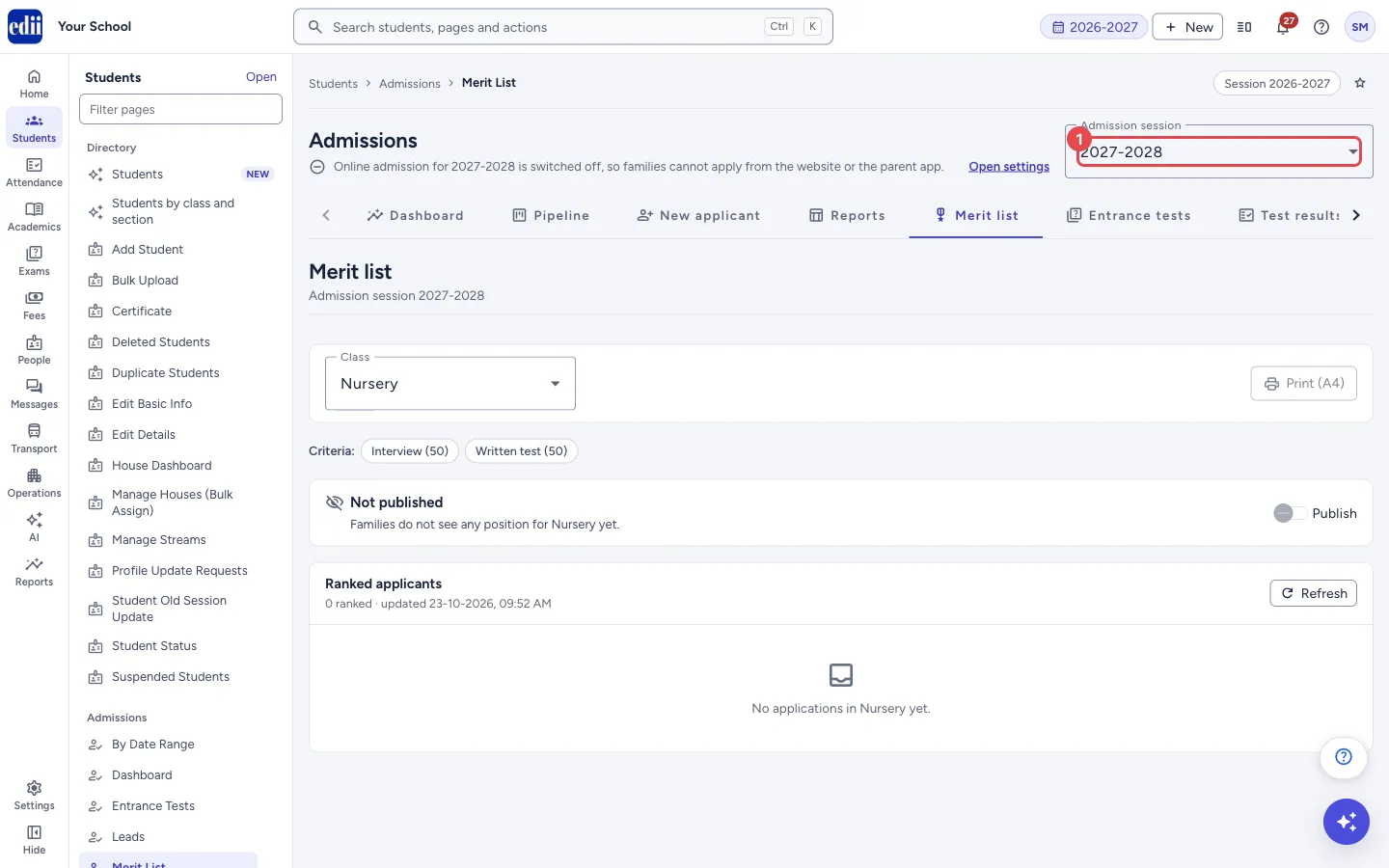
Section titled “1. Choose the admission session”Use Admission session at the top of the Admissions pages. The page opens again for the session you pick.
 Open a bigger pictureतस्वीर बड़ी करें
2. Choose the class
Section titled “2. Choose the class”Pick the Class. The list loads for that class, and the page remembers your choice next time. The Criteria chips show the columns and their maximum points; a criterion filled from the entrance test says from the entrance test.
 Open a bigger pictureतस्वीर बड़ी करें
3. Check the ranking
Section titled “3. Check the ranking”Ranked applicants shows Rank, Applicant (click to open the application when your role allows), Stage, one column per criterion and the Total. The line above the table shows how many are ranked, how many are without merit points, and when the list was last updated.
4. Refresh
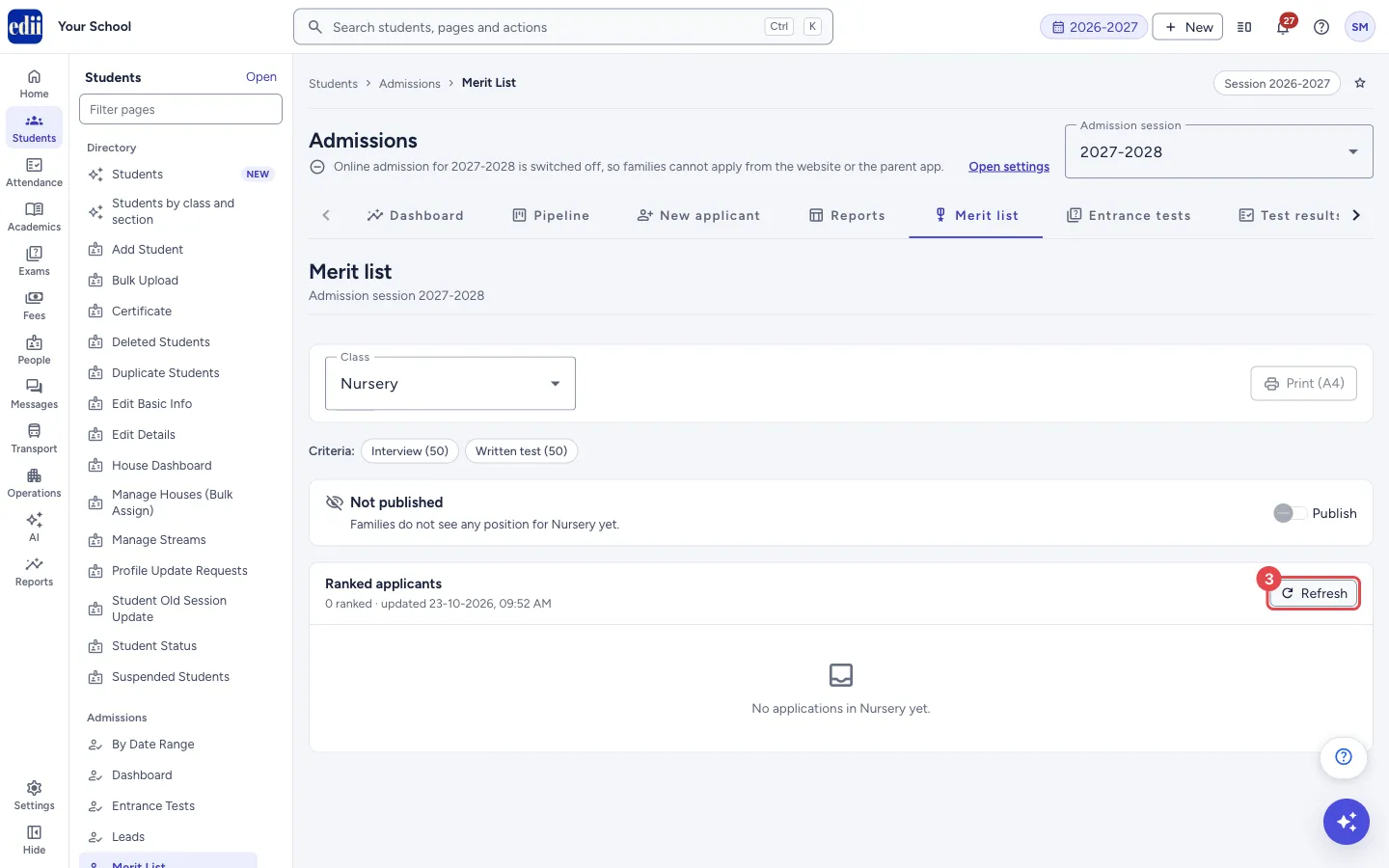
Section titled “4. Refresh”Press Refresh to load the latest points.
 Open a bigger pictureतस्वीर बड़ी करें
5. Print or publish
Section titled “5. Print or publish”Press Print (A4) to print the ranked list. To let families see their position, turn on Publish and confirm. Turn it off again to hide it.
Fields and filters
Section titled “Fields and filters”| Field | What it is | Notes |
|---|---|---|
| Class | The class whose applicants you want to rank. | Lists the classes set up for the admission session. |
| Publish | Shows each family its own child’s position on the tracking page. | Needs permission to update admissions. Cannot be turned on until at least one applicant in the class has merit points. |
Buttons
Section titled “Buttons”| Button | What it does | What happens next |
|---|---|---|
| Print (A4) | Prints the ranked list for the class on A4, with the school name, class, session and whether it is published. | The print window opens. Applicants without merit points are not printed; the printout says how many were left out. |
| Refresh | Loads the list again. | The numbers and the update time change. |
| Publish | Turns publishing on or off for the chosen class. | A box asks you to confirm; the page then shows Published to families or Not published. |
Columns
Section titled “Columns”| Column | Meaning |
|---|---|
| Rank | Position by total points. The top three are highlighted. |
| Applicant | Child’s name and application number. |
| Stage | Where the application stands. |
| Each criterion | Points given for that criterion; a dash when none are recorded. A column filled from the entrance test has a test icon; point at it to read Filled from the entrance test score. It cannot be typed in. |
| Total | All points added. The maximum possible total is shown in brackets when the criteria have maximums. |
After you save
Section titled “After you save”- When you publish, families of the ranked applicants can see their child’s position on their tracking page. They do not see the full list or other children’s names.
Good to know
Section titled “Good to know”- Printing needs printing to be enabled for the school; otherwise Print (A4) is greyed out with a note to contact EDII.
- Print (A4) is also unavailable while no applicant is ranked.
- Publishing is per class and per admission session.
- Entrance test points are the test score divided by the paper’s total marks, times the criterion’s maximum points. They are added when the test is marked, for applications at Applied, Under review, Offered, Waitlisted or Admitted. An exempt child gets no test points.
- While a class’s list is published, its points are locked. A test marked after you published (or marked again after a reset or an answer key correction) shows the badge Test points waiting, and a note above the list says how many applicants have entrance test points that are not in this list yet.
Messages you may see
Section titled “Messages you may see”| Message | What it means | What to do |
|---|---|---|
| Publish the merit list for <class>? | Confirmation when you turn Publish on. It says how many ranked applicants’ families will see their child’s position. | Press Publish to go ahead, or cancel. |
| Hide the merit list for <class>? | Confirmation when you turn Publish off. | Press Hide from families to go ahead. |
| Families of ranked applicants in <class> can now see their child’s position. | The list is published. | No action needed. |
| The merit list for <class> is no longer shown to families. | The list is hidden again. | No action needed. |
| Merit points are switched off for this admission session, so no new points are recorded at interactions or tests. | Merit is off in Settings for this session. | Open Settings and set the merit criteria. |
| No classes are set up for this admission session. | There is no class to choose. | Add classes in Settings. |
| No applications in <class> yet. | No application has been entered for that class. | Check another class or session. |
| No applicant in <class> has merit points yet. Points are recorded with the interaction or test result on each application. | Applications exist but none has points. | Record points on the applications. |
| Could not load the merit list. Please try again. | The list could not be loaded. | Press Try again. |
| 2 applicants have entrance test points that are not in this list yet. Switch off Publish for <class>, then press Add test points on the Entrance test tab of each marked application. | Tests were marked while the list was published (the number changes). When the list is not published, the note says only to press Add test points. | Turn Publish off, press Add test points on each application marked Test points waiting, then publish again. |
- The EDII Admissions Guide explains the whole admission season in one place: setup, the daily work, online entrance tests and what families see on the website and in the app. It has a PDF you can share with families.
- Check the Criteria chips before you publish, to be sure the columns match what you meant to score.
Stuck? Try this
Section titled “Stuck? Try this”| Problem | Likely cause | What to do |
|---|---|---|
| The Publish switch cannot be turned on | No applicant in the class has merit points yet, or your role cannot update admissions. | Record points first, or ask someone with update access. |
| The ranked list is empty | Points are recorded only with the interaction or test result on each application. | Open the applications from the Pipeline and record the results. |
| An applicant shows Test points waiting | The class’s list was published when the child’s test was marked. | Turn Publish off, open the application’s Entrance test tab and press Add test points, then publish again. |
Did this page help?क्या इस पेज से मदद मिली?
Thanks! Glad it helped.धन्यवाद! अच्छा लगा कि काम बन गया।
Sorry about that. Ask in your own words, or write to us.माफ़ कीजिए। अपने शब्दों में पूछें, या हमें लिखें।