
Screen guide · Web app
Library
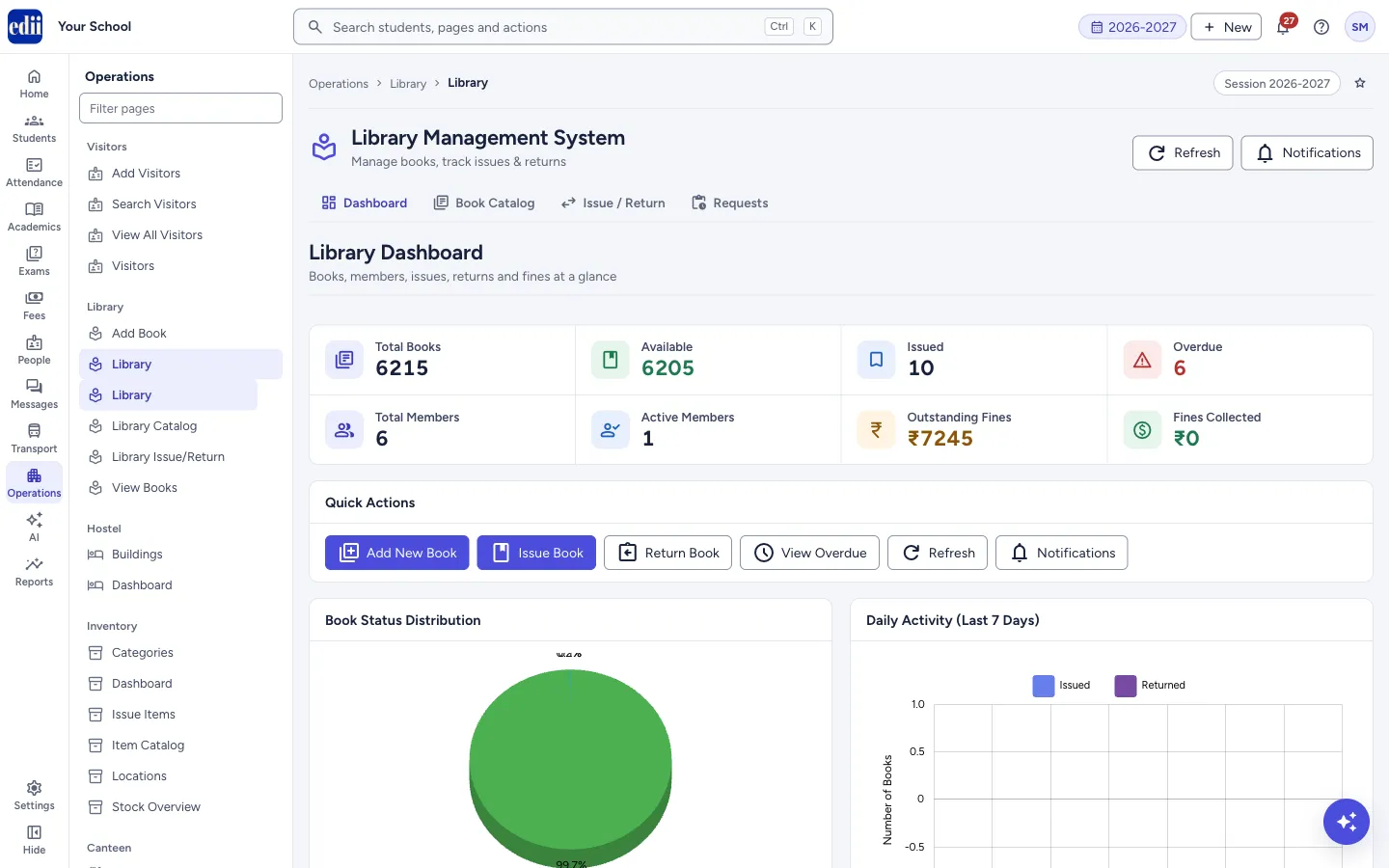
The Library Dashboard: eight number cards, quick actions, four charts and lists of recent issues, returns, overdue and popular books.
यह पेज अंग्रेज़ी में है। कुछ समझ न आए तो ।
Library (the same page as the first Library entry in the menu) is the Library Dashboard of the Library Management System. Four tabs under the page heading take you to Dashboard, Book Catalog, Issue / Return and Requests (borrow requests from the student app).
Under the heading, the Refresh button loads the library figures again. The Notifications button in the heading does not open anything; the working one is in Quick Actions. The dashboard has eight number cards, Quick Actions, four charts and four lists: Recent Issues, Recent Returns, Overdue Books and Most Popular Books.
The page is shown only when the school has the Library module switched on and the user has Library access.
Who uses it and when
Section titled “Who uses it and when”The librarian, at the start of the day to see what is overdue, and the principal to see how the library is used.
Where to find it
Section titled “Where to find it”- In school.edii.in: Operations › Library › Library
- Or press Ctrl K (⌘ K on a Mac) and type Library.
- Address:
school.edii.in/library-management/dashboard - Who can see it: The same staff who see the other Library pages. If it is missing from your menu, ask your school admin.
 Open a bigger pictureतस्वीर बड़ी करें
Step by step
Section titled “Step by step”1. Read the eight cards
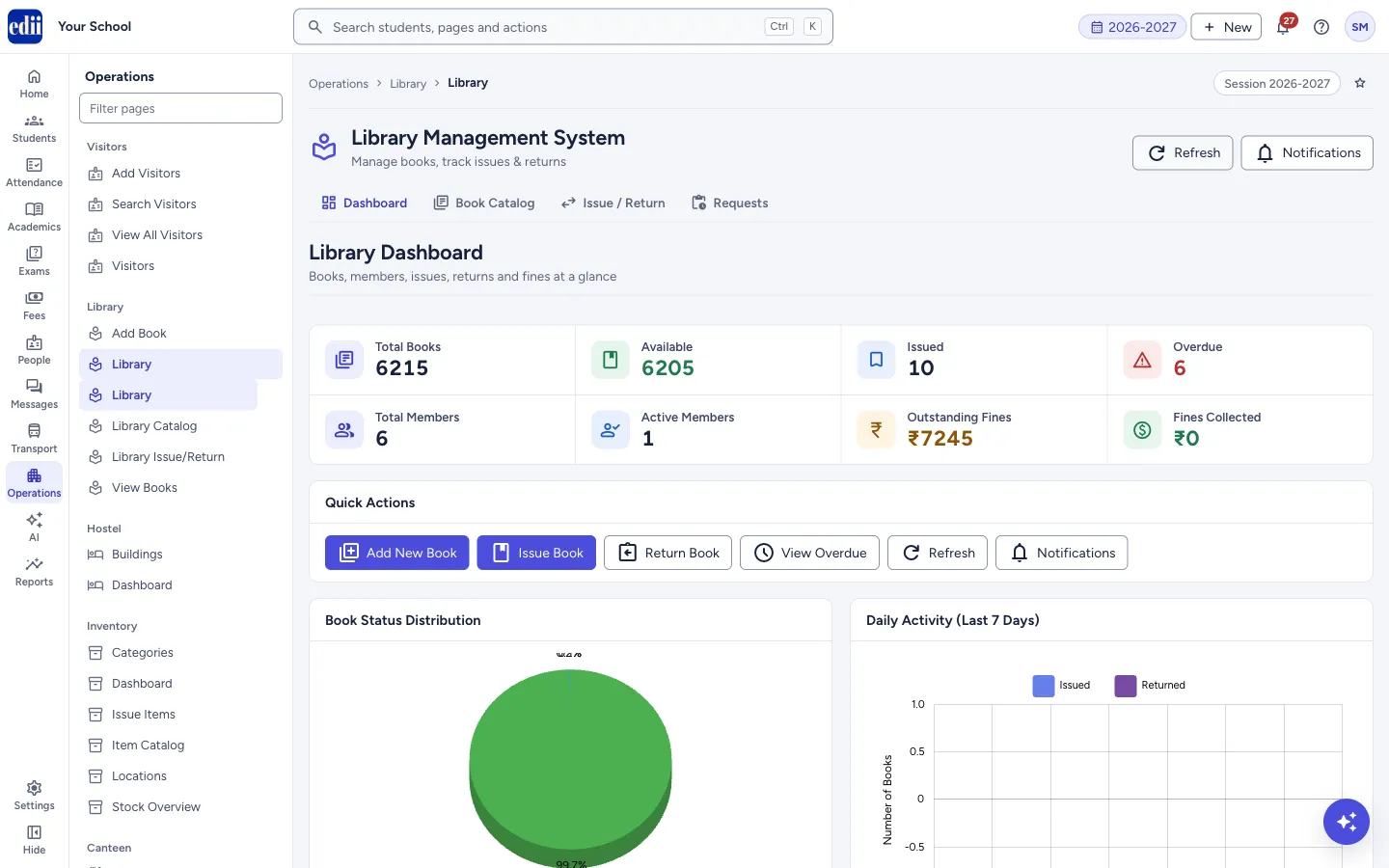
Section titled “1. Read the eight cards”Total Books is the total number of copies of all books. Available is the copies on the shelf. Issued is Total Books minus Available. Overdue is the number of issued books whose due date has passed.
Total Members is the number of different students who have any library record. Active Members is the number of books issued in the last 30 days (a student who borrowed twice counts twice).
Outstanding Fines is the money still owed: the fine that is building up on books that are still out and past their due date, plus fines charged on returned or lost books that have not been collected. Fines Collected is the money taken at the counter.
 Open a bigger pictureतस्वीर बड़ी करें
2. Use Quick Actions
Section titled “2. Use Quick Actions”Add New Book opens Book Catalog. Issue Book and Return Book open Issue / Return. View Overdue also opens Issue / Return; there, choose Return Book or Transaction History to work on the overdue books. Refresh loads the dashboard again and shows Dashboard refreshed successfully. Notifications opens a short list of reminders (see Rules).
3. Refresh the figures
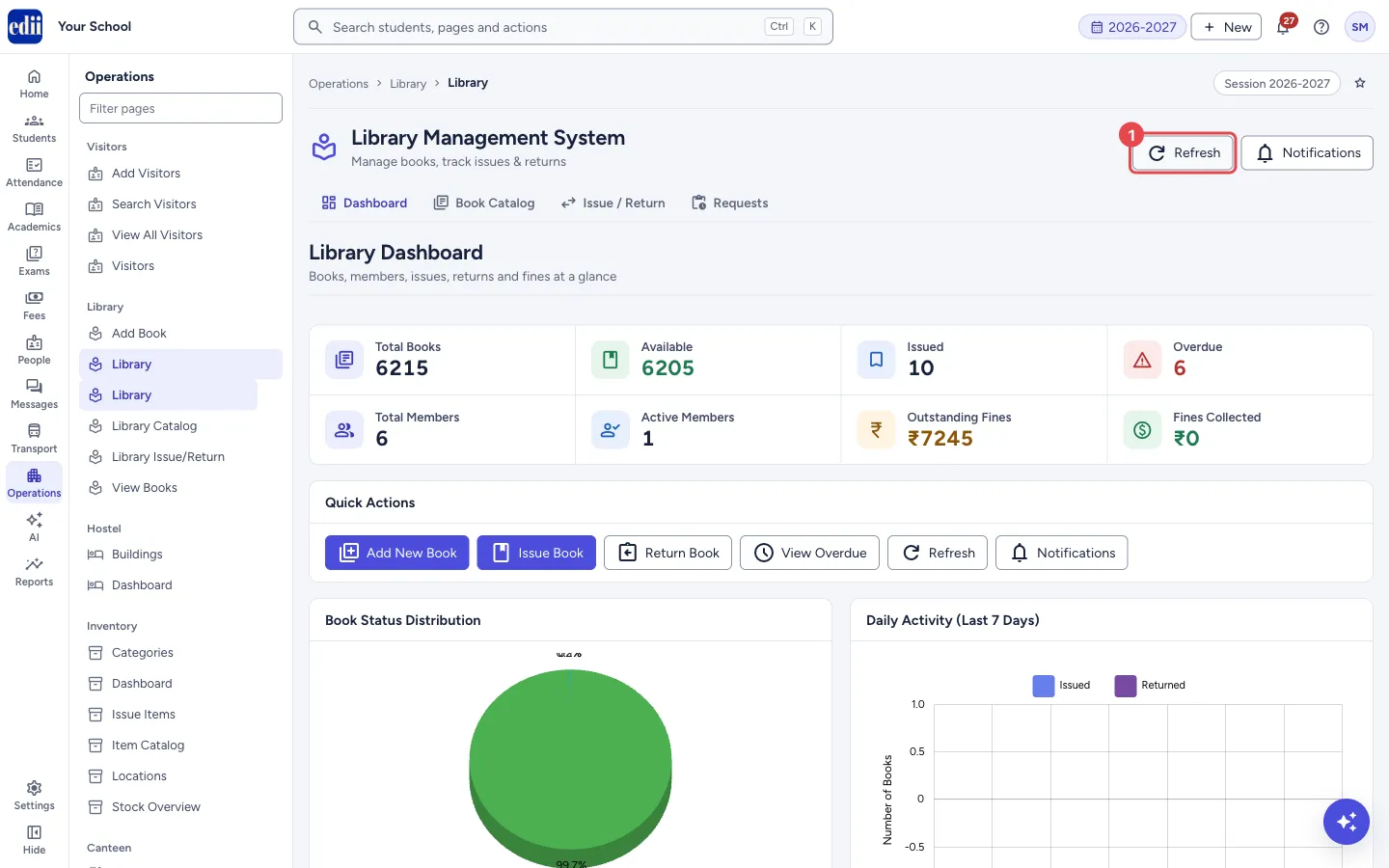
Section titled “3. Refresh the figures”Select Refresh at the top right of the page to clear what EDII remembered about the library and load it again. Do this after issuing or returning books in another window.
 Open a bigger pictureतस्वीर बड़ी करें
4. Check the charts
Section titled “4. Check the charts”Book Status Distribution shows the share of Available, Issued and Overdue books. Daily Activity (Last 7 Days) shows books issued and returned each day. Books by Category shows how many books each category has. Monthly Trend shows books issued and new members by month.
5. Work from the lists
Section titled “5. Work from the lists”Recent Issues (the 5 latest books still out) has a Return button. Recent Returns shows the 5 latest returns, with the fine if there was one. Overdue Books shows the 10 most overdue, with days overdue and the fine; View all opens Issue / Return. Most Popular Books shows the top 5 books by number of issues, each with an Issue button.
Buttons
Section titled “Buttons”| Button | What it does | What happens next |
|---|---|---|
| Dashboard / Book Catalog / Issue / Return / Requests | The four tabs of the library. | The tab opens below the heading. |
| Refresh (page heading) | Clears remembered library data and loads it again. | The cards, charts and lists show the latest figures. |
| Add New Book | Goes to the book catalog. | Book Catalog opens. |
| Issue Book, Return Book | Go to the issue and return screen. | Issue / Return opens on the Issue Book task. |
| View Overdue | Opens the issue and return screen. | Issue / Return opens on the Issue Book task. Choose Return Book or Transaction History to see the overdue books. |
| Refresh (Quick Actions) | Loads the dashboard again. | Refreshing dashboard… then Dashboard refreshed successfully. |
| Notifications | Opens a list of reminders. A number on the button shows how many are unread. | Select a reminder to mark it read; Clear all removes them. |
| Return (in a list) | Opens Issue / Return. | The page opens on Issue Book. Choose Return Book and search for the book to return it. |
| Issue (Most Popular Books) | Opens Issue / Return. | Search for the book in Step 1, then choose the student. |
Good to know
Section titled “Good to know”- The fine per day comes from the school’s library settings in Preferences. If it cannot be read, EDII uses 5 rupees a day.
- Fine on a book that is still out is the number of days past the due date times the fine per day.
- Notifications are made from the figures on the page: Overdue Books when something is overdue; Low Book Availability when fewer than 20% of the copies are available; Pending Fines when there are outstanding fines; Recent Activity, which only tells how many recent issues are in the list.
- The Overdue Books list holds at most 10 books. When there are more, a note says Showing the 10 most overdue of N books.
Messages you may see
Section titled “Messages you may see”| Message | What it means | What to do |
|---|---|---|
| Refreshing dashboard… | The dashboard is loading again. | Wait a moment. |
| Dashboard refreshed successfully | The figures are up to date. | Nothing to do. |
| Failed to load charts | The refresh could not finish. | Check the internet and select Refresh again. |
| Notifications cleared | You selected Clear all. | Nothing to do. |
| No recent book issues, No recent returns, No overdue books, No data available | The list is empty. | Nothing to do. |
Stuck? Try this
Section titled “Stuck? Try this”| Problem | Likely cause | What to do |
|---|---|---|
| The numbers do not match what I see in Issue / Return | The dashboard remembers the figures from when it was opened. | Select Refresh. |
| Library is not in the menu | The Library module is not switched on for the school, or the user has no Library access. | Ask the school’s EDII administrator. |
Did this page help?क्या इस पेज से मदद मिली?
Thanks! Glad it helped.धन्यवाद! अच्छा लगा कि काम बन गया।
Sorry about that. Ask in your own words, or write to us.माफ़ कीजिए। अपने शब्दों में पूछें, या हमें लिखें।