
Screen guide · Web app
Admissions report
A list of the session's applications and enquiries with their stage and fee details, filtered by date, stage, class and source, to download as Excel or print on A4. It belongs to the Admissions pages (Dashboard, Pipeline, New Applicant, Merit List, Settings) and is shown to roles with Admission access; the report for entrance-form admissions is By Date Range.
यह पेज अंग्रेज़ी में है। कुछ समझ न आए तो ।
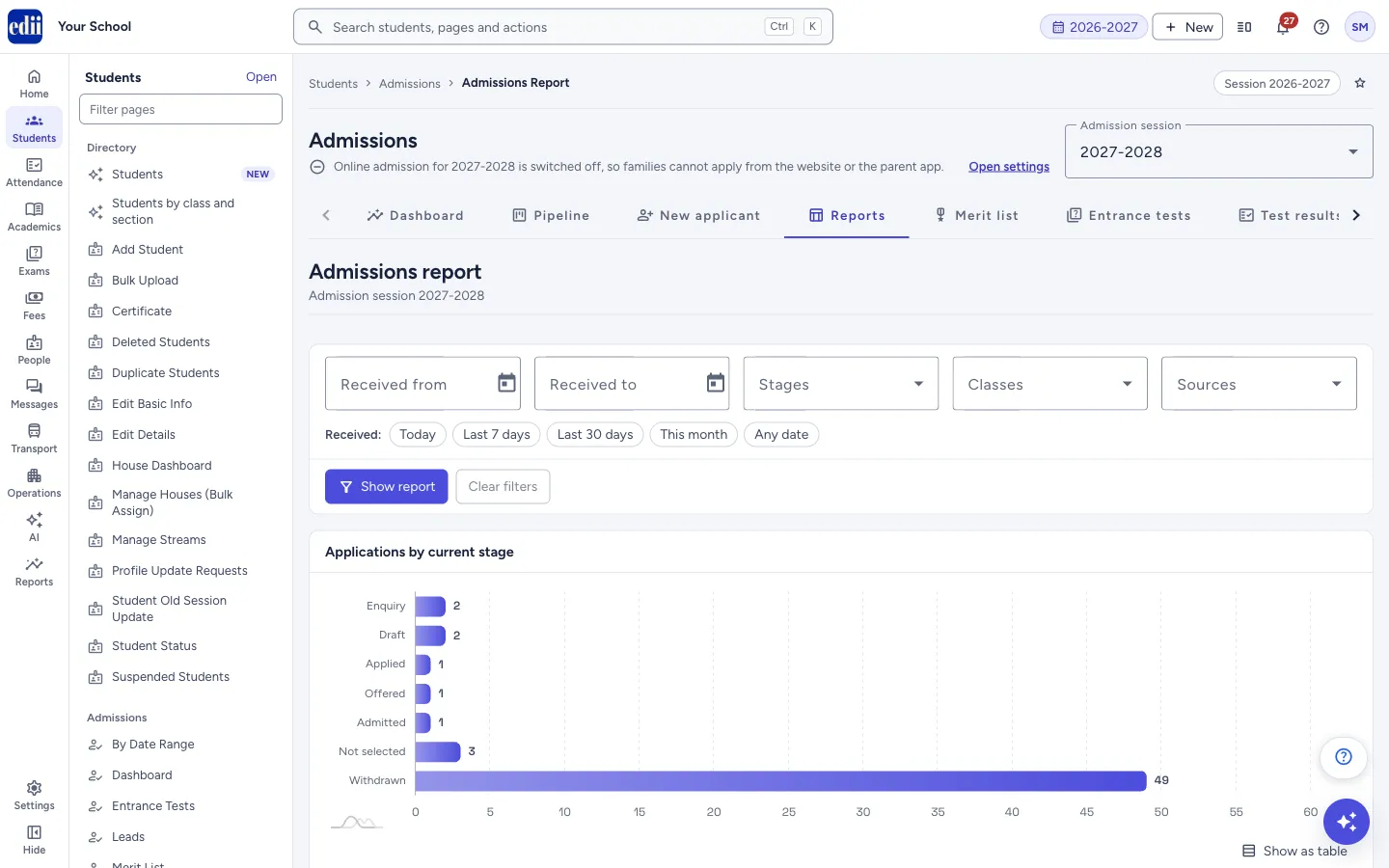
Admissions report (the menu calls it Reports) lists every application and enquiry of the chosen Admission session, with a chart Applications by current stage, totals, and a table you can sort, show or hide columns in, download and print.
The report loads as soon as you open the page, for all dates, stages, classes and sources. Choose filters and press Show report to narrow it down.
The report covers online applications and enquiries on the Admissions pages. For admissions registered on the entrance form, use By Date Range.
Who uses it and when
Section titled “Who uses it and when”The admission head and principal use it to share or print the admission position, for example every application received this week, or all offers made for one class.
Where to find it
Section titled “Where to find it”- In school.edii.in: Students › Admissions › Reports
- Or press Ctrl K (⌘ K on a Mac) and type Reports.
- Address:
school.edii.in/admissions/reports - Who can see it: Needs Admission access for your role. It does not need the Admissions module switch that the entrance-form pages need. If it is missing from your menu, ask your school admin.
 Open a bigger pictureतस्वीर बड़ी करें
Step by step
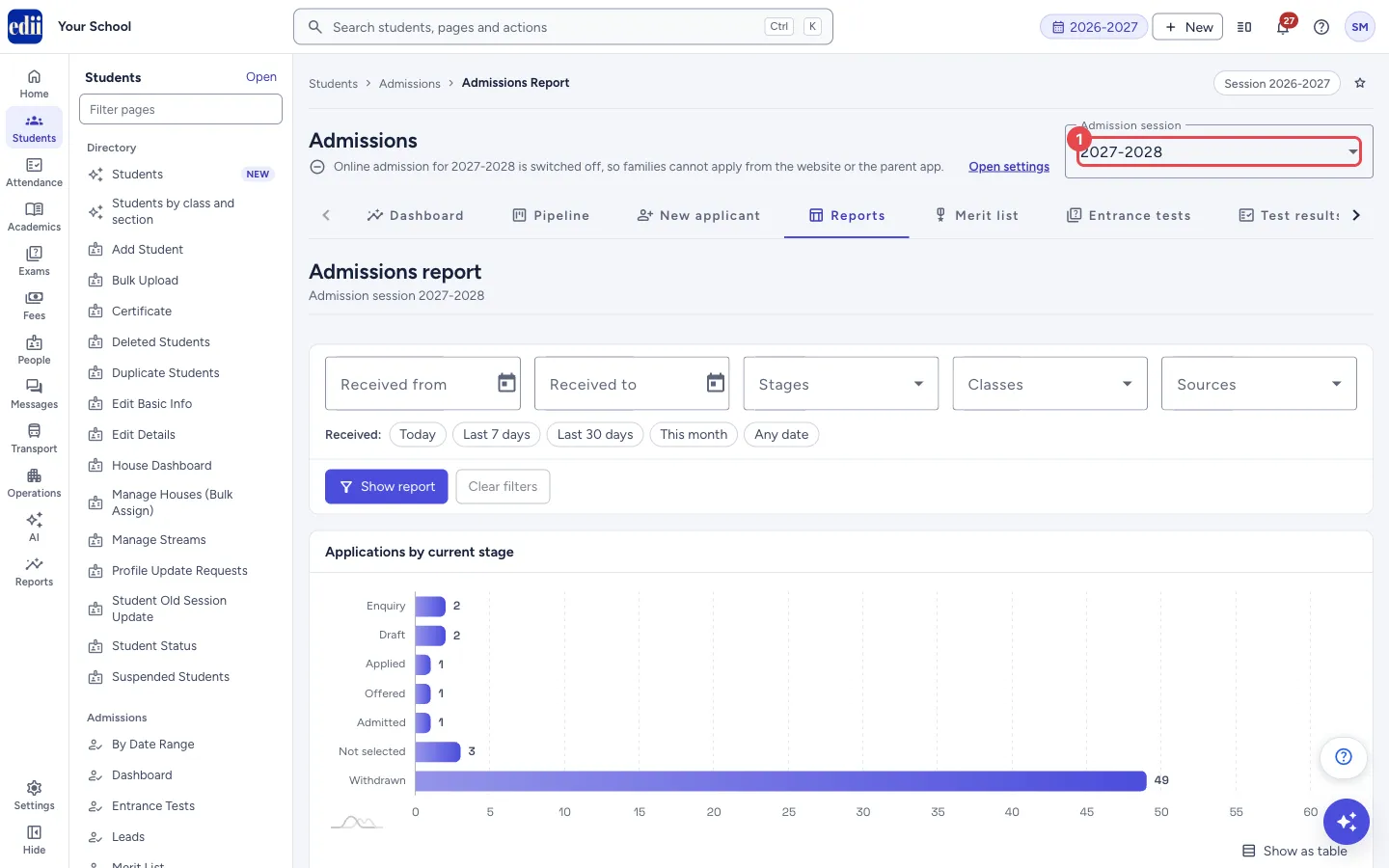
Section titled “Step by step”1. Choose the admission session
Section titled “1. Choose the admission session”Use Admission session at the top of the Admissions pages. The report is for that session.
 Open a bigger pictureतस्वीर बड़ी करें
2. Choose the dates
Section titled “2. Choose the dates”Type Received from and Received to as DD-MM-YYYY, or pick them from the calendar. Or press a quick button: Today, Last 7 days, Last 30 days, This month or Any date. A quick button runs the report at once.
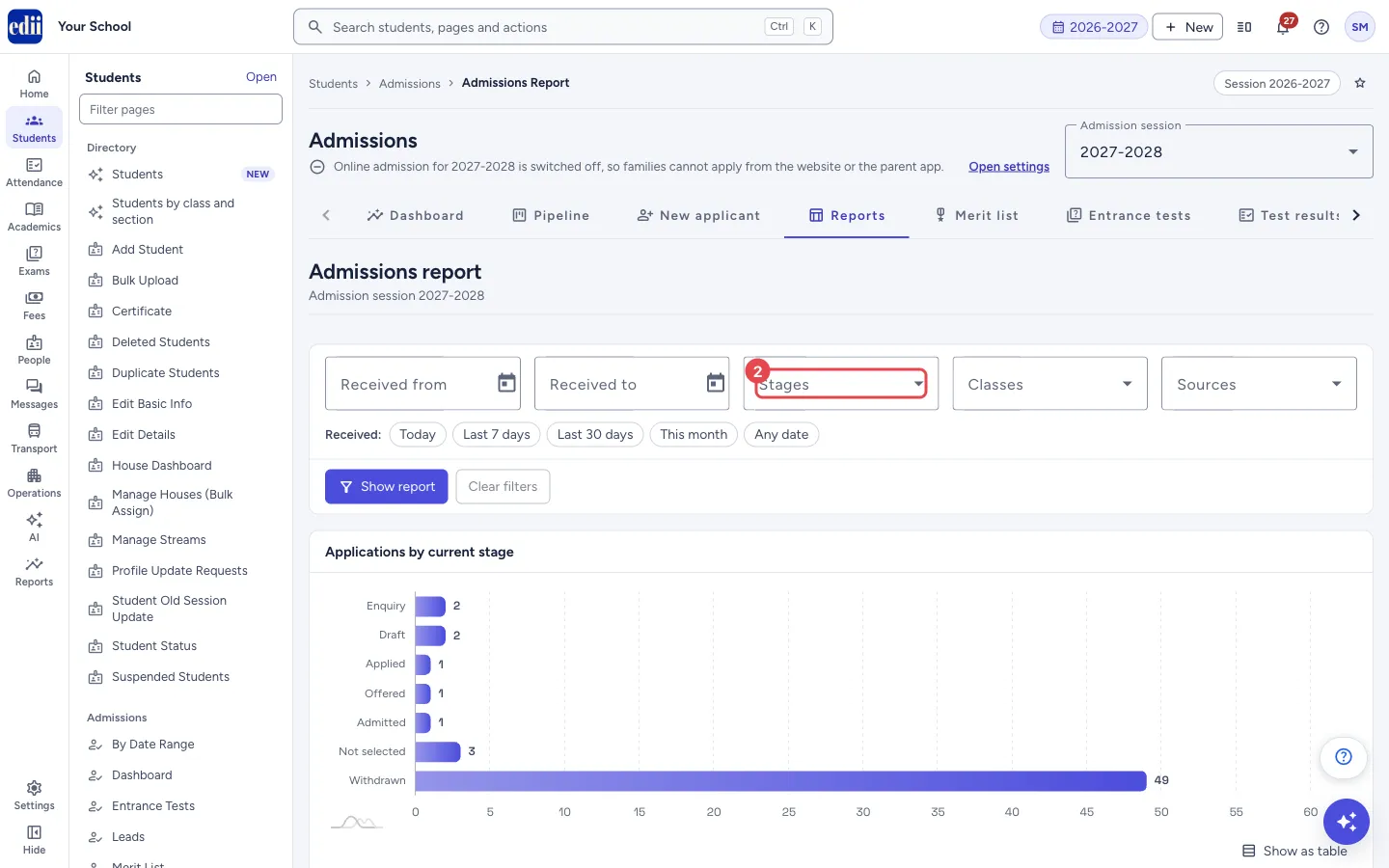
3. Choose stages, classes and sources
Section titled “3. Choose stages, classes and sources”Open Stages, Classes or Sources and tick one or more. Leave them empty for all (All stages, All classes, All sources).
 Open a bigger pictureतस्वीर बड़ी करें
4. Press Show report
Section titled “4. Press Show report”Press Show report. The chart, the totals and the table update. The line under the count says which filters are applied and when the report was generated. Clear filters removes the filters and shows everything again.
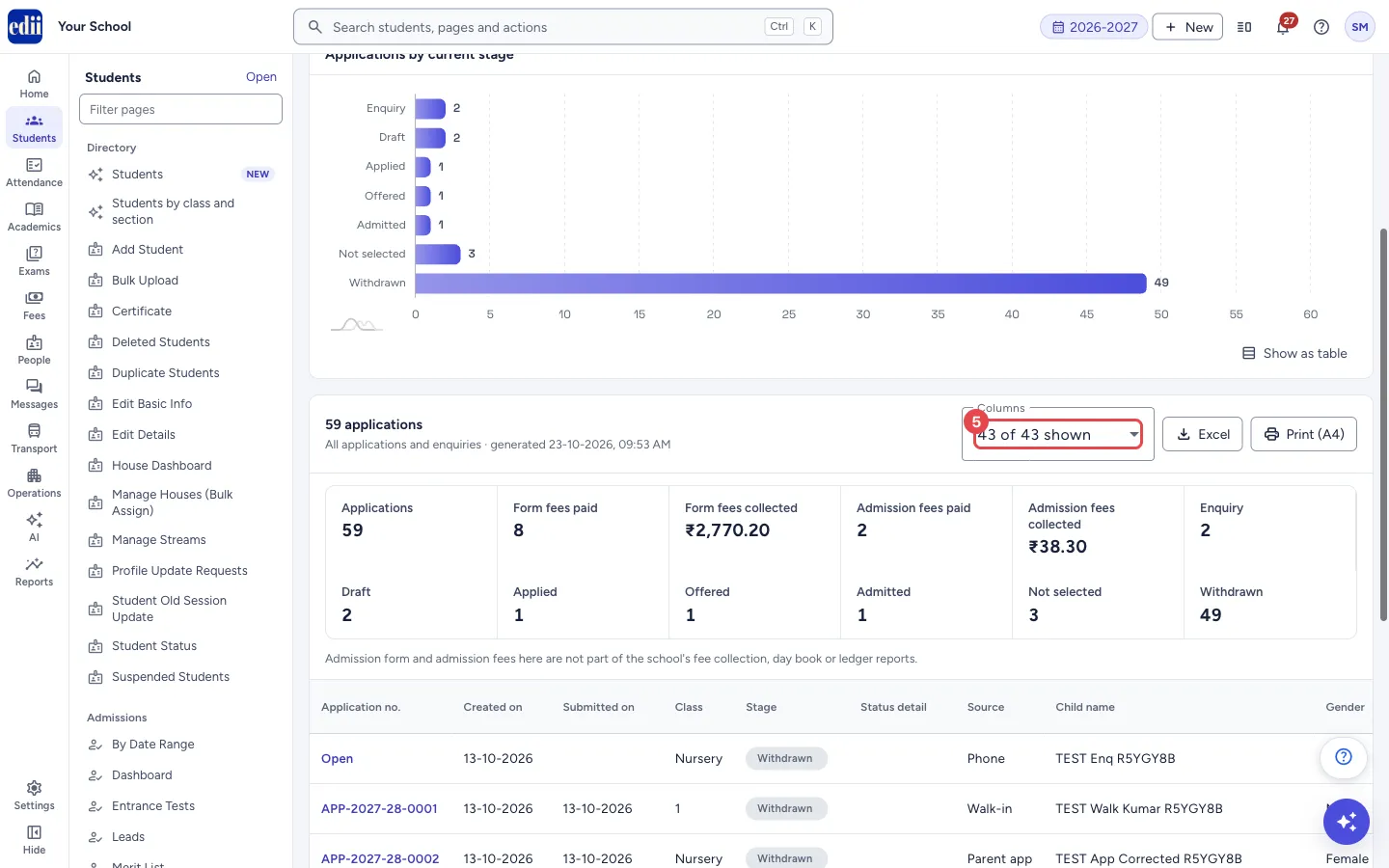
5. Choose the columns
Section titled “5. Choose the columns”Open Columns (it shows, for example, 43 of 43 shown) and tick the columns you want. The same columns are used in the Excel file and the printout. Keep at least one. Show all columns appears when some are hidden.
 Open a bigger pictureतस्वीर बड़ी करें
6. Download or print
Section titled “6. Download or print”Press Excel to download the list, or Print (A4) to print it. The printout is landscape when more than 7 columns are shown. Click a column heading to sort. The table shows 50 rows a page; use Items per page for 25, 100 or 200.
Fields and filters
Section titled “Fields and filters”| Field | What it is | Notes |
|---|---|---|
| Received from, Received to | The dates the application or enquiry was entered. | DD-MM-YYYY. The From date must be on or before the To date. |
| Stages | Only the stages you tick. | Empty means all stages. |
| Classes | Only the classes you tick. | Empty means all classes; the box is disabled when no classes are set up for the session. |
| Sources | Only the sources you tick. | Empty means all sources. |
| Columns to show, download and print | Which columns appear in the table, the Excel file and the printout. | Keep at least one. |
Buttons
Section titled “Buttons”| Button | What it does | What happens next |
|---|---|---|
| Today / Last 7 days / Last 30 days / This month / Any date | Sets the dates and runs the report. | The report updates. |
| Show report | Runs the report with the filters you chose. | A progress bar shows, then the results. |
| Clear filters | Removes every filter. | The report runs again for everything. |
| Show all columns | Shows every column again. | The table widens. |
| Excel | Downloads the listed rows and shown columns as an Excel file. | A file is saved. |
| Print (A4) | Prints the report on A4. | The print window opens. It is greyed out when printing is not enabled for the school. |
Columns
Section titled “Columns”| Column | Meaning |
|---|---|
| Application no. | The application number. An enquiry has none yet and shows Open, a link to the record. |
| Received on / Created on, Submitted on | When the application or enquiry was entered, and when the family submitted it. |
| Class, Stage, Status detail | The class applied for, the stage, and a detail such as Documents pending. |
| Source | How the family reached the school. |
| Child name, Gender, Date of birth, Category | About the child. |
| Father’s name, Father phone, Mother’s name, Mother phone, Guardian’s name, Guardian relation, Phone, Email, Address, Previous school | The family and their contact details. |
| Assigned to, Priority, Next follow up on, Documents pending | Who follows the application and what is due. |
| Form fee, Form fee paid, Form fee mode, Form fee receipt no., Form fee paid on | The form fee and its payment. |
| More columns | The report also has admission fee, interaction, merit points, waitlist, offer, admitted-on, ID no., section and reason columns, where your school uses them. The list on your screen depends on the school’s setup. |
Good to know
Section titled “Good to know”- Admission form and admission fees here are not part of the school’s fee collection or ledger reports. Each form fee or admission fee that is paid (online, or recorded at the office as cash, UPI or cheque) is also counted in the Day Book of the Cash Deposit Register. Cash goes into Daily Collection and the rest into Other Collection, and Collection by source (one of the bank detail columns) shows these fees as Admission fees. A waived fee is not counted, and fees paid before the Day Book started counting them are not added.
- The totals show the number of applications, form fees paid and collected, admission fees paid and collected, and one count for each stage that has applications.
- Only the first rows are listed when there are very many (the limit is about 5000). A yellow note then says how many are listed out of how many match, and that the totals count all of them. Narrow the filters to see the rest.
- Excel and Print follow the columns you have chosen and the filters you applied.
Messages you may see
Section titled “Messages you may see”| Message | What it means | What to do |
|---|---|---|
| Enter the “From” date as DD-MM-YYYY | The Received from date is not a real date. | Type it like 05-07-2027 or pick it from the calendar. |
| Enter the “To” date as DD-MM-YYYY | The Received to date is not a real date. | Type it like 05-07-2027 or pick it from the calendar. |
| The “From” date must be on or before the “To” date | The dates are the wrong way round. | Swap them. |
| Keep at least one column in the report. | You tried to untick the last column. | Keep one column ticked. |
| No applications match these filters. | The filters are too narrow. | Press Clear filters. |
| Could not load the report. Please try again. | The report did not load. | Press Try again. |
| The same report is still being prepared. Please try again in a moment. | A repeat request arrived before the first finished. | Wait a moment and press Show report. |
| The Excel file could not be created. Please try again. | The download failed. | Press Excel again. |
| Printing is not enabled for your school. Please contact EDII. | Shown when you hover over Print (A4); printing is switched off. | Contact EDII to enable printing. |
- The EDII Admissions Guide explains the whole admission season in one place: setup, the daily work, online entrance tests and what families see on the website and in the app. It has a PDF you can share with families.
- Pick only the columns you need before you print, so that the page stays readable.
- Use Sources to see how many applications each channel (website, parent app, walk-in) brought.
Stuck? Try this
Section titled “Stuck? Try this”| Problem | Likely cause | What to do |
|---|---|---|
| The table shows fewer rows than the count | The report lists up to about 5000 rows. | Narrow the dates, stages, classes or sources. |
| Print (A4) is greyed out | Printing is not enabled for the school. | Contact EDII. |
| A column I want is not in the list | The columns depend on what the school’s application form and settings include. | Check the school’s form in Settings. |
Did this page help?क्या इस पेज से मदद मिली?
Thanks! Glad it helped.धन्यवाद! अच्छा लगा कि काम बन गया।
Sorry about that. Ask in your own words, or write to us.माफ़ कीजिए। अपने शब्दों में पूछें, या हमें लिखें।