
Screen guide · Web app
Today
Today (होम पेज)
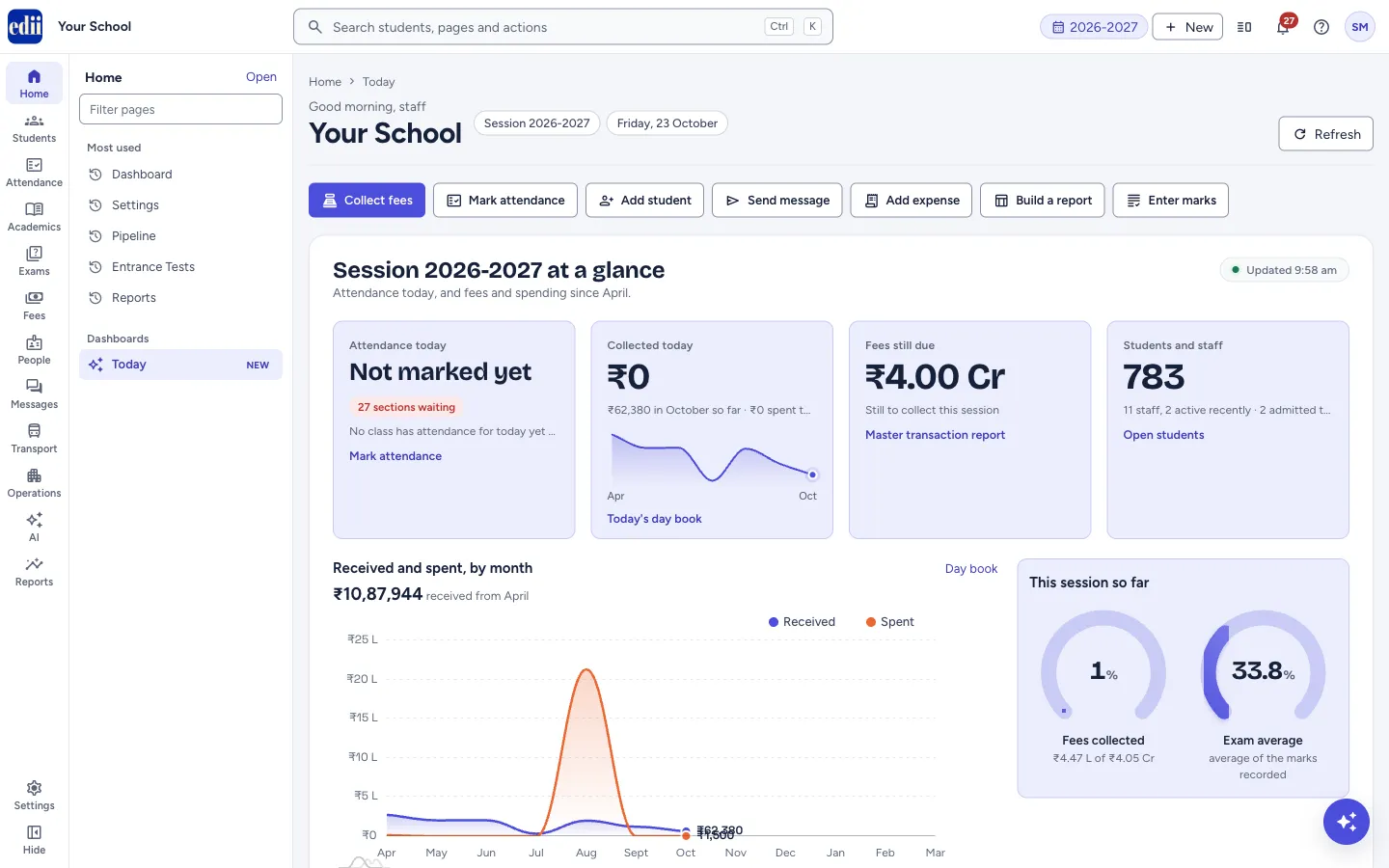
The home screen of the school for today: attendance, money collected today and fees due, students and staff, a chart of money by month, what needs attention, and results by class.
यह पेज अंग्रेज़ी में है। कुछ समझ न आए तो ।
Today is the first screen for the school. Above the school’s name is a greeting; next to it are the session and today’s date, with a Refresh button on the right. Below them are a row of shortcuts and then the figures for the day.
A small note shows when the figures were last loaded (for example Updated 7:49 pm). A figure that cannot be loaded is shown as empty or as not available, never as a made-up number.
Every number on the page is read from your school’s own records. The page does not change anything; each tile has a link to the screen where you can act.
Who uses it and when
Section titled “Who uses it and when”The principal, the administrator and the office, first thing in the morning and during the day.
Where to find it
Section titled “Where to find it”- In school.edii.in: Home › Dashboards › Today
- Or press Ctrl K (⌘ K on a Mac) and type Today.
- Address:
school.edii.in/home - Who can see it: Everyone who signs in to school.edii.in. Home in the left rail opens it. The shortcuts show only what your role and your school’s modules allow; a figure your login cannot see shows as not available. If it is missing from your menu, ask your school admin.
 Open a bigger pictureतस्वीर बड़ी करें
Step by step
Section titled “Step by step”1. Use the shortcuts
Section titled “1. Use the shortcuts”The row of buttons under the school’s name starts the most common jobs: Collect fees, Mark attendance, Add student, Send message, Add expense, Build a report and Enter marks. You see only the shortcuts for the modules your school uses and the work your login is allowed to do, so the row can be shorter for some people.
2. Read the four tiles
Section titled “2. Read the four tiles”Attendance today says Not marked yet with how many sections are waiting, until a class is marked. After that it shows the percentage present in the sections marked so far, with a count of the sections still to mark, and All sections marked when none is left. The link Mark attendance opens the attendance screen.
Collected today shows all the money collected today, not only fees: fee receipts, accessory sales, other receipts and the other money the Day Book counts, such as TC fees, job fees, library fines and canteen money. Under it are the total collected in the month so far (for example ₹1.25 L in October so far) and what was spent today, with a small line of the months since April. Today’s day book opens the Day book report for today and runs it at once.
Fees still due shows what is still to be collected this session. Master transaction report opens the detailed report.
Students and staff shows the number of students, the number of staff, how many staff were active recently, and how many students were admitted this session. Open students opens the student list.
3. Look at money by month
Section titled “3. Look at money by month”Received and spent, by month shows a line for money received and a line for money spent, month by month from April, with the total received since April above it. Select Show as table under the chart to see the same figures as a table with the columns Month, Received and Spent. Day book opens the day book report.
If the chart cannot be loaded you see Collections did not load with a Try again button. If nothing has been recorded you see No receipts or expenses recorded this session yet.
4. See how the session is going
Section titled “4. See how the session is going”This session so far has two rings. Fees collected shows the percentage of the session’s fees that has been collected, with the amount collected out of the total. Exam average shows the average of the marks recorded so far, or Not available yet.
5. Deal with what needs your attention
Section titled “5. Deal with what needs your attention”Needs your attention lists the things to act on, each with one button:
Class sections without attendance today, with the first names, and Mark now.
Teachers absent today and how many periods still need cover, with Review.
Leave requests from parents (student leave) awaiting review, with Review.
Students flagged at risk of dropping out, with how many are critical and high (predicted by EDII AI from attendance, fees and marks), and Open list.
The largest fee dues, with the student’s name and class, and Paid-nothing list, which opens Fee defaulters (students who paid nothing for the months you pick; students who paid part are in Pending fees).
When there is nothing to do, it says Nothing needs you right now.
6. Check the results by class
Section titled “6. Check the results by class”Results by class is a bar chart of the average marks of each class. Exam analysis opens the exam analysis screens. With no marks yet you see No marks recorded yet this session.
Buttons
Section titled “Buttons”| Button | What it does | What happens next |
|---|---|---|
| Refresh | Loads all the figures on the page again, including today’s attendance. | The numbers and the Updated time change. |
| Collect fees, Mark attendance, Add student, Send message, Add expense, Build a report, Enter marks | Open the screen for that job. | The screen opens. |
| Today’s day book | Opens the Day book report for today. | The report runs for today’s date. |
| Show as table | Shows the money chart as a table. | A table with Month, Received and Spent appears. |
| Mark now / Review / Open list / Paid-nothing list | Open the screen where the item in the list is handled. | The screen opens. |
Columns
Section titled “Columns”| Column | Meaning |
|---|---|
| Month | A month of the session, from April to March. |
| Received | Money received in that month, as the Day Book counts it (cash and other modes, from every source). A dash means the month has not come yet. |
| Spent | Money spent in that month. |
Good to know
Section titled “Good to know”- The figures are for the session selected at the top of the screen, and the money chart runs from April.
- Collected today is today’s Daily Collection plus Other Collection from the Day Book on the Cash Deposit Register. Until those figures have loaded, or if they cannot be loaded, the tile shows the fees collected today.
- The Fees collected ring counts fees only.
- A tile shows not available when your school does not use that module or your login cannot see it.
- A section that is still loading shows a loading message; one that fails shows an error with a Try again button.
- The leave requests in Needs your attention are student leave requests from parents, not staff leave.
Messages you may see
Section titled “Messages you may see”| Message | What it means | What to do |
|---|---|---|
| Not marked yet | No class has attendance for today. | Select Mark attendance. |
| Today’s collection not available | Today’s collection could not be loaded. | Select Refresh. |
| Collections did not load | The money chart could not be loaded. | Select Try again. |
| Results did not load | The class results could not be loaded. | Select Refresh. |
| Nothing needs you right now. | There is nothing to act on. | Nothing to do. |
- Open the page after the attendance period to see which sections have not been marked, and use Mark now.
- To see where today’s collection came from, open Today’s day book, or the Day Book on the Cash Deposit Register with Show bank detail columns ticked.
Did this page help?क्या इस पेज से मदद मिली?
Thanks! Glad it helped.धन्यवाद! अच्छा लगा कि काम बन गया।
Sorry about that. Ask in your own words, or write to us.माफ़ कीजिए। अपने शब्दों में पूछें, या हमें लिखें।