
Screen guide · Web app
Day book
Money in and money out between two dates, grouped by category, with the net for the period. It is the Day book report, opened from Collection reports.
यह पेज अंग्रेज़ी में है। कुछ समझ न आए तो ।
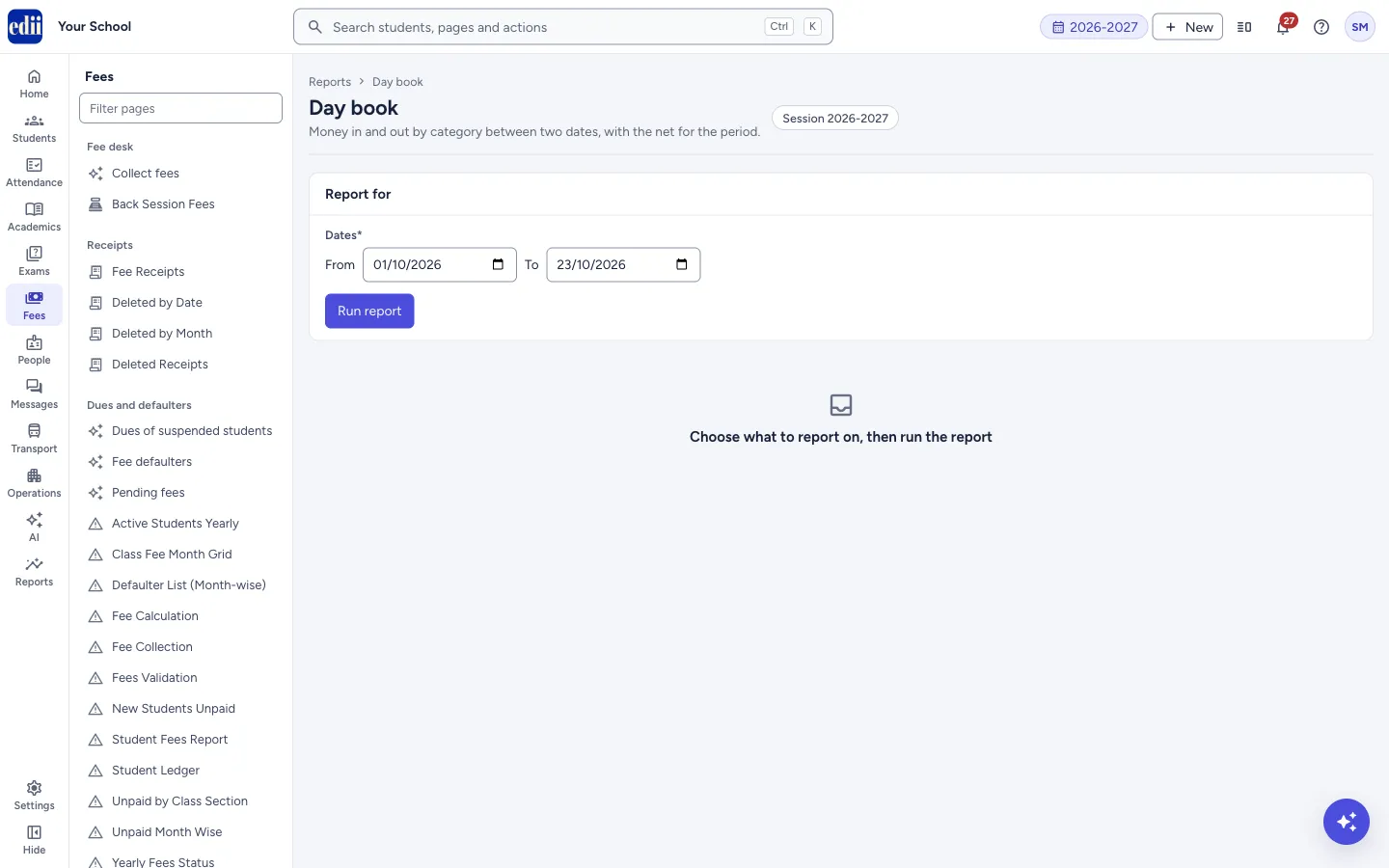
The page is headed Day book, with the line Money in and out by category between two dates, with the net for the period. You choose a From date and a To date and select Run report. The dates start as the first day of this month and today.
A blue line above the table gives the answer in one sentence, for example Money in ₹300, money out ₹0, net ₹300 (Profit). The word in brackets is Profit when the net is zero or more and Loss when it is below zero. A chart, Money in and out by category, and a table follow. The table has the columns In or out, Category, Entries and Amount.
Money in has one row for each payment mode of fee receipts, and one row for each source and payment mode of the other money EDII records, for example Accessories – Cash or Other receipts – UPI. Money out has one row for each expense category.
When you open the page from the menu it asks for the dates only, and it does not run until you select Run report.
Who uses it and when
Section titled “Who uses it and when”The accountant or the principal, for a daily, weekly or monthly summary of what came in and what went out.
Before you start
Section titled “Before you start”- Fee collections, other money and expenses must already be entered. The session at the top of the page is the one used.
Where to find it
Section titled “Where to find it”- In school.edii.in: Fees › Collection reports › Day book
- On Today, the Today’s day book link of the Collected today tile opens this report for today’s date and runs it at once.
- Or press Ctrl K (⌘ K on a Mac) and type Day book.
- Address:
school.edii.in/reports/day-book - Who can see it: Staff whose role includes Fees or Reports access. Shown only when your school uses Finance and Report in EDII. If it is missing from your menu, ask your school admin.
 Open a bigger pictureतस्वीर बड़ी करें
Step by step
Section titled “Step by step”1. Open the page
Section titled “1. Open the page”Open Fees › Collection reports › Day book. Under Report for you see Dates with From and To, and the message Choose what to report on, then run the report.
2. Choose the dates
Section titled “2. Choose the dates”Pick the From date and the To date. If the start date is after the end date, Run report is off and the page says The start date is after the end date.
3. Run the report
Section titled “3. Run the report”Select Run report. A message shows Day book: and the number of rows, for example Day book: 6 rows. The one-sentence answer, the chart and the table appear.
4. Read the categories
Section titled “4. Read the categories”Rows marked Money in come first. Fee receipts have one row for each payment mode. The other money has rows named source – payment mode. The sources are Accessories, Other receipts, TC fees, Job fees, Library fines, Canteen orders, Canteen recharges, Hostel fees and Admission fees; the payment mode is, for example, Cash, UPI, Cheque/DD, Card, Bank transfer or Online payment. A source shows only when it has money in the dates you chose.
Rows marked Money out follow, one for each expense category. Entries is how many receipts or expenses are in the row.
5. Search, sort and download
Section titled “5. Search, sort and download”Type in Search in these results to filter the rows; the line next to it shows how many rows match. Select a column heading to sort. Under the table, Columns shows or hides columns, Comfortable or Compact changes the row height, and Export gives CSV and Excel with every row, or Print this page. Rows per page can be 25, 50, 100 or All.
6. Print
Section titled “6. Print”Select Export, then Print this page. The printout carries the school logo and name, the report name and session, the dates you chose and Report generated on.
Fields and filters
Section titled “Fields and filters”| Field | What it is | Notes |
|---|---|---|
| Dates: From | The first day of the period. | Required. Starts as the first day of the month. |
| Dates: To | The last day of the period. | Required. Starts as today. Must not be before From. |
| Search in these results | Filters the rows of the table. | Appears after the report has run. |
Buttons
Section titled “Buttons”| Button | What it does | What happens next |
|---|---|---|
| Run report | Builds the day book for the dates. | The one-sentence answer, the chart and the table show. The button is off while a date is missing or the dates are in the wrong order. |
| Export | Opens a menu with CSV, Excel and Print this page. | A file downloads or the print window opens. |
Columns
Section titled “Columns”| Column | Meaning |
|---|---|
| In or out | Money in or Money out. |
| Category | For money in: the payment mode of fee receipts, or a source and payment mode such as Accessories – Cash or TC fees – UPI. For money out: the expense category (General Expense when an expense has none). |
| Entries | How many entries are in the category in the period. |
| Amount | The amount of those entries added up. |
| Money in, money out, net (line above the table) | The total of all Money in rows, the total of all Money out rows, and the net for the period, with Profit or Loss in brackets. |
After you save
Section titled “After you save”- This page only shows figures. Nothing is saved or changed.
Good to know
Section titled “Good to know”- Both dates are required and From must not be after To.
- Money in and money out are each grouped by category, with the number of entries.
- Net is the money in less the money out for the period. It is marked (Profit) when it is zero or more and (Loss) when it is below zero.
- From this update on, money in also counts accessory sales, other receipts, TC fees, job fees, library fines, canteen orders and canteen wallet recharges, hostel fees and admission fees. Any of these taken before this update are not counted.
- A TC fee or a job fee is counted on the day it is saved. For a job fee this can be a different day from its Job Date.
- Cancelled receipts, cancelled canteen orders and deleted job fees are not counted.
- Canteen orders paid from a canteen wallet are not counted, because that money is not new; the wallet recharge is counted.
- TC fees, job fees and library fines taken on beta.edii.in are not counted, because beta.edii.in does not ask how the money was paid.
Messages you may see
Section titled “Messages you may see”| Message | What it means | What to do |
|---|---|---|
| Choose dates to run this report. | A date is missing, so Run report is off. | Choose both dates. |
| The start date is after the end date. | The From date is later than the To date. | Choose a To date that is the same as or after the From date. |
| Nothing to report for these choices | The table is empty. The page adds: Try other months, classes or sections. | Choose other dates. |
| The connection failed before the report finished. Check the internet connection and try again. | The report could not be loaded. The table shows This list did not load with a Try again button. | Check the internet connection and select Try again. |
- Use Export, then CSV or Excel, to keep a copy of the day book.
- To see the cash and bank balance day by day, with each source split into cash and bank, open the Day Book on the Cash Deposit Register.
Stuck? Try this
Section titled “Stuck? Try this”| Problem | Likely cause | What to do |
|---|---|---|
| Run report is grey | A date is missing or the dates are in the wrong order. The reason is written next to the button. | Choose both dates in the right order. |
| A TC fee, job fee or library fine is missing from money in | It was taken on beta.edii.in, which does not ask how the money was paid, or before this update. | Take these fees on school.edii.in, where you choose how the money was paid. |
| A canteen order is missing from money in | It was paid from the canteen wallet. That money was counted when the wallet was recharged. | Nothing to fix. Look for the row Canteen recharges. |
Did this page help?क्या इस पेज से मदद मिली?
Thanks! Glad it helped.धन्यवाद! अच्छा लगा कि काम बन गया।
Sorry about that. Ask in your own words, or write to us.माफ़ कीजिए। अपने शब्दों में पूछें, या हमें लिखें।