
Screen guide · Web app
Add Installments
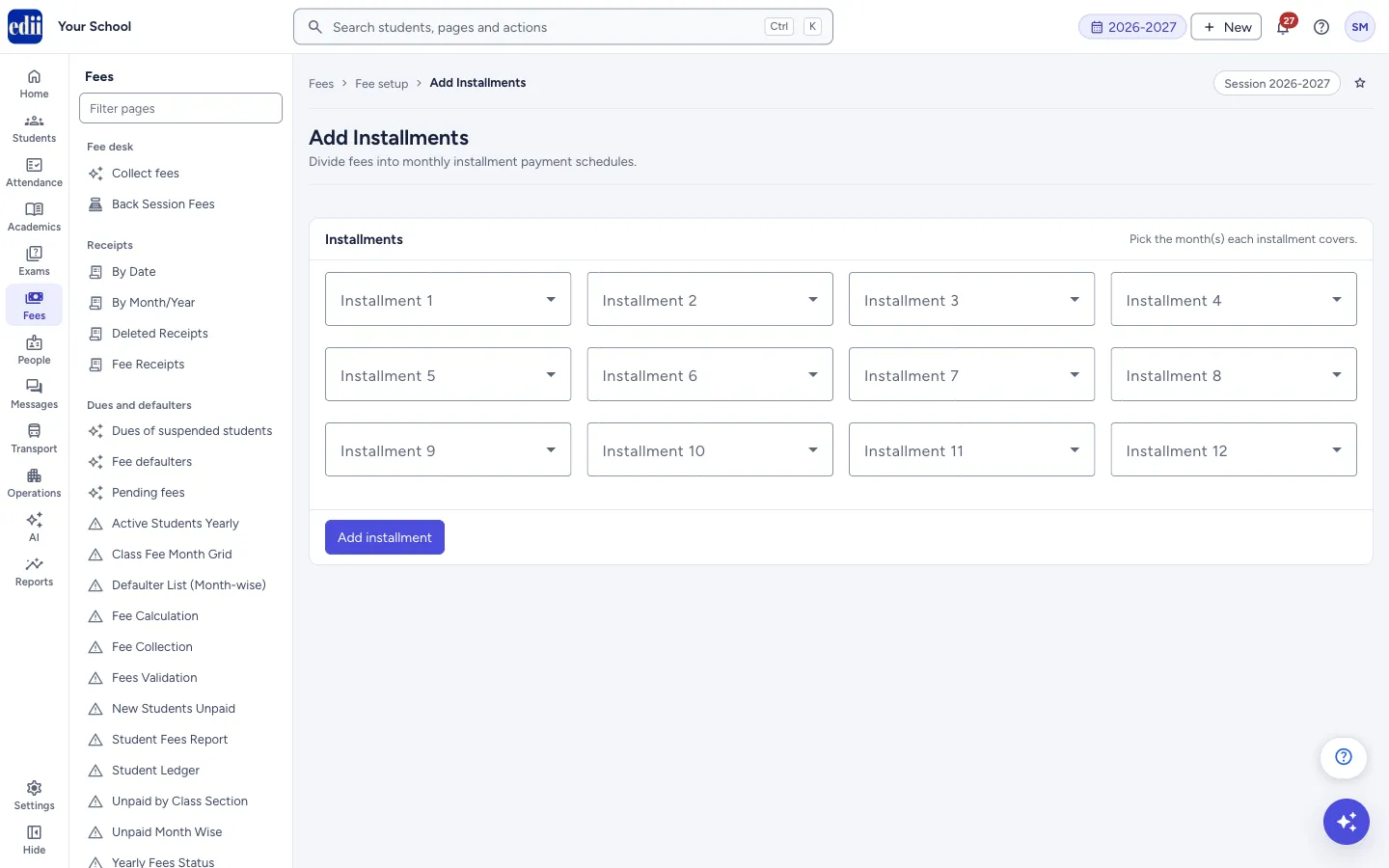
Divide the months of the session into up to 12 installments, so that fees are collected in groups of months.
यह पेज अंग्रेज़ी में है। कुछ समझ न आए तो ।
Add Installments lets the school decide which months are collected together. The page has twelve boxes, Installment 1 to Installment 12. In each box you tick the months that belong to that installment, for example April, May and June in Installment 1 and July to September in Installment 2. The note on the page reads Pick the month(s) each installment covers.
The installments are saved for the session that is open in EDII. When the page opens, the installments saved earlier for the session are loaded into the boxes. Saving again replaces the earlier installments of that session.
Who uses it and when
Section titled “Who uses it and when”The accounts office sets it once at the start of a session, and again if the school changes its collection schedule.
Before you start
Section titled “Before you start”- Check the session at the top right of the page. The months in the boxes and the saved installments are for that session.
- Decide the groups first. A month can be in one installment only.
Where to find it
Section titled “Where to find it”- In school.edii.in: Fees › Fee setup › Installments
- Or press Ctrl K (⌘ K on a Mac) and type Installments.
- Address:
school.edii.in/add/add-installment - Who can see it: Staff whose role includes Fees access. Shown only when your school uses Finance in EDII. If it is missing from your menu, ask your school admin.
 Open a bigger pictureतस्वीर बड़ी करें
Step by step
Section titled “Step by step”1. Open the first installment
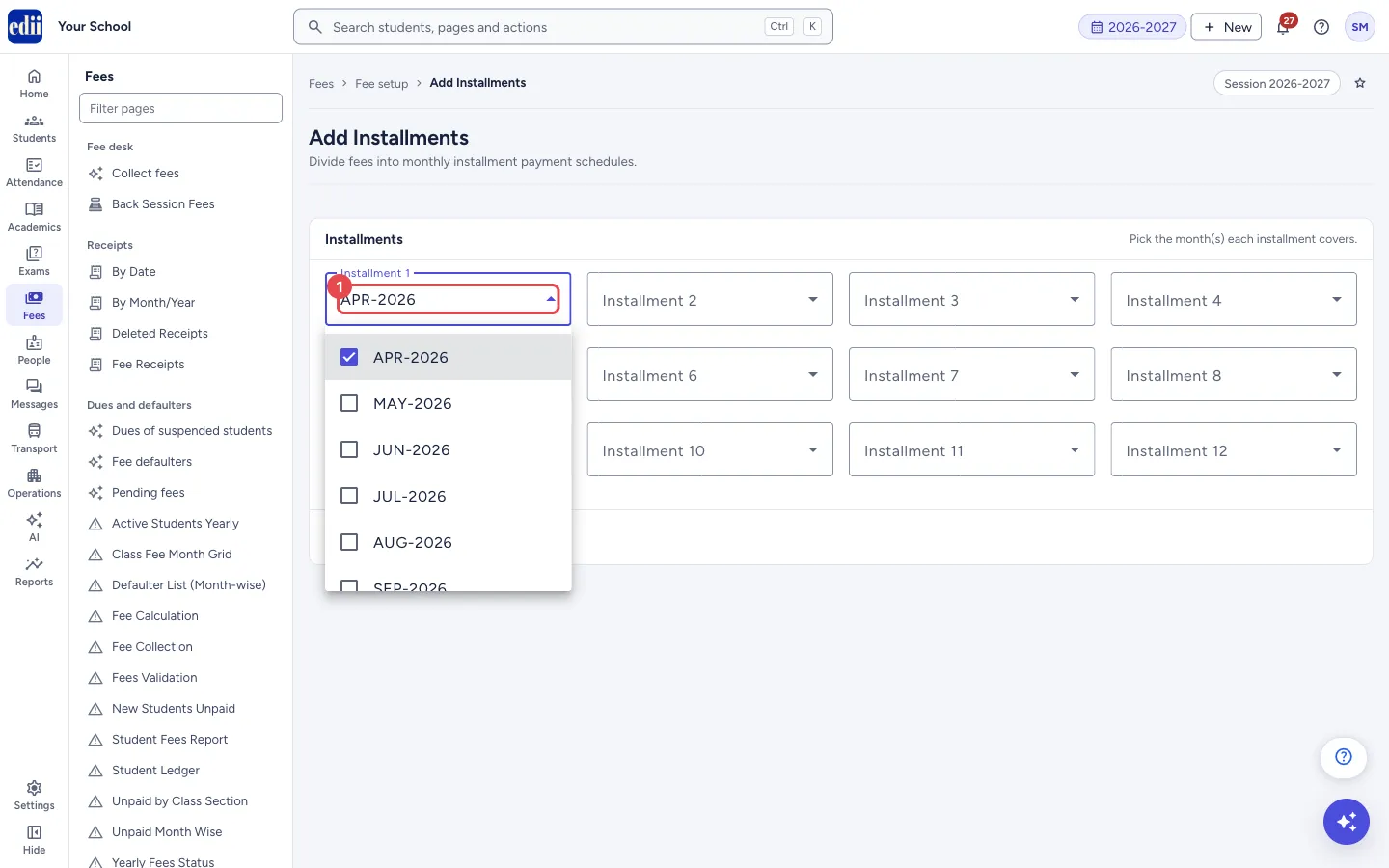
Section titled “1. Open the first installment”Select the box Installment 1. A list of the months of the session opens, with a tick box before each month. Tick the months that belong to this installment. You can tick more than one month.
 Open a bigger pictureतस्वीर बड़ी करें
2. Fill the other installments
Section titled “2. Fill the other installments”Do the same in Installment 2, Installment 3 and so on. Leave a box empty if you do not need it; empty boxes are not saved. Do not tick the same month in two installments.
3. Save
Section titled “3. Save”Select Add installment. When it is saved you see Success in Adding Installment. The page stays open with your installments in the boxes.
Fields and filters
Section titled “Fields and filters”| Field | What it is | Notes |
|---|---|---|
| Installment 1 to Installment 12 | The months that make up each installment. | Several months can be ticked in one box. A month must not repeat in another box. Empty boxes are left out. |
Buttons
Section titled “Buttons”| Button | What it does | What happens next |
|---|---|---|
| Add installment | Saves the installments you have filled in for the open session. | Success in Adding Installment shows. |
After you save
Section titled “After you save”- The installments you saved replace the ones saved before for this session.
- The page stays open so that you can check the boxes.
Good to know
Section titled “Good to know”- At most 12 installments.
- A month can be in only one installment. If a month is ticked in two boxes, EDII refuses to save and names the repeating month.
- Installments are saved per session.
Messages you may see
Section titled “Messages you may see”| Message | What it means | What to do |
|---|---|---|
| Success in Adding Installment | The installments were saved. | Nothing to do. |
| Installments Fetched! | The installments saved earlier for this session were loaded into the boxes when the page opened. | Change them if needed and save again. |
| You have a repeating Month/Year <months> Please recheck | The same month is ticked in more than one installment. The months that repeat are listed, for example APR-2026. | Untick the month in all but one installment, then save again. |
| Your school has not enabled installment | The school has no installments set up for this session yet. EDII shows it as a notice titled No Installments Configured. | Fill the boxes and select Add installment. |
| Bad/Slow Internet Connection, Please check your internet connection | The request did not reach EDII. | Check the internet and try again. |
- Match the installments to the dates on which your school really collects fees.
Stuck? Try this
Section titled “Stuck? Try this”| Problem | Likely cause | What to do |
|---|---|---|
| EDII says a month is repeating | The same month is ticked in two installment boxes. | Open the boxes one by one and keep the month in only one of them. |
| My earlier installments are gone | Saving replaces the installments that were saved before for the session. | Fill all the installments again and save. |
Did this page help?क्या इस पेज से मदद मिली?
Thanks! Glad it helped.धन्यवाद! अच्छा लगा कि काम बन गया।
Sorry about that. Ask in your own words, or write to us.माफ़ कीजिए। अपने शब्दों में पूछें, या हमें लिखें।