
Screen guide · Web app
Back Session Fees
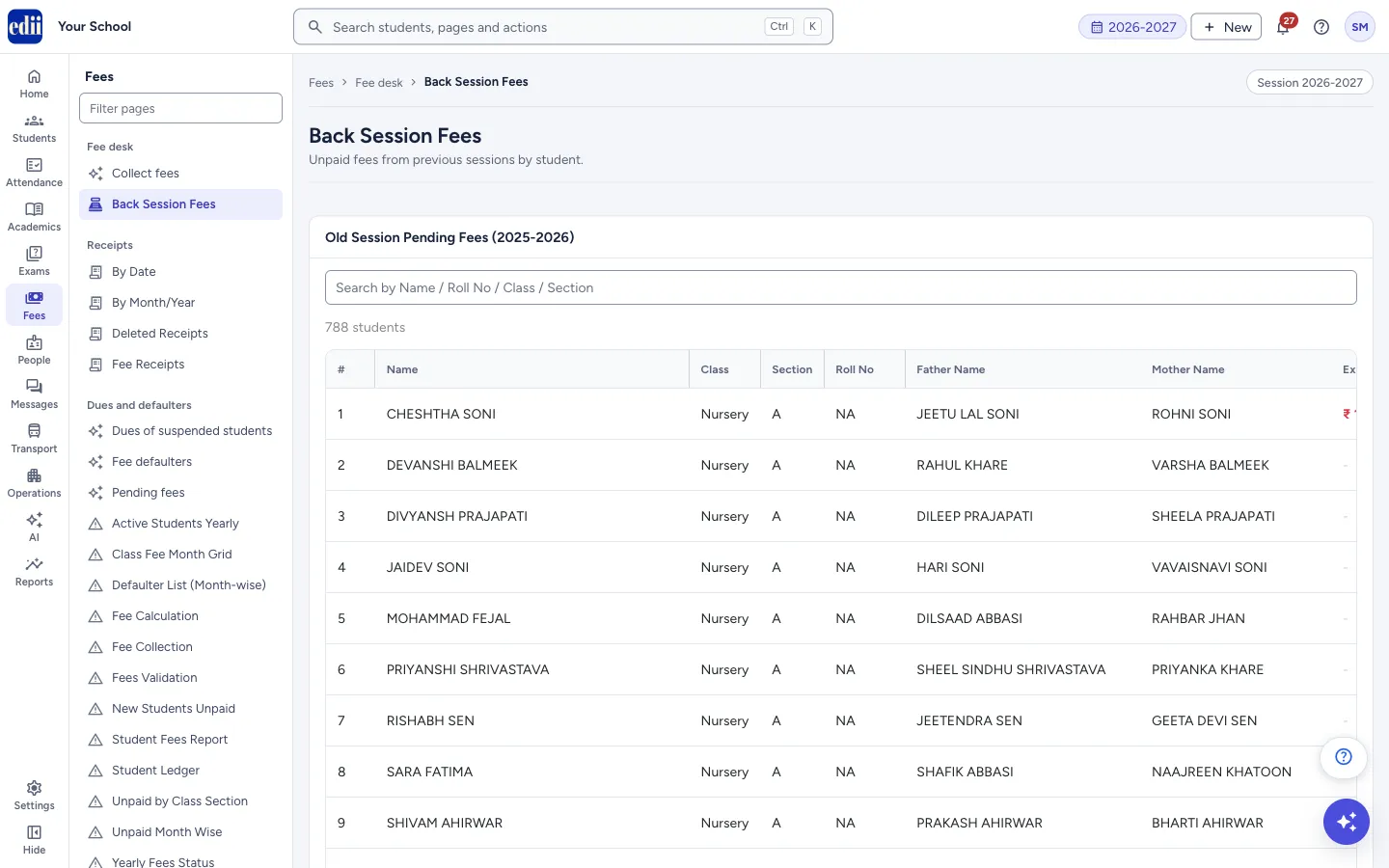
Record fees that students still owe from the previous session, see what is already recorded for each student, and remove an entry that has no payment against it.
यह पेज अंग्रेज़ी में है। कुछ समझ न आए तो ।
Back Session Fees lists the students of the school with a box to add an old-session due. The box under Add Amount (₹) takes an amount for one student; the plus button next to it saves it as an old-session fee entry for that student.
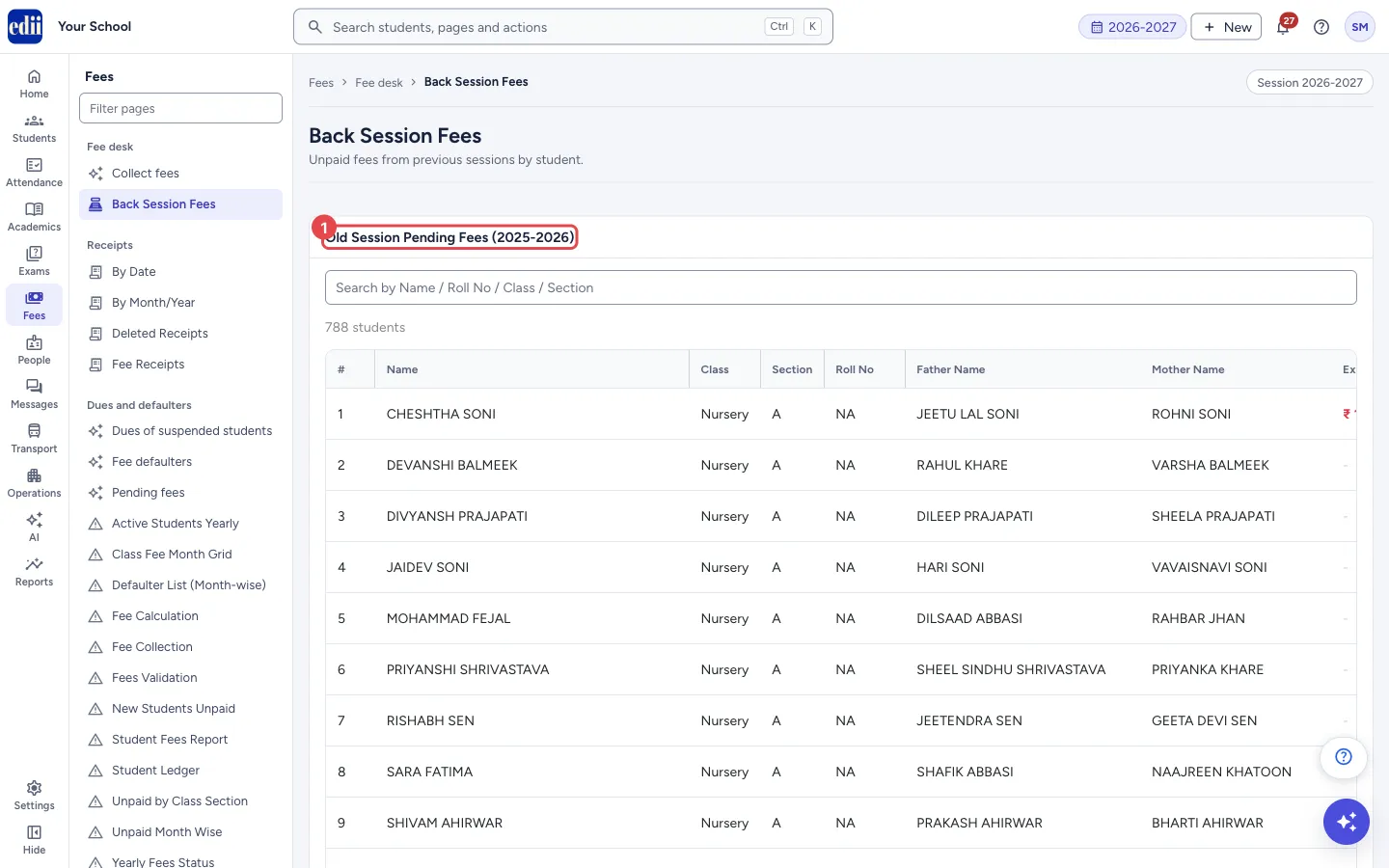
The box heading, Old Session Pending Fees, shows the session before the one you are working in. Existing Dues shows the amounts already recorded for each student. Select it to see every entry with its Total, Paid and Balance.
Who uses it and when
Section titled “Who uses it and when”The accountant, when fees from the earlier session were not paid and have to be carried forward, for example when a school starts using EDII.
Before you start
Section titled “Before you start”- Know which students owe money from the earlier session and how much each one owes.
Where to find it
Section titled “Where to find it”- In school.edii.in: Fees › Fee desk › Back Session Fees
- Or press Ctrl K (⌘ K on a Mac) and type Back Session Fees.
- Address:
school.edii.in/view/back-session-fees - Who can see it: Staff whose role includes Fees access. Shown only when your school uses Finance in EDII. If it is missing from your menu, ask your school admin.
 Open a bigger pictureतस्वीर बड़ी करें
Step by step
Section titled “Step by step”1. Find the student
Section titled “1. Find the student”The list opens with all students, sorted by class, then section, then name. The number under the search box is how many students are listed.
Type in Search by Name / Roll No / Class / Section to narrow the list. The search also matches the father’s name and the student ID.
 Open a bigger pictureतस्वीर बड़ी करें
2. Look at the existing dues
Section titled “2. Look at the existing dues”Existing Dues shows ₹ and then the balance of each entry already recorded for the student, separated by commas. A dash means nothing is recorded.
Select the Existing Dues cell to open the student’s entries underneath. The row turns yellow while it is open. Each entry shows Fee Name, Session, Total, Paid, Balance and Added By.
3. Add an amount
Section titled “3. Add an amount”Type the amount in Add Amount (₹) (1 or more) and select the plus button, or press Enter. The plus button stays grey until there is an amount above 0.
EDII shows Old session fee added for followed by the student’s name, the list refreshes and the student’s entries open. There is no extra confirmation.
4. Delete an entry that has no payment
Section titled “4. Delete an entry that has no payment”In the open entries, select the bin button on the entry. A box called Delete Old Session Fee asks whether you are sure you want to delete the entry of that amount for that student. Select Delete to remove it or Cancel to keep it.
The bin is greyed out when something has been paid against the entry. Its hint says Cannot delete: payment exists.
Fields and filters
Section titled “Fields and filters”| Field | What it is | Notes |
|---|---|---|
| Search by Name / Roll No / Class / Section | Narrows the list of students. | Only filters the list on the screen. Also matches the father’s name and the student ID. |
| Add Amount (₹) | The amount the student owes from the earlier session. | A whole number of 1 or more. Each time you add, a new entry is made; it does not change an earlier entry. |
Buttons
Section titled “Buttons”| Button | What it does | What happens next |
|---|---|---|
| Plus button (next to Add Amount) | Saves the amount as an old-session fee entry for that student. | Old session fee added for the student’s name appears, the box is emptied and the student’s entries open. |
| Bin button (on an entry) | Deletes that old-session fee entry. | A confirmation box opens. After you select Delete, Fee entry deleted for the student’s name appears. The button is greyed out if a payment has been made on the entry. |
Columns
Section titled “Columns”| Column | Meaning |
|---|---|
| # | Row number in the list. |
| Name, Class, Section, Roll No | The student. A dash shows when there is no roll number. |
| Father Name, Mother Name | The student’s parents. |
| Existing Dues | The balance of each old-session entry recorded for the student, with a ₹ sign. Select it to see the entries. |
| Fee Name, Session, Total, Paid, Balance, Added By | In the open entries: the name of the entry, its session, the amount added, how much has been paid, what is left, and who added it. |
After you save
Section titled “After you save”- The entry is saved at once for that student, and the list reloads.
- This page does not take any payment. The money is collected later, with the other fees.
Good to know
Section titled “Good to know”- An entry with a payment against it cannot be deleted.
- The amount must be above 0.
- There is no edit button. To correct a wrong amount, delete the entry (if nothing is paid on it) and add it again.
Messages you may see
Section titled “Messages you may see”| Message | What it means | What to do |
|---|---|---|
| Old session fee added for … | The old-session due was saved for that student. | Nothing to do. |
| Please enter a valid amount | The amount is empty or not above 0. | Type a number of 1 or more. |
| Error adding fee | The request did not go through. | Open the student’s entries and check whether the amount was saved before you add it again. |
| Cannot delete: payment of Rs. … exists against this fee | The entry has a payment against it. | Leave the entry as it is. |
| Fee entry deleted for … | The entry was removed. | Nothing to do. |
| Error deleting fee | The request did not go through. | Try again. |
- Add the dues class by class: search for the class, then work down the list with the Add Amount boxes and the Enter key.
Stuck? Try this
Section titled “Stuck? Try this”| Problem | Likely cause | What to do |
|---|---|---|
| The bin button is greyed out | A payment has been made on that entry. | Only entries with nothing paid can be deleted. |
| I added the same amount twice | Each add makes a new entry. | Open Existing Dues for the student and delete the extra entry, if no payment is made on it. |
Did this page help?क्या इस पेज से मदद मिली?
Thanks! Glad it helped.धन्यवाद! अच्छा लगा कि काम बन गया।
Sorry about that. Ask in your own words, or write to us.माफ़ कीजिए। अपने शब्दों में पूछें, या हमें लिखें।