
Screen guide · Web app
Admissions dashboard (applicants)
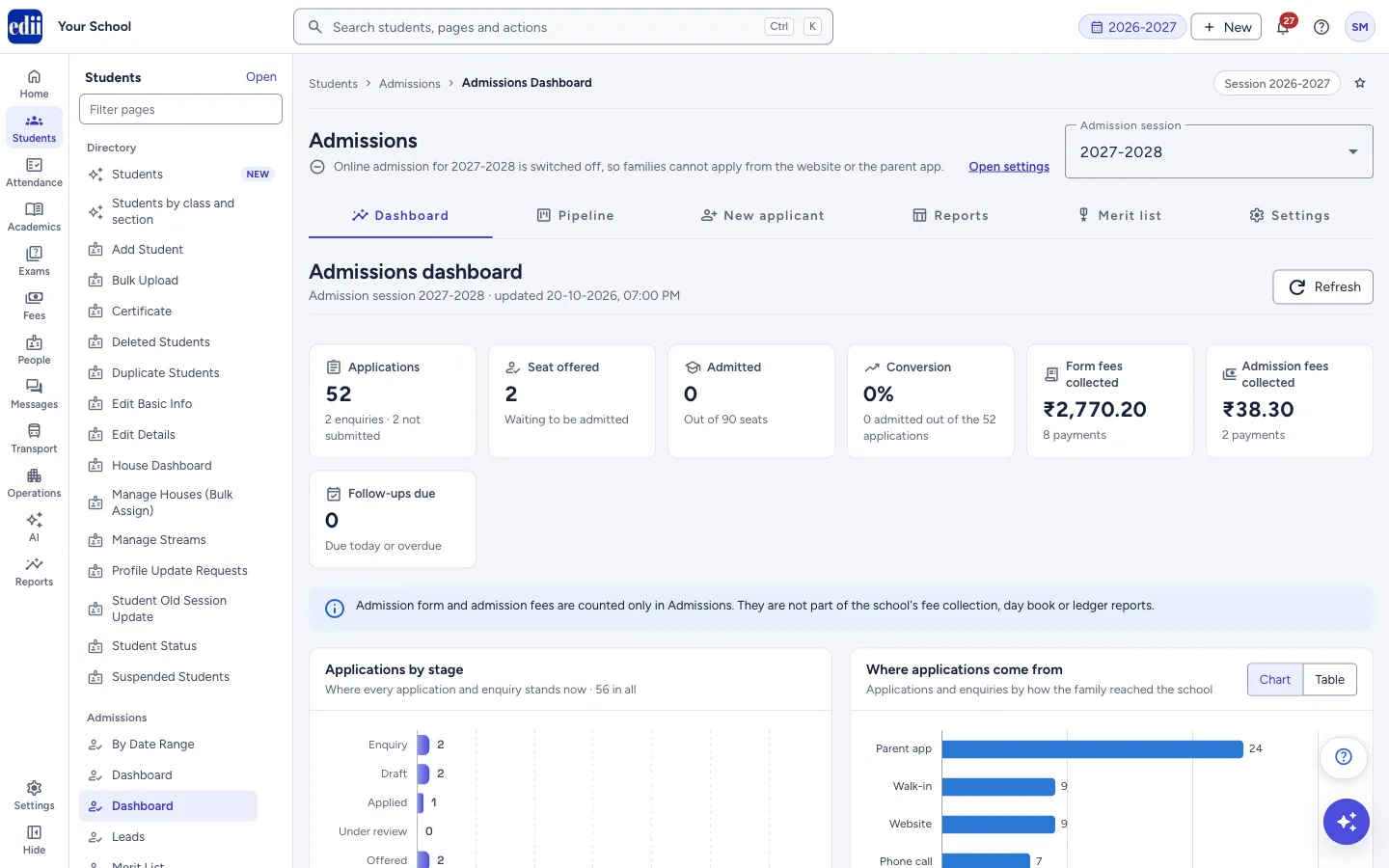
A snapshot of one admission session for online applications and enquiries: how many are at each stage, seats against applications for every class, where applications come from, fees collected and follow-ups due. It is part of the Admissions pages (Pipeline, New Applicant, Reports, Merit List, Settings), shown to roles with Admission access; Old Dashboard in the same menu covers the entrance-form admissions.
यह पेज अंग्रेज़ी में है। कुछ समझ न आए तो ।
Admissions dashboard is the first page of the Admissions pages. At the top of every Admissions page you choose the Admission session (usually next year’s session) and see whether online admission is on. The numbers below belong to that session, not to the school’s current session.
Seven cards show Applications, Seat offered, Admitted, Conversion, Form fees collected, Admission fees collected and Follow-ups due. Below them are Applications by stage, Where applications come from, Seats and applications by class, Received per day and Recent applications.
Each card or bar that can be opened takes you to the Pipeline with that filter already set. Do not confuse this page with Old Dashboard in the same menu (headed Admission Dashboard), which counts entrance-form admissions.
Who uses it and when
Section titled “Who uses it and when”The principal, admission head and office staff use it during admission season to see how many families have applied, how many seats are filled and who needs a follow-up.
Before you start
Section titled “Before you start”- Set up the session in Settings (classes with seats, dates and so on). Numbers and charts appear as soon as families apply online or you enter a walk-in or phone enquiry on New Applicant.
Where to find it
Section titled “Where to find it”- In school.edii.in: Students › Admissions › Dashboard
- Or press Ctrl K (⌘ K on a Mac) and type Dashboard.
- Address:
school.edii.in/admissions/dashboard - Who can see it: Needs Admission access for your role. It does not need the Admissions module switch that the entrance-form pages need. A role with only Lead access is sent to the Pipeline instead. If it is missing from your menu, ask your school admin.
 Open a bigger pictureतस्वीर बड़ी करें
Step by step
Section titled “Step by step”1. Choose the admission session
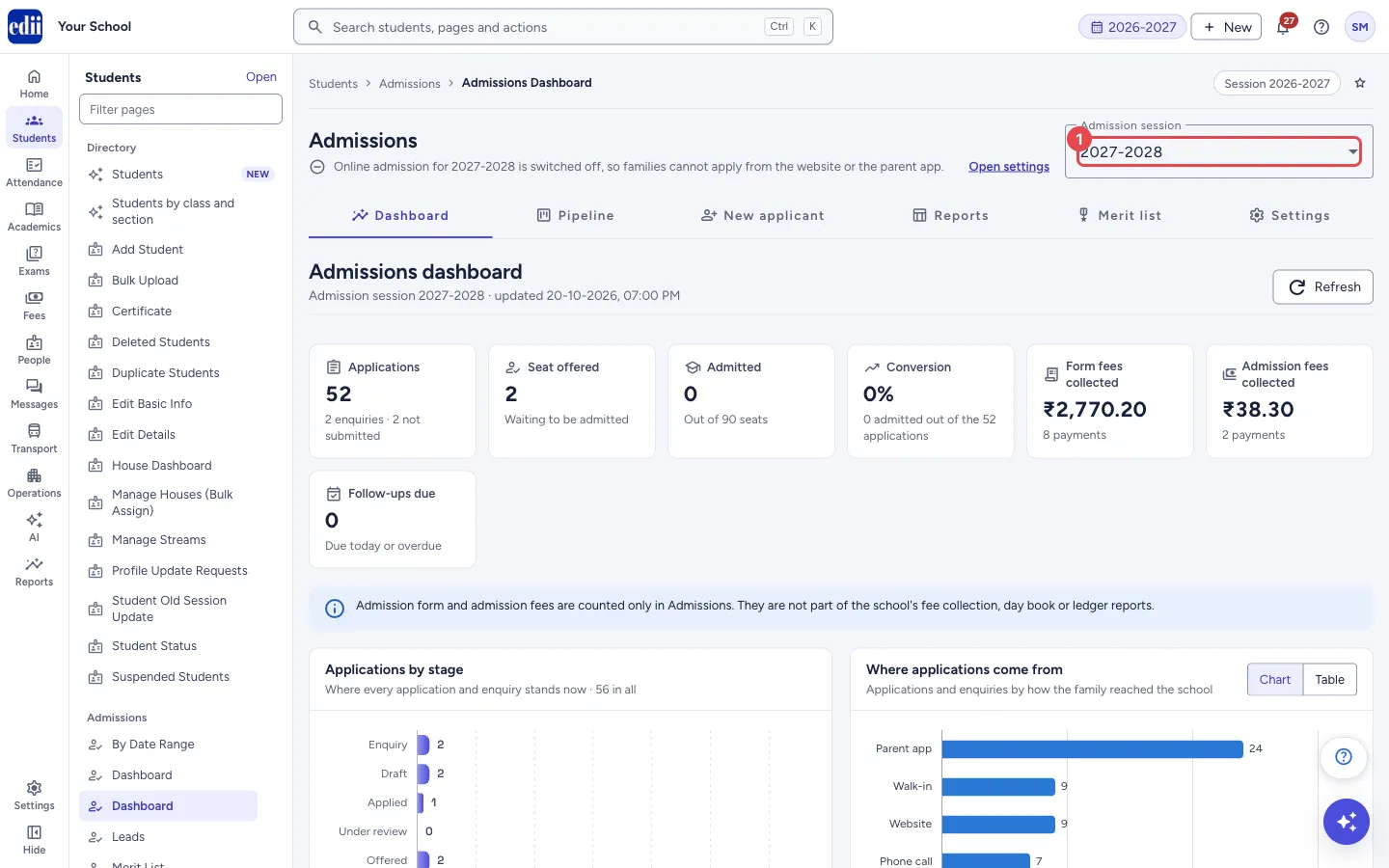
Section titled “1. Choose the admission session”Use Admission session at the top right. The list shows each session; a session with online admission switched on is marked · online admission on. The page reloads for the session you pick.
 Open a bigger pictureतस्वीर बड़ी करें
2. Read the cards
Section titled “2. Read the cards”Applications counts applications that have been submitted and are not still drafts or enquiries (Applied, Under review, Offered, Waitlisted, Admitted, Not selected and Withdrawn); under it you see how many are enquiries and how many are not submitted. Seat offered is waiting to be admitted. Admitted is shown against the total seats set for the classes. Conversion is Admitted divided by Applications.
Form fees collected and Admission fees collected show the amount and the number of payments. Follow-ups due counts follow-ups due today or overdue.
3. Open the numbers in the Pipeline
Section titled “3. Open the numbers in the Pipeline”Click Applications, Seat offered, Admitted or Follow-ups due, a bar in Applications by stage, or a source or class name, to open the Pipeline with that filter. This works only if your role can open the Pipeline.
4. Switch between Chart and Table
Section titled “4. Switch between Chart and Table”Where applications come from, Seats and applications by class and Received per day each have Chart and Table buttons. The class table shows Seats, Applied, Offered, Admitted and Seats left. Received per day shows the last 60 days, by the day each application or enquiry was entered, in India time.
5. Refresh
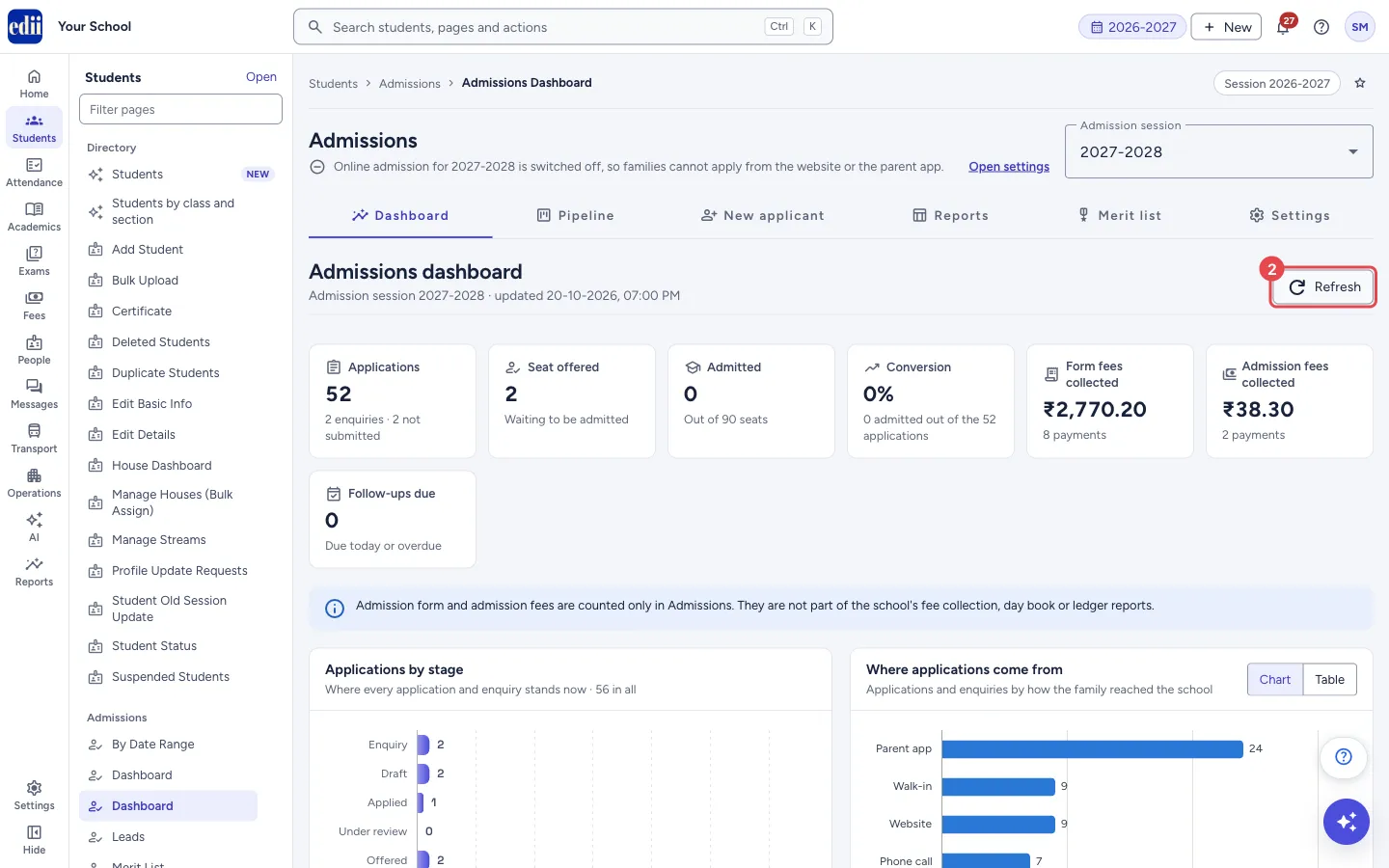
Section titled “5. Refresh”Press Refresh to load the latest numbers. The line under the page title shows when the page was last updated.
 Open a bigger pictureतस्वीर बड़ी करें
Buttons
Section titled “Buttons”| Button | What it does | What happens next |
|---|---|---|
| Refresh | Loads the dashboard again for the chosen session. | A progress bar shows, then the numbers update. |
| Chart / Table | Switches a panel between a chart and a table of the same numbers. | The panel changes; nothing is saved. |
| Open pipeline | In Recent applications: opens the Pipeline. | The Pipeline page opens. |
| New applicant / Admission settings | Shown on an empty dashboard to enter the first enquiry or to set up the session. | New Applicant or Settings opens. |
Columns
Section titled “Columns”| Column | Meaning |
|---|---|
| Applicant | In Recent applications: the child’s name (click to open the application) and the application number. |
| Class | Class applied for. |
| Stage | Where the application stands, with a detail such as Documents pending. |
| Source | How the family reached the school. |
| Received | Date and time the application or enquiry was entered. |
| Seats left | Seats set for the class minus Admitted. Shows Over by a number when more are admitted than seats, and Not set when the class has no seats. |
Good to know
Section titled “Good to know”- Admission form and admission fees are not part of the school’s fee collection or ledger reports. Each form fee or admission fee that is paid (online, or recorded at the office as cash, UPI or cheque) is also counted in the Day Book of the Cash Deposit Register. Cash goes into Daily Collection and the rest into Other Collection, and Collection by source (one of the bank detail columns) shows these fees as Admission fees. A waived fee is not counted, and fees paid before the Day Book started counting them are not added.
- The page only reads data. Nothing is saved or sent.
- Which Admissions pages you see depends on your role: Admission access gives all pages; Lead access alone gives the Pipeline (and New Applicant to enter enquiries).
- If your role has neither access, the Admissions pages show: Your role does not have access to Admissions. Ask your school administrator to give your role Admission or Lead access.
Messages you may see
Section titled “Messages you may see”| Message | What it means | What to do |
|---|---|---|
| No applications or enquiries for 2027-2028 yet | Nothing has been received for the chosen admission session (the session name changes with your choice). | Enter a walk-in or phone enquiry on New Applicant, or open Settings to switch online admission on. |
| No classes are set up for this admission session. | The class panel has no classes with seats. | Add classes in Settings. |
| Could not load the dashboard. Please try again. | The numbers could not be loaded. | Press Try again or Refresh. |
| Charts could not be loaded, so the numbers are shown as tables. Refresh the page to try the charts again. | The chart library did not load. | Refresh the page; the tables show the same numbers. |
- The EDII Admissions Guide explains the whole admission season in one place: setup, the daily work, online entrance tests and what families see on the website and in the app. It has a PDF you can share with families.
- Keep an eye on Follow-ups due every morning during admission season.
Stuck? Try this
Section titled “Stuck? Try this”| Problem | Likely cause | What to do |
|---|---|---|
| A different session shows than the school’s current one | Admissions work on their own admission session, usually the next year. | Change Admission session at the top of the page. |
| The numbers differ from the Old Dashboard | That page counts entrance-form admissions; this one counts online applications and enquiries. | Use the page that matches the way your school takes admissions. |
Did this page help?क्या इस पेज से मदद मिली?
Thanks! Glad it helped.धन्यवाद! अच्छा लगा कि काम बन गया।
Sorry about that. Ask in your own words, or write to us.माफ़ कीजिए। अपने शब्दों में पूछें, या हमें लिखें।