
Screen guide · Web app
Attendance Dashboard (staff)
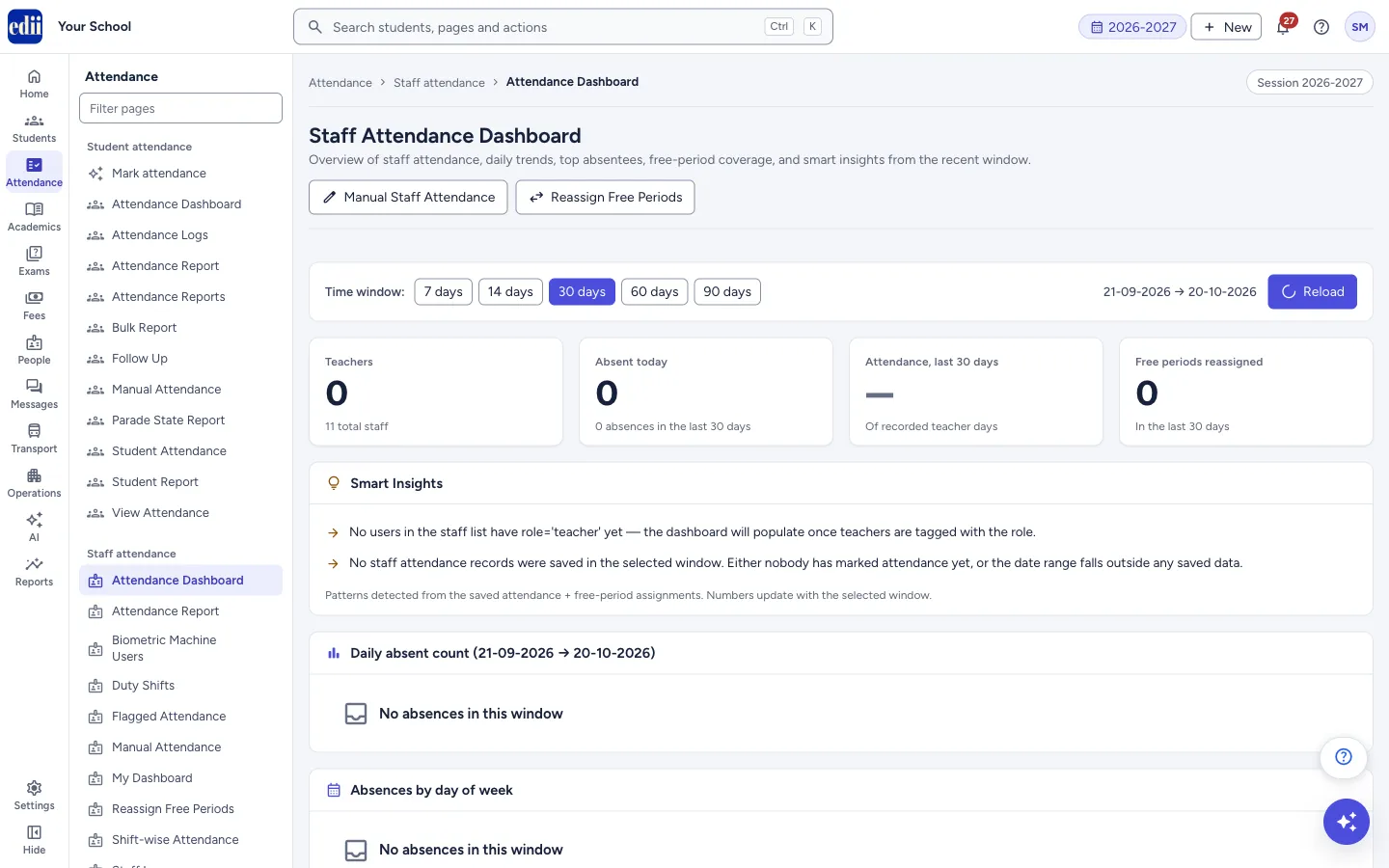
The staff attendance dashboard: how many teachers are absent today, how absences moved over the last 7 to 90 days, which weekdays are worst, each teacher's attendance, and who has covered free periods.
यह पेज अंग्रेज़ी में है। कुछ समझ न आए तो ।
This is the Attendance Dashboard under Staff attendance. The page heading reads Staff Attendance Dashboard. The student version has the same menu name; see Attendance Dashboard under Student attendance for that one.
Choose a Time window of 7 days, 14 days, 30 days, 60 days or 90 days. The page opens on 30 days. The dates being shown are written next to the buttons, for example 21-09-2026 → 20-10-2026.
The screen only reads saved data. Nothing is saved or sent from it.
Who uses it and when
Section titled “Who uses it and when”The principal and administrators, daily to see who is absent and whether classes are covered, and weekly or monthly to spot teachers whose absences are rising.
Before you start
Section titled “Before you start”- Staff attendance must have been saved, either from the biometric machine or on Manual Attendance (staff).
- Only users who carry the teacher role are counted as teachers. If none do, the page says so in Smart Insights.
Where to find it
Section titled “Where to find it”- In school.edii.in: Attendance › Staff attendance › Attendance Dashboard
- Or press Ctrl K (⌘ K on a Mac) and type Attendance Dashboard.
- Address:
school.edii.in/view/staff-attendance-dashboard - Who can see it: Staff whose role includes Messages or Leave or Meetings access. Shown only when your school uses HR and Calendar in EDII. If it is missing from your menu, ask your school admin.
 Open a bigger pictureतस्वीर बड़ी करें
Step by step
Section titled “Step by step”1. Choose the time window
Section titled “1. Choose the time window”Select 7 days, 14 days, 30 days, 60 days or 90 days next to Time window. The numbers load again for that window. Reload fetches them again for the same window.
2. Read the four boxes
Section titled “2. Read the four boxes”Teachers shows the number of teachers, with the total staff below it (for example 11 total staff). Absent today shows today’s absent count, with the absences in the window below it. Attendance, last N days shows a percentage with the note Of recorded teacher days; it shows a dash when no attendance was saved in the window. Free periods reassigned shows how many free periods were given to a substitute in the window.
Small bars or lines inside the boxes show the day-by-day trend; days with no saved attendance are left blank, not counted as zero.
3. Read the Smart Insights
Section titled “3. Read the Smart Insights”Smart Insights lists plain sentences about patterns in the saved attendance and free-period assignments. When the school has no teachers tagged or no saved attendance in the window, it says that, for example No staff attendance records were saved in the selected window.
4. Read the charts
Section titled “4. Read the charts”Daily absent count shows teachers absent on each day of the window. Absences by day of week shows which weekdays have the most absences. Both say No absences in this window when there are none.
5. Check each teacher
Section titled “5. Check each teacher”Per-teacher attendance ranks teachers by absent days. It shows the top 10; select Show all N teachers to see everyone, and Show top 10 to go back. A row is highlighted when the teacher’s attendance is below 80 percent and at least 5 days were recorded.
6. See who covers free periods
Section titled “6. See who covers free periods”Free-period coverage leaderboard lists the substitutes with the most free periods covered in the window, as a bar chart and a table. It says No free-period assignments saved in this window yet when there are none.
Fields and filters
Section titled “Fields and filters”| Field | What it is | Notes |
|---|---|---|
| Time window | How many recent days the page covers. | 7, 14, 30, 60 or 90 days. Opens on 30. |
Buttons
Section titled “Buttons”| Button | What it does | What happens next |
|---|---|---|
| Manual Staff Attendance | Opens Manual Attendance for staff, where you enter a day’s staff attendance by hand. | You leave the dashboard. |
| Reassign Free Periods | Opens the screen where a free period is given to a substitute teacher. | You leave the dashboard. |
| 7 days, 14 days, 30 days, 60 days, 90 days | Sets the time window. | Every box, chart and table recalculates. |
| Reload | Fetches the numbers again. | Network error while loading dashboard shows if it fails. |
| Show all N teachers / Show top 10 | Expands or shortens the teacher table. The substitutes table has the same pair of buttons. | Only the list changes. |
Columns
Section titled “Columns”| Column | Meaning |
|---|---|
| # (per teacher) | Rank, most absent days first. |
| Teacher | The teacher’s name. |
| Absent | Days absent in the window. |
| Present | Days present in the window. |
| Recorded | Days on which this teacher’s attendance was saved. |
| Attendance | The percentage shown by the screen; a dash when no day was recorded. |
| Substitute / Periods covered | In the leaderboard: the teacher who covered free periods and how many. |
Messages you may see
Section titled “Messages you may see”| Message | What it means | What to do |
|---|---|---|
| Network error while loading dashboard | The numbers could not be fetched. | Check the internet connection and select Reload. |
| Could not load dashboard | The server did not return the numbers. | Select Reload; if it continues, try again later. |
- Use 30 days for a monthly review and 7 days for a weekly staff meeting.
- If free periods still need a substitute, go straight to Reassign Free Periods.
Stuck? Try this
Section titled “Stuck? Try this”| Problem | Likely cause | What to do |
|---|---|---|
| Everything shows 0 or a dash and the charts say No absences in this window. | No staff attendance was saved in the window, or no user has the teacher role. | Save the staff attendance first, and give your teaching staff the teacher role. Then choose a wider window. |
Did this page help?क्या इस पेज से मदद मिली?
Thanks! Glad it helped.धन्यवाद! अच्छा लगा कि काम बन गया।
Sorry about that. Ask in your own words, or write to us.माफ़ कीजिए। अपने शब्दों में पूछें, या हमें लिखें।