
Screen guide · Web app
My Leave
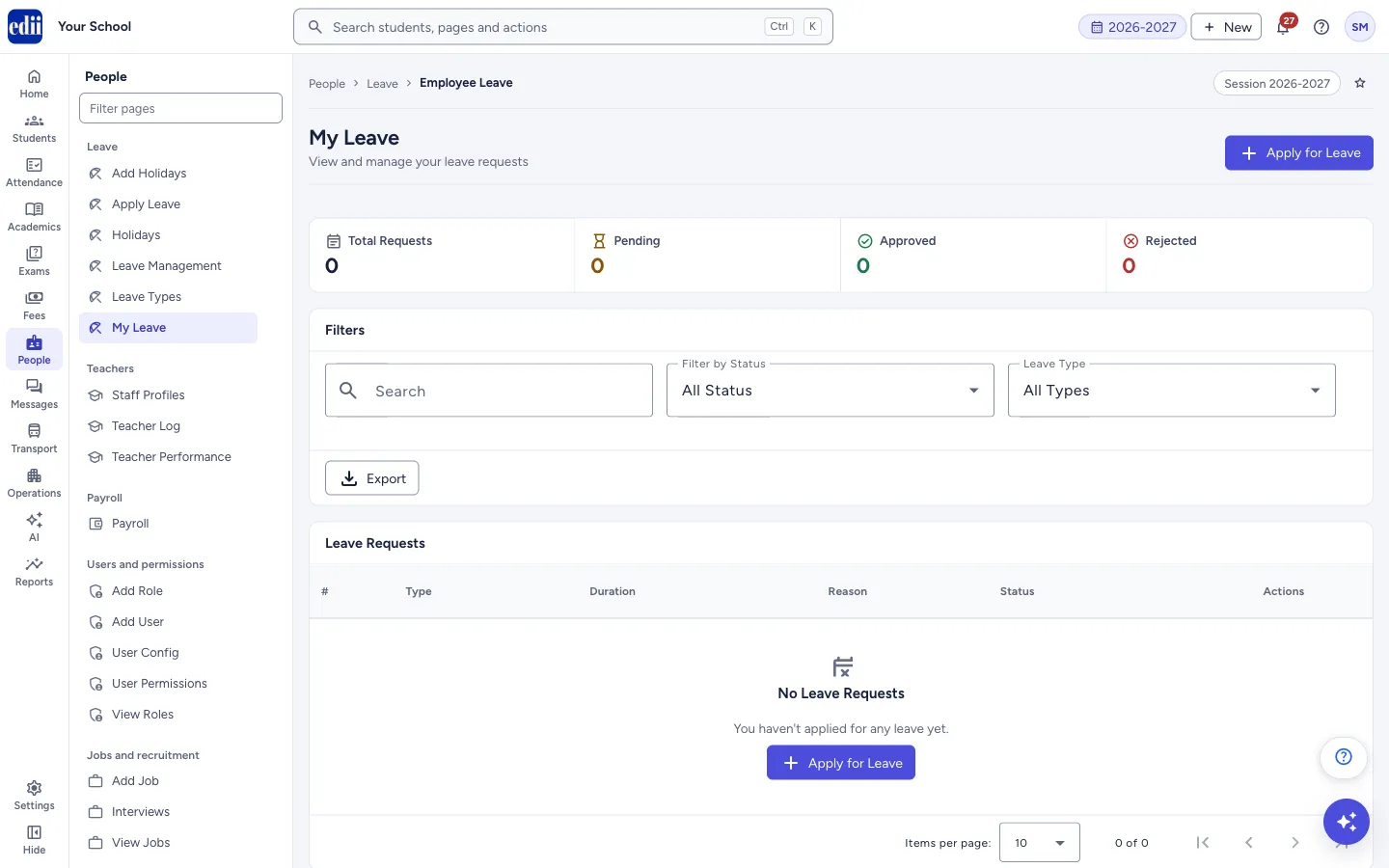
Your own leave requests for the session, with their status, and a way to apply, change or cancel a request.
यह पेज अंग्रेज़ी में है। कुछ समझ न आए तो ।
My Leave lists the leave requests of the person who is signed in, for the session selected at the top of the screen. Four counters at the top show Total Requests, Pending, Approved and Rejected. Below them, a table shows each request with its Type, Duration, Reason, Status and Actions.
While a request is still Pending you can change it with Edit or withdraw it with Cancel. Approved and rejected requests cannot be changed here.
Who uses it and when
Section titled “Who uses it and when”Any staff member who has leave access, to check whether leave was approved.
Where to find it
Section titled “Where to find it”- In school.edii.in: People › Leave › My Leave
- Or press Ctrl K (⌘ K on a Mac) and type My Leave.
- Address:
school.edii.in/view/view-leave-employee - Who can see it: Staff whose role includes Messages or Leave or Meetings access. Shown only when your school uses HR and Calendar in EDII. If it is missing from your menu, ask your school admin.
 Open a bigger pictureतस्वीर बड़ी करें
Step by step
Section titled “Step by step”1. Apply for leave
Section titled “1. Apply for leave”Select Apply for Leave (top right, or the button shown when you have no requests yet). The Apply Leave form opens.
2. Filter the list
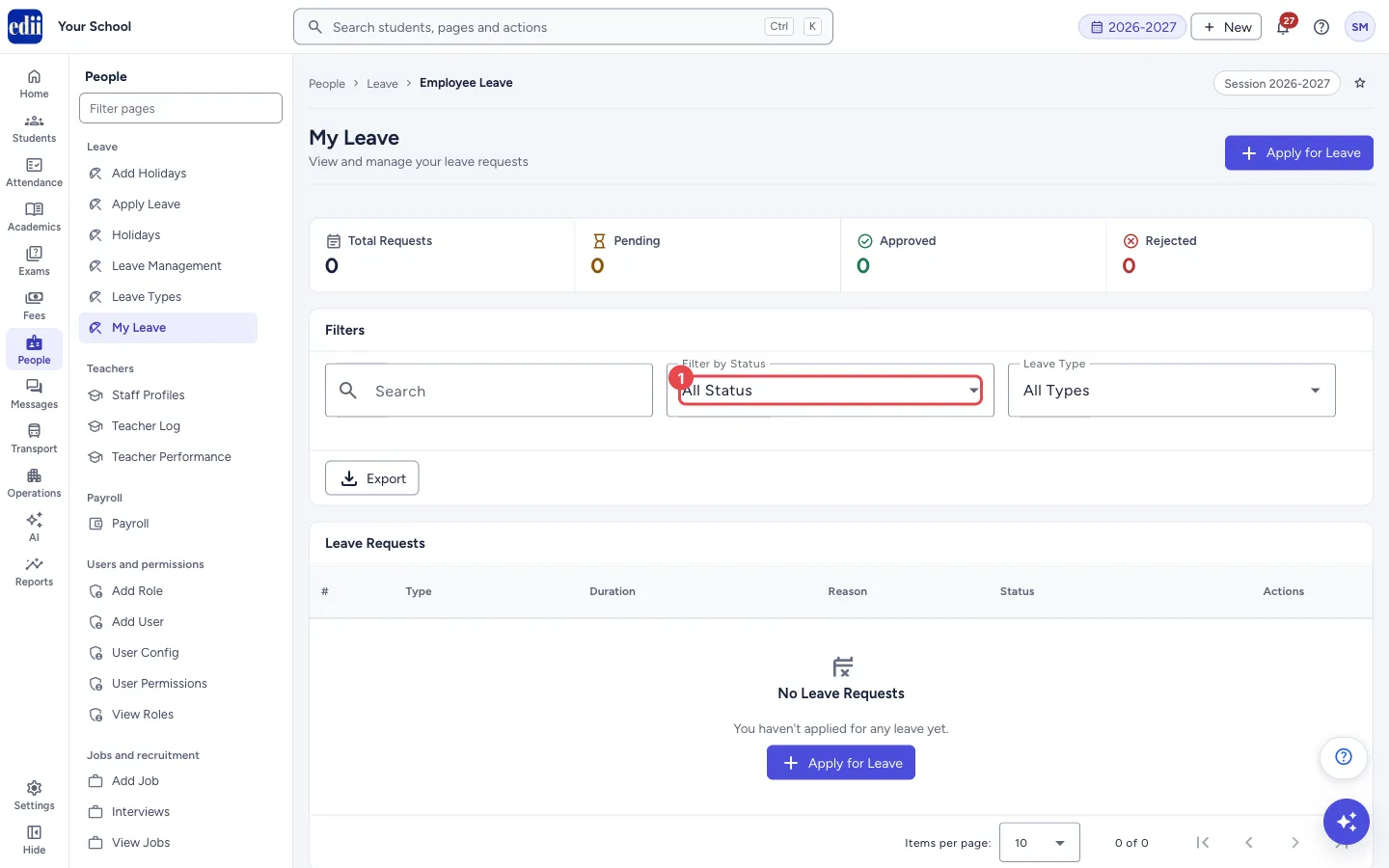
Section titled “2. Filter the list”Select Pending, Approved or Rejected at the top to show only those requests. You can also use Search, Filter by Status (All Status, Pending, Approved, Rejected) and Leave Type (All Types, Paid Leave, Unpaid Leave, Sick Leave, Casual Leave).
Maternity and paternity requests show under All Types; there is no separate filter for them.
 Open a bigger pictureतस्वीर बड़ी करें
3. Change a pending request
Section titled “3. Change a pending request”Select Edit next to a Pending request. The Edit Leave Request form opens with the dates, Leave Type and Reason for Leave. Only pending requests can be edited. Save with the update button; you see Leave request updated successfully.
4. Cancel a pending request
Section titled “4. Cancel a pending request”Select Cancel next to a Pending request. A window asks Cancel leave? with the text This leave request will be cancelled. This action cannot be undone. Select Cancel leave to confirm. You see Leave cancelled successfully! and the list refreshes.
5. Export or print
Section titled “5. Export or print”Select Export and choose Export to Excel (a CSV file named with today’s date) or the print option. Only the requests that match your filters are included.
Buttons
Section titled “Buttons”| Button | What it does | What happens next |
|---|---|---|
| Apply for Leave | Opens the Apply Leave form. | The form opens. |
| Edit | Opens the pending request so you can change dates, type or reason. | The Edit Leave Request form opens. |
| Cancel | Cancels that Pending request after you confirm. Any leave days held for it in your quota are released. | Leave cancelled successfully! and the list refreshes. |
| Export | Downloads the filtered list as a spreadsheet file (CSV), or prints it. | A file is downloaded or the print window opens. |
Columns
Section titled “Columns”| Column | Meaning |
|---|---|
| # | Row number. |
| Type | The leave type you chose. |
| Duration | From and to dates, with the number of days counted from the first to the last day. |
| Reason | The reason you gave. Long reasons are cut short; hold the pointer over it to read all of it. |
| Status | Pending, Approved or Rejected. |
| Actions | Edit and Cancel, shown only for Pending requests. |
Good to know
Section titled “Good to know”- The page shows only your own requests.
- Cancelling asks for confirmation and cannot be undone. To leave again, apply again.
- Once the administrator has approved or rejected a request, the card or row shows who decided it and on which date, and Edit and Cancel are no longer offered.
- The table shows 10 requests per page; you can change it to 25, 50 or 100.
Messages you may see
Section titled “Messages you may see”| Message | What it means | What to do |
|---|---|---|
| No Leave Requests | You have not applied for any leave in this session (You haven’t applied for any leave yet.). | Select Apply for Leave. |
| Leave cancelled successfully! | The request was cancelled. | Nothing to do. |
| Leave request updated successfully | Your changes were saved. | Nothing to do. |
| Only pending leaves can be edited | The request is already approved or rejected. | Apply for new leave if needed. |
| Connection error. Please check your internet. | The list could not be loaded. | Check the internet and reopen the page. |
Did this page help?क्या इस पेज से मदद मिली?
Thanks! Glad it helped.धन्यवाद! अच्छा लगा कि काम बन गया।
Sorry about that. Ask in your own words, or write to us.माफ़ कीजिए। अपने शब्दों में पूछें, या हमें लिखें।