
Get started · Parent app
Find your way around
रास्ता समझें
Move between workspaces with the rail, open pages from the panel, filter the panel, and use Ctrl K to search students, pages and actions.
यह पेज अंग्रेज़ी में है। कुछ समझ न आए तो ।
Every page of school.edii.in has the same frame: the rail on the far left, the panel of pages next to it, and the top bar with the search box, the session, New, Split screen, notifications, Help and your account.
Before you start
Section titled “Before you start”- Sign in first.
1. Choose a workspace on the rail
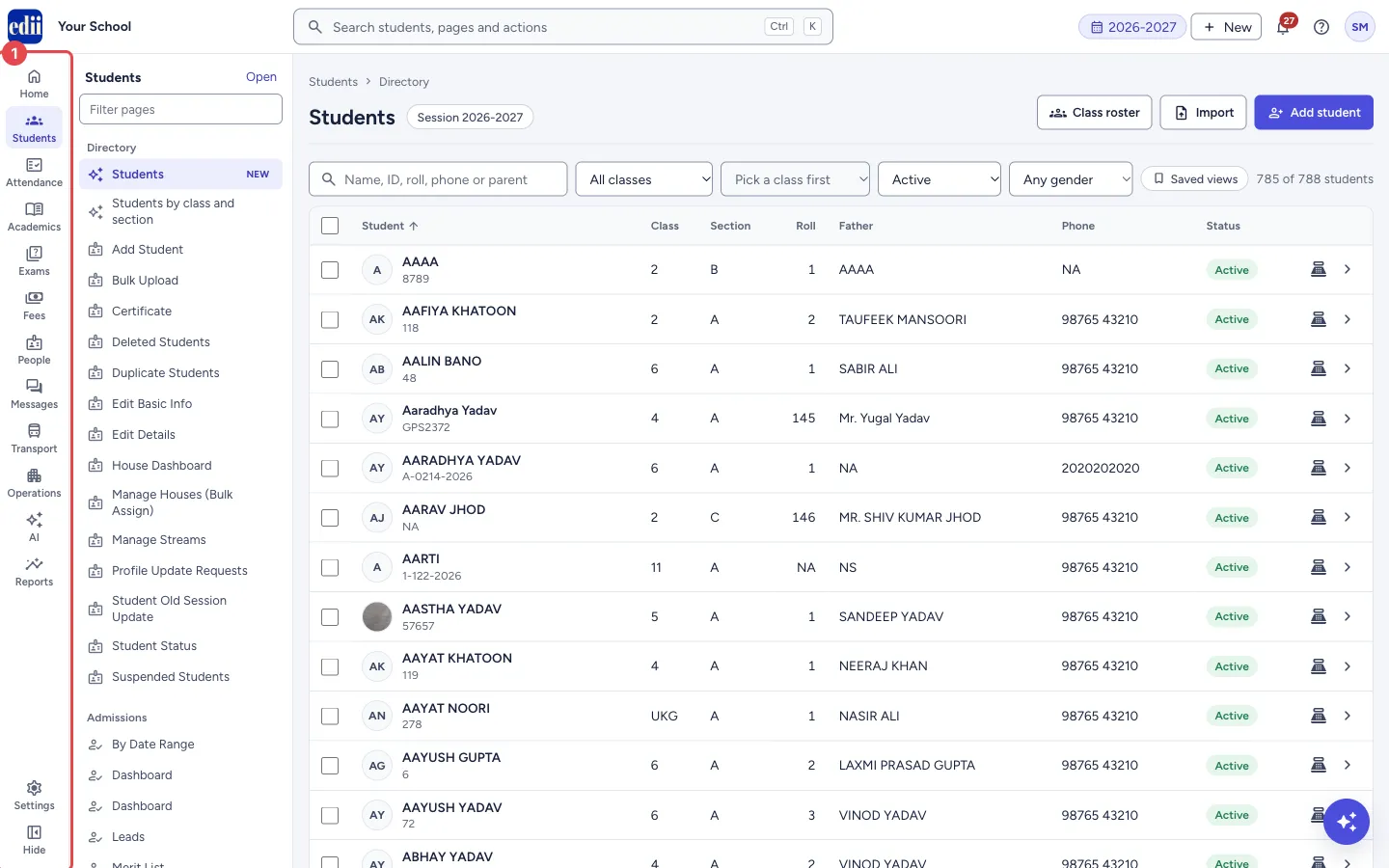
Section titled “1. Choose a workspace on the rail”Select an icon on the rail, for example Students or Fees. Hide at the bottom of the rail closes the panel to give the page more room; select it again to bring the panel back.
 Open a bigger pictureतस्वीर बड़ी करें
2. Open a page from the panel
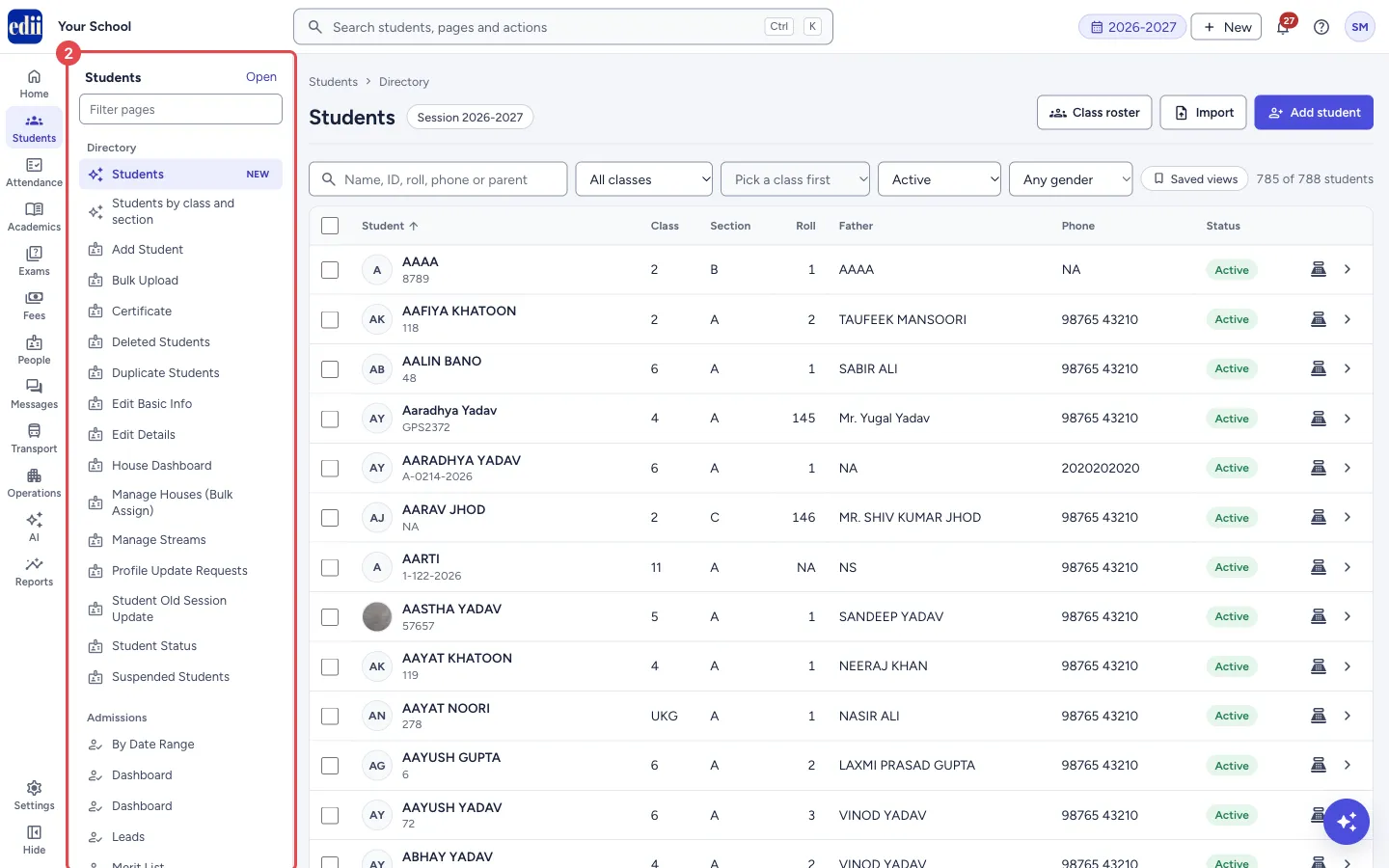
Section titled “2. Open a page from the panel”The panel lists the workspace’s pages in sections (for Students: Directory, Admissions, Promotion, TC and documents, Student leave, Siblings). Select a page to open it.
 Open a bigger pictureतस्वीर बड़ी करें
3. Filter the panel
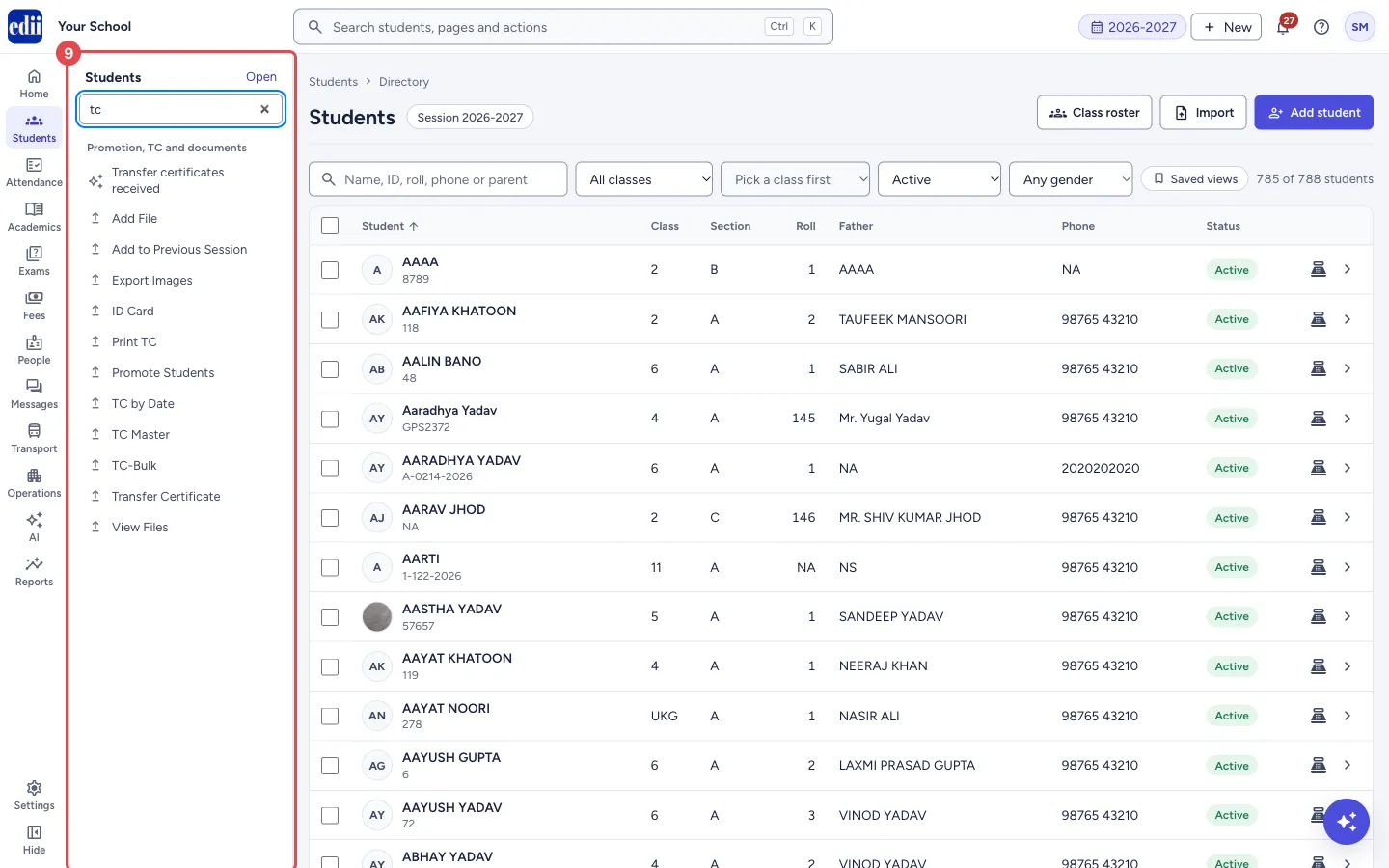
Section titled “3. Filter the panel”Type in Filter pages at the top of the panel to show only the pages whose names match, for example tc.
 Open a bigger pictureतस्वीर बड़ी करें
4. Search everything with Ctrl K
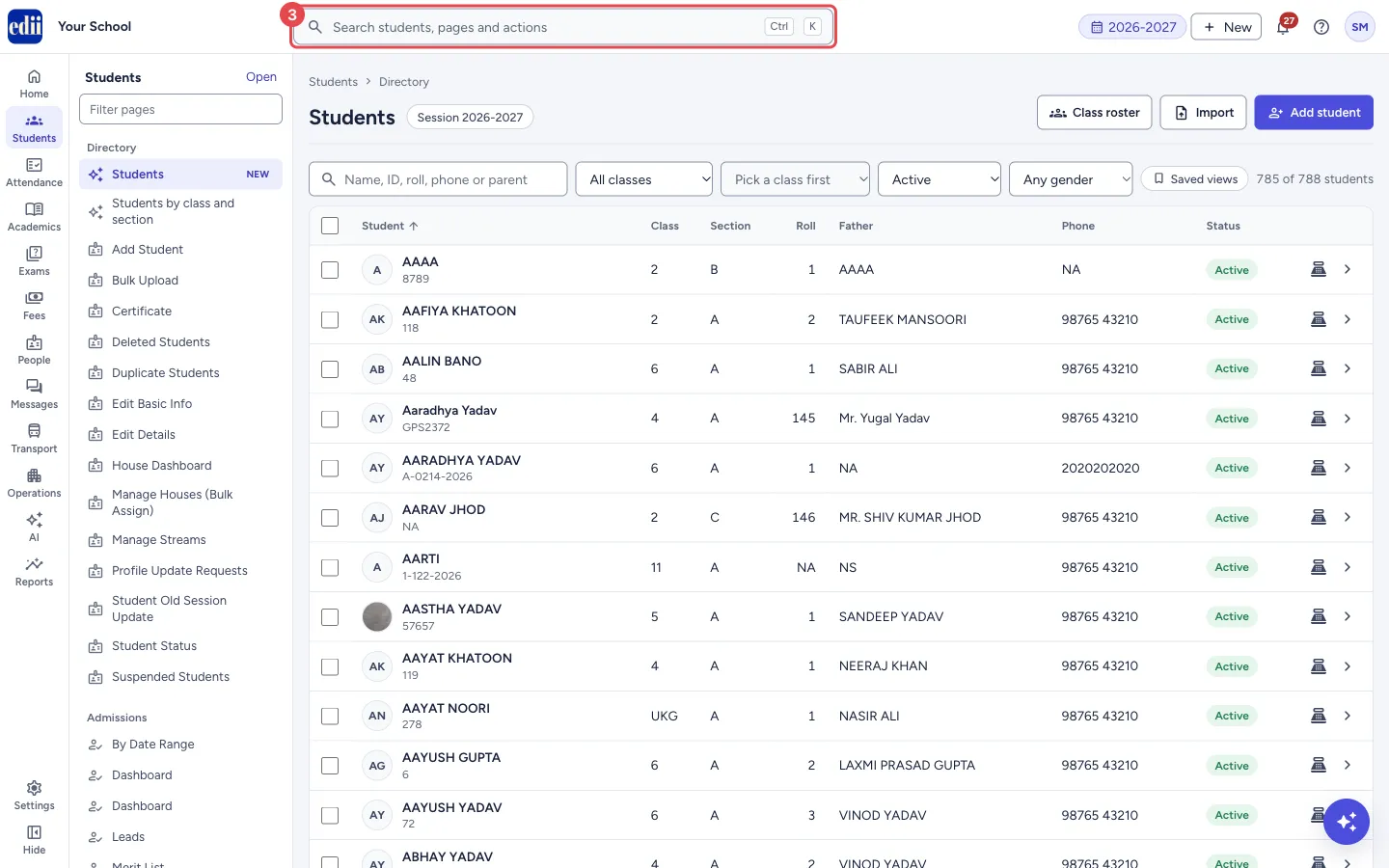
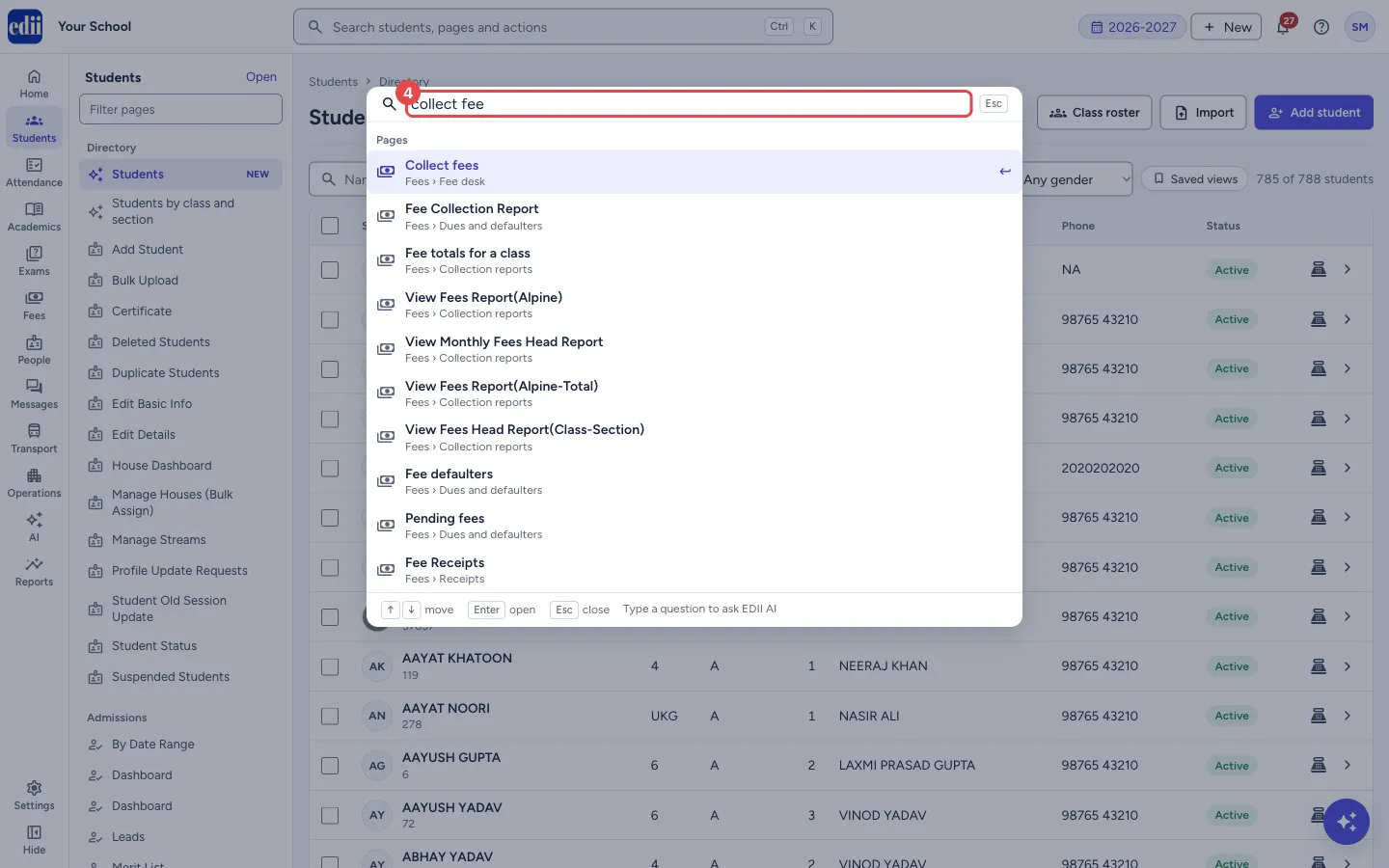
Section titled “4. Search everything with Ctrl K”Select Search students, pages and actions or press Ctrl K (⌘ K on a Mac).
 Open a bigger pictureतस्वीर बड़ी करें
5. Pick a result
Section titled “5. Pick a result”Type a few letters. Results are grouped (students, actions, pages, settings, your favourites and most used). Use the arrow keys and Enter, or select a result. Esc closes the search. If nothing fits, the last option sends your question to EDII AI.
 Open a bigger pictureतस्वीर बड़ी करें
6. Start common tasks from New
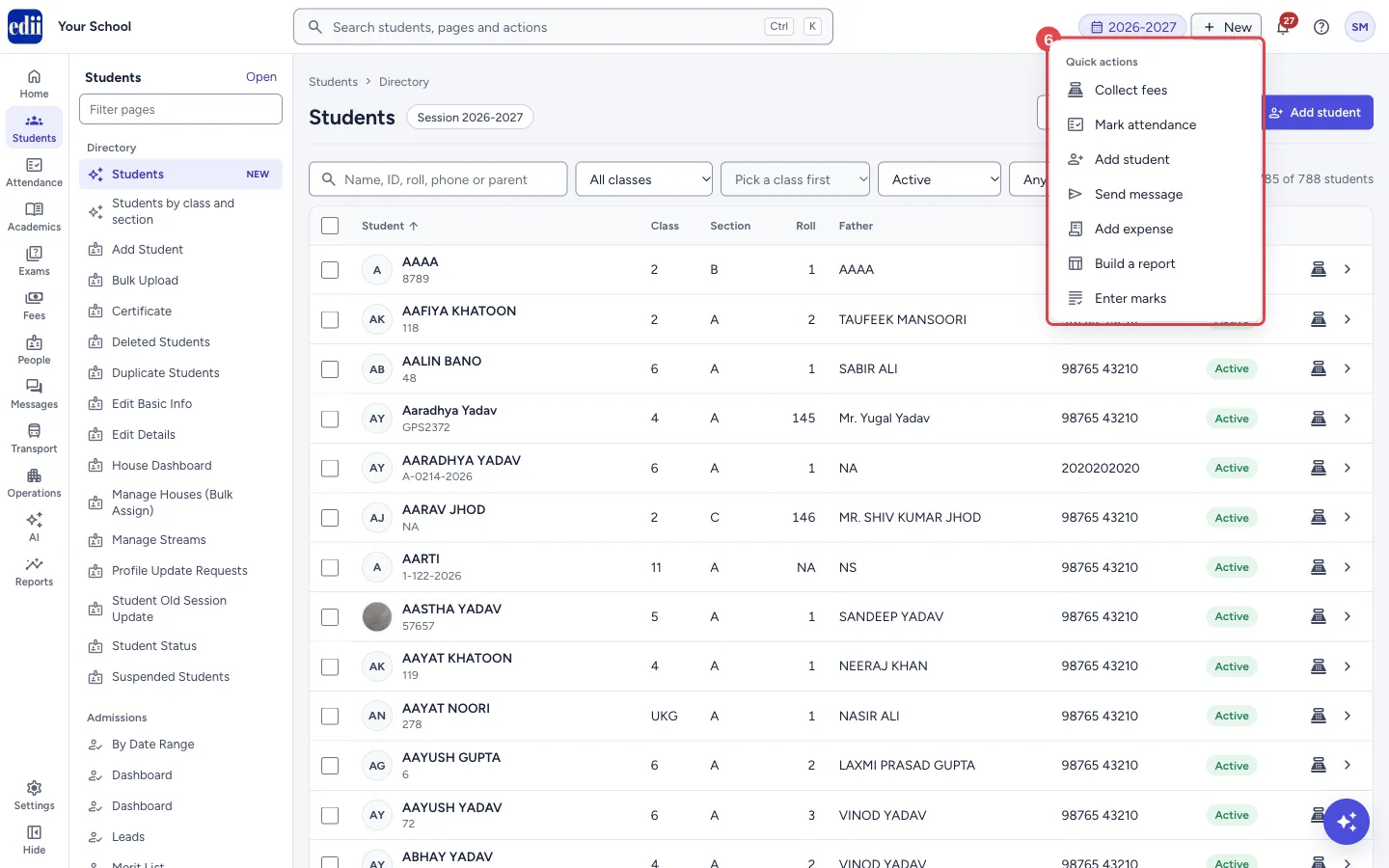
Section titled “6. Start common tasks from New”New at the top opens quick actions: Collect fees, Mark attendance, Add student, Send message, Add expense, Build a report and Enter marks. You only see the ones your role allows.
 Open a bigger pictureतस्वीर बड़ी करें
Good to know
Section titled “Good to know”- The rail, panel and search only show pages your role can open and your school uses.
Stuck? Try this
Section titled “Stuck? Try this”| You see | Why | What to do |
|---|---|---|
| I cannot find a page | Your role does not include it, or your school does not use that part of EDII. | Search with Ctrl K; if it is not there, ask your school admin. |
Did this page help?क्या इस पेज से मदद मिली?
Thanks! Glad it helped.धन्यवाद! अच्छा लगा कि काम बन गया।
Sorry about that. Ask in your own words, or write to us.माफ़ कीजिए। अपने शब्दों में पूछें, या हमें लिखें।