
Screen guide · Web app
TC-Bulk
Issue transfer certificates (TCs) for many students in one go, using the same issuing date and leaving reason for all of them.
यह पेज अंग्रेज़ी में है। कुछ समझ न आए तो ।
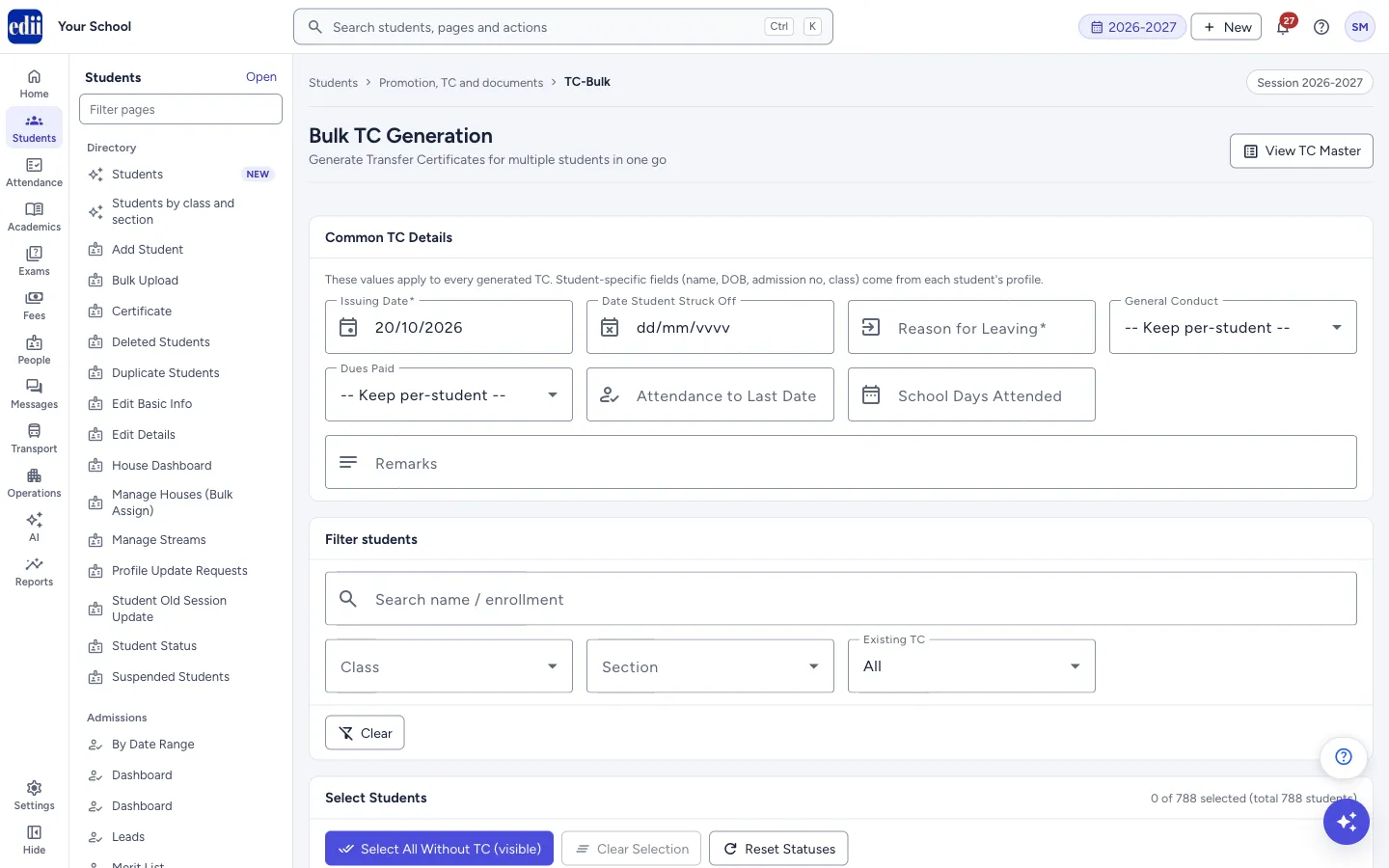
The screen is headed Bulk TC Generation. You fill in the Common TC Details once, choose the students, and select Generate N TCs. EDII then makes a TC for each chosen student, one after another.
Each student’s own details, such as name, date of birth, admission number and class, come from the student’s profile. The common details are the same on every TC.
Generating a TC changes the student’s record. After a TC is made, EDII treats the student as having left: the student is no longer offered in student searches. There is no undo button on this screen. Choose the students with care, and try a small group first.
Who uses it and when
Section titled “Who uses it and when”The office, at the end of the session for a leaving class, or when many students leave together.
Before you start
Section titled “Before you start”- Decide the common values: the issuing date, the reason for leaving, conduct and dues.
- Some schools must approve every TC with a one-time code. For them this screen cannot generate TCs (see the messages below), and each TC must be issued one at a time from the single-student TC screen.
Where to find it
Section titled “Where to find it”- In school.edii.in: Students › Promotion, TC and documents › TC-Bulk
- Or press Ctrl K (⌘ K on a Mac) and type TC-Bulk.
- Address:
school.edii.in/add/add-tc-bulk - Who can see it: Staff whose role includes Students or Attendance access. Shown only when your school uses Student in EDII. If it is missing from your menu, ask your school admin.
 Open a bigger pictureतस्वीर बड़ी करें
Step by step
Section titled “Step by step”1. Fill in the common details
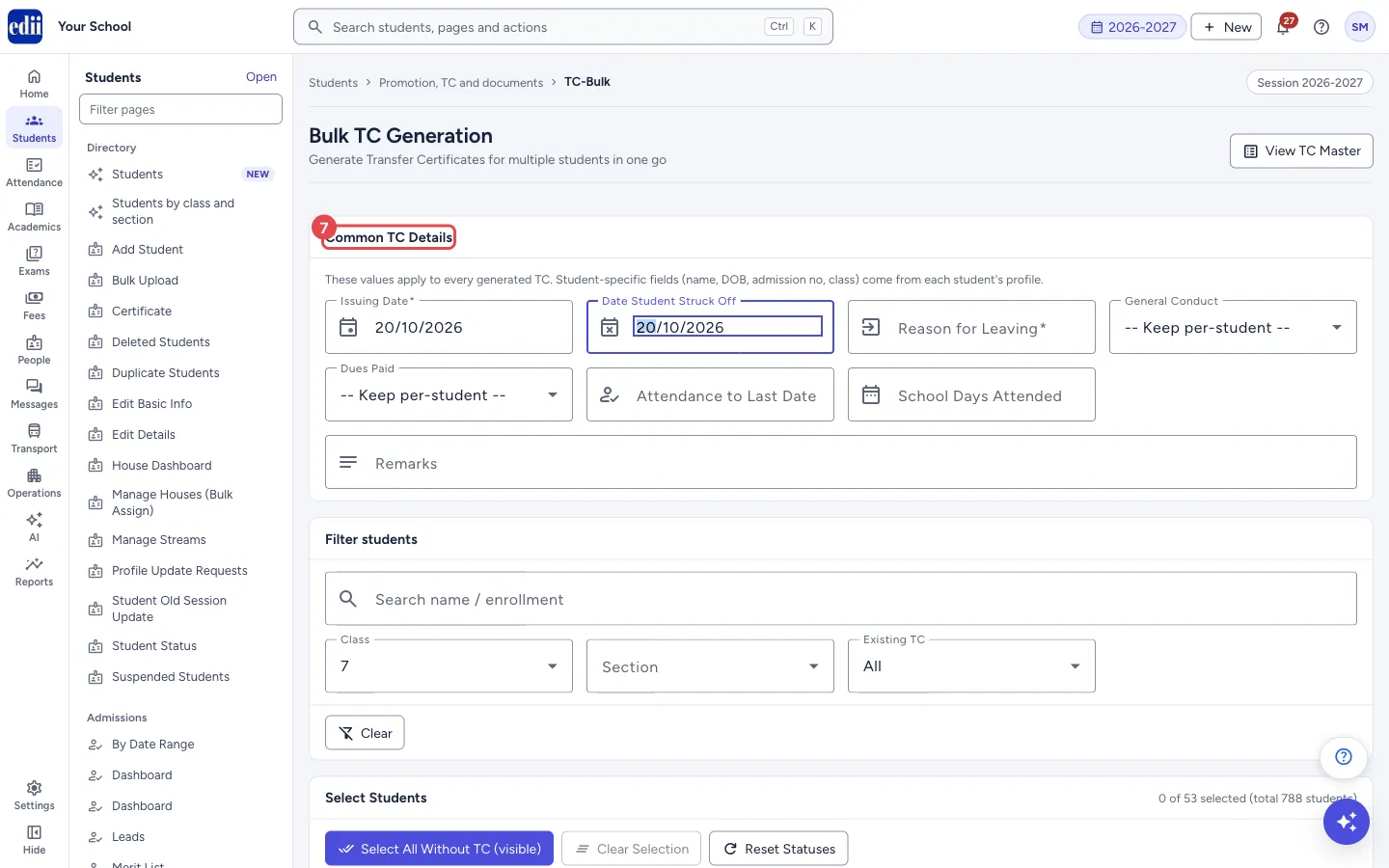
Section titled “1. Fill in the common details”Under Common TC Details, fill in the values that apply to every TC. Issuing Date (today’s date at the start) and Reason for Leaving are required. The others are optional: Date Student Struck Off, General Conduct, Dues Paid, Attendance to Last Date, School Days Attended and Remarks.
For General Conduct and Dues Paid, leave – Keep per-student – if you do not want to set one value for everyone. A detail you leave empty is not changed, so the TC uses the value EDII already has for that student.
 Open a bigger pictureतस्वीर बड़ी करें
2. Filter the students
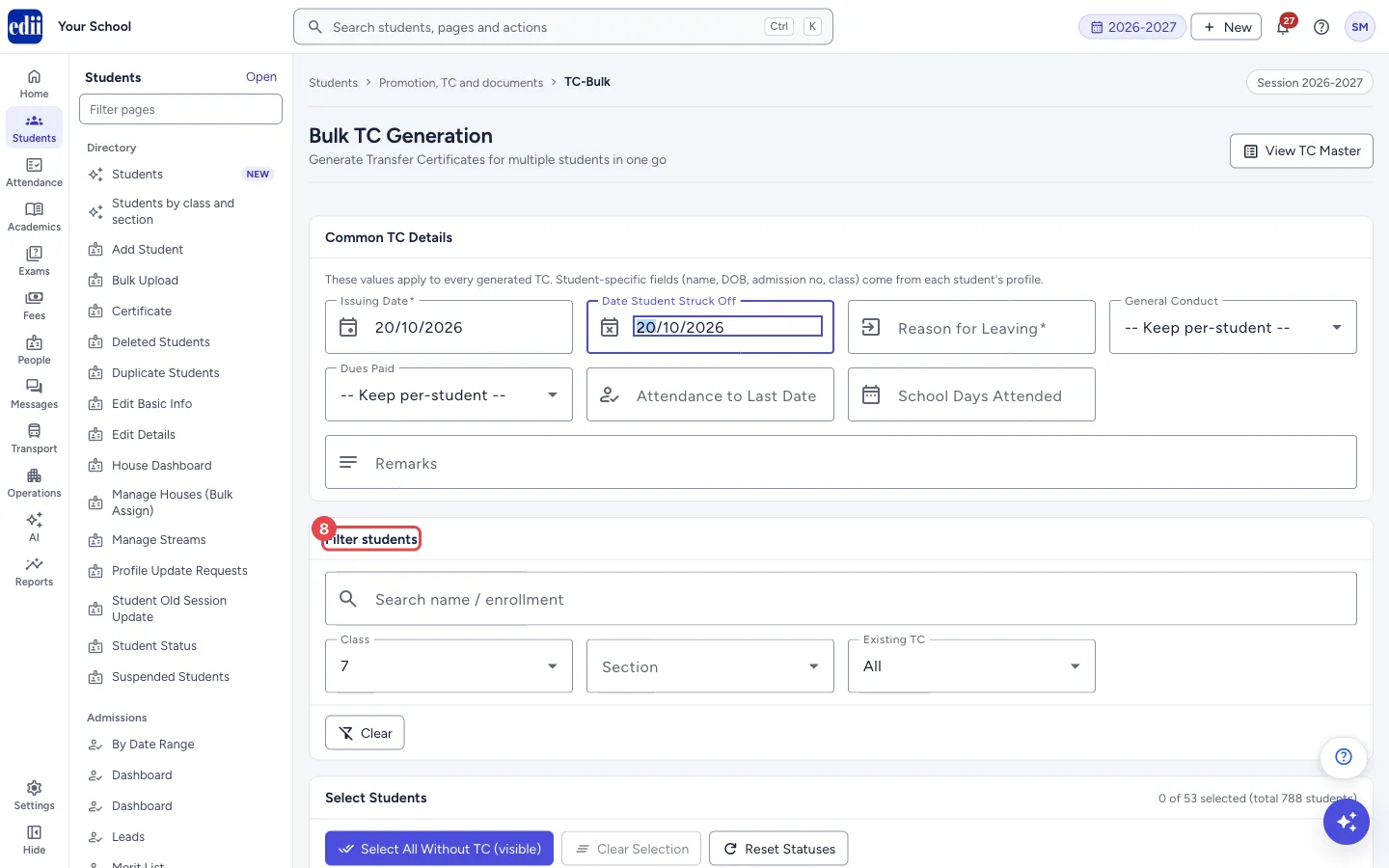
Section titled “2. Filter the students”Under Filter students, narrow the list. Type a name or enrollment number in Search name / enrollment. Choose one or more Class and Section values. In Existing TC, choose All, Without TC or With TC already.
Clear removes all the filters. Choose Without TC to avoid making a second TC for a student who already has one.
 Open a bigger pictureतस्वीर बड़ी करें
3. Select the students
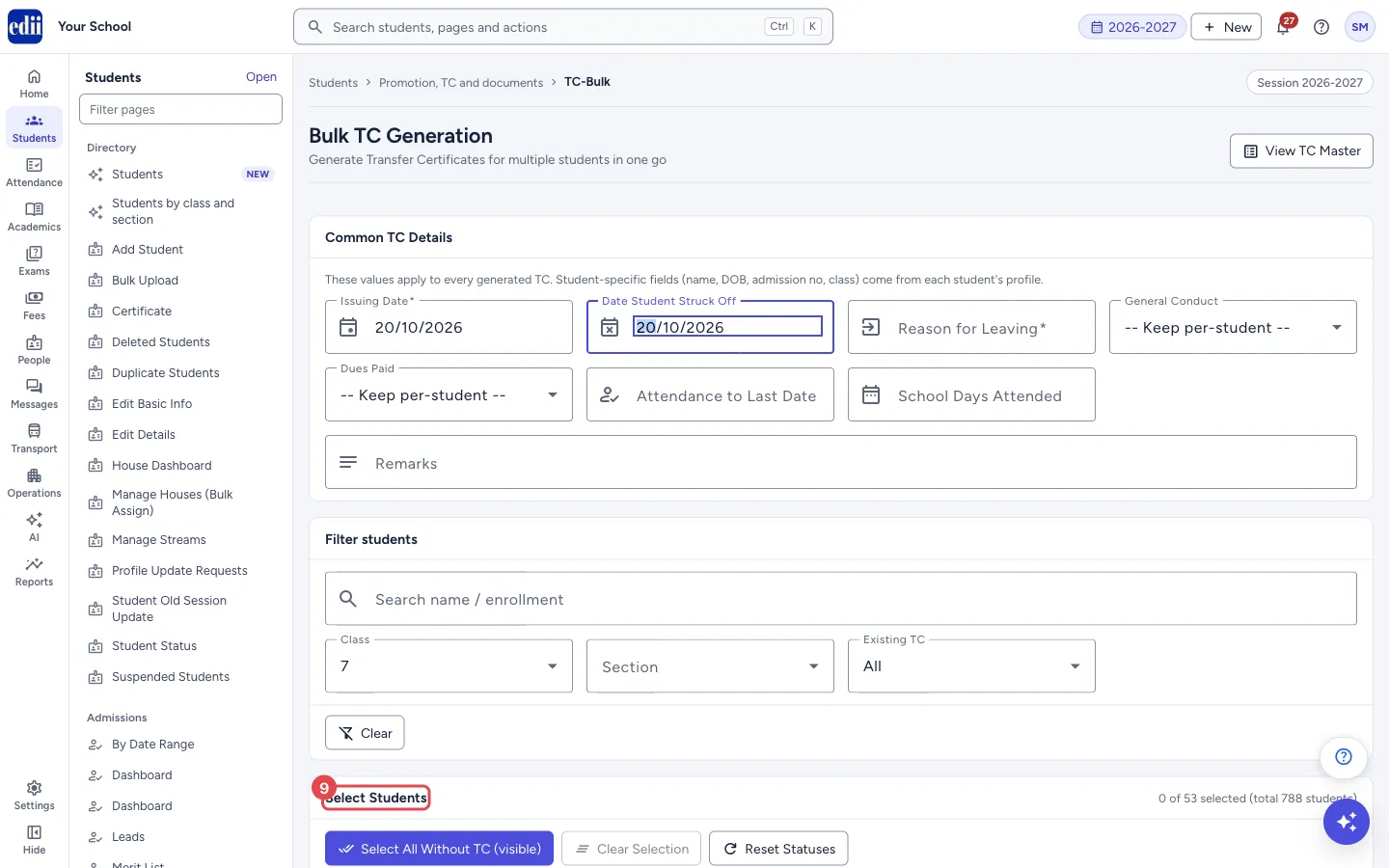
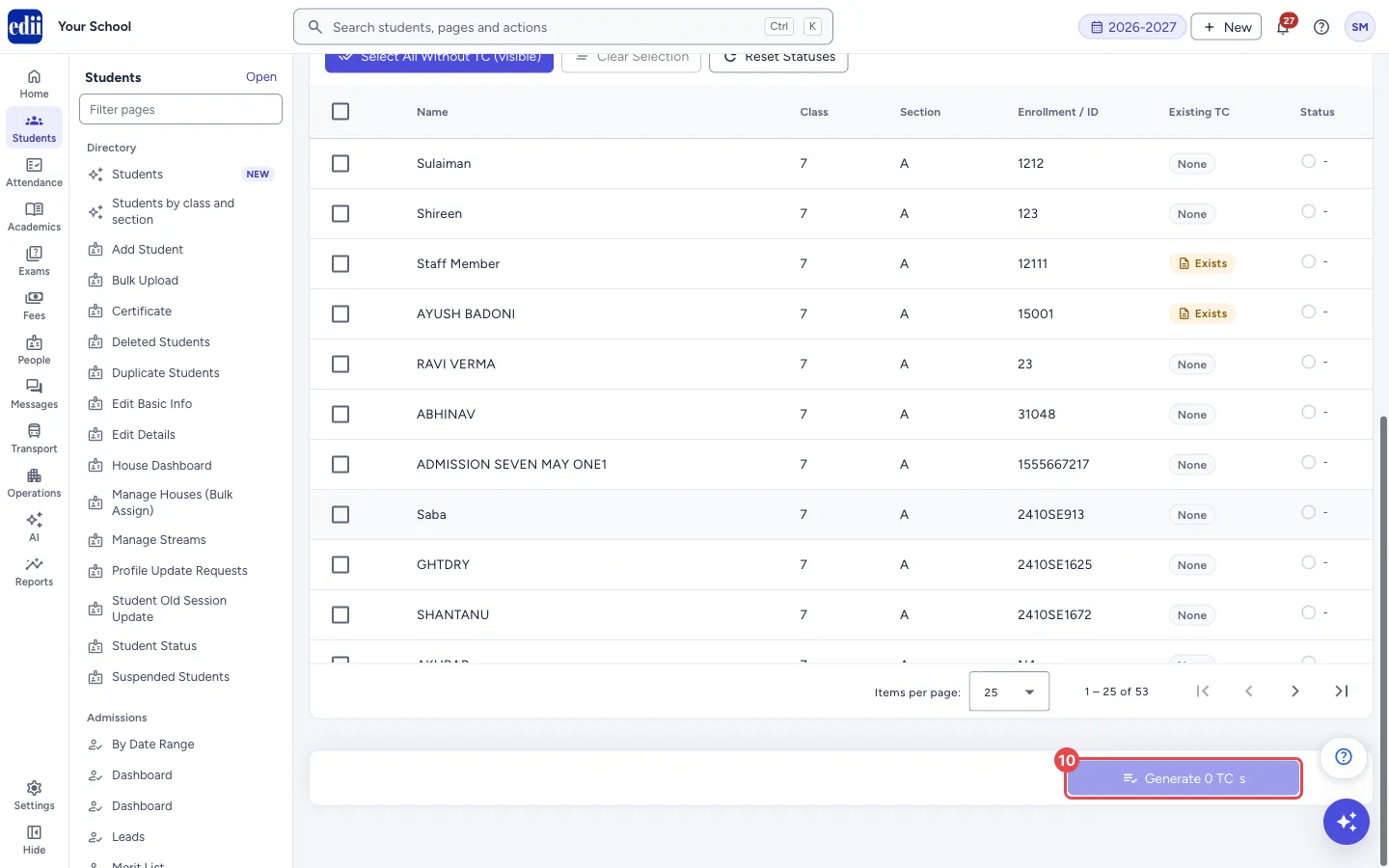
Section titled “3. Select the students”Under Select Students, tick the students. The box in the header row ticks every student that matches the filters, on all pages. Select All Without TC (visible) ticks every student who matches the filters and has no TC yet. Clear Selection unticks all.
The line at the top right, for example “0 of 53 selected (total 788 students)”, shows the count. The Existing TC column shows None or Exists.
 Open a bigger pictureतस्वीर बड़ी करें
4. Generate
Section titled “4. Generate”Select Generate N TCs. A box titled Generate TCs? asks “Generate TC for N student(s)? Existing TCs will be overwritten on the server if the same student already has one.” Select Generate to go on or Cancel to stop.
The button is greyed out until at least one student is ticked and both Issuing Date and Reason for Leaving are filled in.
 Open a bigger pictureतस्वीर बड़ी करें
5. Watch the progress
Section titled “5. Watch the progress”The bar at the bottom shows how many are done, for example 5 / 20, with the count of successes and failures. Each row’s Status shows Processing, Success or Failed. A failed row shows the reason next to it. Stay on the page until all are done.
At the end, a message tells you the result. Reset Statuses clears the Status marks. View TC Master opens the list of issued TCs, so you can check them.
Fields and filters
Section titled “Fields and filters”| Field | What it is | Notes |
|---|---|---|
| Issuing Date | The date printed as the issue date on every TC. | Required. Today’s date at the start. |
| Date Student Struck Off | The date the students were struck off the roll. | Optional. |
| Reason for Leaving | Why the students are leaving, for example Session completed or Shifting. | Required. |
| General Conduct | Conduct written on every TC. | Excellent, Very Good, Good, Satisfactory, Needs Improvement, or – Keep per-student –. |
| Dues Paid | Whether dues are paid, written on every TC. | Yes, No, or – Keep per-student –. |
| Attendance to Last Date | A number written on every TC. | Optional. Numbers only. |
| School Days Attended | A number written on every TC. | Optional. Numbers only. |
| Remarks | A note written on every TC. | Optional. |
| Search name / enrollment | Shows only students whose name, enrollment number or ID contains your text. | Filter. |
| Class / Section | Shows only students of the chosen classes and sections. | Many can be chosen. |
| Existing TC | Shows all students, only those without a TC, or only those who already have one. | Default: All. |
Buttons
Section titled “Buttons”| Button | What it does | What happens next |
|---|---|---|
| View TC Master | Opens the list of issued TCs. | You leave this page. |
| Clear | Removes the search, class, section and existing-TC filters. | All students show again. Ticked students who are still visible stay ticked. |
| Select All Without TC (visible) | Ticks every student in the filtered list who has no TC. | The count at the top right goes up. |
| Clear Selection | Unticks all students. | Nothing is generated. |
| Reset Statuses | Clears the Status marks and the progress bar. | No TC is removed. |
| Generate N TCs | Makes a TC for each ticked student after you confirm. | TCs are made one by one. A student whose TC is made is treated as having left. A TC that already exists for the student is overwritten. |
Columns
Section titled “Columns”| Column | Meaning |
|---|---|
| Name | The student’s name. |
| Class / Section | The student’s class and section. |
| Enrollment / ID | The enrollment number, or the ID number when there is none. A dash shows when there is neither. |
| Existing TC | None when the student has no TC for the session. Exists when a TC is already there. |
| Status | A dash before generating. Then Processing, Success or Failed, with the reason for a failure. |
After you save
Section titled “After you save”- A TC is created for each student that succeeded, with the common details you entered. The students are then treated as having left, and student searches no longer offer them.
- Students that failed are listed with the reason. Fix the cause, tick only those students and generate again.
- The new TCs show in TC Master.
Good to know
Section titled “Good to know”- Issuing Date and Reason for Leaving are required.
- Generating a TC for a student who already has one replaces the old TC.
- The students listed are the students of your school’s student list. The Existing TC column and filter use the TCs of the session you are working in.
- In schools that need an approval code for each TC, bulk generation is switched off.
Messages you may see
Section titled “Messages you may see”| Message | What it means | What to do |
|---|---|---|
| This school requires an approval OTP for each Transfer Certificate. Please issue TCs one at a time from the single-student TC screen. | Your school approves each TC with a one-time code. It shows when you open this page. In this case Generate stays disabled. | Issue each TC from the single-student TC screen. |
| Select at least one student | Nobody is ticked. The title is No selection. | Tick students. |
| Issuing Date is required | The issuing date is empty. | Choose a date. |
| Reason for Leaving is required (backend rejects empty reason) | The reason is empty. | Type the reason. |
| Generate TC for N student(s)? Existing TCs will be overwritten on the server if the same student already has one. | Asked in the box Generate TCs? before anything is made. | Select Generate only if the list is right. |
| Generated N TC(s) | All the TCs were made. | Open TC Master to check. |
| Succeeded: N, Failed: M. First error: … | Some TCs were made and some were not. The title is Completed with errors. Only the first error is shown here, so look at the Status column for each student. | Fix the cause, tick the failed students and generate again. |
| Could not load existing TCs — duplicates may not be flagged | The list of existing TCs did not load, so the Existing TC column shows None for everyone. | Reload the page before you generate. |
- Filter by Existing TC > Without TC, then use Select All Without TC (visible).
- Make the TCs of one small class first and check them in TC Master.
Stuck? Try this
Section titled “Stuck? Try this”| Problem | Likely cause | What to do |
|---|---|---|
| Generate is greyed out | No student is ticked, or the issuing date or reason is empty, or your school needs an approval code for each TC. | Tick students, fill the two required details, or issue the TCs one at a time. |
| A TC I made is wrong | The common details were not right. | Open TC Master and use Edit on that TC. |
Did this page help?क्या इस पेज से मदद मिली?
Thanks! Glad it helped.धन्यवाद! अच्छा लगा कि काम बन गया।
Sorry about that. Ask in your own words, or write to us.माफ़ कीजिए। अपने शब्दों में पूछें, या हमें लिखें।