
Screen guide · Web app
Leave Applications
Review the leave requests that parents send from the app for their children, read the details, and approve or reject each one.
यह पेज अंग्रेज़ी में है। कुछ समझ न आए तो ।
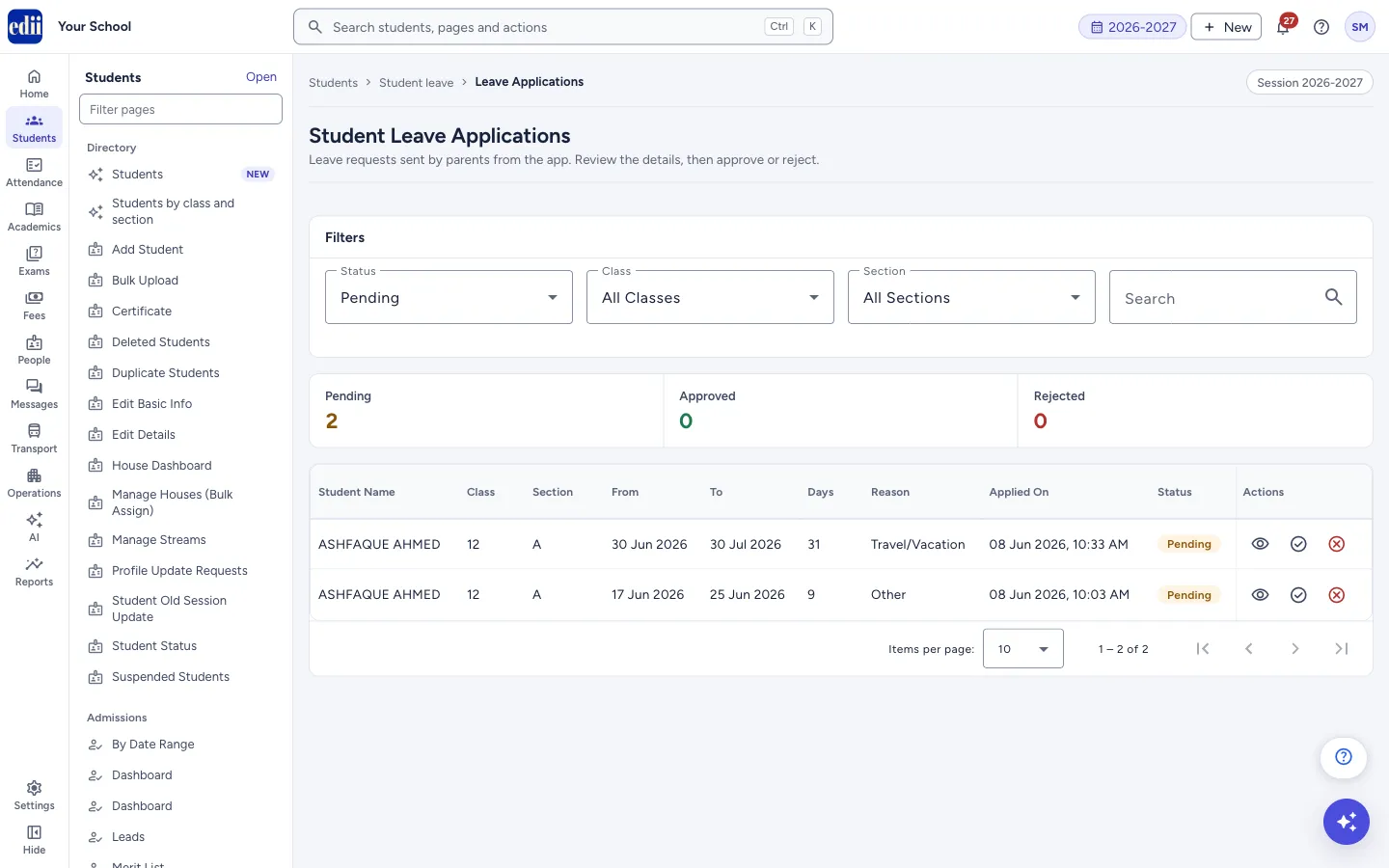
The screen is headed Student Leave Applications. It lists the leave requests sent by parents from the app, with the student, class and section, the dates, the number of days, the reason, the day it was applied and its status.
It opens on Pending, so you see what still needs a decision. Open an application to read it, then approve or reject it. Your decision is saved with the application and shows in its Status.
Who uses it and when
Section titled “Who uses it and when”Class teachers or the office, each morning, to decide the pending requests.
Before you start
Section titled “Before you start”- Applications appear here only after a parent sends them from the app.
Where to find it
Section titled “Where to find it”- In school.edii.in: Students › Student leave › Leave Applications
- Or press Ctrl K (⌘ K on a Mac) and type Leave Applications.
- Address:
school.edii.in/view/view-student-leave-applications - Who can see it: Staff whose role includes Students or Attendance access. Shown only when your school uses Student in EDII. If it is missing from your menu, ask your school admin.
 Open a bigger pictureतस्वीर बड़ी करें
Step by step
Section titled “Step by step”1. Choose what to list
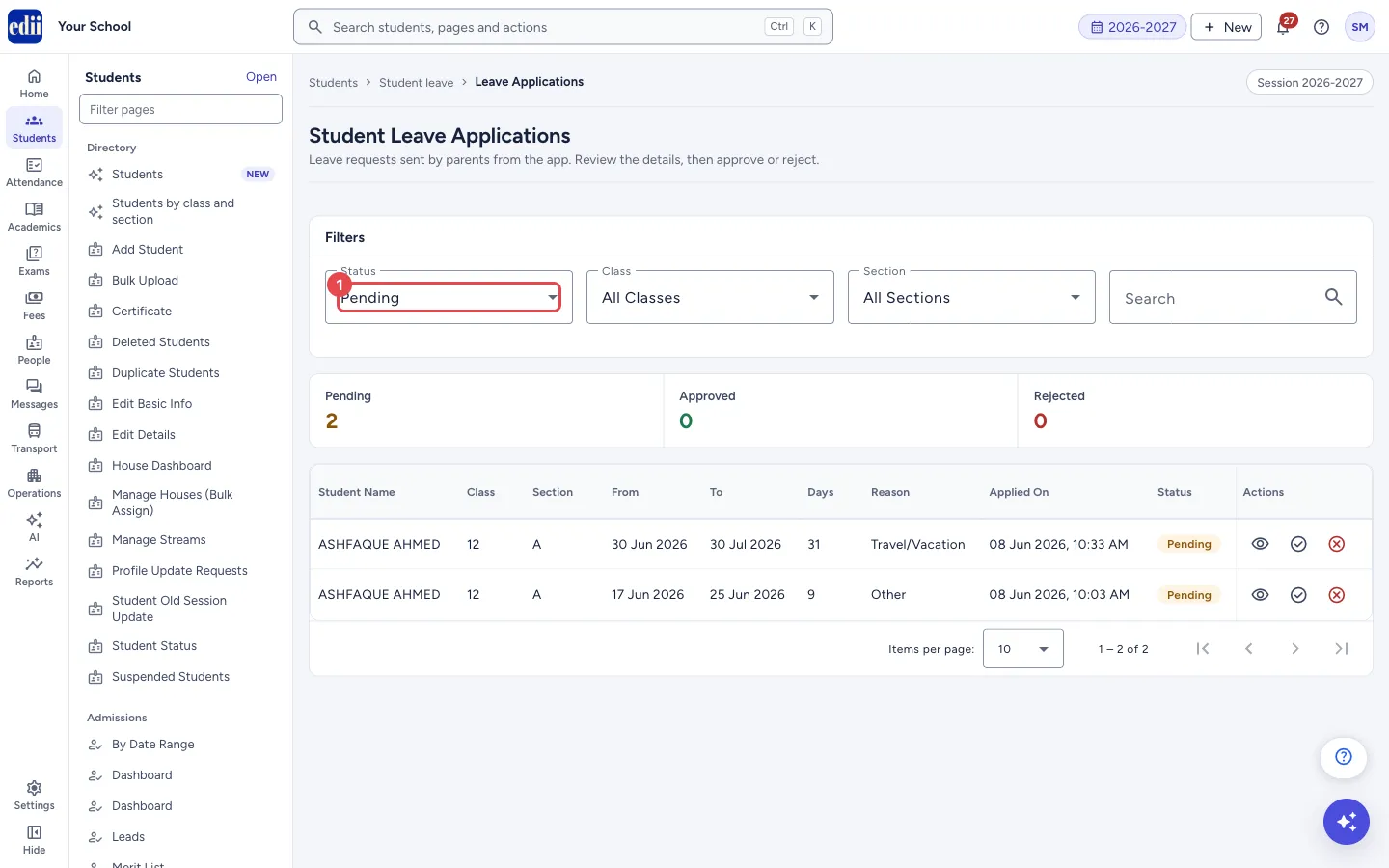
Section titled “1. Choose what to list”In Status, choose All, Pending, Approved or Rejected. The screen opens on Pending. In Class and Section, choose one, or leave All Classes and All Sections. The list loads again each time you change one of these.
 Open a bigger pictureतस्वीर बड़ी करें
2. Find a student
Section titled “2. Find a student”Type in Search to find a student by name in the list on the screen. Select a column heading to sort by it. Use Items per page at the bottom to show 10, 25, 50 or 100 rows.
3. Read the application
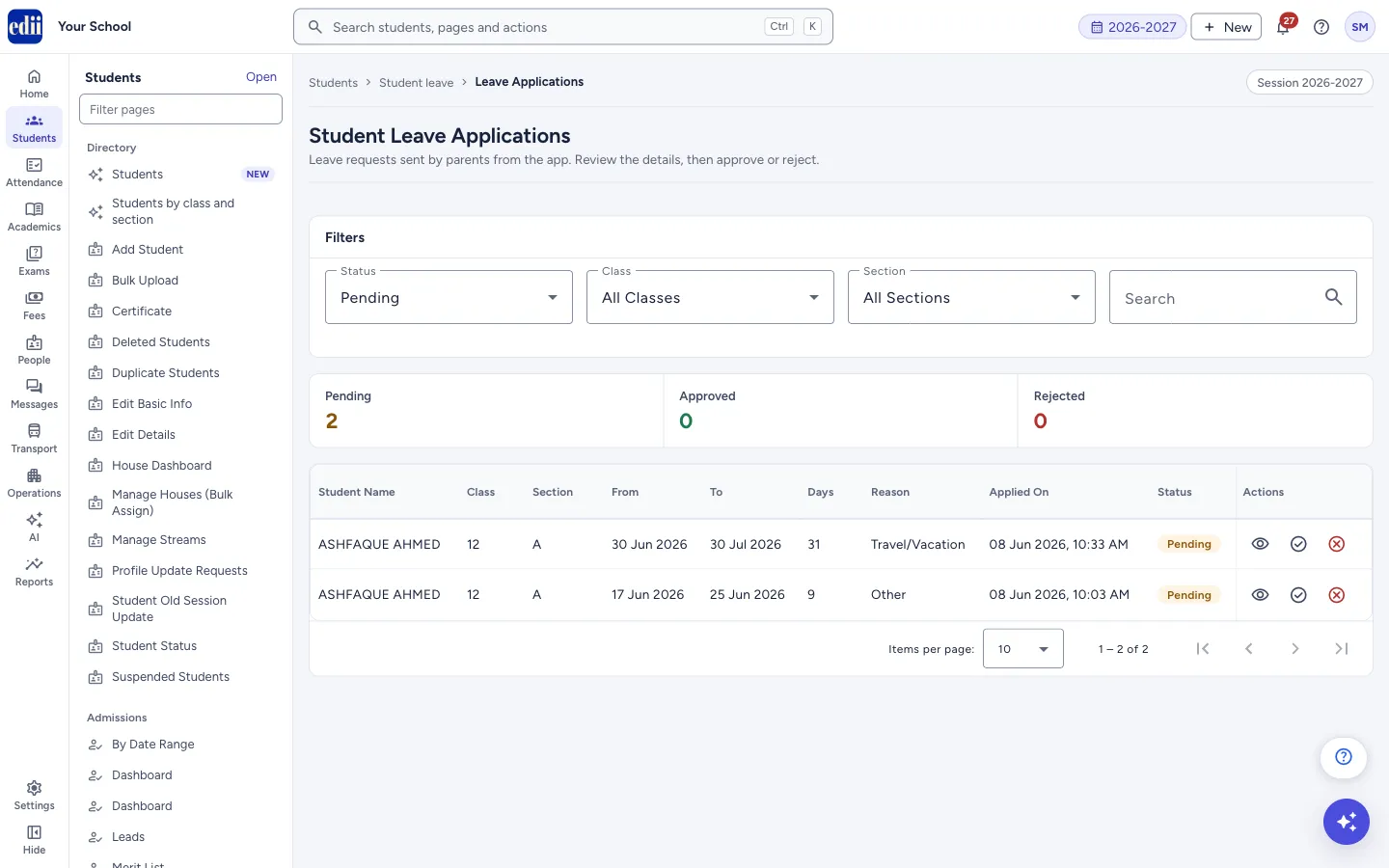
Section titled “3. Read the application”Select the eye icon (View Details) on the row. The window Leave Application Details shows the student, class and section, the date range, the total days, the reason, any details the parent typed, when it was applied and its status. After a decision it also shows the review remarks and who reviewed it.
If the parent attached a file, a paperclip icon (View Attachments) also shows on the row. Select it to open the files.
 Open a bigger pictureतस्वीर बड़ी करें
4. Approve or reject
Section titled “4. Approve or reject”On a pending row, select the tick (Approve) or the cross (Reject). A window asks for your decision. It repeats the student, class, dates, days and reason.
For Approve you can add Approval Comments (Optional). The window also warns: “Approving this leave will mark the student as absent for the selected dates.” For Reject type the Reason for Rejection.
Select Approve or Reject in the window to confirm, or Cancel to stop. The message “Leave application approved successfully” or “Leave application rejected successfully” shows and the list loads again.
Fields and filters
Section titled “Fields and filters”| Field | What it is | Notes |
|---|---|---|
| Status | Shows applications of one status. | All, Pending, Approved, Rejected. Default: Pending. |
| Class | Shows applications of one class. | Default: All Classes. |
| Section | Shows applications of one section. | Default: All Sections. |
| Search | Filters the rows on the screen by name. | Type part of a student’s name. |
| Approval Comments (Optional) / Reason for Rejection | A note saved with your decision. | In the decision window. |
Buttons
Section titled “Buttons”| Button | What it does | What happens next |
|---|---|---|
| View Details (eye) | Opens the full application. | A read-only window opens. Select Close to leave it. |
| View Attachments (paperclip) | Opens the files the parent attached. | A viewer opens. The icon shows only when there are files. |
| Approve (tick) | Opens the window to approve the application. | The application is approved only after you select Approve in that window. |
| Reject (cross) | Opens the window to reject the application. | The application is rejected only after you select Reject in that window. |
Columns
Section titled “Columns”| Column | Meaning |
|---|---|
| Student Name | The student the leave is for. |
| Class / Section | The student’s class and section. |
| From / To | The first and last day of leave. |
| Days | The number of days applied for. |
| Reason | One of: Medical/Health Issue, Family Emergency, Personal Reason, Religious Occasion, Travel/Vacation, Other. |
| Applied On | The day and time the parent applied. |
| Status | Pending, Approved or Rejected. |
| Actions | The icons to view, open attachments, approve or reject. Approve and reject show only for pending applications. |
After you save
Section titled “After you save”- The application’s status changes to Approved or Rejected, and the remarks you typed are saved with it.
- The counts at the top (Pending, Approved, Rejected) are counted from the applications shown on the screen.
Good to know
Section titled “Good to know”- Only pending applications can be approved or rejected.
- The Pending, Approved and Rejected counts are of the list on the screen, so with Pending chosen the other two may show 0. Choose All to see all three.
- Check the dates before you approve. The approval window says the student will be marked absent for those dates.
Messages you may see
Section titled “Messages you may see”| Message | What it means | What to do |
|---|---|---|
| No leave applications found | No application matches the status, class and section chosen. | Choose All in Status, or another class or section. |
| Leave application approved successfully | The application was approved. The title is Success!. | Nothing to do. |
| Leave application rejected successfully | The application was rejected. | Nothing to do. |
| Error processing leave application | The decision could not be saved. | Check the internet and try again. |
| Error loading leave applications | The list could not be loaded. | Check the internet and open the page again. |
| No attachments available | The application has no files. | Nothing to do. |
- Open the attachment before you approve a long medical leave.
- Give a reason when you reject, so the parent can see why.
Stuck? Try this
Section titled “Stuck? Try this”| Problem | Likely cause | What to do |
|---|---|---|
| The list is empty | No parent has applied, or the chosen status has none. | Choose All in Status, or check again later. |
Did this page help?क्या इस पेज से मदद मिली?
Thanks! Glad it helped.धन्यवाद! अच्छा लगा कि काम बन गया।
Sorry about that. Ask in your own words, or write to us.माफ़ कीजिए। अपने शब्दों में पूछें, या हमें लिखें।