
Screen guide · Web app
View Job Fees
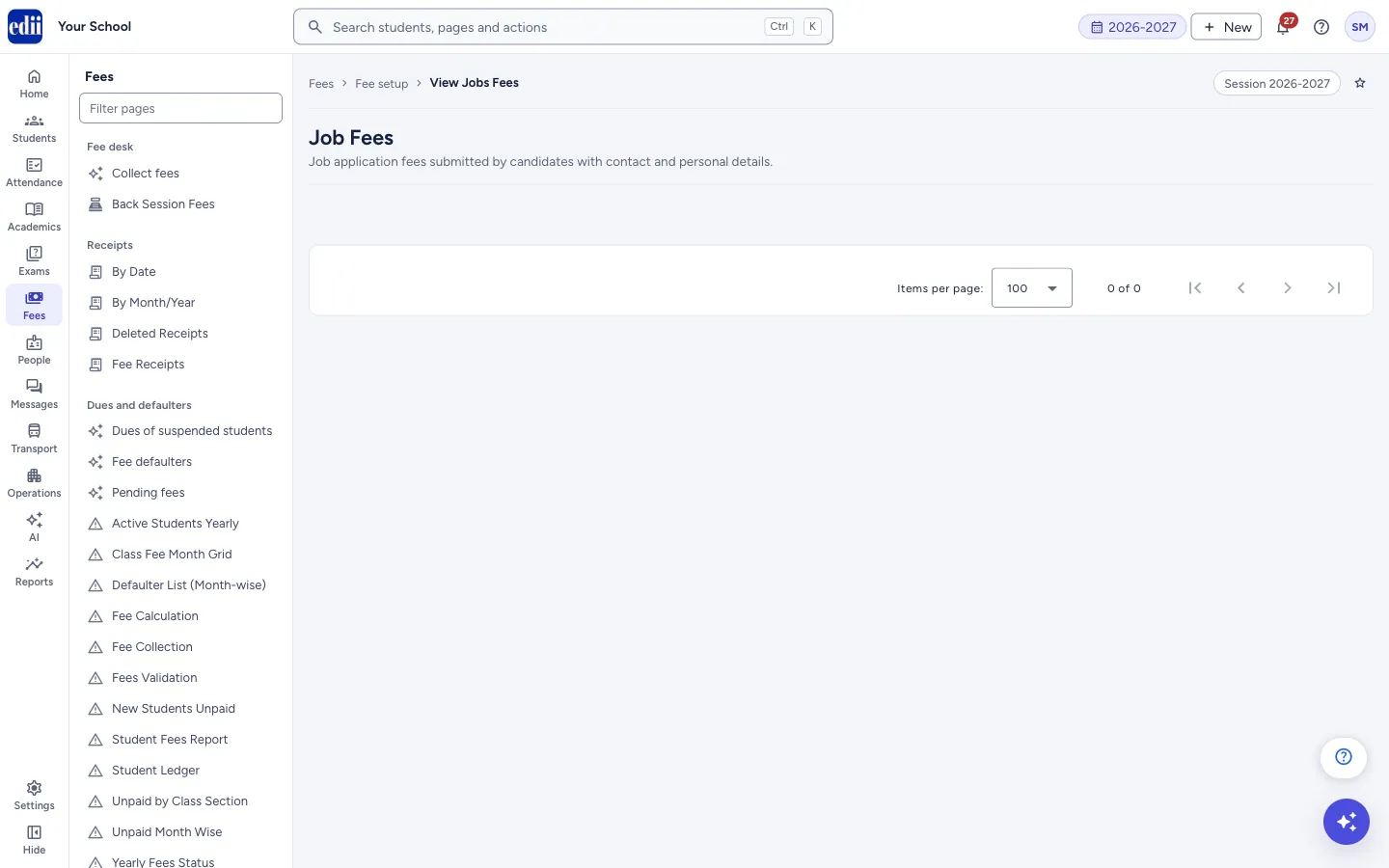
The list of job application fees recorded for the open session, with a receipt, edit and delete option for each row.
यह पेज अंग्रेज़ी में है। कुछ समझ न आए तो ।
View Job Fees (the page is titled Job Fees) lists every job application fee recorded in Add Job Fees for the session that is open in EDII. Each row is one applicant: name, date, e-mail, subject, form number, phone number, father’s name, designation and the fee.
From the Action column of a row you can print a receipt, correct the details or delete the row.
Who uses it and when
Section titled “Who uses it and when”The school office uses it to check which applicants have paid, to give a receipt, or to correct a wrong entry.
Before you start
Section titled “Before you start”- Job fees must have been recorded in Add Job Fees in the open session. When there are none, EDII shows the message No Job Fees Found and the table does not appear.
Where to find it
Section titled “Where to find it”- In school.edii.in: Fees › Fee setup › View Job Fees
- Or press Ctrl K (⌘ K on a Mac) and type View Job Fees.
- Address:
school.edii.in/view/view-job-fee - Who can see it: Staff whose role includes Fees or Messages or Leave or Meetings access. Shown only when your school uses Finance and HR and Calendar in EDII. If it is missing from your menu, ask your school admin.
 Open a bigger pictureतस्वीर बड़ी करें
Step by step
Section titled “Step by step”1. Open the page and look at the list
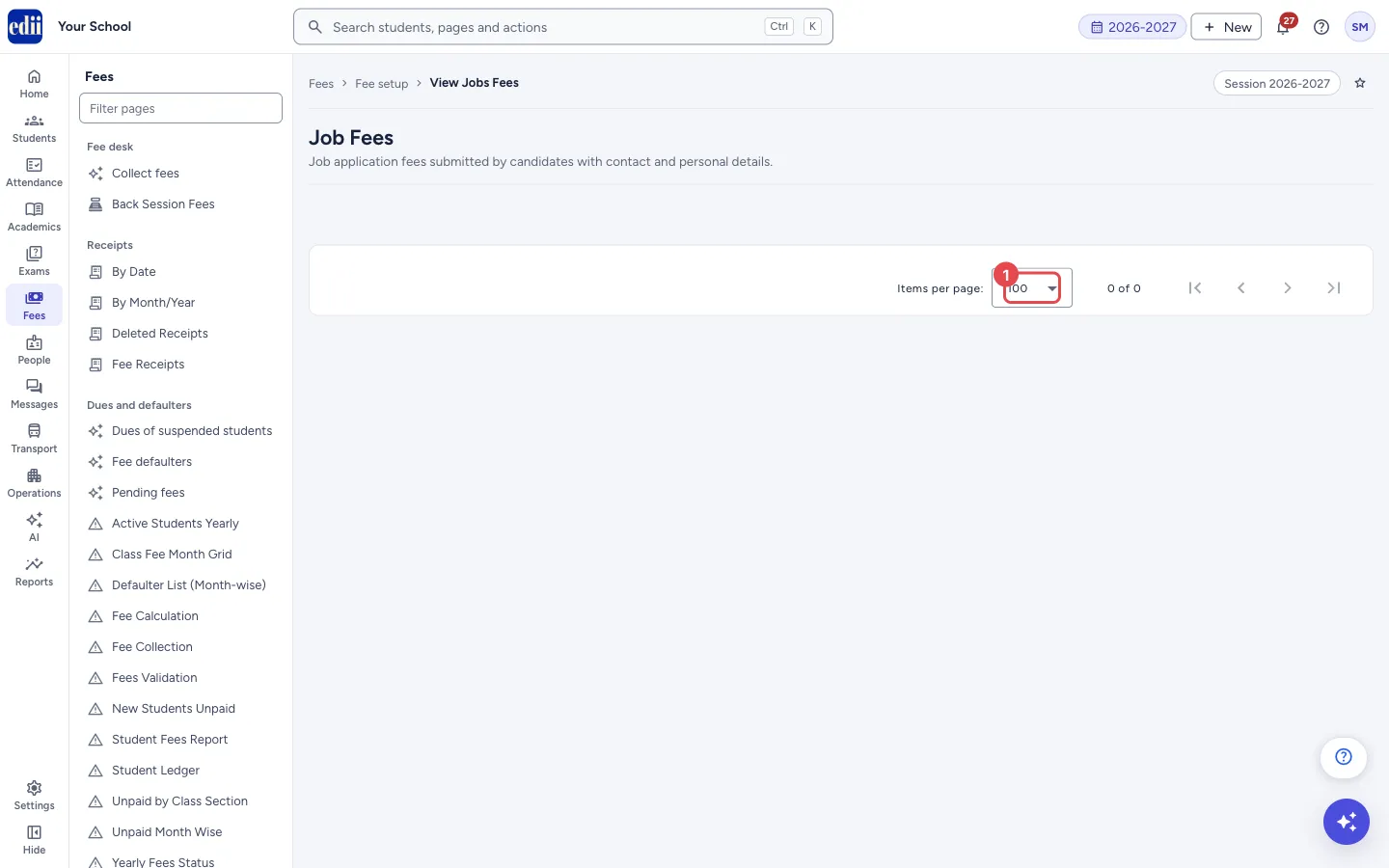
Section titled “1. Open the page and look at the list”The list loads by itself. Above it are a Search… box, a Columns box and a print button. When the session has no job fees, only the page-size bar at the bottom shows, with 0 of 0.
 Open a bigger pictureतस्वीर बड़ी करें
2. Find an applicant
Section titled “2. Find an applicant”Type in Search… to keep only the rows that contain what you typed. Select a column heading to sort by it.
3. Choose the columns
Section titled “3. Choose the columns”Open Columns and tick the columns you want. Select All ticks every column. EDII remembers your choice for this page on this computer.
4. Print a receipt
Section titled “4. Print a receipt”In the Action column, point to the menu button of the row and choose Receipt. A window shows the receipt with the date, the school name, the form number, the applicant’s name, subject and father’s name, and the fee as Entrance Fee with a Grand Total. Select Print to print it, or Cancel to close it.
5. Correct a row
Section titled “5. Correct a row”Choose Edit in the Action menu. The window Edit Job Fee Details shows the name, father’s name, subject, fee, designation, e-mail, contact number and form number. Change what is wrong and select Submit. The message Jobs Detail Updated! shows and the list reloads. The date cannot be changed here.
A job fee saved with Paid by (Cash, UPI, Chq/DD or Card) in Add Job Fees is counted in the Day Book. After that its amount cannot be changed here: if you change Fee and select Submit, the message Delete and re-enter the job fee to change the amount shows, titled Error in Updating!, and nothing is saved. The other details can still be changed. To change the amount, delete the row and record the job fee again in Add Job Fees.
6. Delete a row
Section titled “6. Delete a row”Choose Delete in the Action menu. EDII asks Are You Sure You Want To Delete The Selected Job ! and warns This Action Is Irreversible. Select Delete to remove the row, or Cancel to keep it. The message Jobs Detail Deleted! shows and the list reloads.
Deleting a job fee also takes it out of the Day Book.
7. Print or download the list
Section titled “7. Print or download the list”Select the print button to open the menu: Print prints the table with the report date, the school name and the school logo, and Download Excel File, Download Text File and Download CSV File save the table to your computer. At the bottom you can choose to see 100, 200, 300, 400, 500 or 1000 rows on a page.
Buttons
Section titled “Buttons”| Button | What it does | What happens next |
|---|---|---|
| Receipt | Opens a printable receipt for the row. | A window with the receipt and the buttons Print and Cancel. |
| Edit | Opens the details of the row for correction. | After Submit, the list reloads. |
| Delete | Removes the row after you confirm. | The list reloads without the row. |
| Print button | Opens a menu with Print and the three download choices. | Print opens the print window. Each download saves a file. |
Columns
Section titled “Columns”| Column | Meaning |
|---|---|
| Action | A menu for the row: Receipt, Edit, Delete. It is not printed. |
| S.No | The serial number of the row on the list. |
| Name | The applicant’s name. |
| Date | The job date entered in Add Job Fees. |
| The applicant’s e-mail address. | |
| Subject | The subject the applicant applied for. |
| Form No | The number on the applicant’s form. |
| Contact No | The applicant’s phone number. The column choice calls it Ph No. |
| Father Name | The father’s or husband’s name. |
| Job Fee | The application fee, in rupees. |
| Designation | The post applied for. |
Good to know
Section titled “Good to know”- Deleting a job fee cannot be undone. EDII shows the warning This Action Is Irreversible before it deletes.
- Only the fees of the session open in EDII are listed.
- The receipt shows the fee under the name Entrance Fee.
- A job fee saved with Paid by (Cash, UPI, Chq/DD or Card) in Add Job Fees is counted in the Day Book. Once it is counted, its amount cannot be changed in Edit; the other details can.
- Deleting a job fee takes it out of the Day Book.
Messages you may see
Section titled “Messages you may see”| Message | What it means | What to do |
|---|---|---|
| No Job Fees Found | The open session has no job fee. The title of this notice is No Job Fees Found. | Check the session at the top right, or record fees in Add Job Fees. |
| Jobs Detail Updated! | The edit was saved. | Nothing to do. |
| Delete and re-enter the job fee to change the amount | You changed the Fee of a job fee that is already counted in the Day Book. The title of this message is Error in Updating! Nothing was saved. | Put the old amount back to save the other changes. To change the amount, delete the row and record the job fee again in Add Job Fees. |
| Jobs Detail Deleted! | The row was deleted. | Nothing to do. |
| Network Issue, Please Try Again. | The request did not reach EDII. | Check the internet and try again. |
- Use Receipt to give the applicant a printed proof of payment.
Stuck? Try this
Section titled “Stuck? Try this”| Problem | Likely cause | What to do |
|---|---|---|
| I cannot see the Action menu | The Action column is not ticked in Columns, or the mouse is not over the menu button of the row. | Tick Action in Columns, then point to the menu button of the row. |
| A fee I recorded is not in the list | It was recorded in another session. | Change the session at the top right. |
Did this page help?क्या इस पेज से मदद मिली?
Thanks! Glad it helped.धन्यवाद! अच्छा लगा कि काम बन गया।
Sorry about that. Ask in your own words, or write to us.माफ़ कीजिए। अपने शब्दों में पूछें, या हमें लिखें।