
Screen guide · Web app
Finance AI
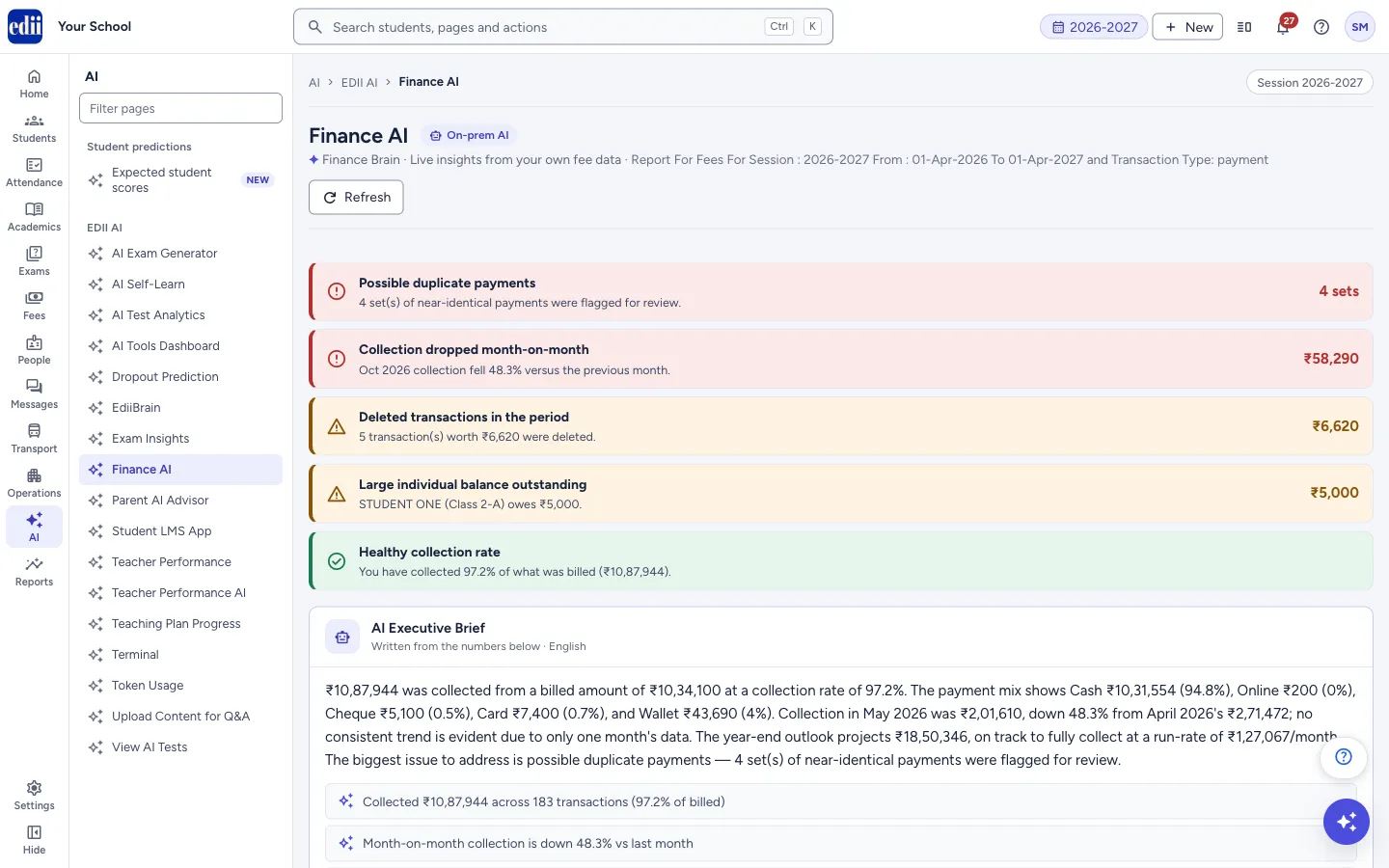
A live overview of the session's fee collection: alerts, an AI-written brief, collection figures, charts, a year-end outlook, discounts, items to check, the largest balances, and a box to ask questions about fees.
यह पेज अंग्रेज़ी में है। कुछ समझ न आए तो ।
Finance AI reads the fee receipts of the session and turns them into figures, charts and a short written brief. It only reads: nothing on the page changes a receipt or a fee. The subtitle says which fees, session and dates it covers, for example Report For Fees For Session : 2026-2027, and that it counts payment transactions.
From the top it shows: coloured alerts (red for serious, amber to watch, green for good news), the AI Executive Brief, six figures (Collected this session, Collection rate, Outstanding, Paid online, Discount given, Receipts), four charts, the cards Collection outlook, Discount leakage, Needs a look and Largest balances due, and Ask your finance data.
The brief and the answers are written by AI from the numbers on the page, and an AI can make mistakes. The figures are worked out from your receipts. Check them against the fee reports before you act on them.
Who uses it and when
Section titled “Who uses it and when”The principal, the accountant and the fee office use it to see how collection is going and what to follow up.
Before you start
Section titled “Before you start”- Fee receipts must exist for the session. Without them the page says No fee transactions recorded for this session yet and that it fills as soon as collections begin.
Where to find it
Section titled “Where to find it”- In school.edii.in: AI › EDII AI › Finance AI
- Or press Ctrl K (⌘ K on a Mac) and type Finance AI.
- Address:
school.edii.in/view/finance-analytics-v2 - Who can see it: Staff whose role includes Fees access. Shown only when your school uses EDII’s AI and Finance in EDII. If it is missing from your menu, ask your school admin.
 Open a bigger pictureतस्वीर बड़ी करें
Step by step
Section titled “Step by step”1. Read the alerts
Section titled “1. Read the alerts”The alerts say what stands out, for example a fall in collection compared with last month, possible duplicate payments, deleted receipts, a large balance owed by one student, or a healthy collection rate. Each can show an amount on the right.
2. Read the AI Executive Brief
Section titled “2. Read the AI Executive Brief”The brief gives a short paragraph, highlights, Key findings and a Recommended next step. While it is being written you see Finance Brain is thinking…. If it cannot be written, the page shows a summary worked out from the figures and a Retry button.
3. Check the six figures
Section titled “3. Check the six figures”Collected this session shows the change against last month. Collection rate is the share of the billed amount that was collected. Outstanding is what is still unpaid. Paid online is the share paid online. Discount given is the total discount. Receipts is the number of receipts.
4. Look at the charts
Section titled “4. Look at the charts”Collection trend (by month), Fee-head mix (share of each fee head), Payment modes (cash, online, cheque, card, wallet) and Collection by class.
5. Read the cards
Section titled “5. Read the cards”Collection outlook projects the year-end total at the current monthly pace, with the run-rate per month, the total billed and any projected shortfall. Discount leakage shows the discount as a share of billing and the classes that gave the most. Needs a look lists items such as possible duplicate payments. Largest balances due lists students with the biggest balance on recent receipts. Where a list is long, select Show all (N).
6. Ask a question
Section titled “6. Ask a question”In Ask your finance data type a question, for example How much cash did we collect this month?, and select Send (or press Enter). Suggested questions show before you ask the first one. Questions and answers stay on the page until you refresh.
7. Refresh
Section titled “7. Refresh”Select Refresh to read the receipts again. A Cached tag means a saved copy is shown for speed; Refresh gets live figures.
Buttons
Section titled “Buttons”| Button | What it does | What happens next |
|---|---|---|
| Refresh | Reads the fee receipts again and rebuilds the page. | Steps show while it loads: Fetching your fee transactions, Computing KPIs & breakdowns, Building your charts. |
| Retry | Asks for the written brief again. | The brief is made again. |
| Show all / Show less | Opens or folds a list. | The list grows or shrinks. |
| Send | Sends your question. | The answer shows under your question. |
Columns
Section titled “Columns”| Column | Meaning |
|---|---|
| Collected this session | Total amount collected, with the change against last month. |
| Collection rate | Collected amount as a percentage of the amount billed. |
| Outstanding | Amount still unpaid. |
| Paid online | Share of the collected amount paid online. |
| Discount given | Total discount given. |
| Receipts | Number of receipts counted. |
Good to know
Section titled “Good to know”- The brief and the answers are AI-written estimates from your receipts and can be wrong. Staff should check them.
- The alerts and “Needs a look” flag things for a person to review. A flagged item is not proof of a mistake.
- The year-end outlook is a projection from the recent monthly pace. It is not a promise of what will be collected.
- The page counts payments between the dates shown under the title.
Messages you may see
Section titled “Messages you may see”| Message | What it means | What to do |
|---|---|---|
| No fee transactions recorded for this session yet | No receipts exist for the selected session. | Start collecting fees, or change the session at the top. |
| Could not load finance analytics. | The page could not be built. | Select Try again. |
| Could not reach the finance server. | The request did not go through. | Check the connection and try again. |
| Not enough dated receipts to plot a trend. | Too few receipts to draw the monthly chart. | Wait until more receipts exist. |
| Nothing flagged — collections look clean. | No items need a look. | Nothing to do. |
| No pending balances on recent receipts. | No student has a balance on recent receipts. | Nothing to do. |
- Open the receipts behind a possible duplicate before you cancel anything. Two similar payments can be real, for example for two children.
- Use the fee reports for exact lists. This page gives the overview.
Stuck? Try this
Section titled “Stuck? Try this”| Problem | Likely cause | What to do |
|---|---|---|
| Figures differ a little from a fee report. | This page counts payment transactions between the dates under the title only. | Use the same dates and fee types in the report. |
Did this page help?क्या इस पेज से मदद मिली?
Thanks! Glad it helped.धन्यवाद! अच्छा लगा कि काम बन गया।
Sorry about that. Ask in your own words, or write to us.माफ़ कीजिए। अपने शब्दों में पूछें, या हमें लिखें।