
Screen guide · Web app
Question Bank: By Class Subject
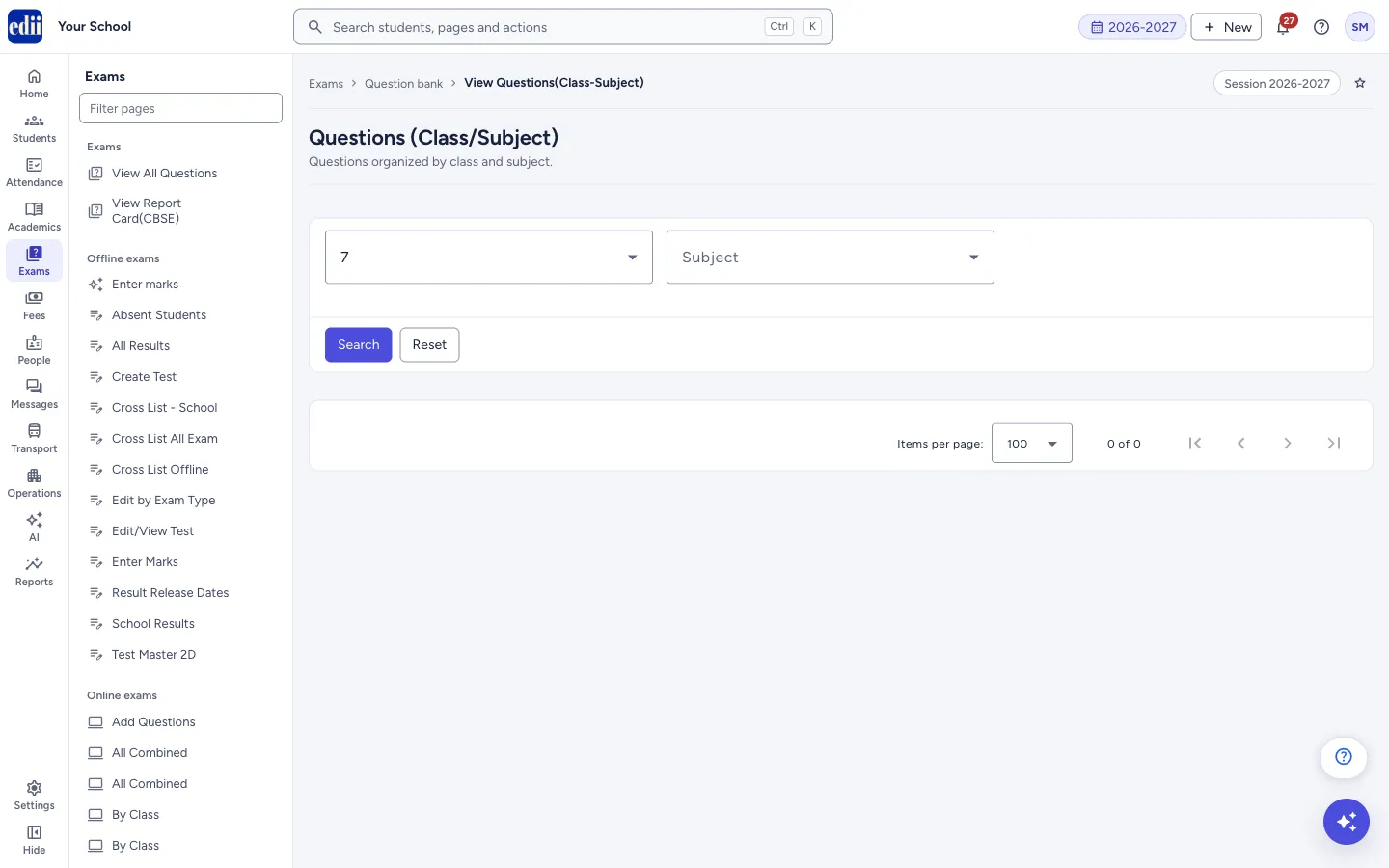
Lists the questions of the question bank for one class and one subject, across all sections.
यह पेज अंग्रेज़ी में है। कुछ समझ न आए तो ।
The screen is headed Questions (Class/Subject) and is described as Questions organized by class and subject. You choose the Class and the Subject and select Search.
Each row is one question. Use the three-dot Action menu to see the question’s picture, edit the question or delete it.
Who uses it and when
Section titled “Who uses it and when”Admins who manage the question bank for online tests.
Before you start
Section titled “Before you start”- Questions are added in Add Questions under Online exams.
Where to find it
Section titled “Where to find it”- In school.edii.in: Exams › Question bank › By Class Subject
- Or press Ctrl K (⌘ K on a Mac) and type By Class Subject.
- Address:
school.edii.in/view/view-question-class-subject - Who can see it: Staff whose role includes Exams access. Shown only when your school uses Exam in EDII. If it is missing from your menu, ask your school admin.
 Open a bigger pictureतस्वीर बड़ी करें
Step by step
Section titled “Step by step”1. Choose the class
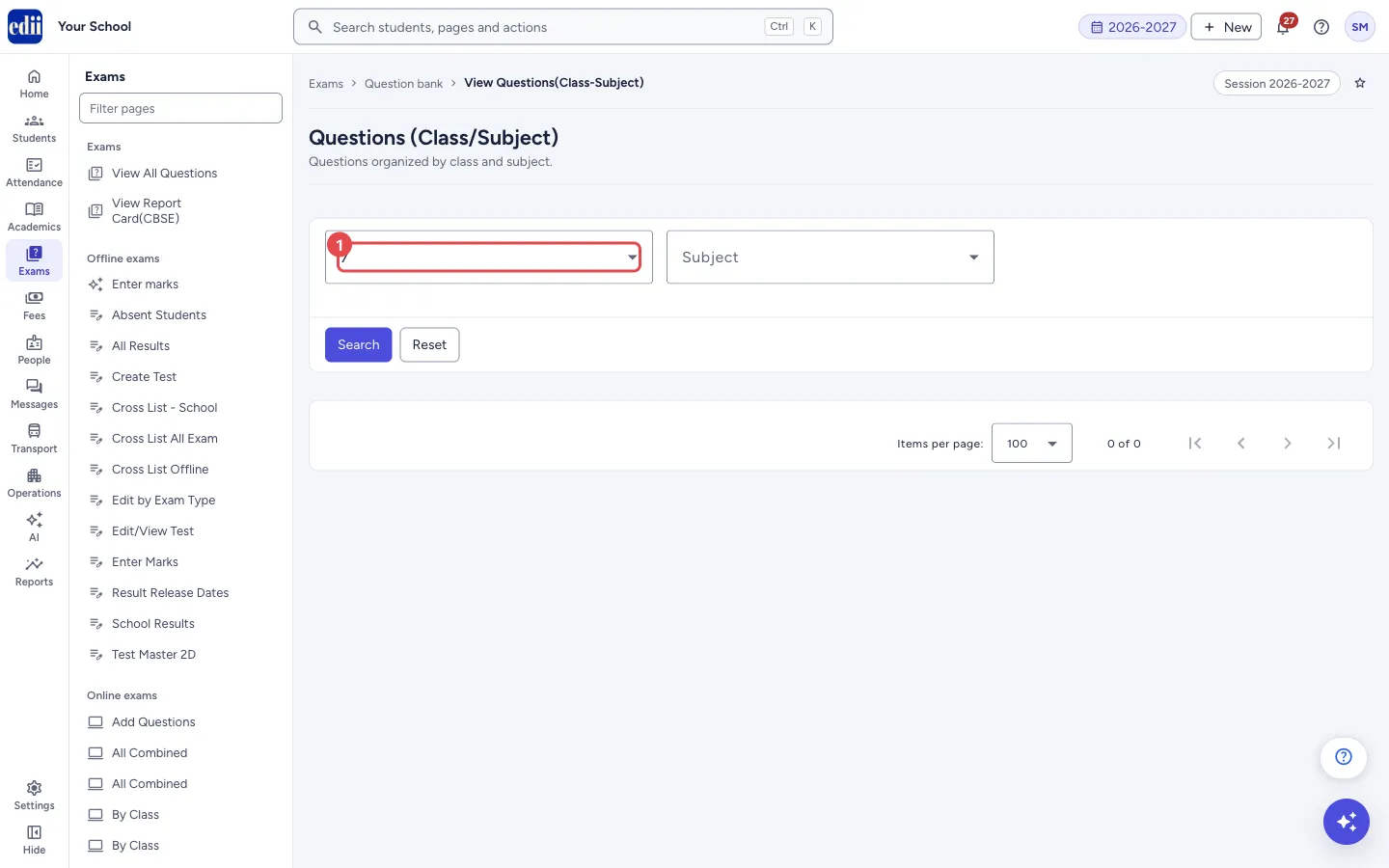
Section titled “1. Choose the class”In Select Class, choose the class.
 Open a bigger pictureतस्वीर बड़ी करें
2. Choose the subject
Section titled “2. Choose the subject”In Subject, choose the subject.
3. Search
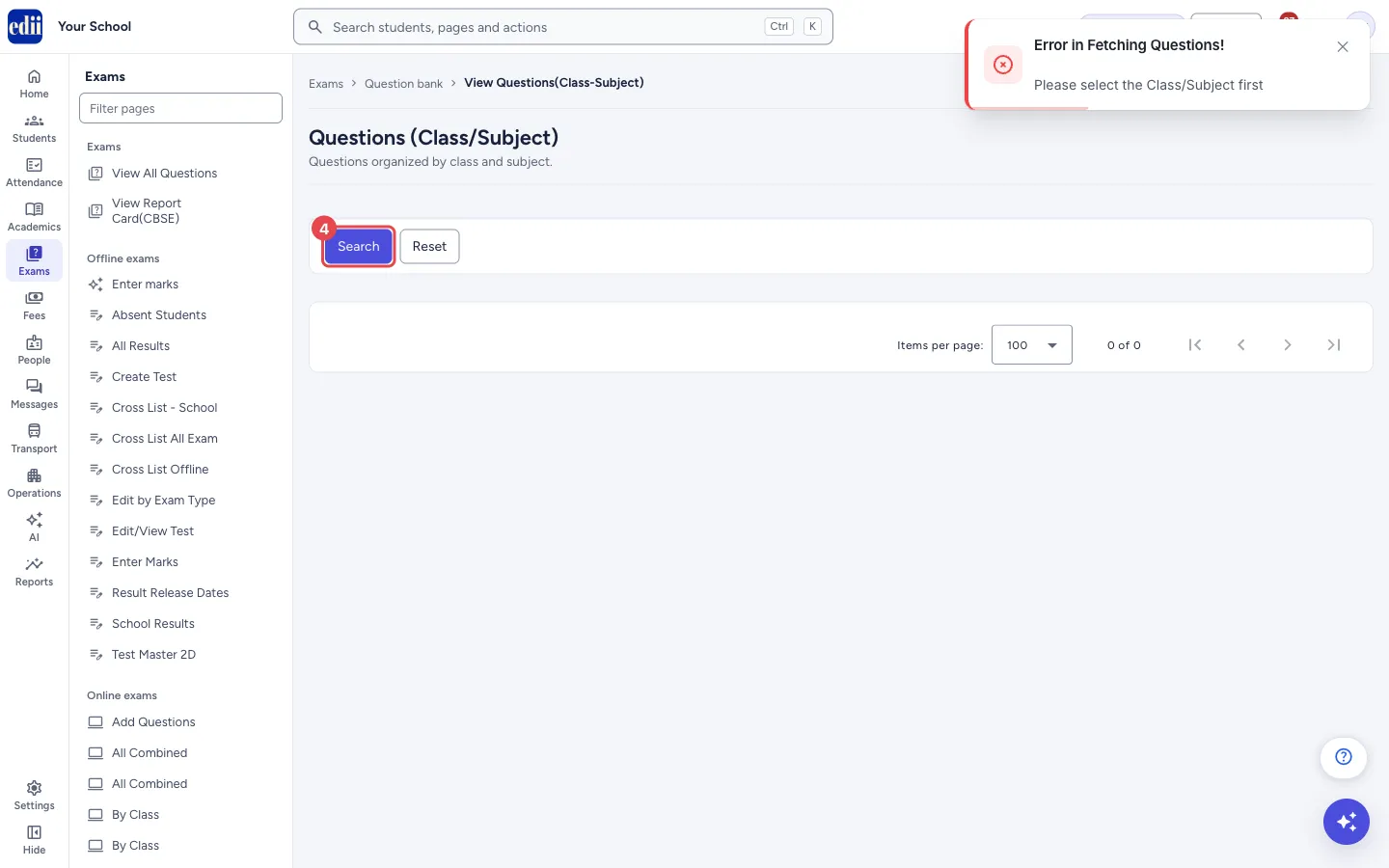
Section titled “3. Search”Select Search. If the class or subject is missing, a red message says Please select the Class/Subject first. Otherwise EDII shows Questions Fetched and the list appears with a search box and a column picker. Select Reset to open the boxes again.
 Open a bigger pictureतस्वीर बड़ी करें
4. View, edit or delete a question
Section titled “4. View, edit or delete a question”Select the three dots in the Action column and choose View, Edit or Delete.
Fields and filters
Section titled “Fields and filters”| Field | What it is | Notes |
|---|---|---|
| Select Class | The class of the questions. | Required. |
| Subject | The subject of the questions. | Required. |
| Search… | Filters the rows on screen. | Does not change any question. |
| Columns | Chooses the columns. | Select All shows every column. |
Buttons
Section titled “Buttons”| Button | What it does | What happens next |
|---|---|---|
| Search | Lists the questions that match. | The list appears, or a red message explains why there is nothing. |
| Reset | Opens the filter boxes again. | Nothing is changed in the data. |
| Print (printer icon) | Prints the list, or downloads it as Excel, text or CSV. | The files are named ViewQuestionsClassSubject. |
| Action › View | Shows the picture attached to the question. | The picture opens in a viewer. If the question has none: No Picture uploaded for this question. |
| Action › Edit | Opens the question in the Edit Question screen. | The edit screen opens. When you come back, the same search is run again. |
| Action › Delete | Deletes the question, after you confirm. | A box asks Delete question? and says This question will be permanently deleted. This action cannot be undone. Select Delete question to confirm; EDII then shows Question: Successfully Deleted and reloads the list. |
Columns
Section titled “Columns”| Column | Meaning |
|---|---|
| Action | The three-dot menu with View, Edit and Delete. |
| S.No | Row number. |
| Question | The question text. |
| Subject | The subject of the question. |
| Class | The class of the question. |
Good to know
Section titled “Good to know”- The screen lists the questions of the question bank, which are added in Add Questions under Online exams.
- Delete cannot be undone.
- Click a heading to sort. The page size can be 100, 200, 300, 400, 500 or 1000 rows.
Messages you may see
Section titled “Messages you may see”| Message | What it means | What to do |
|---|---|---|
| This module is restricted to Admin use only. Teachers do not have access to this module | A teacher opened this screen. It is meant for admins. | Ask an admin to manage the question bank. |
| Please select the Class/Subject first | The class or the subject was left empty when you selected Search. | Choose both. |
| Questions Fetched | The questions were found. | Nothing to do. |
| Error in Fetching Questions! | The list could not be built; the reason shows under it. | Check the choices. |
| Delete question? | The confirmation shown before a question is deleted. | Select Delete question to go on, or close the window to keep it. |
| No Picture uploaded for this question | You chose View on a question that has no picture. | Nothing to do. |
| Network Issue, Please Try Again. | The list could not be fetched. | Check the internet and select Search again. |
Did this page help?क्या इस पेज से मदद मिली?
Thanks! Glad it helped.धन्यवाद! अच्छा लगा कि काम बन गया।
Sorry about that. Ask in your own words, or write to us.माफ़ कीजिए। अपने शब्दों में पूछें, या हमें लिखें।