
Screen guide · Web app
AI Exam Generator
Create a test for a class and subject whose questions are written by AI from the topics you choose, with live progress while it is made.
यह पेज अंग्रेज़ी में है। कुछ समझ न आए तो ।
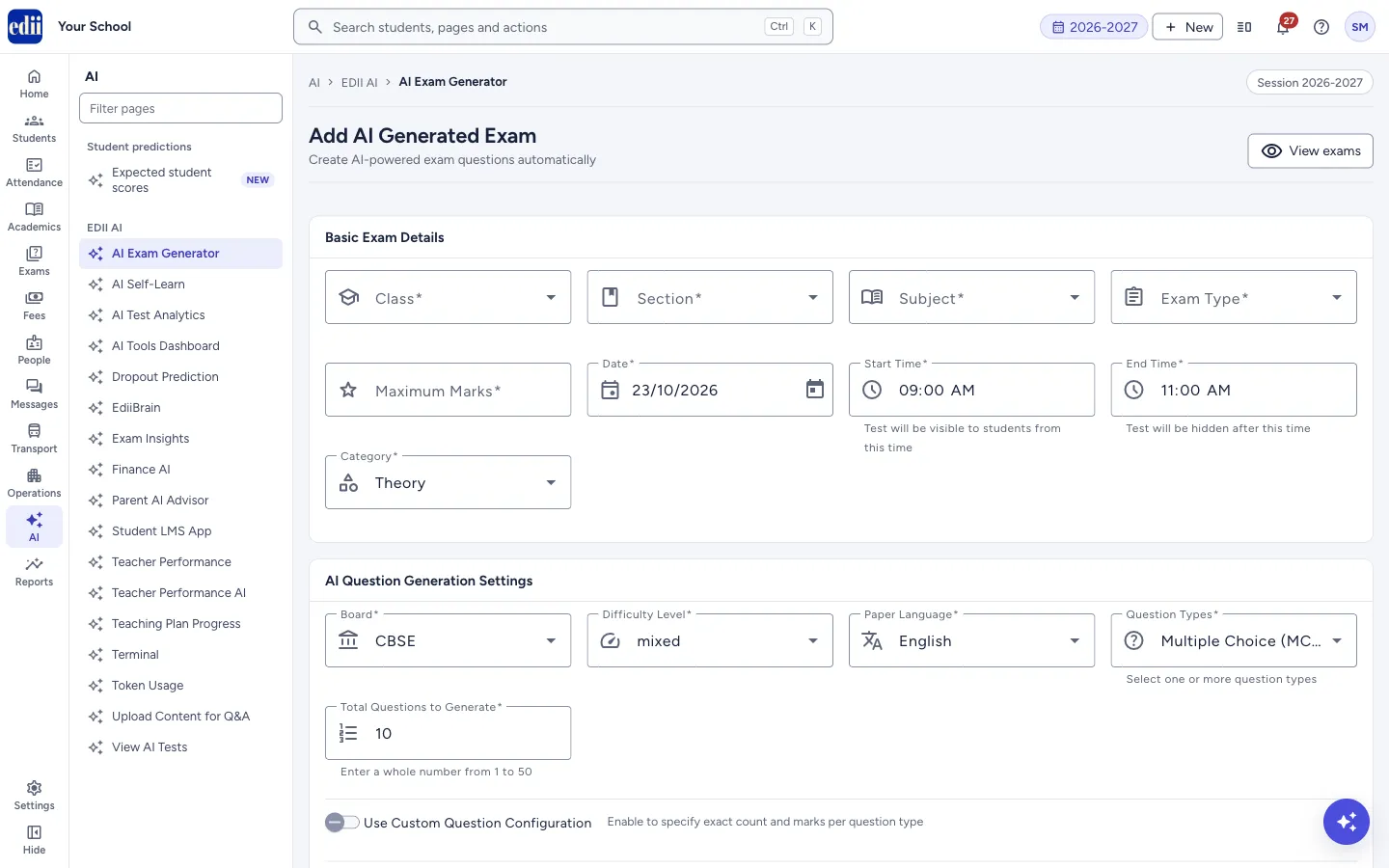
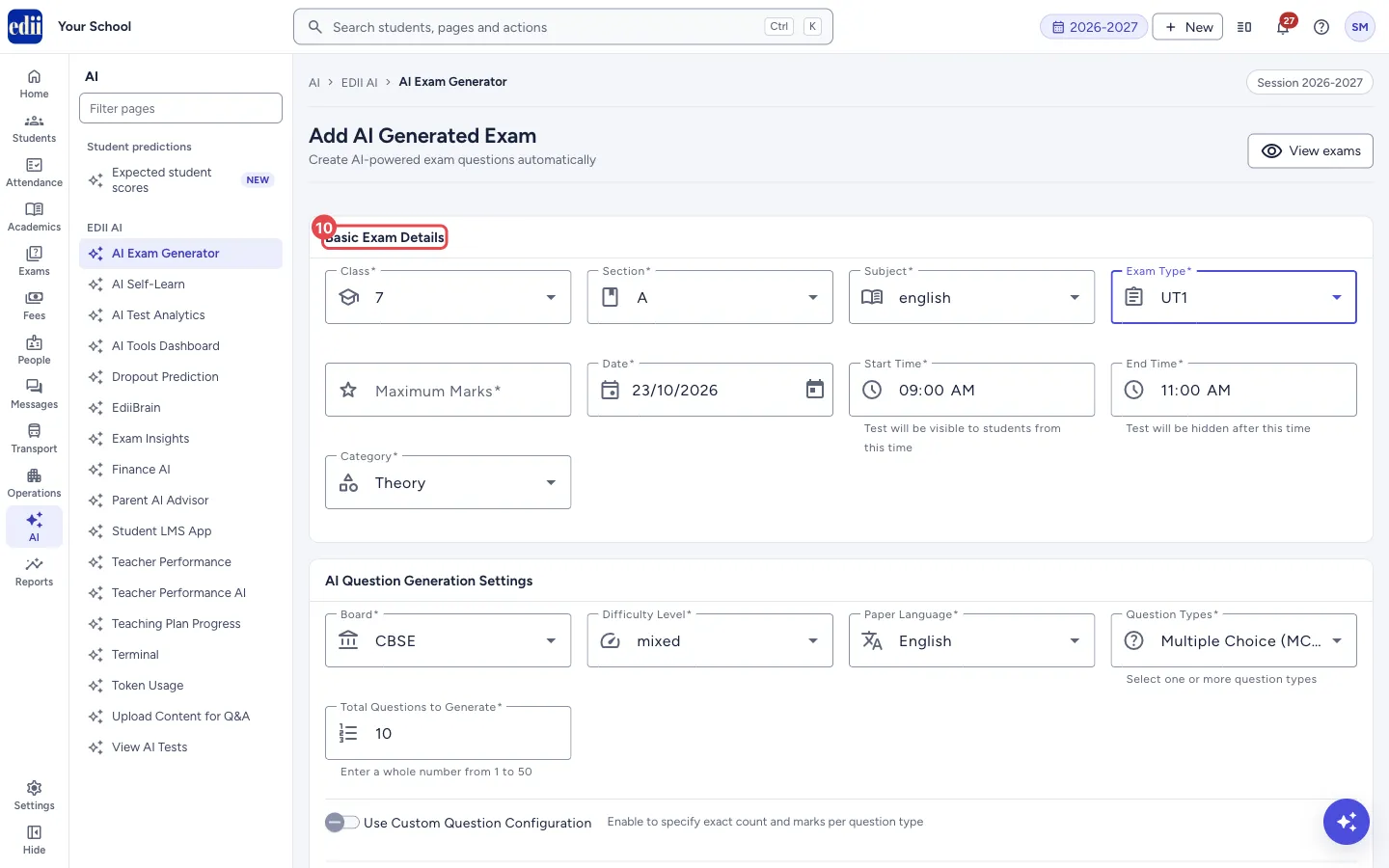
AI Exam Generator (the page is headed Add AI Generated Exam) makes an exam for you. In Basic Exam Details you choose the class, section, subject, exam type, maximum marks, date, start and end time and the category. In AI Question Generation Settings you choose the board, difficulty, paper language and the types of question, and the topics the questions should come from.
When you select Generate AI Exam, the test is created and the AI writes the questions in the background. A progress box on the same page shows each test. You can make another test (for another section) while the first is still being written. The finished test and its PDFs are on View AI Tests.
AI-written questions are not checked by anyone. Read every question before the test is given to students.
Who uses it and when
Section titled “Who uses it and when”Teachers and the exam in-charge use it to prepare unit tests and practice papers quickly.
Before you start
Section titled “Before you start”- The class must have subjects. If not, the screen says Subjects Unavailable For The Class Selected.
- The school must have at least one exam type. If none is set up, an administrator adds one in Admin Preferences under School Academic Details. Teachers without that access see No exam types are configured. Ask a school administrator to add one.
- For topic-based tests the subject needs topics. They are suggested from the school’s curriculum. To make a test from your own study material instead, first upload it in Upload Content for Q&A.
Where to find it
Section titled “Where to find it”- In school.edii.in: AI › EDII AI › AI Exam Generator
- Or press Ctrl K (⌘ K on a Mac) and type AI Exam Generator.
- Address:
school.edii.in/add/add-test-ai - Who can see it: Staff whose role includes Exams access. Shown only when your school uses EDII’s AI and Exam in EDII. If it is missing from your menu, ask your school admin.
 Open a bigger pictureतस्वीर बड़ी करें
Step by step
Section titled “Step by step”1. Choose class, section, subject and exam type
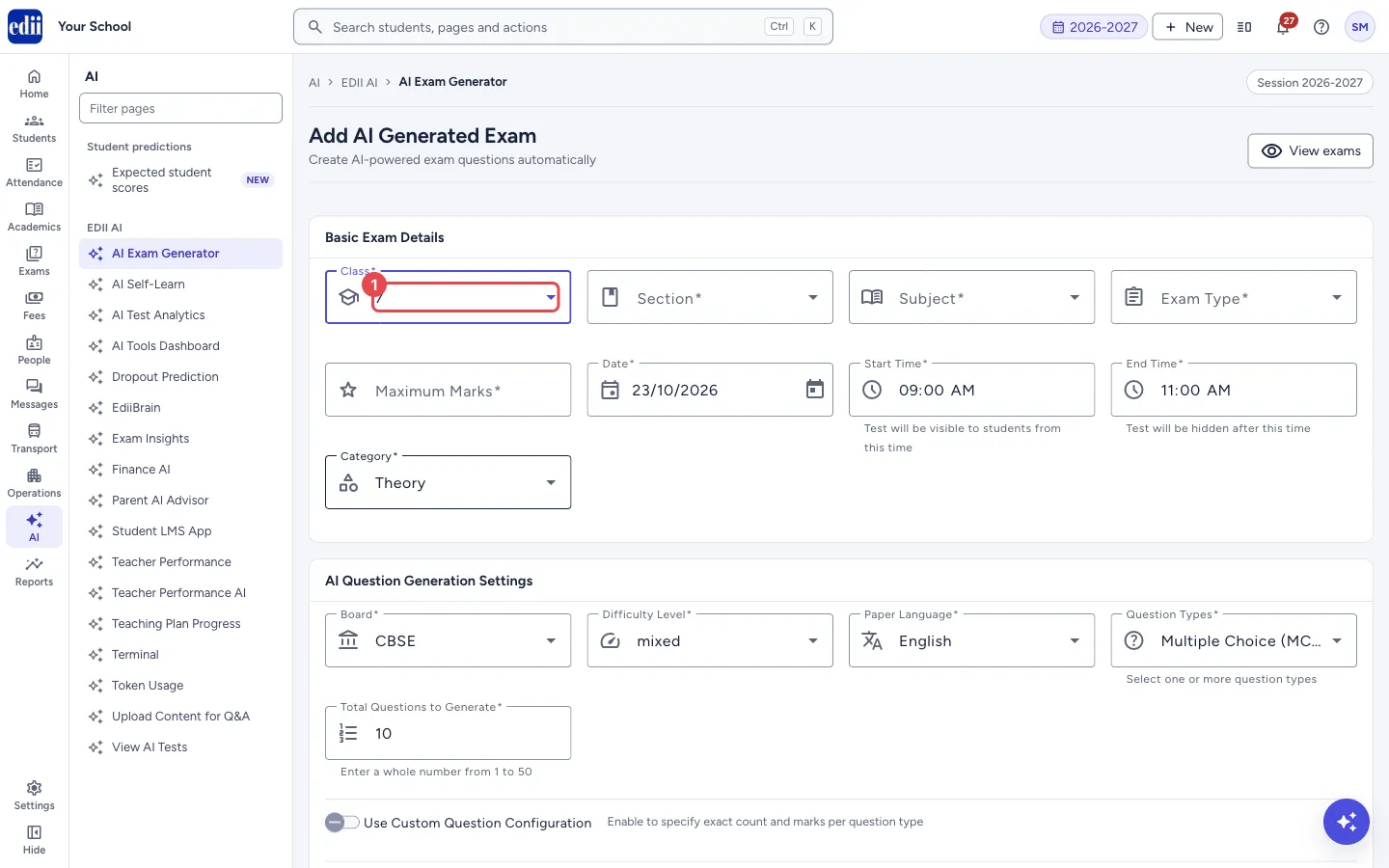
Section titled “1. Choose class, section, subject and exam type”In Basic Exam Details, open Class, then Section, Subject and Exam Type. Choosing a class loads that class’s subjects.
 Open a bigger pictureतस्वीर बड़ी करें
2. Fill the exam details
Section titled “2. Fill the exam details”Enter Maximum Marks (a whole number above 0). Date starts as today; Start Time starts at 09:00 and End Time at 11:00. The test is visible to students from the start time and hidden after the end time. Category is Theory or Practical; it starts as Theory.
 Open a bigger pictureतस्वीर बड़ी करें
3. Choose the question settings
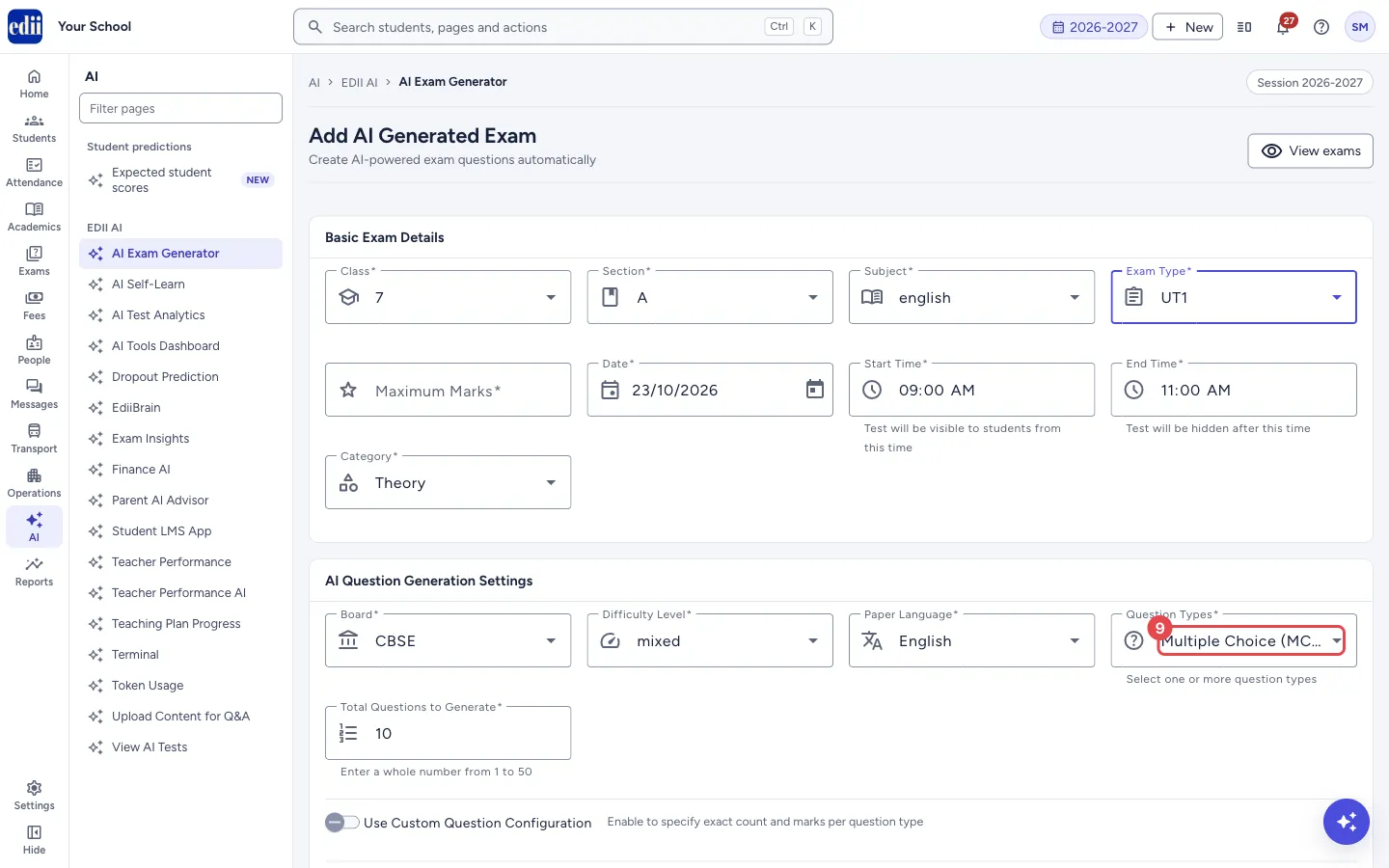
Section titled “3. Choose the question settings”In AI Question Generation Settings choose Board, Difficulty Level and Paper Language. Open Question Types and tick one or more kinds of question. It starts with Multiple Choice (MCQ), True/False and Theory (Long Answer) ticked.
Enter Total Questions to Generate, a whole number from 1 to 50 (it starts at 10).
 Open a bigger pictureतस्वीर बड़ी करें
4. Set marks for each question type (optional)
Section titled “4. Set marks for each question type (optional)”Switch on Use Custom Question Configuration to give a count and marks per question for each type you ticked. A table shows each subtotal and the Total questions and marks. The Maximum Marks and Total Questions to Generate boxes then go away, because the table gives the totals.
5. Choose topics, or a PDF
Section titled “5. Choose topics, or a PDF”Under Topics, the screen suggests topics and subtopics from the school’s curriculum for the chosen class and subject. Select a subtopic to add it; select it again to remove it. Add all on a topic adds all its subtopics (it then shows Clear all), and Select All adds everything. You can also type your own topic in Enter a topic and select Add Topic.
If the curriculum has no topics for the subject, the screen says No curriculum topics found for this subject. Type your own below, or add them via Curriculum > Manage Curriculum.
Switch on Generate from Uploaded PDF to build the questions from a study material you uploaded instead of from topics. Only processed PDFs are listed. If there are none, the screen says No processed PDFs available. Upload a PDF first.
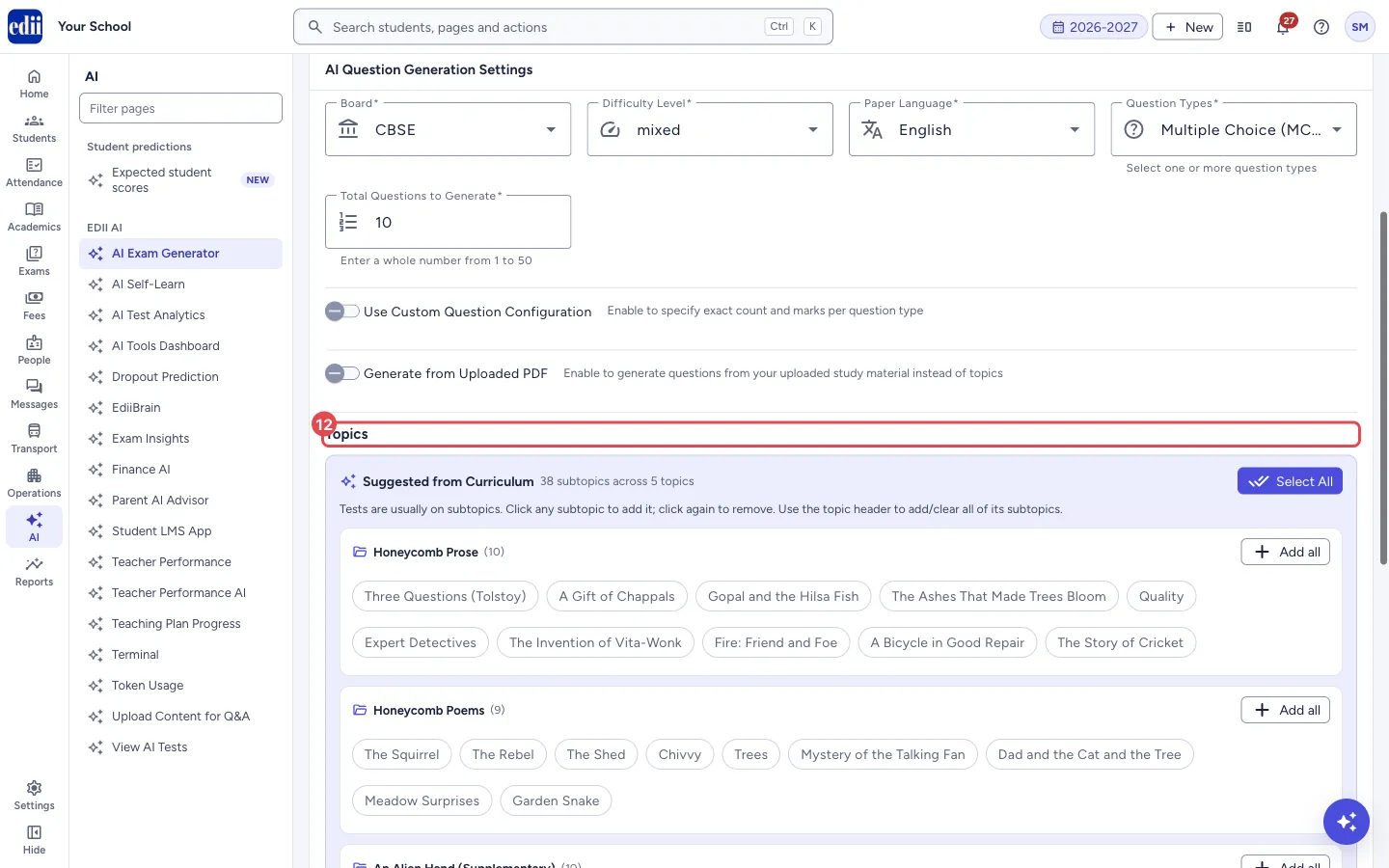 Open a bigger pictureतस्वीर बड़ी करें
6. Spread questions across topics (optional)
Section titled “6. Spread questions across topics (optional)”Once you have added topics, Use chapter blueprint appears. Switch it on to say how many questions come from each topic. The blueprint must give each topic at least 1 question and add up to the total. When it is off, questions are spread evenly across the topics.
7. Generate the exam
Section titled “7. Generate the exam”If something is missing, a box says Almost there! Please fix … before the exam can be generated: and lists each item. Generate AI Exam stays off until the list is empty.
Select Generate AI Exam. A message says Test Successfully Added! AI is generating questions — live progress is shown on this page. You can create another test meanwhile. Only the Section is cleared, so you can pick the next section and generate again.
Fields and filters
Section titled “Fields and filters”| Field | What it is | Notes |
|---|---|---|
| Class, Section, Subject, Exam Type | Who the test is for and what kind of test it is. | Required. Exam Type lists the exam types your school set up. |
| Maximum Marks | Total marks of the paper. | Required, a whole number above 0. Hidden when custom question configuration is on. |
| Date | The day of the test. | Required. Starts as today. |
| Start Time, End Time | When the test shows to students and when it is hidden. | Required. End Time must be later than Start Time. |
| Category | Theory or Practical. | Required. Starts as Theory. |
| Board | The board the questions follow. | CBSE, ICSE, State Board, IB or IGCSE. Starts as CBSE. |
| Difficulty Level | How hard the questions are. | easy, medium, hard or mixed. Starts as mixed. |
| Paper Language | The language of the paper. | English or Hindi. |
| Question Types | The kinds of question to include. | Pick one or more: Multiple Choice (MCQ), True/False, Theory (Long Answer), Case-Based Study, Assertion-Reasoning, Fill in the Blanks, Match the Following, Short Answer, Definition, Diagram (Image-Based). |
| Total Questions to Generate | How many questions to make. | A whole number from 1 to 50. Error: Enter 1 to 50 questions. |
| Topics | What the questions cover. | At least one topic is needed unless you use a PDF. |
| Select Study Material (PDF) | The uploaded material to build questions from. | Shown when Generate from Uploaded PDF is on. |
Buttons
Section titled “Buttons”| Button | What it does | What happens next |
|---|---|---|
| View exams | Opens the list of AI tests. | You leave this page. |
| Select All / Add all / Clear all | Adds or removes suggested topics, all at once or for one topic. | The chosen topics show under the topic box. |
| Add Topic | Adds the topic you typed. | The topic shows as a tag you can remove. |
| Generate AI Exam | Checks the form, creates the test and starts writing the questions. | The progress box shows each test. |
| View AI Tests | Opens the list of AI tests from the progress box. | The list opens. |
After you save
Section titled “After you save”- An AI is working… box shows each test with its class, section and subject, and the progress (for example Batch 2/5 (40%)). When a test is done it says Completed and when it did not work it says Failed.
- When all are done you see Success! and All questions are generated. Your PDFs are ready on the View AI Tests page. If some failed, the box says how many failed and that you can retry them from View AI Tests.
- The page checks progress every few seconds for about 16 minutes. You can leave the page and look on View AI Tests later.
Good to know
Section titled “Good to know”- The questions are made by AI from the topics or PDF you give, and the questions can be wrong. Teachers must check them before use.
- With a blueprint, the questions per topic must add up to the total number of questions.
- If you choose several types in the custom table, each needs a whole-number count and marks, for example 5 questions at 2 marks each. The total must be between 1 and 50 questions and more than 0 marks.
Messages you may see
Section titled “Messages you may see”| Message | What it means | What to do |
|---|---|---|
| Please correct: … | Something is missing or wrong. The items are listed. | Fix each item in the box above the button. |
| Test Successfully Added! AI is generating questions — live progress is shown on this page. You can create another test meanwhile. | The test was created and the questions are being written. | Wait, or make another test. |
| All questions generated! PDFs are ready on the View AI Tests page. | Writing is finished. | Open View AI Tests. |
| Test configuration copied! You can now modify and create a new test. | You came from View AI Tests with Copy and the form has been filled from the earlier test. | Change what you need, then generate. |
| Subjects Unavailable For The Class Selected | The class has no subjects. | Add the subjects for the class first. |
| Error loading study materials | The list of uploaded PDFs did not load. | Switch the PDF option off and on, or reload the page. |
| Bad/Slow Internet Connection, Please check your internet connection | The request did not go through. | Check the connection and try again. |
- Pick specific subtopics: tests are usually on subtopics and the questions follow them closely.
- Generate for one section, then pick the next section and generate again. The other settings stay.
Stuck? Try this
Section titled “Stuck? Try this”| Problem | Likely cause | What to do |
|---|---|---|
| Exam Type is empty or cannot be chosen. | The school has no exam types set up, or they are still loading. | Wait a moment, select Retry if shown, or ask an administrator to add exam types in Admin Preferences. |
| Generate AI Exam stays grey. | The form is not complete. | Read the list in the yellow box above the button and fix each item. |
Did this page help?क्या इस पेज से मदद मिली?
Thanks! Glad it helped.धन्यवाद! अच्छा लगा कि काम बन गया।
Sorry about that. Ask in your own words, or write to us.माफ़ कीजिए। अपने शब्दों में पूछें, या हमें लिखें।