
Screen guide · Web app
Dashboard
The Canteen Dashboard shows today's orders and revenue, student wallet totals, the most ordered items and wallets that are running low.
यह पेज अंग्रेज़ी में है। कुछ समझ न आए तो ।
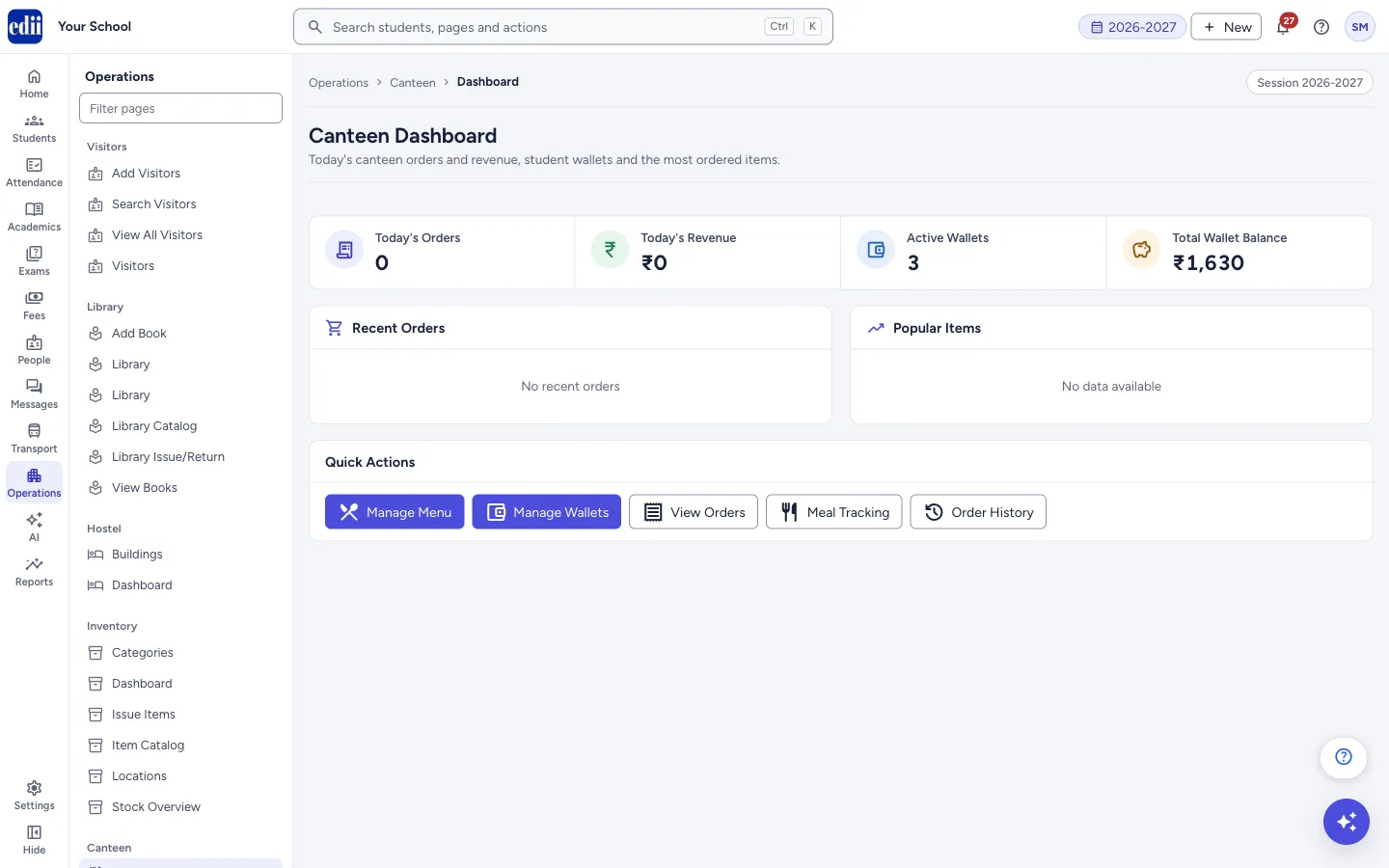
Canteen Dashboard is the first page of the Canteen module. Four boxes at the top give the day’s numbers: Today’s Orders, Today’s Revenue, Active Wallets and Total Wallet Balance. Below them, Recent Orders and Popular Items show what students are buying.
A Low Balance Wallets box appears only when some student wallets are running low. It lists each student with the balance left. At the bottom, Quick Actions open the other canteen pages.
Who uses it and when
Section titled “Who uses it and when”The canteen in-charge or office staff open it to see how the day is going and which students need a wallet recharge.
Before you start
Section titled “Before you start”- The Canteen pages appear in the Operations menu only when your school uses the Canteen module. If you do not see Canteen in the menu, ask your school admin.
Where to find it
Section titled “Where to find it”- In school.edii.in: Operations › Canteen › Dashboard
- Or press Ctrl K (⌘ K on a Mac) and type Dashboard.
- Address:
school.edii.in/canteen/dashboard - Who can see it: Shown only when your school uses Hostel and Inventory and Canteen and Health Records and Tracking in EDII. If it is missing from your menu, ask your school admin.
 Open a bigger pictureतस्वीर बड़ी करें
Step by step
Section titled “Step by step”1. Read today’s numbers
Section titled “1. Read today’s numbers”Today’s Orders and Today’s Revenue (in rupees) are for today. Active Wallets is the number of student wallets in use. Total Wallet Balance is the money left in all those wallets together.
2. Check recent orders and popular items
Section titled “2. Check recent orders and popular items”Recent Orders lists each student with the order amount and the number of items. Popular Items is a numbered list, with the number of orders and the price of each item. When there is nothing yet, the boxes say No recent orders and No data available.
3. Look for low balances
Section titled “3. Look for low balances”If the Low Balance Wallets box is shown, note the students listed and recharge their wallets in Wallets.
4. Go to another canteen page
Section titled “4. Go to another canteen page”Use Quick Actions: Manage Menu opens Menu Items, Manage Wallets opens Wallets, View Orders opens Orders, Meal Tracking opens Meal Tracking, and Order History opens the Order History page, which lists past orders by date range, status and student.
Buttons
Section titled “Buttons”| Button | What it does | What happens next |
|---|---|---|
| Manage Menu | Goes to the menu list. | Menu Items opens. |
| Manage Wallets | Goes to student wallets. | Wallets opens. |
| View Orders | Goes to today’s orders. | Orders opens. |
| Meal Tracking | Goes to meal records. | Meal Tracking opens. |
| Order History | Goes to past orders. | Order History opens. |
Good to know
Section titled “Good to know”- This page only shows figures. You cannot change anything on it.
- The figures are loaded when the page opens. To see newer numbers, open the page again.
- Check Low Balance Wallets before the break so students are not turned away at the counter.
Did this page help?क्या इस पेज से मदद मिली?
Thanks! Glad it helped.धन्यवाद! अच्छा लगा कि काम बन गया।
Sorry about that. Ask in your own words, or write to us.माफ़ कीजिए। अपने शब्दों में पूछें, या हमें लिखें।