
Screen guide · Web app
Staff Notification
Send one push notification to all the staff of the school.
यह पेज अंग्रेज़ी में है। कुछ समझ न आए तो ।
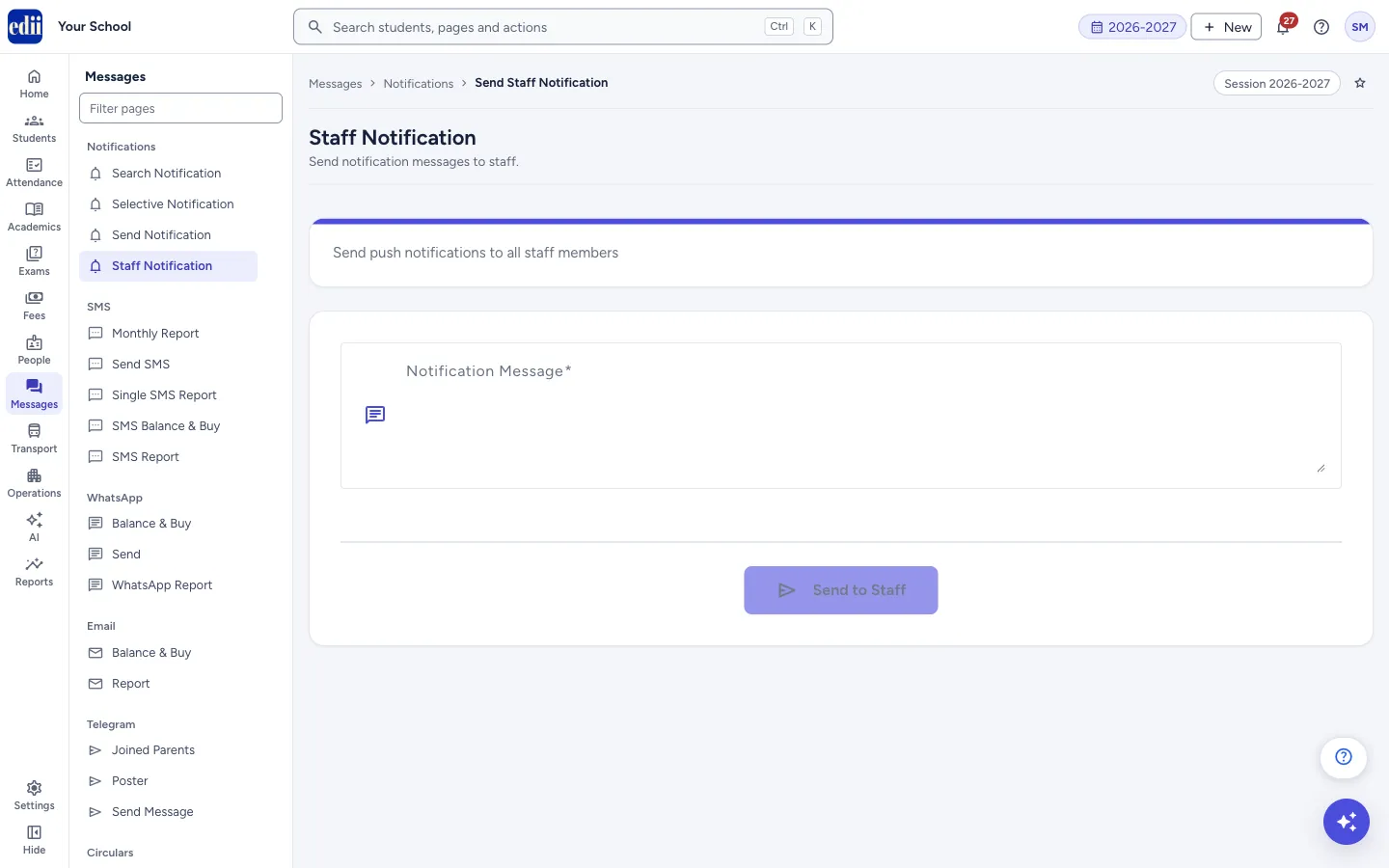
Staff Notification sends a message to the EDII app of every staff member of the school. Type the Notification Message and select Send to Staff.
It is a push notification, not an SMS: it does not use SMS credits. A staff member sees it only if they use the app and have notifications on. It goes to all staff; you cannot choose some of them.
Who uses it and when
Section titled “Who uses it and when”The principal or the office uses it for staff announcements, such as a meeting, a changed timing or a holiday.
Where to find it
Section titled “Where to find it”- In school.edii.in: Messages › Notifications › Staff Notification
- Or press Ctrl K (⌘ K on a Mac) and type Staff Notification.
- Address:
school.edii.in/view/staff-notification - Who can see it: Staff whose role includes Messages access. Shown only when your school uses Messages in EDII. If it is missing from your menu, ask your school admin.
 Open a bigger pictureतस्वीर बड़ी करें
Step by step
Section titled “Step by step”1. Open the page
Section titled “1. Open the page”Open Messages › Notifications › Staff Notification. The page says Send push notifications to all staff members: the message goes to every staff member, not to a chosen few.
2. Type the message
Section titled “2. Type the message”Type your text in Notification Message. It is required.
In this box you can type letters, digits, space and these symbols only: - @ & . , / _ # : Other keys, such as ! ? ’ ( ) and the Enter key, do nothing when typed. Pasted text is accepted.
3. Send
Section titled “3. Send”Send to Staff is greyed out until the box has text. Select it. A message Notification Sent! appears and the box is emptied.
Fields and filters
Section titled “Fields and filters”| Field | What it is | Notes |
|---|---|---|
| Notification Message | The text staff will see in the app. | Required. Error: Notification message is required. |
Buttons
Section titled “Buttons”| Button | What it does | What happens next |
|---|---|---|
| Send to Staff | Sends the message to all staff at once. | Notification Sent! is shown. There is no confirmation box. |
After you save
Section titled “After you save”- Every staff member of the school gets the message in the app. This screen does not list who received it.
Good to know
Section titled “Good to know”- No SMS credits are used.
- The message goes to every staff member; there is no way to choose some of them on this page.
- A message cannot be recalled after you select Send to Staff.
Messages you may see
Section titled “Messages you may see”| Message | What it means | What to do |
|---|---|---|
| Notification Sent! | The message was accepted for sending. | Nothing to do. |
| Bad/Slow Internet Connection, Please check your internet connection | The request did not finish. | Check the internet and try again. |
- Keep it short. The notification shows on the phone’s lock screen.
- To send the same message from the class list instead, choose Staff in Select Class on Send Notification.
Stuck? Try this
Section titled “Stuck? Try this”| Problem | Likely cause | What to do |
|---|---|---|
| Send to Staff is greyed out | The message box is empty. | Type the message. |
| A teacher says they did not get it | The teacher is not signed in to the app, or has notifications off on the phone. | Tell them in person or on the staff group. |
Did this page help?क्या इस पेज से मदद मिली?
Thanks! Glad it helped.धन्यवाद! अच्छा लगा कि काम बन गया।
Sorry about that. Ask in your own words, or write to us.माफ़ कीजिए। अपने शब्दों में पूछें, या हमें लिखें।