
Screen guide · Web app
Entrance tests
The question papers for the online entrance test of one admission session: make a paper, check every question, publish it, duplicate it for another class, or close it. It is one of the Admissions pages and shows once the entrance test is switched on in Settings.
यह पेज अंग्रेज़ी में है। कुछ समझ न आए तो ।
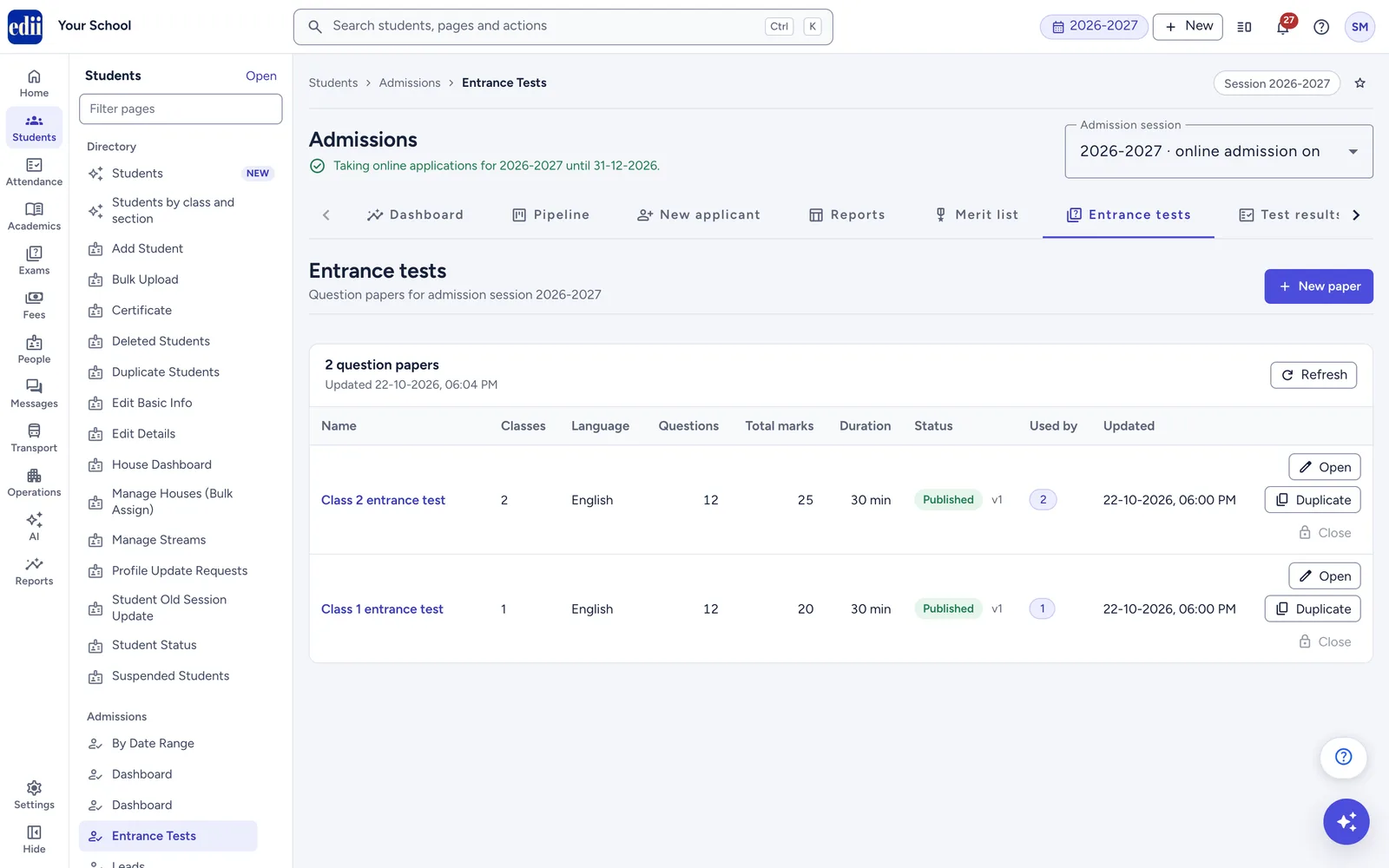
Entrance tests lists the question papers of the Admission session chosen at the top of the Admissions pages. Children take the test in the EDII app or on admission.edii.in, on a phone or a computer, and EDII marks every answer as soon as they submit. The marks, results and ranks are on Test results.
For each paper the list shows Name, Classes, Language, Questions, Total marks, Duration, Status (Draft, Published or Closed, with its version, for example v2), Used by (the classes whose settings use it) and Updated. Press Open or the paper’s name to work on it in the paper editor.
A paper holds sections and questions. Questions can be One correct option, True or false or Fill in the blanks. Children always get the last published version, so you can keep improving a paper without changing a test that is already running.
If the entrance test is off for the session, the page says The entrance test is switched off and links to Settings.
Who uses it and when
Section titled “Who uses it and when”The admission head or the teachers who set the test make the papers a few days before the test window, check them and publish them. Come back here to fix a wrong answer after children have taken the test.
Before you start
Section titled “Before you start”- Check the Admission session at the top. Admissions are usually for next year, so it is often not the session the rest of EDII shows.
Where to find it
Section titled “Where to find it”- In school.edii.in: Students › Admissions › Entrance Tests
- Or press Ctrl K (⌘ K on a Mac) and type Entrance Tests.
- Address:
school.edii.in/admissions/tests - Who can see it: Staff whose role includes Admission access. Making, publishing, duplicating and closing papers needs permission to update admissions; a role that can only view admissions sees the papers but cannot change them. A role with only Leads access does not see this page. It shows only when the entrance test is switched on for the admission session. If it is missing from your menu, ask your school admin.
 Open a bigger pictureतस्वीर बड़ी करें
Step by step
Section titled “Step by step”1. Switch the test on in Settings
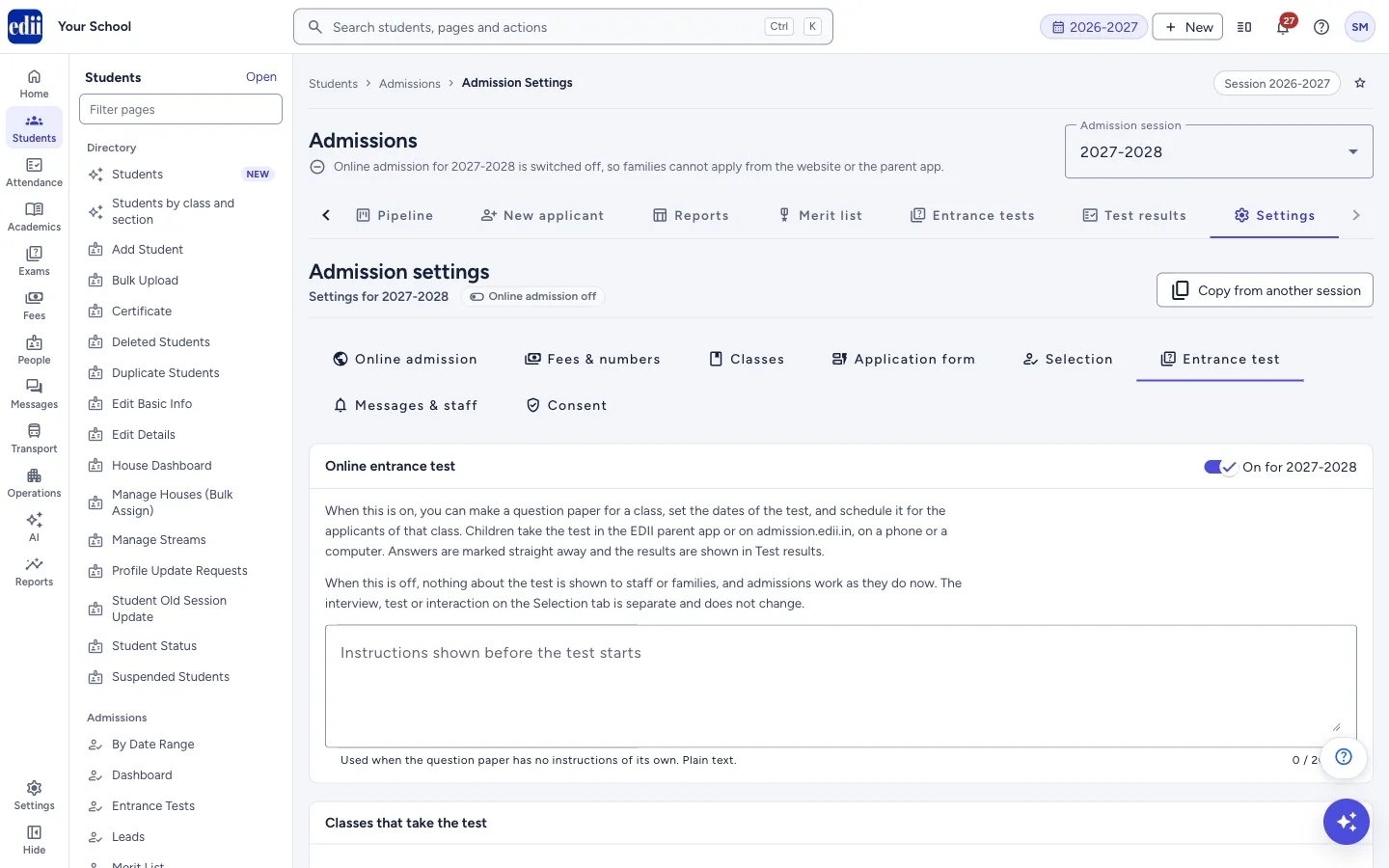
Section titled “1. Switch the test on in Settings”Open Admissions › Settings, the Entrance test tab, and turn on Online entrance test (it reads On for the session). Press Save settings. The Entrance tests and Test results tabs then appear in the Admissions tabs. Until then this page says The entrance test is switched off.
 Open a bigger pictureतस्वीर बड़ी करें
2. Start a new paper
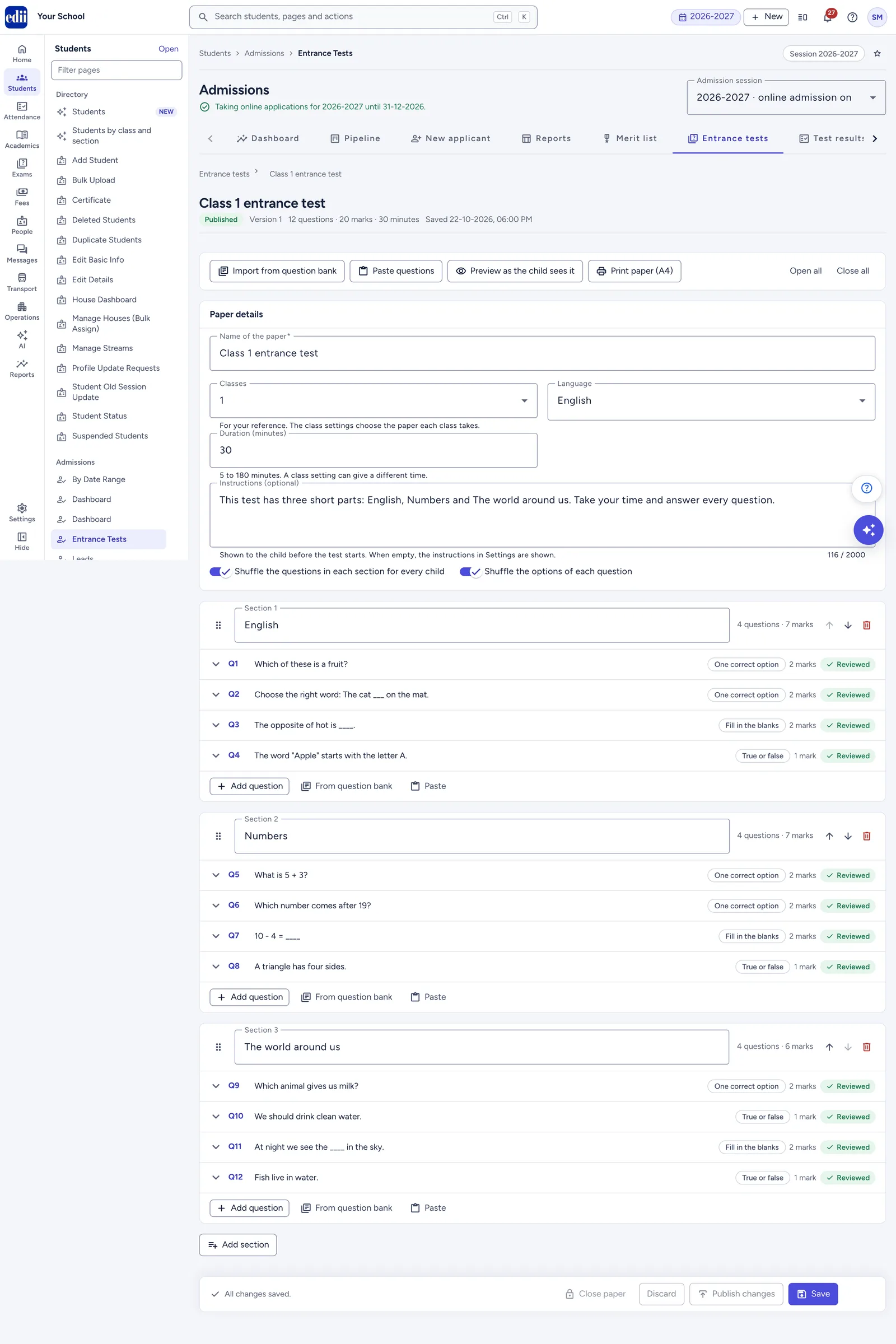
Section titled “2. Start a new paper”Press New paper (the first time, Make the first paper). Fill in the Paper details: Name of the paper (families see it), Classes (for your reference only), Language, Duration (minutes) and Instructions (optional). Both shuffle switches start on, so each child gets the questions of a section, and the options of a question, in their own order.
Press Save. The first save keeps the paper as a draft: The paper is saved as a draft.
3. Add sections and questions
Section titled “3. Add sections and questions”A new paper has one section, Section 1. Type its title (for example English or Maths) and use Add section for more. Children see the sections as tabs.
Under a section press Add question and choose One correct option, True or false or Fill in the blanks. Type the Question, set the Marks and mark the correct answer: click the circle next to the right option, choose True or False, or fill one Answer for blank for each blank. For blanks, write
____in the question where each blank goes.To add a picture to a question or an option, save the paper first, open the question and press Add picture (JPG or PNG, up to 2 MB).
 Open a bigger pictureतस्वीर बड़ी करें
4. Bring in many questions at once
Section titled “4. Bring in many questions at once”Import from question bank (or From question bank under a section) brings in multiple-choice questions from your EDII question bank. Type the Class and Subject exactly as they are in the bank, press Show questions, tick the ones you want and press Import. Pictures are not imported.
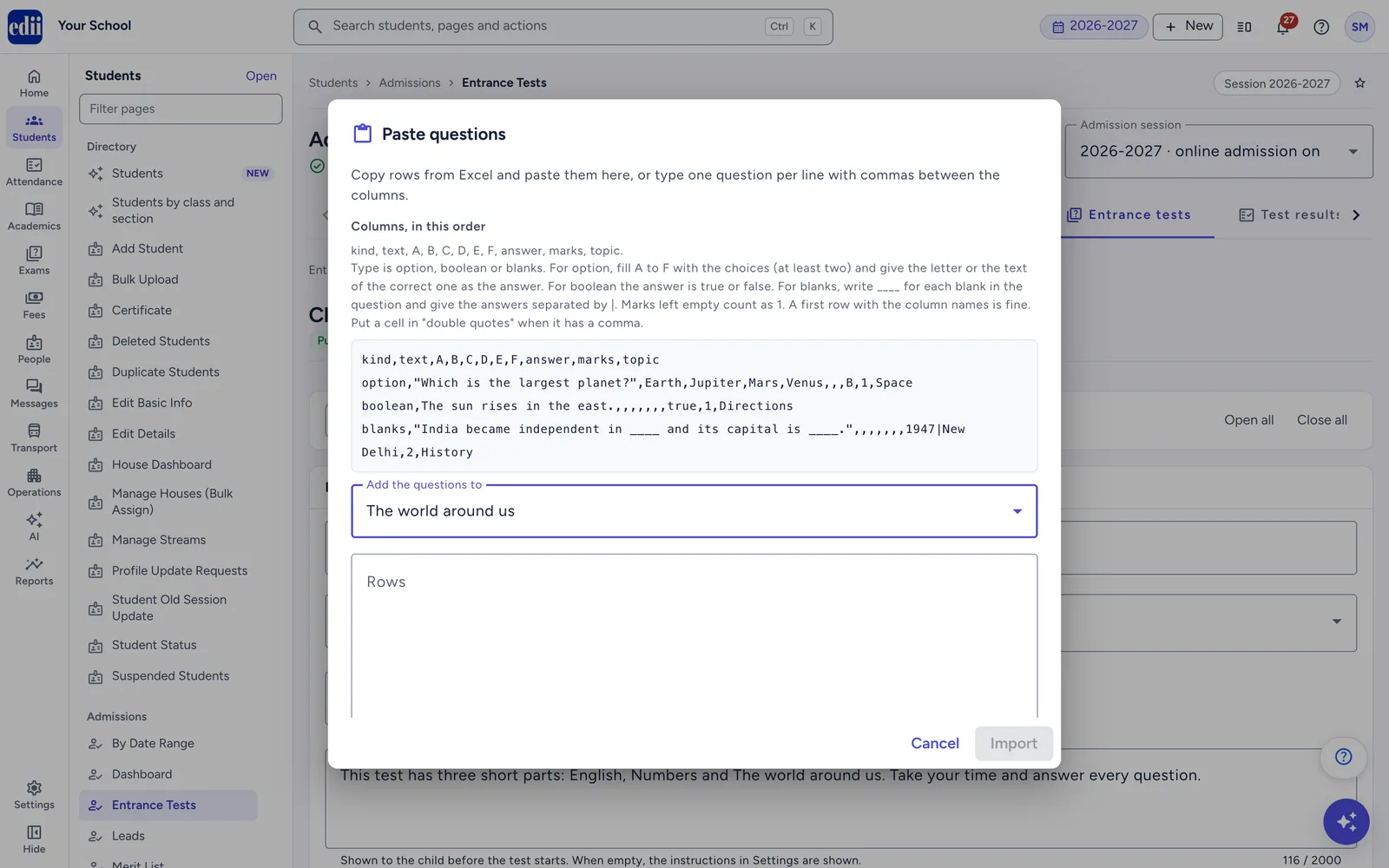
Paste questions (or Paste under a section) takes rows copied from Excel, in the columns kind, text, A to F, answer, marks, topic. Choose the section in Add the questions to and paste into Rows. A check under the box shows each row with a problem before you press Import.
 Open a bigger pictureतस्वीर बड़ी करें
5. Check the paper and mark it reviewed
Section titled “5. Check the paper and mark it reviewed”Press Preview as the child sees it to try the paper as a child does; answers are hidden and nothing is saved. Print paper (A4) prints the Question paper or the paper With the answer key, for a second teacher to check.
Open each question, read it with its answer and tick Reviewed: the question and its answer are correct. The bar at the bottom shows how many are not reviewed yet. Imported and pasted questions always arrive not reviewed.
6. Publish the paper
Section titled “6. Publish the paper”Press Publish (after the first time, Publish changes). If a question is not reviewed, the page says Mark every question as reviewed first and Show the first one takes you to it. When all is well, confirm, and you see Version 1 is published. (or the next number).
Only published papers can be chosen for a class. Next, open Admissions › Settings › Classes, press Entrance test on the class card, choose this paper and the test window, and save the settings. Then schedule the test from the Pipeline.
7. Look after your papers in the list
Section titled “7. Look after your papers in the list”Duplicate saves a copy named Copy of … as a new draft, with all its questions, answers, pictures and review ticks, and opens it: the quick way to make the next class’s paper.
Close stops a paper for good: it cannot be changed and no new test can start on it, while tests already running finish normally. You cannot close a paper while a class uses it; choose another paper for that class in Settings first.
A badge Changes not published means the paper was changed after it was published. Children still get the published version until you press Publish.
8. Fix a wrong answer after children took the test
Section titled “8. Fix a wrong answer after children took the test”Open the paper, open the question and press Correct the answer key at its foot. Choose the right answer and press Correct and mark again. EDII marks every test that has the question again, and the scores, results, ranks and merit points update. Families are not sent a new message.
Editing the answer in the paper and publishing changes the paper for future tests only. If you already did that, open Correct the answer key, keep the answer shown and press Mark again with this answer.
Fields and filters
Section titled “Fields and filters”| Field | What it is | Notes |
|---|---|---|
| Name of the paper | The paper’s name; families see it. | Required, up to 80 characters. |
| Classes | The classes the paper is meant for. | For your reference only, up to 10. The class settings decide which paper a class takes. |
| Language | The paper’s language. | English, Hindi or Other. |
| Duration (minutes) | How long the test lasts. | 5 to 180; a new paper starts at 30. A class setting can give a different time. |
| Instructions (optional) | Shown to the child before the test starts. | Up to 2000 characters. When empty, the instructions in Settings are shown. |
| Shuffle the questions in each section for every child, Shuffle the options of each question | Gives each child their own order. | On for a new paper. True or false is never shuffled. |
| Section title | The name of a group of questions, shown to children as a tab. | Up to 80 characters; at most 10 sections. |
| Question | The question text. | Up to 2000 characters; at most 200 questions in a paper. |
| Marks | What the question is worth. | 0.5 to 100, in steps of 0.5; a new question gets 1. A wrong or unanswered question gets 0. |
| Options | The choices of a One correct option question. | 2 to 6, lettered A to F, up to 500 characters each. |
| Answer for blank | The one correct answer for each blank. | 1 to 3 blanks, up to 100 characters each. Capital letters, extra spaces and a full stop at the end do not matter; spelling mistakes do. |
| Topic (optional) | For your own sorting. | Up to 80 characters. |
Buttons
Section titled “Buttons”| Button | What it does | What happens next |
|---|---|---|
| New paper | Opens a new, empty paper. | Not available once the session has 30 papers. |
| Open | Opens the paper in the editor. | A closed paper opens to read only. |
| Publish / Publish changes | Makes the saved paper the version children take. | Version 1 is published. (or the next number). |
| Duplicate | Saves a copy as a new draft. | A copy is saved as a draft, and it opens. |
| Close / Close paper | Stops the paper for good. | A box asks you to confirm; greyed out while a class uses the paper. |
| Import from question bank | Adds multiple-choice questions from your question bank. | Up to 100 at a time; they arrive not reviewed. |
| Paste questions | Adds questions from rows copied from Excel. | Rows that cannot be added are listed under Rows not imported. |
| Preview as the child sees it | Shows the paper the way a child sees it, even before you save. | Close preview takes you back. |
| Print paper (A4) | Prints the Question paper or the paper With the answer key. | Needs printing to be enabled for your school. |
| Open all / Close all | Opens or closes every question. | Click a question’s header to open or close just that one. |
| Save | Saves the paper. | The paper is saved. (the first time: The paper is saved as a draft.) |
| Discard | Goes back to the last saved paper. | A box asks Discard your changes? |
| Correct the answer key | Fixes a question’s answer and marks every test with it again. | The answer key is corrected. and how many results were marked again. |
Columns
Section titled “Columns”| Column | Meaning |
|---|---|
| Name | The paper’s name, with the badge Changes not published when it was changed after publishing. |
| Classes | The classes typed in the paper’s details, for reference. |
| Questions, Total marks | What children take now; when unpublished changes would change them, the numbers after you publish are shown under them. |
| Duration | The paper’s time in minutes. |
| Status | Draft, Published or Closed, with the published version (v1, v2 …). |
| Used by | The classes whose settings choose this paper; No class when none does. |
| Updated | When the paper was last saved. |
Good to know
Section titled “Good to know”- A paper can be published only when it has at least one question and every question is ticked Reviewed.
- Tests that have already started keep the version they started with. Deleting or changing a question in a published paper does not change tests already taken.
- Changing a question’s type clears its options and answer; EDII asks first (Change the question type?).
- A session can have at most 30 question papers, closed ones included.
- Fill in the blanks are marked against the one answer you give: capital letters, extra spaces, a full stop at the end and quotes around the answer do not matter, and numbers are compared by value (1,000 = 1000, .5 = 1/2). A different word or a spelling mistake is wrong, so ask for one word or one number.
- Before you can correct an answer key, the paper must have no unsaved and no unpublished changes.
- If someone else saved the same paper while you were working, EDII says This paper was changed by someone else: choose Reload the paper (your changes on the page are lost) or Keep my changes.
Messages you may see
Section titled “Messages you may see”| Message | What it means | What to do |
|---|---|---|
| The paper is saved as a draft. | A new paper was saved for the first time. | Add questions, review them and publish. |
| Fix the 2 problems shown on the page, then save. | Something is missing, for example a question with no answer (the number changes). | Look for the questions marked Needs a fix. |
| This paper has no questions yet. Add at least one question, then publish it. | You pressed Publish on an empty paper. | Add questions first. |
| Mark every question as reviewed first | Some questions are not ticked Reviewed. | Press Show the first one, check it and tick Reviewed. |
| This publishes your changes as version 2. Tests that have already started keep the version they started with. | You are publishing changes to a published paper (the number changes). | Press Publish. |
| A closed paper cannot be changed and no new test can start on it. Tests that are already running finish normally. | You pressed Close. | Press Close paper to confirm, or Cancel. |
| Class 6 uses this paper. Choose another paper for it in Settings first. | Shown on a greyed-out Close button (the class changes). | Choose another paper for the class in Admissions › Settings › Classes, save, then close. |
| A session can have at most 30 question papers, closed ones included. | The session has 30 papers. | Change one of the papers instead of making a new one. |
| The entrance test is switched off | The test is off for this admission session. | Switch it on in Settings › Entrance test and save. |
- The EDII Admissions Guide explains the whole admission season in one place: setup, the daily work, online entrance tests and what families see on the website and in the app. It has a PDF you can share with families.
- Make one paper carefully, publish it, then use Duplicate to make the next class’s paper.
- Ask a second teacher to check the With the answer key print before you publish.
- Keep both shuffle switches on unless a question says “all of the above” or depends on the order of its options.
Stuck? Try this
Section titled “Stuck? Try this”| Problem | Likely cause | What to do |
|---|---|---|
| The Entrance tests tab is missing | The entrance test is off for this admission session, or your role has only Leads access. | Switch on Online entrance test in Admissions › Settings › Entrance test and save; check the Admission session at the top. |
| The paper is not in a class’s Question paper list | Only published papers can be chosen. | Publish the paper, then open the class’s Entrance test again. |
| Children are getting an old version of the paper | The paper was changed but not published (badge Changes not published). | Press Publish changes. |
| Close is greyed out | A class still uses the paper. | Choose another paper for that class in Settings first. |
| No questions found when importing from the question bank | The class or subject is spelled differently in the bank, or the topic is too narrow. | Type them exactly as in the bank, or leave the topic empty. |
Did this page help?क्या इस पेज से मदद मिली?
Thanks! Glad it helped.धन्यवाद! अच्छा लगा कि काम बन गया।
Sorry about that. Ask in your own words, or write to us.माफ़ कीजिए। अपने शब्दों में पूछें, या हमें लिखें।