
Screen guide · Web app
Student LMS App
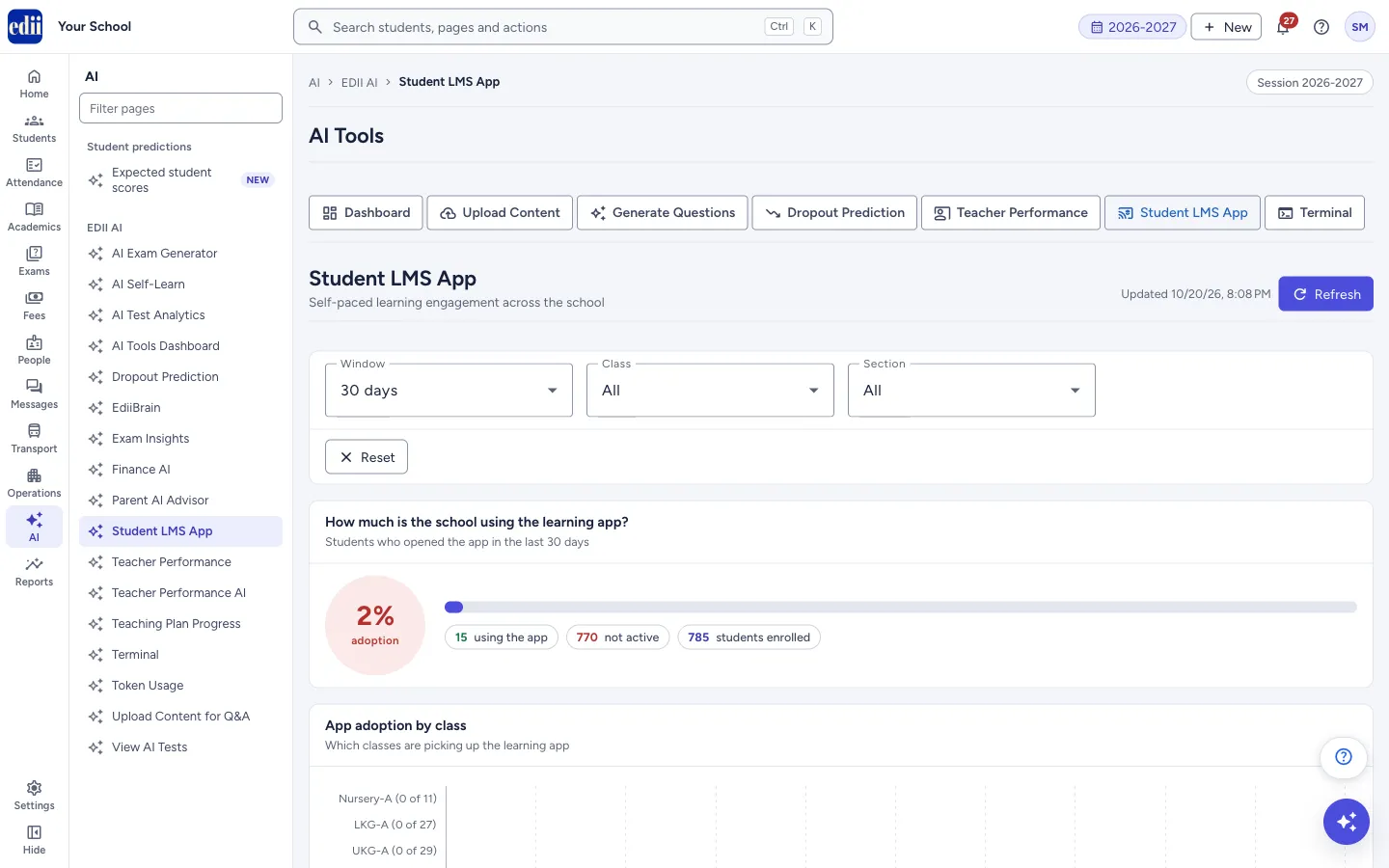
Shows how much students use the self-paced learning part of the student app: adoption, time spent, chapters read, quizzes taken and scores, for the whole school, by class, by subject and for each student.
यह पेज अंग्रेज़ी में है। कुछ समझ न आए तो ।
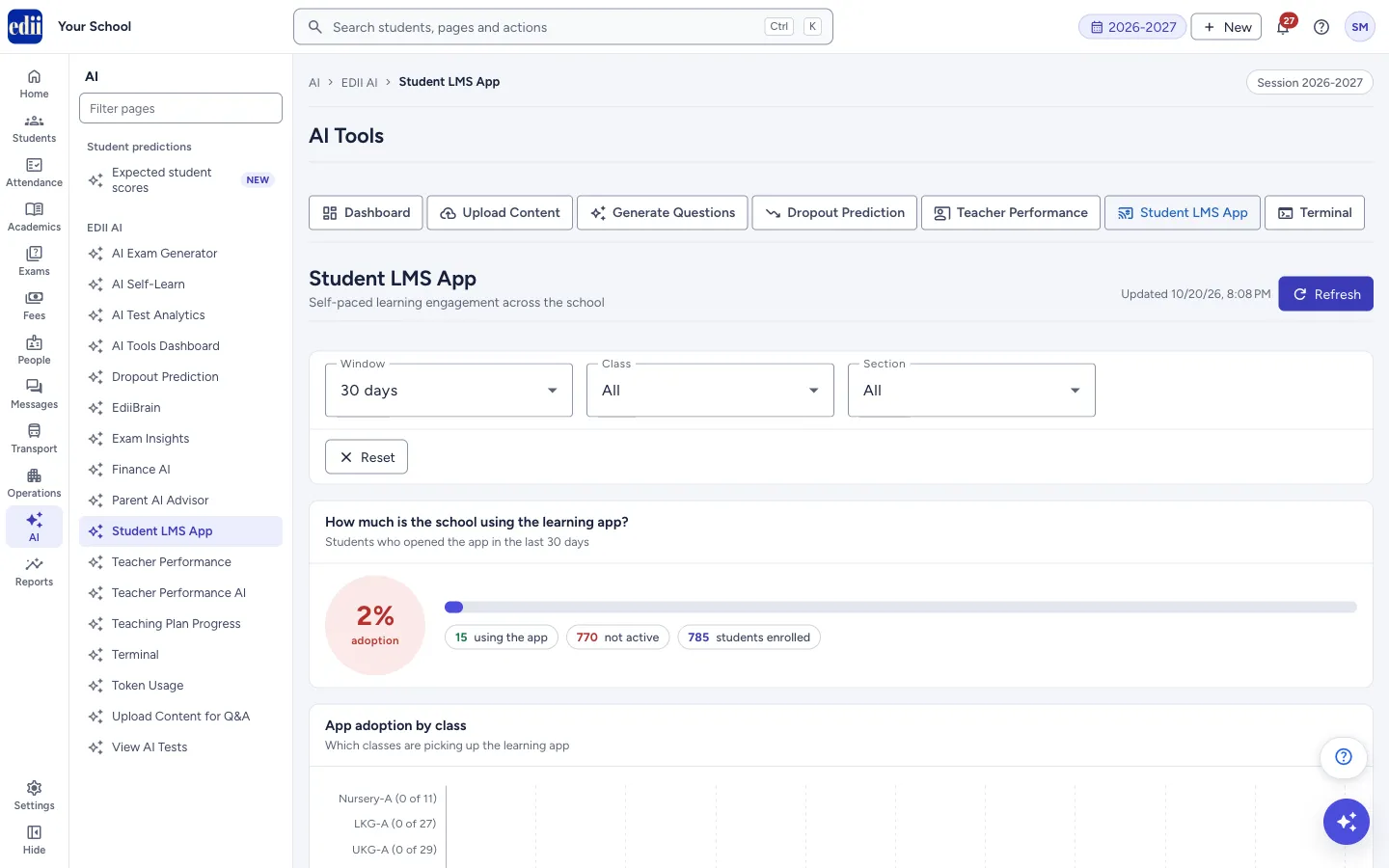
Student LMS App (part of AI Tools) reports on the self-paced learning in the student app. It does not change anything. Use Window (7, 14, 30, 60 or 90 days), Class and Section at the top to choose what to look at. Each change loads the figures again.
The top box, How much is the school using the learning app?, shows the adoption percentage with counts of students using the app, not active and students enrolled, for students who opened the app in the chosen window. Below are five figures, a class-wise adoption chart, a roster of all students, daily charts, toppers, students who need attention, class and subject tables.
Who uses it and when
Section titled “Who uses it and when”The principal, coordinators and class teachers use it to see which classes use the learning app and which students need a nudge.
Before you start
Section titled “Before you start”- Students must have opened the learning app. If nobody has, the page says No LMS activity yet and that progress and time spent show up once students start using the Self-Paced Learning app.
Where to find it
Section titled “Where to find it”- In school.edii.in: AI › EDII AI › Student LMS App
- Or press Ctrl K (⌘ K on a Mac) and type Student LMS App.
- Address:
school.edii.in/ai-tools/student-lms - Who can see it: Shown only when your school uses EDII’s AI in EDII. If it is missing from your menu, ask your school admin.
 Open a bigger pictureतस्वीर बड़ी करें
Step by step
Section titled “Step by step”1. Choose the window, class and section
Section titled “1. Choose the window, class and section”Open Window, Class and Section and choose. All shows the whole school. Reset puts the choices back to the start, and Refresh loads the figures again. The time of the last update shows next to Refresh.
 Open a bigger pictureतस्वीर बड़ी करें
2. Read the adoption box and figures
Section titled “2. Read the adoption box and figures”The ring shows the adoption rate. It is green at 60% and above, amber from 30% to below 60%, and red below 30%. The chart App adoption by class shows each class with how many students use the app out of how many are enrolled.
The figures are Students using the app, Total time, Chapters read, Quizzes taken and Avg best score.
3. Use the student roster
Section titled “3. Use the student roster”All students — app usage lists every enrolled student. Type a name in Search student, or choose All, Heavy, Regular, Light or Not using to filter by engagement; each button shows how many students it covers. Select a column heading to sort. The list shows 25 students per page; use Previous and Next.
Select a student’s row to open a panel with that student’s total time, chapters, quizzes and best score, Overall progress (topics mastered), By subject, Daily history and Recent activity. Close shuts the panel.
Export CSV downloads the students currently shown as a spreadsheet file.
4. Look at the charts and lists
Section titled “4. Look at the charts and lists”Daily engagement shows minutes spent each day. Students and quizzes per day shows how many students were active and how many quizzes they took. Toppers lists students with the highest engagement and best scores. Needs attention lists students with low scores, or who read chapters but took no quiz (No quiz).
5. Compare classes and subjects
Section titled “5. Compare classes and subjects”Class engagement shows, for each class and section, the active students, time, chapters, quizzes and average best score. Subject engagement shows time, active students and activity events for each subject.
Fields and filters
Section titled “Fields and filters”| Field | What it is | Notes |
|---|---|---|
| Window | How many recent days to count. | 7, 14, 30, 60 or 90 days. Starts at 30 days. |
| Class, Section | Limits the figures to a class or section. | Starts at All. |
| Search student | Finds a student in the roster by name. | Optional. |
Buttons
Section titled “Buttons”| Button | What it does | What happens next |
|---|---|---|
| Refresh | Loads the figures again. | The figures and the update time change. |
| Reset | Clears the filter choices. | The figures load again for the whole school. |
| Export CSV | Downloads the roster you are looking at. | A file named lms-app-usage with today’s date is saved. If the roster is empty you see No students to export. |
| Previous / Next | Moves through the roster pages. | The next 25 students show. |
Columns
Section titled “Columns”| Column | Meaning |
|---|---|
| Engagement | How much the student uses the app: Heavy user, Regular, Light or Not using. |
| Last active | When the student last used the app (Today, Yesterday, days, weeks or months ago, or Never). |
| Days | Number of days the student was active in the window. |
| Time | Time spent in the app in the window. |
| Chapters | Chapters the student read. |
| Quizzes | Quizzes the student took. |
| Mastered | Topics the student has mastered. |
| Best | The student’s best quiz score. A dash means no quiz taken. Green from 70%, amber from 40%, red below 40%. |
Good to know
Section titled “Good to know”- Only students who opened the app in the chosen window count as using it.
- The figures describe the learning app only. They do not include marks from school exams.
Messages you may see
Section titled “Messages you may see”| Message | What it means | What to do |
|---|---|---|
| No LMS activity yet | No student has used the learning app. | Ask students to open the learning part of the student app. |
| No students match this search / filter. | Nobody fits the roster search and filter. | Clear the search, or choose All. |
| Failed to load dashboard | The page could not load the figures. | Select Refresh. |
| Network error loading dashboard | The request did not go through. | Check the connection and select Refresh. |
| Everyone’s keeping up | Nobody is on the Needs attention list. | Nothing to do. |
- Choose Not using in the roster, then use Export CSV to share the list with class teachers.
- Look at App adoption by class to see where to start encouraging students.
Did this page help?क्या इस पेज से मदद मिली?
Thanks! Glad it helped.धन्यवाद! अच्छा लगा कि काम बन गया।
Sorry about that. Ask in your own words, or write to us.माफ़ कीजिए। अपने शब्दों में पूछें, या हमें लिखें।