
Screen guide · Web app
Fee Rule Discounts
The list of fee discount rules (by category and by sibling position) of the open session, where each rule can be changed or deleted.
यह पेज अंग्रेज़ी में है। कुछ समझ न आए तो ।
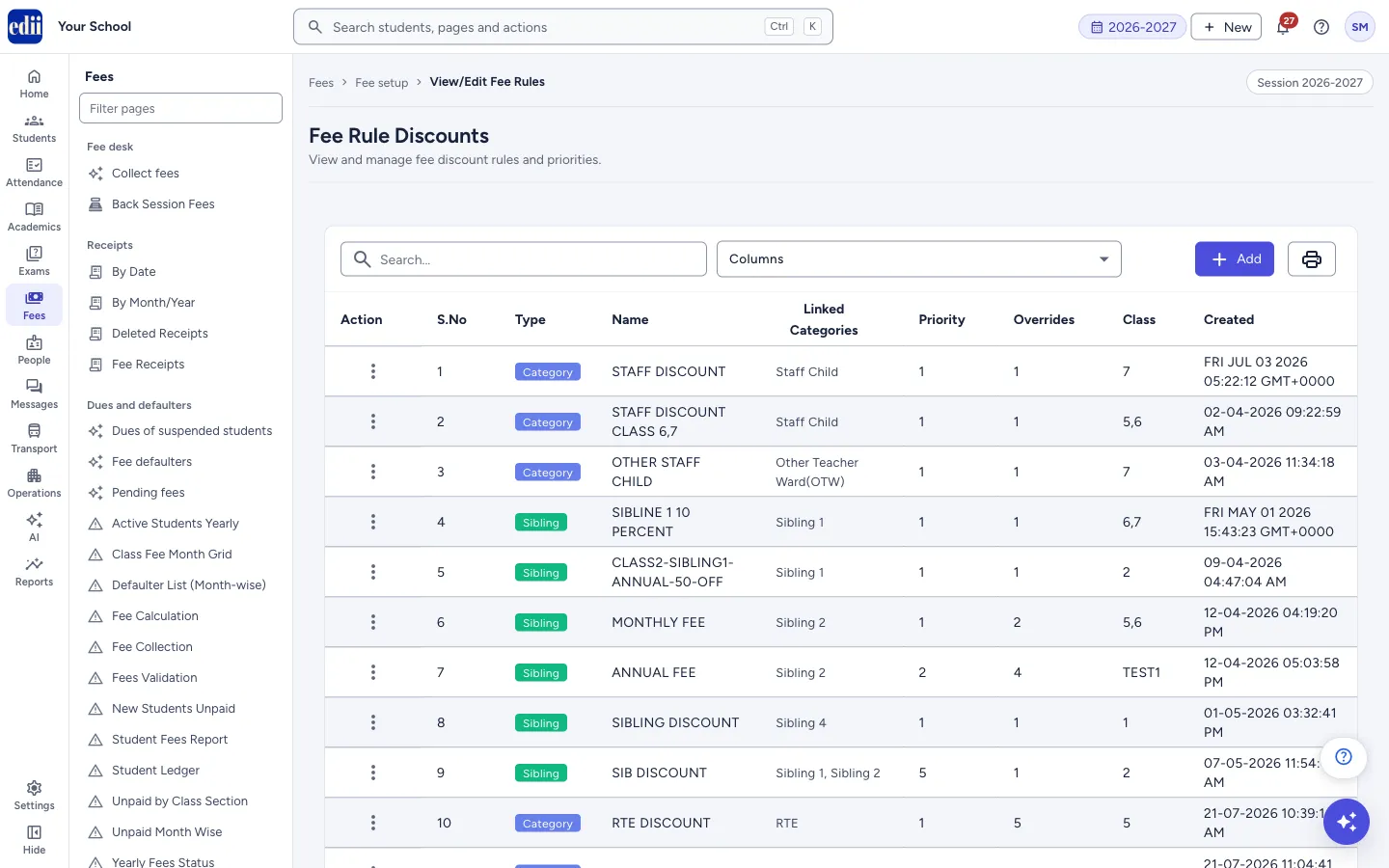
Fee Rule Discounts (menu name View/Edit Fee Rules) lists the rules created in Add Fee Rule for the open session. Each row shows the Type of the rule (Category or Sibling), its Name, the Linked Categories, the Priority, the number of Overrides (fee heads that get a discount), the Class and when it was Created.
From the Action column of a row you can change or delete the rule. The Add button opens Add Fee Rule.
Who uses it and when
Section titled “Who uses it and when”The accounts office uses it to check the rules, to correct a rule’s classes, months or discounts, or to remove a rule.
Before you start
Section titled “Before you start”- Rules must have been created in Add Fee Rule.
- Check the session at the top right of the page. The list shows the rules of that session.
Where to find it
Section titled “Where to find it”- In school.edii.in: Fees › Fee setup › View/Edit Fee Rules
- Or press Ctrl K (⌘ K on a Mac) and type View/Edit Fee Rules.
- Address:
school.edii.in/edit/edit-fee-rule-discounts - Who can see it: Staff whose role includes Fees access. Shown only when your school uses Finance in EDII. If it is missing from your menu, ask your school admin.
 Open a bigger pictureतस्वीर बड़ी करें
Step by step
Section titled “Step by step”1. Read the list
Section titled “1. Read the list”The list loads by itself, with Search…, Columns, Add and a print button above it. The Type shows Category or Sibling. A rule is shown as Sibling when its linked categories are sibling positions such as Sibling 1.
2. Choose the columns
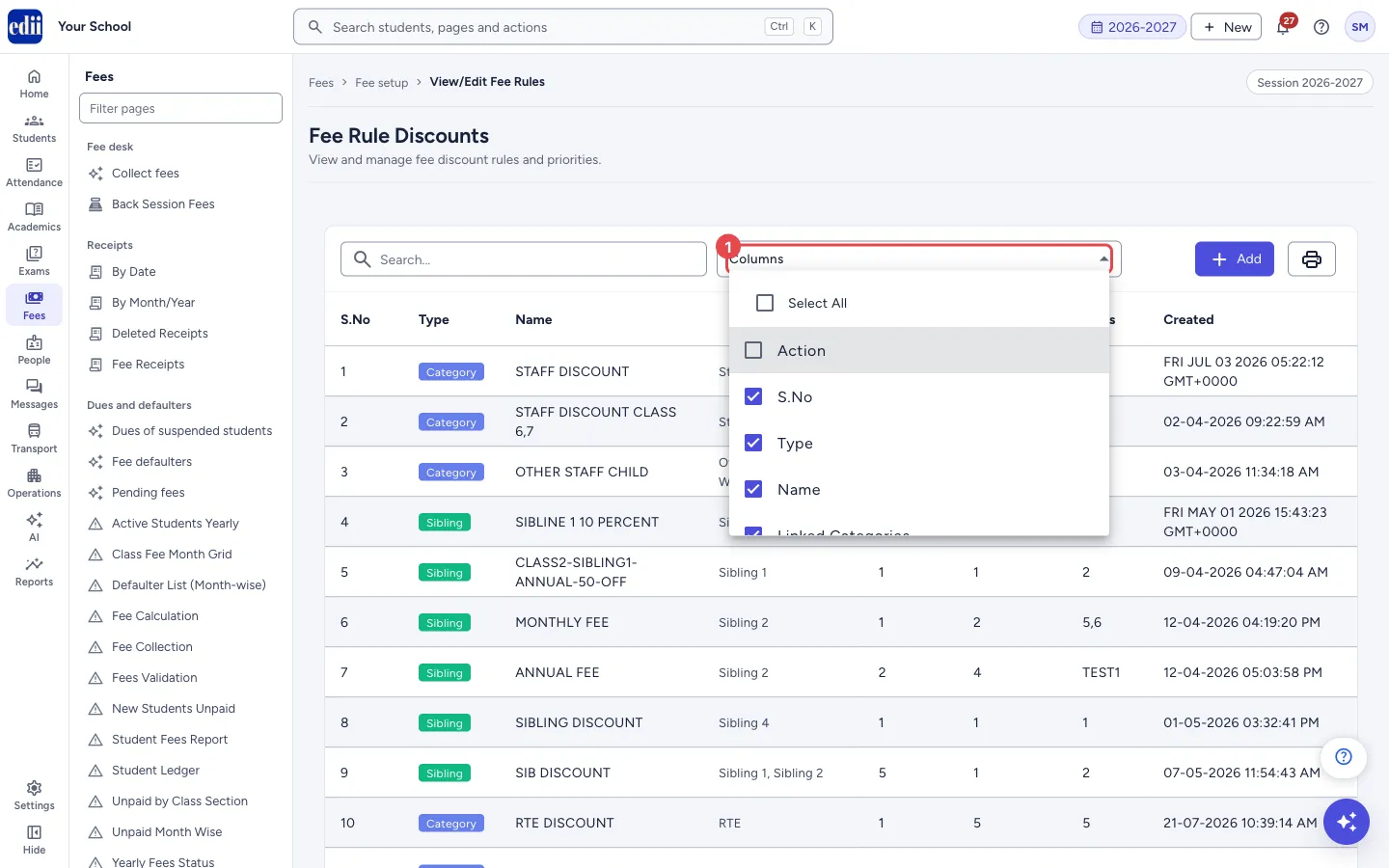
Section titled “2. Choose the columns”Open Columns and tick the columns you want: Action, S.No, Type, Name, Linked Categories, Priority, Overrides, Class and Created. Select All ticks every column. If you do not see the Action column, tick it here. EDII remembers your choice for this page on this computer.
 Open a bigger pictureतस्वीर बड़ी करें
3. Change a rule
Section titled “3. Change a rule”In the Action column of the row, choose Edit. The page Edit Fee Rule Discount opens (Update fee rule details), with the kind of rule shown at the top: Custom Category Rule or Sibling Rule.
It has the same boxes as Add Fee Rule: Rule Name, Rule Priority (1 to 100, 1 is the highest), Linked Categories or Sibling Position, Select Class, Select Section, Select Months, and the Fee Overrides lines with Fee Head, Type (Percent (%) or Flat Amount) and Value. A badge New: <amount> shows the fee after the discount. Use Add Fee Override to add a line and the remove button to take one away.
Select Update Fee Rule. When it is saved you see Fee Rule: <name> updated successfully and this list opens again. Back to Fee Rules List leaves without saving.
4. Delete a rule
Section titled “4. Delete a rule”In the Action column, choose Delete. A window asks Delete fee rule? and says This fee rule will be permanently deleted. This action cannot be undone. Select Delete fee rule to confirm, or cancel. When it is done you see Successfully deleted Discount, and the row leaves the list.
5. Print or download
Section titled “5. Print or download”Select the print button for Print (titled Fee Rule Discounts Report) and the downloads Download Excel File, Download Text File and Download CSV File. At the bottom you can choose to see 100, 200, 300, 400, 500 or 1000 rows on a page.
Buttons
Section titled “Buttons”| Button | What it does | What happens next |
|---|---|---|
| Add | Opens Add Fee Rule. | You leave this page. |
| Edit (in the Action menu) | Opens the rule for changes. | The page Edit Fee Rule Discount opens. |
| Delete (in the Action menu) | Deletes the rule after you confirm. | Successfully deleted Discount shows and the row leaves the list. |
| Update Fee Rule | Saves the changes made in Edit Fee Rule Discount. | Fee Rule: <name> updated successfully shows and this list opens. |
Columns
Section titled “Columns”| Column | Meaning |
|---|---|
| Action | A menu for the row: Edit and Delete. |
| S.No | The serial number of the row. |
| Type | Category for a rule by student category, Sibling for a rule by sibling position. |
| Name | The name of the rule. |
| Linked Categories | The categories, or the sibling positions, the rule is for. |
| Priority | The priority number of the rule. 1 is the highest. |
| Overrides | How many fee heads the rule gives a discount on. |
| Class | The classes the rule applies to. |
| Created | When the rule was created. |
Good to know
Section titled “Good to know”- Deleting a rule cannot be undone from this page.
- A rule needs at least one fee override. If you remove them all, EDII shows Please add at least one fee override and does not save.
Messages you may see
Section titled “Messages you may see”| Message | What it means | What to do |
|---|---|---|
| Fee Rule: <name> updated successfully | The changes were saved. | Nothing to do. |
| Successfully deleted Discount | The rule was deleted. | Nothing to do. |
| Please add at least one fee override | The rule has no fee override line. | Select Add Fee Override and fill the line. |
| No discount ID provided | The Edit page was opened without choosing a rule. | Open the rule from the Action menu of this list. |
| Bad/Slow Internet Connection, Please check your internet connection | The list could not be loaded. | Check the internet and open the page again. |
- Download the list before you delete a rule, so you have a record of its name, classes and overrides.
Stuck? Try this
Section titled “Stuck? Try this”| Problem | Likely cause | What to do |
|---|---|---|
| I cannot see Edit and Delete | The Action column is not ticked in Columns. | Open Columns and tick Action. |
| A rule I made is not in the list | It was created in another session. | Change the session at the top right. |
Did this page help?क्या इस पेज से मदद मिली?
Thanks! Glad it helped.धन्यवाद! अच्छा लगा कि काम बन गया।
Sorry about that. Ask in your own words, or write to us.माफ़ कीजिए। अपने शब्दों में पूछें, या हमें लिखें।