
Screen guide · Web app
Upload Content for Q&A
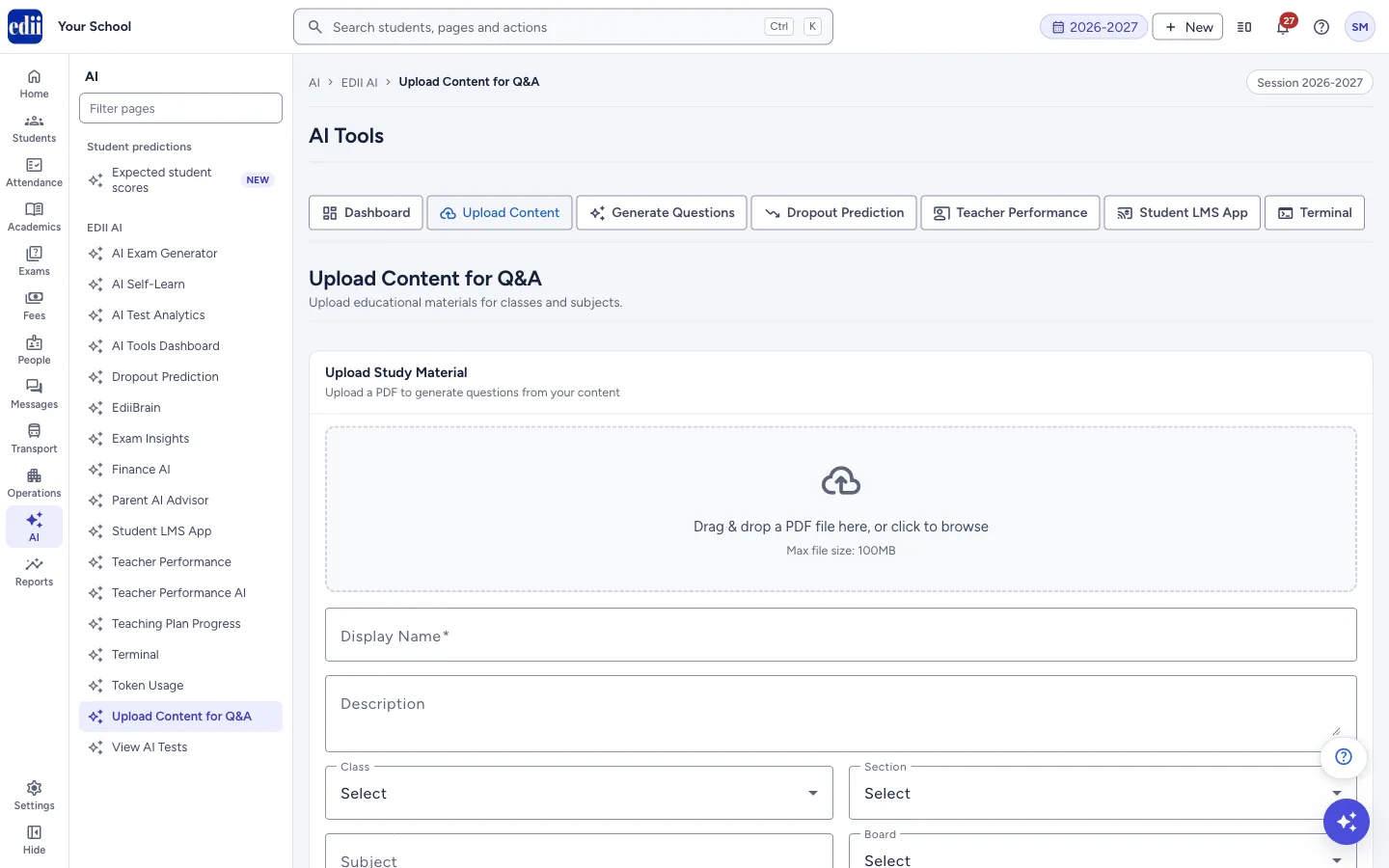
Upload a PDF of study material, with its class, subject and board, so that questions can be made from it. The page also lists the materials already uploaded and whether each is ready.
यह पेज अंग्रेज़ी में है। कुछ समझ न आए तो ।
Upload Content for Q&A (part of AI Tools) is where you add study material as a PDF. After you upload a PDF, EDII processes it so that questions can be generated from your own content. A PDF that has finished processing can be chosen in AI Exam Generator with Generate from Uploaded PDF.
The page has two boxes: Upload Study Material for the new PDF and its details, and Uploaded Materials, a list of everything uploaded with its status.
Who uses it and when
Section titled “Who uses it and when”Teachers and the exam in-charge use it to add chapters, notes or a book before making an AI test from them.
Before you start
Section titled “Before you start”- Have the PDF ready on your computer. It must be a PDF file of less than 100MB.
Where to find it
Section titled “Where to find it”- In school.edii.in: AI › EDII AI › Upload Content for Q&A
- Or press Ctrl K (⌘ K on a Mac) and type Upload Content for Q&A.
- Address:
school.edii.in/ai-tools/upload - Who can see it: Shown only when your school uses EDII’s AI in EDII. If it is missing from your menu, ask your school admin.
 Open a bigger pictureतस्वीर बड़ी करें
Step by step
Section titled “Step by step”1. Choose the PDF
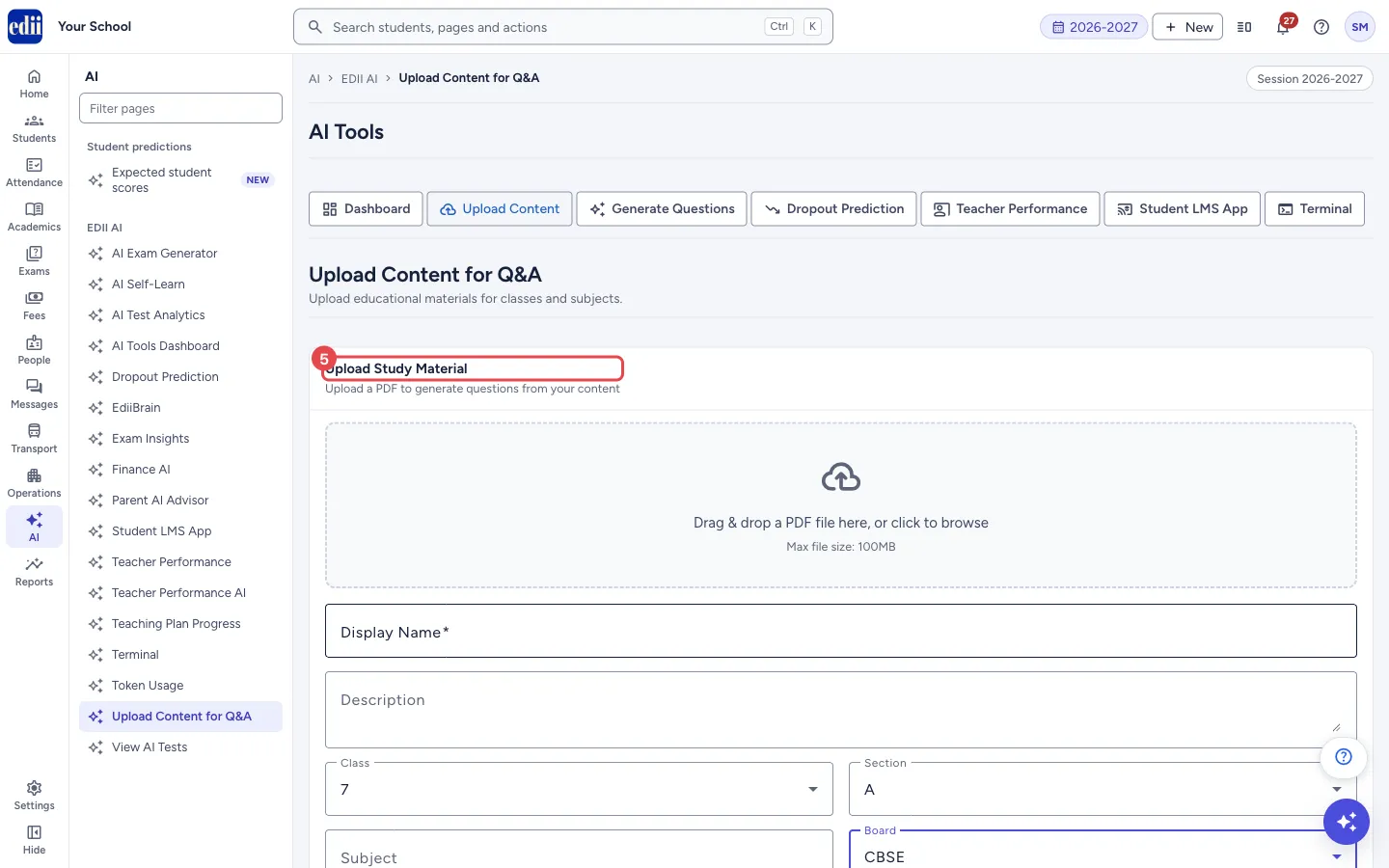
Section titled “1. Choose the PDF”In Upload Study Material, drag a PDF onto the dashed box, or click the box and pick the file. The file name and size show, with a Remove button if you picked the wrong one. If the file is not a PDF you see Only PDF files are allowed. If it is 100MB or more you see File size must be less than 100MB.
 Open a bigger pictureतस्वीर बड़ी करें
2. Fill in the details
Section titled “2. Fill in the details”Display Name is required; it is filled with the file name when you pick a file, and you can change it. Add a short Description if you like. Choose the Class and Section, type the Subject, choose the Board (CBSE, ICSE, State Board, IB or IGCSE) and, if you want, list the Topics separated by commas, for example Reflection, Refraction, Lenses.
3. Upload and process
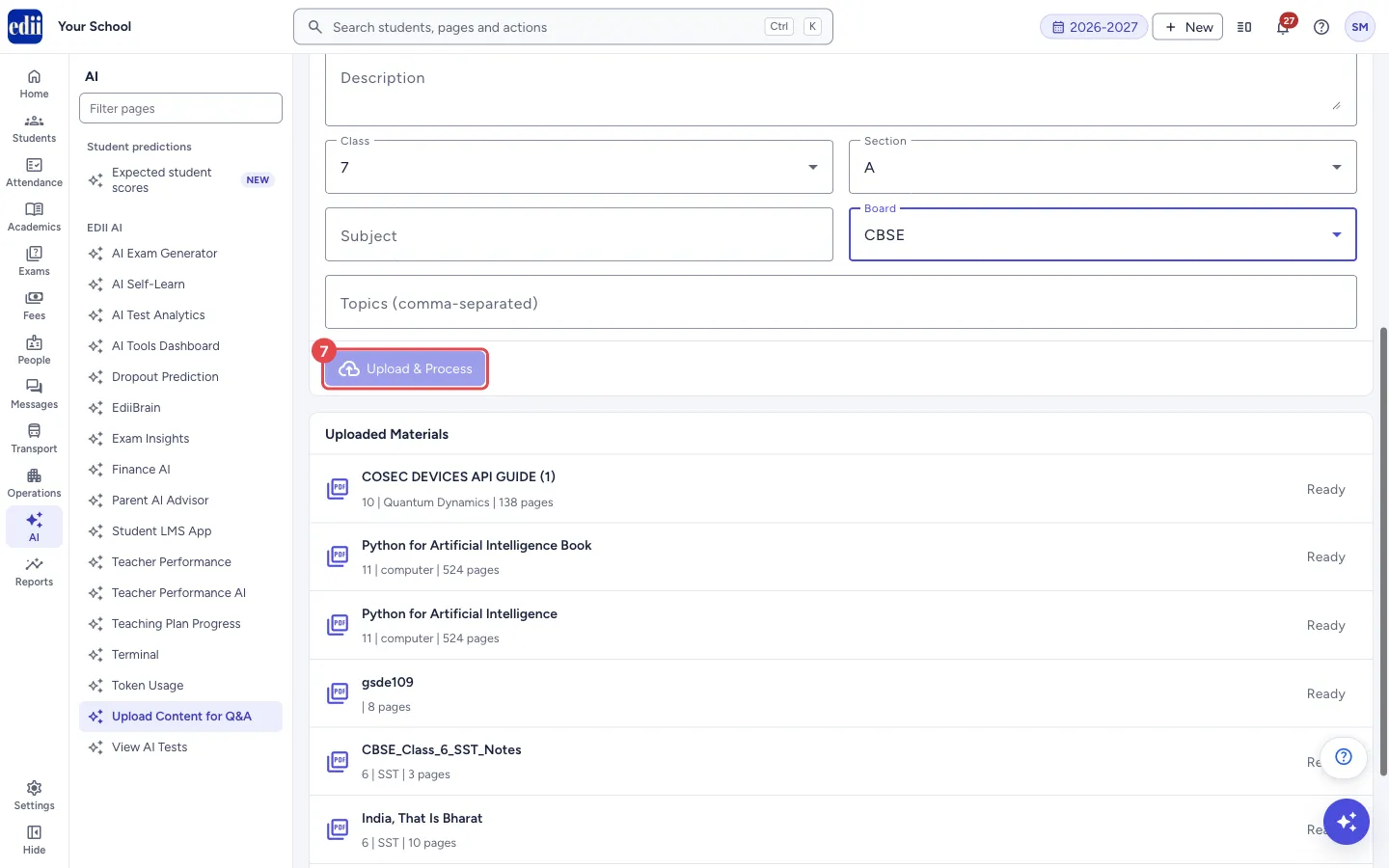
Section titled “3. Upload and process”Select Upload & Process. The button stays off until a file is picked and the display name is filled. A bar shows the steps (Getting upload URL…, then the upload, then Confirming upload…) with a percentage. When it is done you see PDF uploaded successfully. Processing has started. and the form is cleared.
 Open a bigger pictureतस्वीर बड़ी करें
4. Wait until it is Ready
Section titled “4. Wait until it is Ready”The new PDF shows in Uploaded Materials with a status: Uploaded, Processing or Indexing while it is being prepared (a small spinner shows), then Ready. The list refreshes by itself every few seconds until nothing is still being prepared. A status of Failed means the PDF could not be processed.
Fields and filters
Section titled “Fields and filters”| Field | What it is | Notes |
|---|---|---|
| PDF file | The study material to upload. | PDF only, under 100MB. |
| Display Name | The name shown in lists and when choosing the material in AI Exam Generator. | Required. |
| Description | A short note about the material. | Optional. |
| Class, Section | The class and section the material is for. | Optional. |
| Subject | The subject of the material. | Optional. Typed by hand. |
| Board | The board of the material. | Optional. CBSE, ICSE, State Board, IB or IGCSE. |
| Topics (comma-separated) | The topics the material covers. | Optional. Separate with commas. |
Buttons
Section titled “Buttons”| Button | What it does | What happens next |
|---|---|---|
| Remove | Clears the chosen file. | The drop box is empty again. |
| Upload & Process | Uploads the PDF and starts processing it. | PDF uploaded successfully. Processing has started. |
After you save
Section titled “After you save”- The PDF appears in Uploaded Materials and on the AI Tools Dashboard. When it is Ready, choose it in AI Exam Generator with Generate from Uploaded PDF.
Good to know
Section titled “Good to know”- Only PDF files under 100MB can be uploaded.
- Only PDFs with the status Ready can be used to make a test.
- Upload only material your school has the right to use.
Messages you may see
Section titled “Messages you may see”| Message | What it means | What to do |
|---|---|---|
| Only PDF files are allowed | The file you chose is not a PDF. | Choose a PDF file. |
| File size must be less than 100MB | The file is too big. | Split the PDF or use a smaller file. |
| PDF uploaded successfully. Processing has started. | The upload worked. | Wait for the status to show Ready. |
| Failed to initiate upload | The upload could not start. | Try again. |
| Failed to confirm upload | The file was sent but could not be confirmed. | Try again. |
| Upload failed: … | The upload stopped, for example because of the internet connection. | Check the connection and upload again. |
| No materials uploaded yet | The list is empty. | Upload a PDF. |
- Give each PDF a clear display name, for example Class 7 Science - Light. You will choose it by that name later.
- A scanned book with only pictures of pages may not give good questions.
Stuck? Try this
Section titled “Stuck? Try this”| Problem | Likely cause | What to do |
|---|---|---|
| Upload & Process is grey. | No PDF is chosen, or Display Name is empty. | Choose a file and fill Display Name. |
| A PDF stays on Processing for a long time. | Large PDFs take longer. | Wait. If it shows Failed, upload it again. |
Did this page help?क्या इस पेज से मदद मिली?
Thanks! Glad it helped.धन्यवाद! अच्छा लगा कि काम बन गया।
Sorry about that. Ask in your own words, or write to us.माफ़ कीजिए। अपने शब्दों में पूछें, या हमें लिखें।